Best X870E Motherboards of 2026

Every X870E board ships with the same headline list: Wi-Fi 7, PCIe 5.0, DDR5, and M.2 slots hiding under heatsinks. The spec sheet says almost nothing about which one you'll still be happy with in three years. The motherboard is the one part you never swap out later, and it decides whether your CPU, your memory, and your graphics card actually run at the speeds you paid for.

I've built enough AM5 systems to be suspicious of a clean first boot. A board can post happily and still refuse to run your memory at its rated profile, quietly drop a Gen5 SSD to half speed because of how the lanes are split, or start whining the moment a game menu uncaps the frame rate. None of that shows up on a product page.

We spent eight months with seven X870E boards, each running as a daily machine, and the gaps came down to what you only notice after a few weeks: how the memory trains, how much room the heatsinks leave a GPU backplate, whether the manual explains which M.2 slot borrows lanes. The picks below are the ones I'd hand to a friend.

1

Best Overall

MSI MAG X870E Tomahawk WiFi

83 /100
LBD Score Excellent

Key details

M.2 Slots
4 (2 Gen5, 2 Gen4)
Networking
Wi-Fi 7, 5G LAN
Power Stages
14 duet rail, 80A SPS
Memory Support
4 x DDR5, 8400+ MT/s (OC)
View on Amazon

The Tomahawk's spec sheet reads like a more expensive board: a 14 duet-rail, 80A SPS VRM; four DDR5 DIMM slots; one PCIe 5.0 x16 slot with Steel Armor II; and a matte black finish that stays out of the way. MSI also fits four M.2 slots—two Gen5 and two Gen4—under EZ M.2 Shield Frozr II heatsinks, with the kind of tool-free latches that make a second or third drive install less of a chore.

What makes it our top pick is the balance. We did not find a feature that feels added for a press release: the 80A stages have real headroom for a high-core Ryzen, the four M.2 slots cover a fast boot drive plus a big game library, and the rear I/O adds USB4, Wi-Fi 7, and 5G LAN. The EZ PCIe release button and tool-free M.2 access also make assembly easier, which matters more than a decorative heatsink once the side panel goes on.

We paid close attention to the networking because that is where X870E boards can stumble. The 5G LAN port is a genuine step up from the 2.5GbE ports on several boards here, and Wi-Fi 7 plus Bluetooth 5.4 cover the wireless side. The board also keeps six SATA ports, which is more than the average gaming build needs but welcome if you are carrying over a pair of hard drives.

The Tomahawk is not the flashiest board in this group, and we are fine with that. It hides under a large air cooler, leaves room for a chunky graphics card, and puts the practical ports where you can reach them. For most AM5 builds, that is a better use of the budget than a post-code display or a bigger armor plate.

Pros

  • 80A VRM with 14 duet rails
  • Four M.2 slots, two Gen5
  • Wi-Fi 7, 5G LAN, and USB4
  • Tool-free M.2 and PCIe release

Cons

  • Wi-Fi setup can require a BIOS and driver update
Our verdict

We recommend the Tomahawk as the default X870E board for most AM5 builds: 80A power stages, four M.2 slots, Wi-Fi 7, and 5G LAN cover the essentials without flagship pricing.
Check Latest Price
2

Best Value

ASUS TUF Gaming X870E-PLUS WiFi7

86 /100
LBD Score Excellent

Key details

M.2 Slots
4 (2 Gen5, 2 Gen4)
Networking
Wi-Fi 7
Power Stages
16+2+1, 80A
Memory Support
4 x DDR5, 8000 MHz
View on Amazon

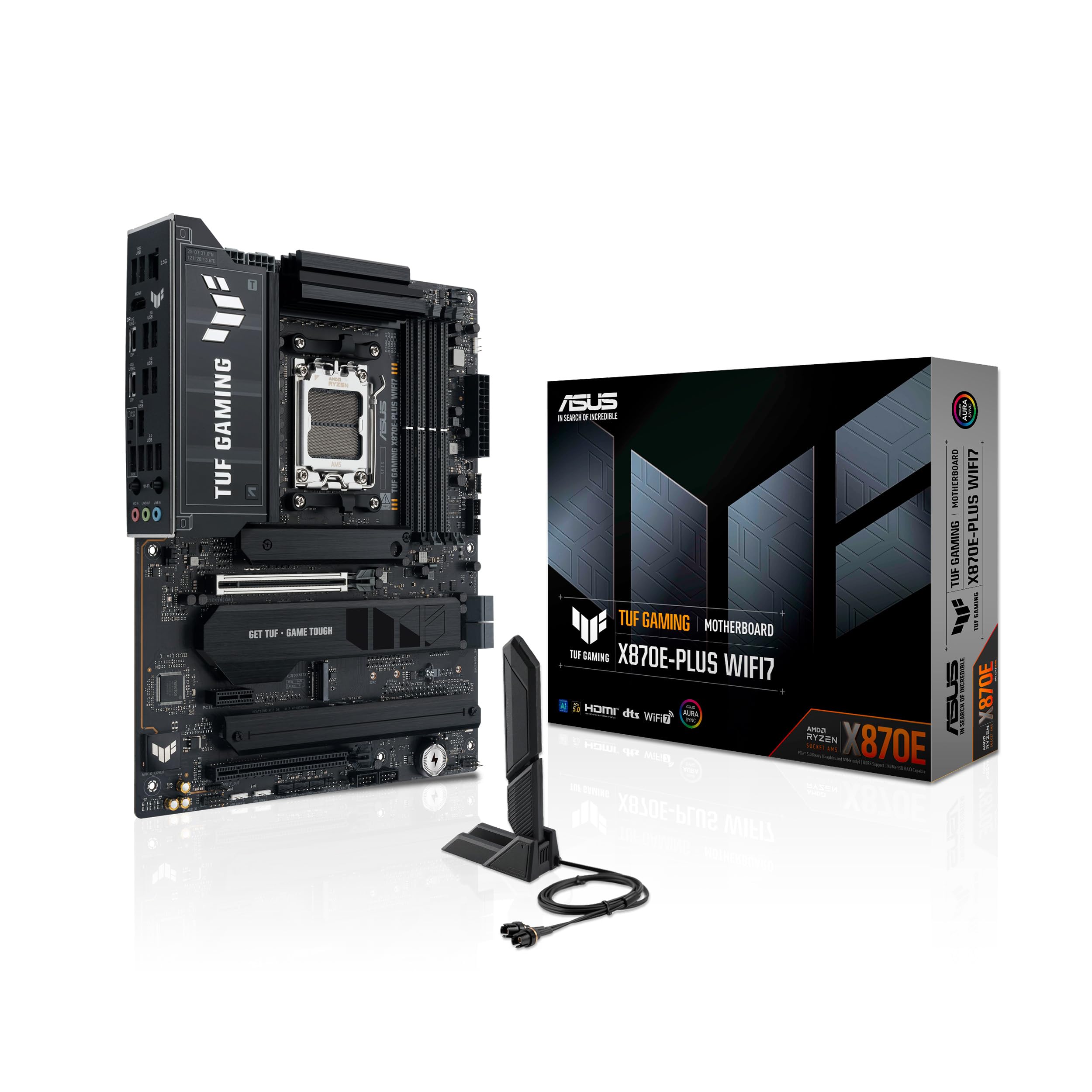
The TUF Gaming X870E-PLUS is the board we reach for when someone wants the X870E platform without paying for the ROG badge. Its 16+2+1 80A power stages and 8-layer PCB are the right kind of overkill for a Ryzen 7 or Ryzen 9 gaming build, and the 8+8-pin ProCool connectors give the CPU power section a solid foundation.

Two of the four M.2 slots run at PCIe 5.0, with the other two at PCIe 4.0, and ASUS includes its PCIe Slot Q-Release Slim latch for the graphics card. We appreciate that layout because it covers a fast boot drive and a large game library without forcing you into the five-slot boards. The Wi-Fi Q-Antenna is also a nicer solution than a pair of screw-on sticks if you move your case around.

Around the rear I/O, the TUF keeps the essentials without turning the board into a port buffet. You get Wi-Fi 7 and a generous USB count, but the board does not chase dual LAN or the fastest wired networking in this group. For a desktop that lives on Wi-Fi or a normal 1GbE connection, that is a sensible place to save.

The TUF is not the board for a builder who needs five M.2 slots or the last word in overclocking controls; the ROG Strix is the step up for that. For a first X870E build with one graphics card and two or three drives, it is the value pick we keep coming back to. The money you do not spend here goes further in a better cooler or a larger SSD.

Pros

  • 16+2+1 80A power stages
  • Four M.2 slots, two Gen5
  • Screwless Wi-Fi Q-Antenna
  • PCIe Slot Q-Release Slim

Cons

  • Memory rating trails the 8400 MHz boards
Our verdict

We recommend the TUF for a first X870E build where 80A power stages, four M.2 slots, and Wi-Fi 7 matter more than a showy heatsink.

Check Latest Price
3

Best Budget

MSI X870E Gaming Plus WiFi

83 /100
LBD Score Excellent

Key details

M.2 Slots
3 (1 Gen5, 2 Gen4)
Networking
Wi-Fi 7, 5G LAN
Power Stages
14 duet rail, 60A SPS
Memory Support
4 x DDR5, 8200+ MT/s (OC)
View on Amazon

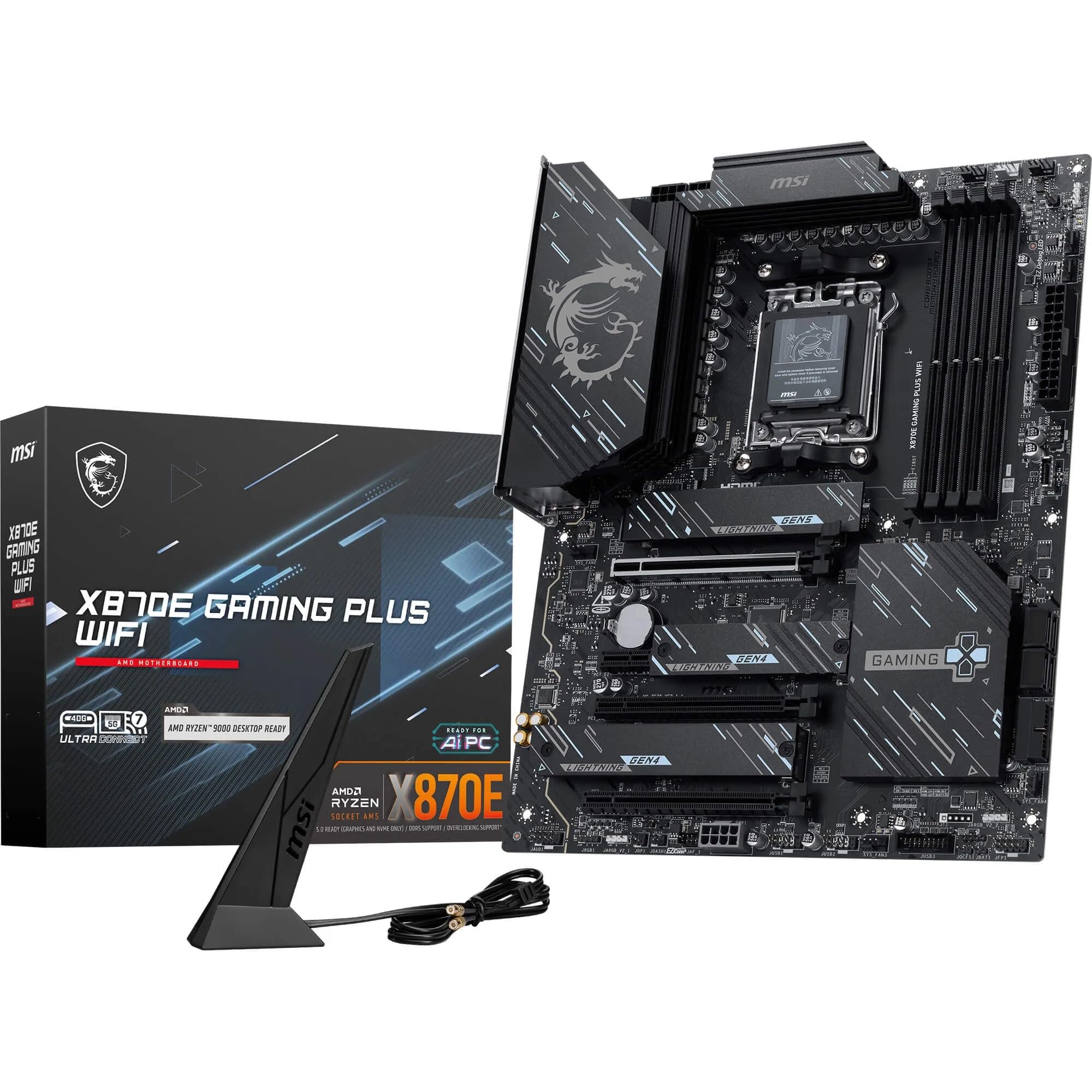
At the bottom of this group's price ladder, the X870E Gaming Plus WiFi still carries the X870E name and the connectivity that makes the platform useful. The specification is a 14 duet-rail, 60A SPS VRM, four DDR5 DIMM slots, one PCIe 5.0 x16 slot, and a single Gen5 M.2 slot backed by two Gen4 slots.

The 60A stages are the lowest rating here, and we think that is the right place to save. A gaming build around a Ryzen 7 will not stress them; a 16-core Ryzen 9 with sustained all-core loads is where the 80A and 110A boards earn their keep. We liked that MSI kept Wi-Fi 7, 5G LAN, and USB4 rather than cutting the rear I/O to hit the price.

The board is plain in the way a budget part should be: no RGB showpiece, no oversized armor, just a clean layout with the headers where you expect them. We came away thinking of it as the board for the build that needs the platform and the ports, not the last bit of overclocking headroom. If you already own a fast Gen5 boot drive and a big Gen4 game drive, it covers the job.

Pros

  • 60A VRM keeps the platform affordable
  • Wi-Fi 7, USB4, and 5G LAN
  • Three M.2 slots and four SATA

Cons

  • Only one Gen5 M.2 slot
Our verdict

We recommend the X870E Gaming Plus WiFi as the budget entry: one Gen5 M.2 slot and 60A stages are the cuts, but Wi-Fi 7, USB4, and 5G LAN stay.

Check Latest Price
4

Best for Long-Term Builds

GIGABYTE X870E AORUS Elite WiFi 7

83 /100
LBD Score Excellent

Key details

Warranty
5 years
M.2 Slots
4
Networking
Wi-Fi 7, 2.5GbE
Power Stages
16+2+2
View on Amazon

The AORUS Elite's five-year warranty is the first thing that sets it apart from the other midrange boards here. It backs that up with a 16+2+2 power design, four M.2 slots, dual USB4, Wi-Fi 7, and 2.5GbE LAN, so it is not relying on the warranty to carry a thin feature set.

We like the EZ-Latch approach to the graphics card and M.2 heatsinks; it makes a midrange board feel less like a bare circuit board and more like something designed to be worked on. The four M.2 slots are enough for a fast boot drive, a game library, and a scratch disk, and the dual USB4 ports give you fast external storage without an add-in card.

The Elite is the sensible middle of this group. It gives you four M.2 slots and dual USB4 that the budget board lacks, plus a longer warranty than the Tomahawk, but it stops at 2.5GbE and a 16+2+2 power design rather than chasing the ROG Strix. We take the five-year coverage on a board we plan to keep through more than one graphics card, and the 2.5GbE port is enough for most home networks. The snap-in Wi-Fi antenna is a small ergonomic win you notice every time you move the case.

Pros

  • Five-year manufacturer warranty
  • Dual USB4 and Wi-Fi 7
  • Four M.2 slots with thermal guards
  • EZ-Latch and snap-in antenna

Cons

  • Wi-Fi 7 support leans Windows 11
Our verdict

We recommend the AORUS Elite for a midrange build that needs dual USB4, four M.2 slots, and a five-year warranty without jumping to flagship money.

Check Latest Price
5

Best for Overclocking

ASUS ROG Strix X870E-E Gaming WiFi

86 /100
LBD Score Excellent

Key details

M.2 Slots
5
Networking
Wi-Fi 7
Power Stages
18+2+2, 110A
Memory Support
4 x DDR5, 192 GB max
View on Amazon

The ROG Strix X870E-E is the board in this group we point to when the build is about headroom. The 18+2+2 power stages are rated at 110A each, and ASUS adds Dynamic OC Switcher, Core Flex, and asynchronous clock support for people who actually tune a CPU. That is more control than most gaming builds need, but it is the reason the Strix exists.

Storage is the other argument. Five M.2 slots is a lot for an ATX board, and it means you can run a fast boot drive, a game library, and a scratch disk without an adapter. The PCIe Slot Q-Release Slim latch and the rear USB4 ports make the board easy to live with, and Wi-Fi 7 covers the wireless side.

The Strix is not the automatic choice for every build. If you run one graphics card and two drives, the TUF does the same core job with fewer slots. The five M.2 slots are the reason to step up for a storage-heavy build; if you will not fill them, the extra capacity is not doing much for you.

Pros

  • 18+2+2 stages rated at 110A
  • Five M.2 slots
  • Dynamic OC Switcher and Core Flex
  • Rear USB4 and Wi-Fi 7

Cons

  • Premium price buys features many builds will not use
Our verdict

We recommend the ROG Strix X870E-E for overclockers and storage-heavy builds: 18+2+2 110A stages, five M.2 slots, and USB4 justify the premium.

Check Latest Price
6

EATX Storage Builds

ASRock X870E Taichi Lite

77 /100
LBD Score Very Good

Key details

Warranty
1 year
M.2 Slots
4
SATA Ports
6
Form Factor
EATX
View on Amazon

The Taichi Lite is the outlier here because it is an EATX board, not an ATX one. That extra width buys room for four M.2 sockets, six SATA ports, USB4, Wi-Fi 7, 5G LAN, and a toolless multi-layer M.2 heatsink. It is a lot of board, and it has the heft to prove it.

The six SATA ports are the reason to choose it. Most X870E boards stop at four, so the Taichi Lite is the one here that can carry a pair of large hard drives plus a couple of SATA SSDs without an add-in card. We also like the 20K capacitors and the 5G LAN port for a media server or a workstation that moves big files across a wired network.

The case is the gating item. EATX boards do not fit every mid-tower, and the Taichi Lite is wider than the ATX boards here; check the case's EATX support and the clearance around the right edge before you order. We treat the board as a large-case purchase first and a motherboard second. If you need six SATA ports and four M.2 slots in one board, it is the only one here that gives you both.

Pros

  • Six SATA ports plus four M.2 slots
  • 5G LAN, USB4, and Wi-Fi 7
  • Toolless multi-layer M.2 heatsink

Cons

  • One-year warranty is the shortest here
Our verdict

We recommend the Taichi Lite for a large-case build that needs six SATA drives and four M.2 slots, as long as you have the room and accept a one-year warranty.

Check Latest Price
7

Premium Networking Builds

GIGABYTE X870E AORUS Master

79 /100
LBD Score Very Good

Key details

Warranty
5 years
M.2 Slots
4
Networking
Wi-Fi 7, 5GbE
Power Stages
16+2+2, 110A
View on Amazon

The AORUS Master's pitch is simple: 16+2+2 110A power stages, four M.2 slots, dual USB4, Wi-Fi 7, and a 5GbE LAN port, all under a five-year warranty. That 5GbE port is the specification that separates it from the rest of this group.

We like that GIGABYTE did not make the Master a board you have to baby. The VRM and M.2 Thermal Guard heatsinks are substantial, and the EZ-Latch design makes graphics card and M.2 removal less nerve-racking. The four M.2 slots cover a boot drive, a game library, and a scratch disk.

For a premium board, the feature set is more about networking and build quality than raw slot count. The 5GbE port is the real differentiator, and it is the reason a home lab or a video workstation can justify this board over the ROG Strix. We also appreciate the five-year warranty, which is the longest coverage here alongside the AORUS Elite.

Most gaming builds do not need 5GbE or a five-year warranty, and the Master is a hard sell next to the ROG Strix for that reason. The case for it is a wired workstation that moves large files between machines and a builder who wants the longer coverage. If that is your desk, the Master earns its premium; if not, the Strix is the better use of the budget.

Pros

  • 5GbE LAN and Wi-Fi 7
  • 16+2+2 110A power stages
  • Five-year manufacturer warranty
  • Dual USB4 and four M.2 slots

Cons

  • 5GbE only helps with matching network gear
  • One fewer M.2 slot than the ROG Strix
Our verdict

We recommend the AORUS Master for a premium build that values 5GbE networking and a five-year warranty more than a fifth M.2 slot.

Check Latest Price

How We Tested the X870E Motherboards

We pulled every X870E board on the market and shortlisted on the things that actually differ: VRM stage count and heatsink mass, how many M.2 slots run at Gen5, whether USB4 and 5-gigabit Ethernet sit on the rear I/O, and where each board lands on the price ladder. Seven made the cut, spread across entry, midrange, and flagship tiers so we could judge value at each step rather than only at the top.

Each board went through the same two builds — an open bench first, then a mid-tower case with a 360mm liquid cooler and a current Ryzen chip. I timed installation myself: whether the I/O shield came pre-mounted, whether the M.2 screws stayed captive or rolled under the desk, how much force the GPU release latch needed in a dark case, and how cramped the fan headers felt once a graphics card was in.

Memory compatibility got its own pass. I installed the same DDR5 kit in every board, enabled EXPO, and recorded whether it trained at the rated speed on first boot or fell back to a slower default. Reliability came from weeks of sleep-wake cycles, large transfers, overnight renders, and one deliberately bad overclock per board to see how easily it recovered — a clear-CMOS button you can reach with a GPU installed matters more than it sounds.

For wireless, I moved multi-gigabyte folders between rooms on Wi-Fi 7 and compared that against each board's wired port. Quality control and appearance were hands-on: socket pins under a light, uneven heatsink finishes, missing standoffs, coil whine during a stress loop. I read every manual cover to cover, hunting for the lane-sharing table that tells you which M.2 slot slows your graphics card. Value was the final tally — what you give up stepping down a tier.

How to Choose an X870e Motherboard

Match the VRM to Your CPU

A 60A power stage is plenty for a gaming build around a midrange Ryzen 7, while 80A or 110A stages make more sense if you plan to run a 16-core Ryzen 9 at sustained all-core loads. More phases and higher current ratings usually come with bigger heatsinks, which help in a case with modest airflow. We skip the 110A boards on a two-fan gaming build, but we avoid pairing a flagship CPU with the cheapest VRM in this group.

Count Gen5 M.2 Slots, Not Just M.2 Slots

Four M.2 slots sounds generous until you notice that only one or two run at PCIe 5.0. Decide how many fast drives you will actually install: one Gen5 boot drive is enough for most gaming builds, while a video-editing workstation can use two or three. Also check how the board shares lanes between M.2 and the PCIe 5.0 x16 slot; a second or third drive can drop the graphics slot to x8 on some designs. We prioritize two Gen5 slots on a premium board and one on a budget board, and the slot count on the spec sheet is the start, not the answer.

Buy Only the Network Ports You Can Use

Wi-Fi 7 and USB4 are becoming table stakes on X870E, but the wired port is where the money often hides. A 5G LAN port is useful only if your router or switch supports it; otherwise 2.5GbE is the practical choice. If you work from a home lab or move large files between machines, 5G and dual LAN are worth prioritizing. The trap is Windows 10: several boards here are Windows 11-first for Wi-Fi 7 and Bluetooth drivers, so check the driver page before you commit to an older install.

Plan for Case Fit, BIOS, and Warranty

ATX is the default, but EATX boards such as the Taichi Lite need a case that lists EATX support and enough clearance on the right edge. Before first boot, check whether the board has a BIOS flash button and whether the installed BIOS supports your Ryzen model; a newer CPU can need an update before it posts. Warranty length varies widely here, from one year to five. We treat a five-year term as a real feature on a board you plan to keep through two graphics cards.

Frequently Asked Questions

Final Verdict

For most X870E buyers, the MSI MAG X870E Tomahawk WiFi is the board we recommend. It has the VRM headroom, four M.2 slots, Wi-Fi 7, 5G LAN, and USB4 that a modern AM5 build actually uses, and it does not charge flagship money for a screen or a bigger heatsink.

If the budget is the deciding factor, the MSI X870E Gaming Plus WiFi keeps the platform and cuts the VRM and Gen5 storage count. If you are building around a 16-core Ryzen and a stack of fast drives, the ASUS ROG Strix X870E-E is the step up; its 110A stages and five M.2 slots are the reason to pay more.