Best X870 Motherboards of 2026

A motherboard is the one part of an AM5 build you rarely swap later, and X870 boards make you read the fine print before you commit: you get USB4, PCIe 5.0, Wi-Fi 7 and four M.2 slots, but which of those shares lanes with your graphics card depends on the model. Populate the wrong slot and the GPU you just paid for quietly drops to half speed.

I've done enough AM5 builds to have a first-boot ritual: one stick of RAM, cleared CMOS, mild superstition. My team and I spent six months building eight X870 boards into working machines rather than open benches, and what separated them wasn't in the spec table — it was whether the memory trained on the first try, whether Wi-Fi 7 held up two rooms from the router, and whether the drivers installed without a scavenger hunt.

The keepers won on unglamorous things: power delivery that doesn't throttle through a long render, a graphics card latch your fingers can actually reach, heatsinks that come off without a fight. Here's what earned a spot in the case.

1

Best Overall

GIGABYTE X870 AORUS Elite WIFI7

88 /100
LBD Score Excellent

Key details

Warranty
5 years
M.2 Slots
4
Networking
Wi-Fi 7, 2.5GbE
Power Design
16+2+2
View on Amazon

Five years of manufacturer coverage is unusual at this price, and it is the first thing we check on a board that will outlive a graphics card or two. The AORUS Elite backs it with sixteen CPU power stages plus two each for SoC and memory, four M.2 slots, PCIe 5.0, USB4 and Wi-Fi 7. Nothing here is the fastest version of anything in this group. Everything here is the version a normal AM5 build actually needs.

Power delivery is the spec buyers skip and the one that decides whether a Ryzen 9 is held back. 16+2+2 puts this in the same class as the ROG Strix and the Stealth ICE, so a 12- or 16-core chip is not going to be limited by the board. It is also the easiest of the four to build on: Gigabyte's EZ-Latch fittings release the M.2 drives and the graphics card without a screwdriver, and the drive heatsinks come off in one piece rather than three. Anyone who has dropped a screw behind a fitted graphics card will appreciate how much of this board comes apart by hand.

Wireless is the part to set up deliberately. Install Gigabyte's own Wi-Fi and Bluetooth drivers from the support page rather than letting Windows pick for you, because Bluetooth pairing is where this board gets fussy. Treat that as a build step and the Wi-Fi 7 radio behaves like a network cable you cannot see.

Four SATA ports is the quiet advantage. Where the ASUS boards and the Stealth ICE give you two, this one takes four, which is the difference between carrying your old drives across into the new build and buying enclosures for them. That, plus the warranty and the price, is why this is the board we hand to someone building their first AM5 machine and to someone building their fifth.

Pros

  • 16+2+2 power for high-core Ryzen 9 chips
  • Four M.2 slots with PCIe 5.0
  • Five-year manufacturer warranty
  • Tool-free EZ-Latch for drives and GPU

Cons

  • Wired networking stops at 2.5GbE
Our verdict

The board we point most AM5 builders to: 16+2+2 power, four M.2 slots and Wi-Fi 7 at a midrange price, with five years of coverage behind it.

Check Latest Price
2

Best for White Builds

ASUS ROG Strix X870-A

88 /100
LBD Score Excellent

Key details

Finish
White and silver
M.2 Slots
4
SATA Ports
2
Power Stages
16+2+2, 90A per stage
View on Amazon

Most white builds are a white case with a black board hiding inside it, and the X870-A is the fix. The PCB, the heatsinks and the rear I/O cover all run white and silver, so the parts visible through a side panel belong to the same design instead of fighting it. For a machine that sits on a desk with glass on two sides, this is the board the rest of the build gets planned around.

There is a real board under the finish. Sixteen CPU stages plus two each for SoC and memory, rated at 90A per stage and ahead of the 80A parts on the TUF, along with four M.2 slots, PCIe 5.0 and USB4. Q-Release Slim is the detail we keep coming back to: a latch that frees the graphics card without reaching under it with a fingertip, which is the single worst moment of any upgrade inside a finished case.

Budget an evening for drivers. Windows does not arrive knowing this board's network chips, and ASUS leaves the packages as separate downloads, so put LAN, Wi-Fi and chipset on a USB stick before you install the operating system. Do that and it is a clean build; skip it and you are troubleshooting from a phone. Bring an EXPO kit from ASUS's validated memory list too, since odd high-speed DDR5 kits are where this board gets fussy.

Pros

  • White and silver finish that reads as deliberate
  • 90A per-stage power delivery
  • Four M.2 slots, PCIe 5.0 and USB4
  • Q-Release Slim simplifies GPU swaps

Cons

  • The white finish carries a price premium
Our verdict

If the build is going on a desk behind glass, this is the board that makes it look intentional, and the 90A power stages mean the finish costs you nothing.

Check Latest Price
3

Best for BIOS Recovery

ASUS TUF Gaming X870-PLUS WiFi

88 /100
LBD Score Excellent

Key details

USB
USB4 40Gbps
M.2 Slots
4
SATA Ports
2
Power Stages
16+2+1, 80A per stage
View on Amazon

Four M.2 slots, USB4 at 40Gbps, and a rear panel generous with both flavors of USB-C. The TUF is the board you buy when the plan is one big case, a lot of storage, and a machine that earns its keep for work as well as games.

Sixteen CPU stages plus two more at 80A each on an eight-layer board, and a BIOS that is straightforward to navigate and easy to update. The feature we value most is BIOS FlashBack: it updates the firmware from a USB stick with no CPU or memory installed, so a board built before your processor existed is an inconvenience rather than a return. Pair a Ryzen 9000 chip with a board that has been on a shelf and that nets out to a fairly ordinary build day.

Against the AORUS Elite, the TUF gives up a little per-stage headroom and two years of warranty in exchange for ASUS's tuning layer: AI Overclocking, AI Cooling II and memory profiles that configure themselves, plus the FlashBack recovery. If you prefer to tune memory and fans in software rather than in a BIOS menu, that is a trade worth making. If you would rather set it once and forget it, the Elite is the better board for the same money.

Pros

  • Four M.2 slots and USB4 at 40Gbps
  • BIOS FlashBack updates without a CPU
  • 16+2+1, 80A stages on an eight-layer PCB

Cons

  • Only two SATA ports
  • Linux support and driver downloads are thin
Our verdict

Buy it for ASUS's BIOS and recovery tools: four M.2 slots, USB4 at 40Gbps, and a guaranteed route back to a posting system when a flash goes wrong.

Check Latest Price
4

Cable-Free Showcase Builds

GIGABYTE X870 AORUS Stealth ICE

85 /100
LBD Score Excellent

Key details

Layout
Reverse-connect
M.2 Slots
4
Networking
Wi-Fi 7, 5GbE
Power Design
16+2+2
View on Amazon

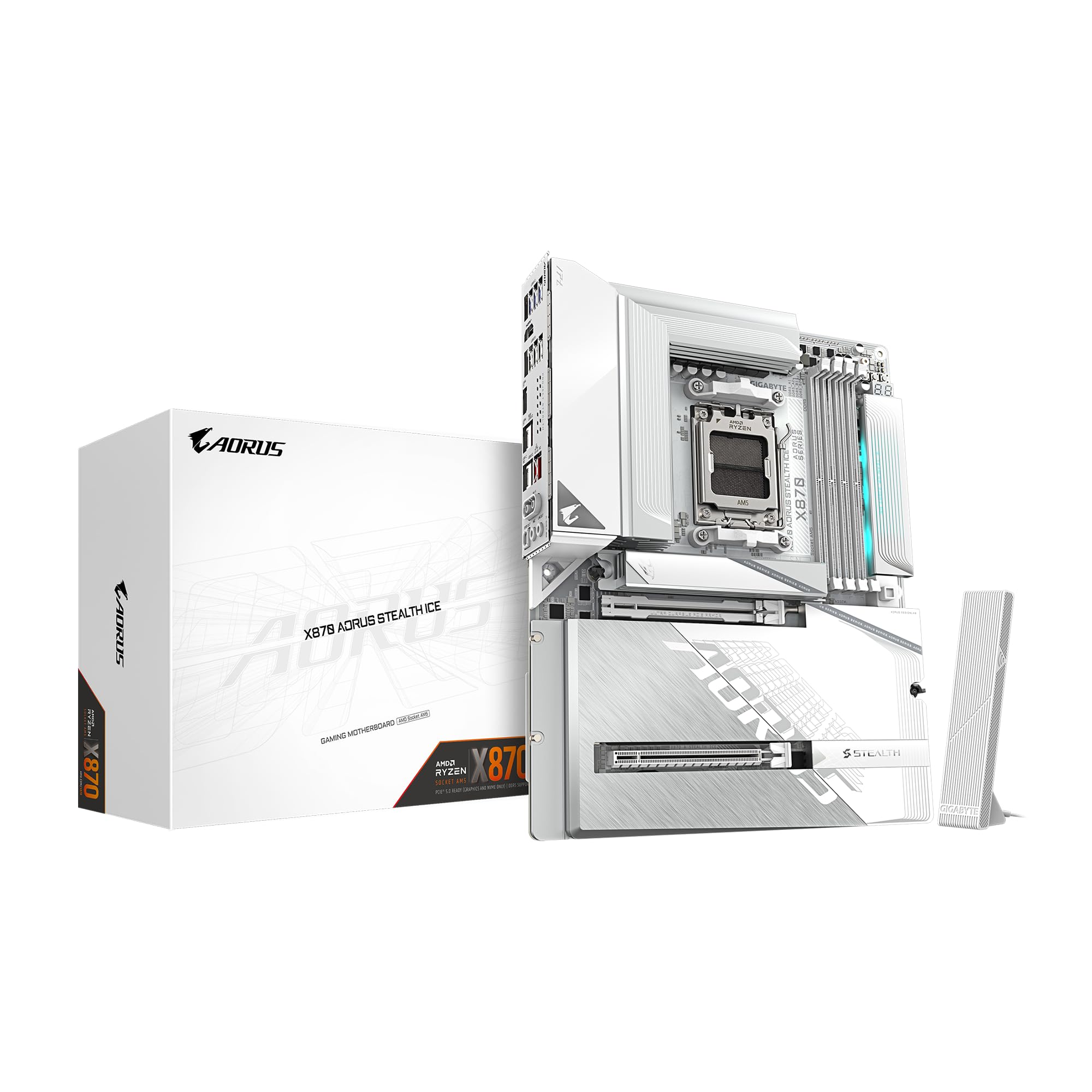
Every connector on this board sits on the back edge, which is either the reason to buy it or the reason you cannot use it. The photos are honest: no 24-pin, no front-panel loom, no fan cables crossing the glass. It only works in a chassis with cutouts behind the socket, though, and Gigabyte publishes a compatibility list. Read that before you order the case, not after.

Behind the trick is the strongest connectivity in this group: Wi-Fi 7 and 5GbE Ethernet, double the wired speed of the other three, plus four M.2 slots, USB4 and a 16+2+2 power design on a six-layer board. Nothing about the reverse-connect layout costs you power delivery or drive space, which is the usual tax on showcase hardware, and we looked twice at the spec sheet to be sure.

The graphics card's own power cable is the one thing that still crosses the front, so the cableless result depends on the card as much as the board. And this is a board to choose before the case rather than after, because reverse-connect chassis are the entry ticket and they narrow the shelf considerably. Decided in that order, it produces the cleanest build in this roundup.

Pros

  • Reverse-connect layout clears the front of the case
  • 5GbE Ethernet, the fastest wired networking here
  • 16+2+2 power despite the showcase layout

Cons

  • The most expensive board in this group
Our verdict

The board for a cableless showcase build, as long as you confirm your chassis is reverse-connect ready before you order the case and the board together.

Check Latest Price

How We Tested the X870 Motherboards

We started with spec sheets, because X870 narrows the field fast: every board on our shortlist had to carry USB4, Wi-Fi 7, PCIe 5.0 for the graphics card, and heatsinks over at least two M.2 slots. From there we filtered by power stage count and price tier, then read owner reports about cold boots, memory compatibility and driver gaps before buying anything. Eight boards survived, all AM5, all DDR5.

Each went into a mid-tower case on my desk and stayed for six months of ordinary use: work-from-home days, 4K gaming at night, a handful of long video exports, and more sleep-wake cycles than I'd like to admit. I built every one myself and wrote down where the layout fought me — front-panel headers tucked under a shroud, a fan header sitting exactly where a top radiator wants to go, a graphics card latch I could only reach with a screwdriver.

First boot was the real test. We ran a 32GB DDR5 kit at its rated EXPO profile and noted whether it trained once or fell back to a slower default, then watched for cold-boot retries over the following weeks. Driver compatibility got a clean Windows install and whatever the vendor's own utility could find; anything that sent me hunting through a support page went in the notes. Each Wi-Fi 7 radio connected to the same router two rooms away so I could compare throughput, USB4 was checked with an external SSD full of raw footage, and build quality came down to feel — board flex when seating a cooler, metal versus plastic on the rear shroud, how the board looked once the side panel went on. Value got the last word: what the same money bought elsewhere in the lineup.

How to Choose an X870 Motherboard

Match the Power Design to Your CPU

Stage count is the clearest thing to compare, and it should follow the chip you are buying rather than the badge on the box. The 16+2+2 layout on the AORUS Elite and the ROG Strix, or the 16+2+1, 80A design on the TUF, is built to feed a 12- or 16-core Ryzen 9 under sustained all-core load with headroom left for a 9800X3D. If you are building around a six- or eight-core chip, that headroom is money you could put into the GPU instead.

The pairing to avoid is a high-core Ryzen 9 on a board with a small stage count and a minimal VRM heatsink; that is the combination that starts limiting clocks during a long render. Check that the VRM is actually covered by metal, not just surrounded by it.

Count the Drives Before You Count the Slots

X870 pushes storage onto M.2, and SATA is where boards economize. All four of these give you four M.2 slots; SATA runs from four on the AORUS Elite down to two on the TUF, the ROG Strix and the Stealth ICE. Three mechanical drives carried over from an old tower need a different board than a two-NVMe gaming machine, and there is no driver trick that turns two SATA ports into four.

If an optical drive or a big SATA SSD is part of the plan, read that one spec line before anything else. If everything moves to NVMe, ignore SATA entirely and spend the attention on M.2 heatsink coverage instead.

Wired Networking Is the Upgrade Worth Paying For

Wi-Fi 7 is on all four of these, so the wireless radio no longer separates them. Ethernet does: the AORUS Elite and the TUF run 2.5GbE, and the Stealth ICE is the only board here with 5GbE. That gap matters when you move large files between two machines on the same switch or edit off a NAS, and it matters not at all for internet traffic, where your plan is the bottleneck.

Buy for the network you actually have. A 5GbE port on a router with gigabit ports is a spec sheet win and nothing more.

Download the Drivers Before You Build

Several X870 boards ship without pre-installed network drivers, and a fresh Windows install may not recognize the Wi-Fi or Ethernet chip at all. Put the LAN, Wi-Fi and chipset packages from the manufacturer's support page on a USB stick before you install the operating system. Done in advance it is a small chore; done afterwards it means troubleshooting from a phone.

This is also the point to check Linux support if that is your daily driver. Driver packaging varies sharply across these boards, and it is the kind of thing that is invisible on a product page and decisive on the second evening.

Fit the Case and Cooler Before the Finish

All four are full ATX, so a mid-tower is fine, but two layout questions decide the build. A three-slot graphics card crowds the M.2 and PCIe area, and a tall tower cooler can overhang the top slot; check the board's slot positions against the parts you already own before you fall for a finish.

Reverse-connect is the bigger commitment. The Stealth ICE needs a chassis with cutouts behind the socket, and the list of compatible cases is much shorter than the list of cases. Choose the board first and the case second, or you will be returning one of them.

Frequently Asked Questions

Final Verdict

Our default for a new AM5 build is the GIGABYTE X870 AORUS Elite WIFI7. It has the power delivery for any chip you would reasonably fit, four M.2 slots, four SATA ports, Wi-Fi 7, and five years of coverage where the ASUS boards give three. The compromises it makes are ones most builders never meet.

Go elsewhere for two specific requirements: the ROG Strix X870-A if the build is white and the finish is part of the point, and the AORUS Stealth ICE if you already know your case is reverse-connect ready and you want the cableless result.