Best Thunderbolt Docks of 2026

A Thunderbolt dock is supposed to make your desk simpler, not add a new troubleshooting ritual. The promise is one cable: laptop in, monitors awake, keyboard and drive connected, Ethernet live, battery charging. The reality depends on how honestly the dock handles power, heat, and the handshake between a Mac and a Windows PC.

I've spent the past seven months with seven docks on my desk, and the ones that earned a permanent spot were the ones that disappeared into the routine—no flickering displays, no case hot enough to notice, no port that only worked at the wrong speed. Thunderbolt 5 is arriving, but a Thunderbolt 4 laptop won't borrow that bandwidth. Appearance and build quality matter more than you'd think, too, because this is a box you'll look at every day and unplug twice as often.

Charging headroom is the quiet spec: a dock that promises laptop power but starves it under load will send you back to the wall brick. The picks below are organized around the desks they suit, not a spec-sheet winner.

1

Best Overall

Anker Prime TB5 Dock

83 /100
LBD Score Excellent

Key details

Footprint
4.56 x 4.56 x 2.95 in
Total Ports
14
Display Support
Up to 8K@60Hz
Laptop Charging
140W max
View on Amazon

There is no power brick in the box, and that is the detail that sold us on the Anker Prime. The supply is built into the 4.56-inch cube, so what lands on your desk is one dock and one cable to the wall instead of a heavy brick sliding around behind the monitor. The 140W it sends to the laptop is the highest charge rate in this group, which is what keeps a 16-inch MacBook Pro topped up while it works rather than merely slowing the drain.

Fourteen ports is a lot to arrange sensibly, and Anker mostly gets it right: two Thunderbolt 5 downstream ports, two USB-C, three USB-A, SD and TF readers, Ethernet and a single HDMI/DisplayPort output. That video port is the one to plan around. Because there is only one, a second monitor goes on a Thunderbolt 5 port, which is fine since those carry 8K, but do not assume two screens will hang off the video outputs alone. The USB-C count is where the layout feels thin; between the Thunderbolt and USB-C ports we came up one short with a card reader and an external SSD attached, and a USB-A adapter solved it.

The caution is your laptop, not the dock. It is specified for Thunderbolt 5 and Thunderbolt 4 hosts running macOS 15 or Windows, and the Thunderbolt 3 machines from a few years back are the ones most likely to give trouble. If your laptop is that old, buy a Thunderbolt 4 dock instead. Otherwise the only real argument against it is the price, and you can see exactly what that buys: 140W, fourteen ports and a cleaner desk.

Pros

  • 140W charging holds up large laptops under load
  • Built-in power supply, so no brick on the floor
  • 14 ports including SD, TF and Ethernet
  • Thunderbolt 5 bandwidth for future laptops

Cons

  • Only one HDMI/DisplayPort video output
  • Thunderbolt 3 laptops are outside the supported list
Our verdict

The pick if your laptop is Thunderbolt 4 or 5 and you want the fastest, best-equipped dock here: 140W charging, 14 ports and no power brick under the desk.
Check Latest Price
2

Best for Multi-Monitor Desks

Dell Pro SD25TB4

81 /100
LBD Score Excellent

Key details

Displays
Up to 4 at 4K
Ethernet
2.5GbE
Total Ports
12
Laptop Charging
130W Dell, 96W others
View on Amazon

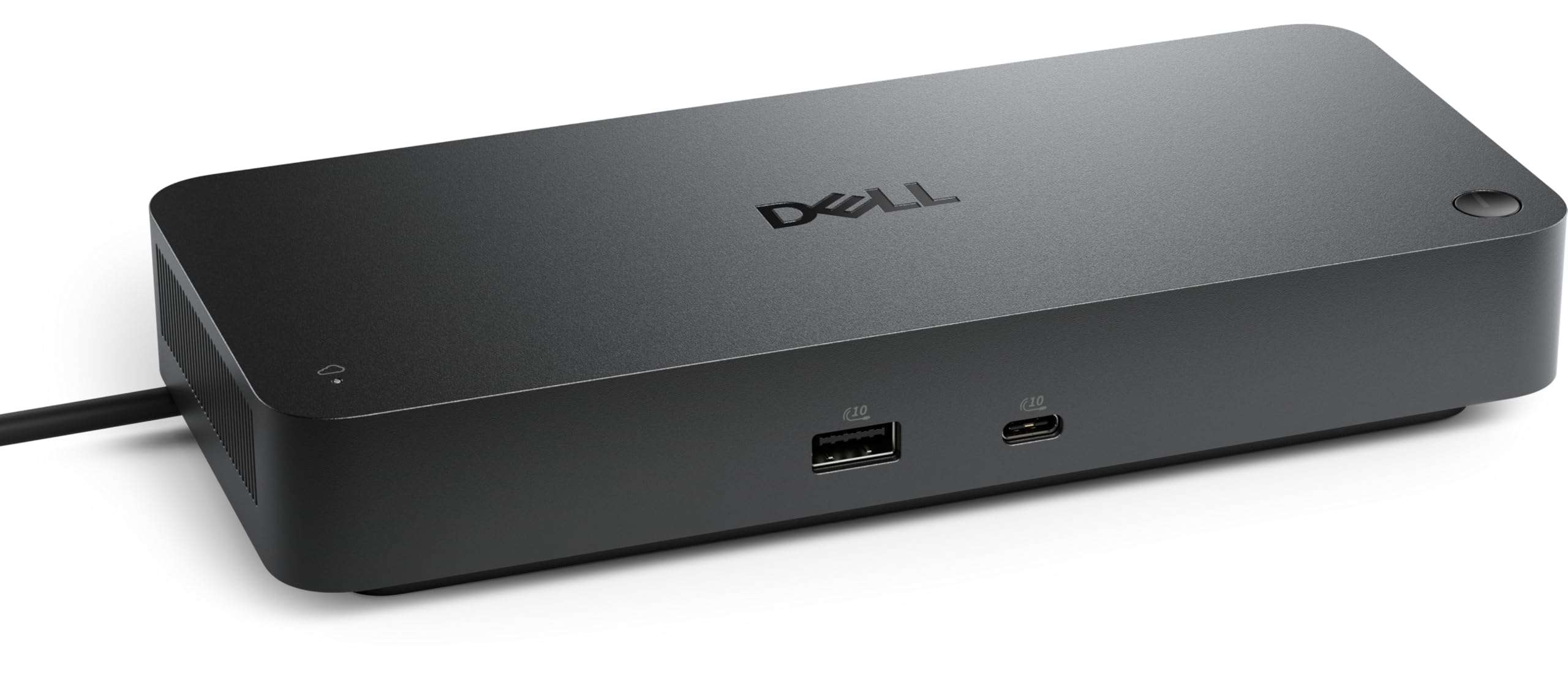
The Dell costs a good deal less than our top pick and still drives four 4K monitors, which is the sort of arithmetic that makes a dock easy to recommend. It does it over HDMI 2.1, DisplayPort 1.4, USB-C and Thunderbolt 4, and there is a 2.5GbE port on the back for anyone whose working files live on a NAS. For a desk with three or four screens, we have not found a better balance in this group.

Charging is where the fine print lives. Dell rates it at 130W for its own laptops and 96W for everything else, so an XPS or a Latitude gets the full rate while a MacBook or a ThinkPad gets a normal, adequate charge. That is plenty for most 13- and 14-inch machines; it is the 16-inch workstation crowd who should be looking at the 140W docks instead.

The business features are the other half of the story and genuinely unusual here: Wi-Fi management of the dock itself, PXE boot, MAC filtering, DMA protection and a secure enclosure. If you are the person shipping forty of these to an office and supporting them remotely, that changes the calculation far more than port count does.

The shape earns a mention too. At 8.07 inches long and 1.39 inches tall it lies flat and slides under a monitor riser in a way the cube-shaped docks cannot, so the cable mess ends up hidden rather than piled behind the screens. Small thing, visible every day.

Pros

  • Drives up to four 4K displays
  • 2.5GbE networking at a midrange price
  • 130W charging for Dell laptops
  • Remote management and security tools

Cons

  • Thunderbolt 4 only, no Thunderbolt 5 headroom
  • Management features only pay off in an IT fleet
Our verdict

Worth it for a desk that needs four screens and 2.5GbE without top-pick money, provided you know the 130W charging is reserved for Dell laptops.

Check Latest Price
3

Best for Built-In Storage

UGREEN Maxidok U716

82 /100
LBD Score Excellent

Key details

Ethernet
2.5GbE
Total Ports
17
Laptop Charging
140W max
Internal Storage
M.2 NVMe, up to 8TB
View on Amazon

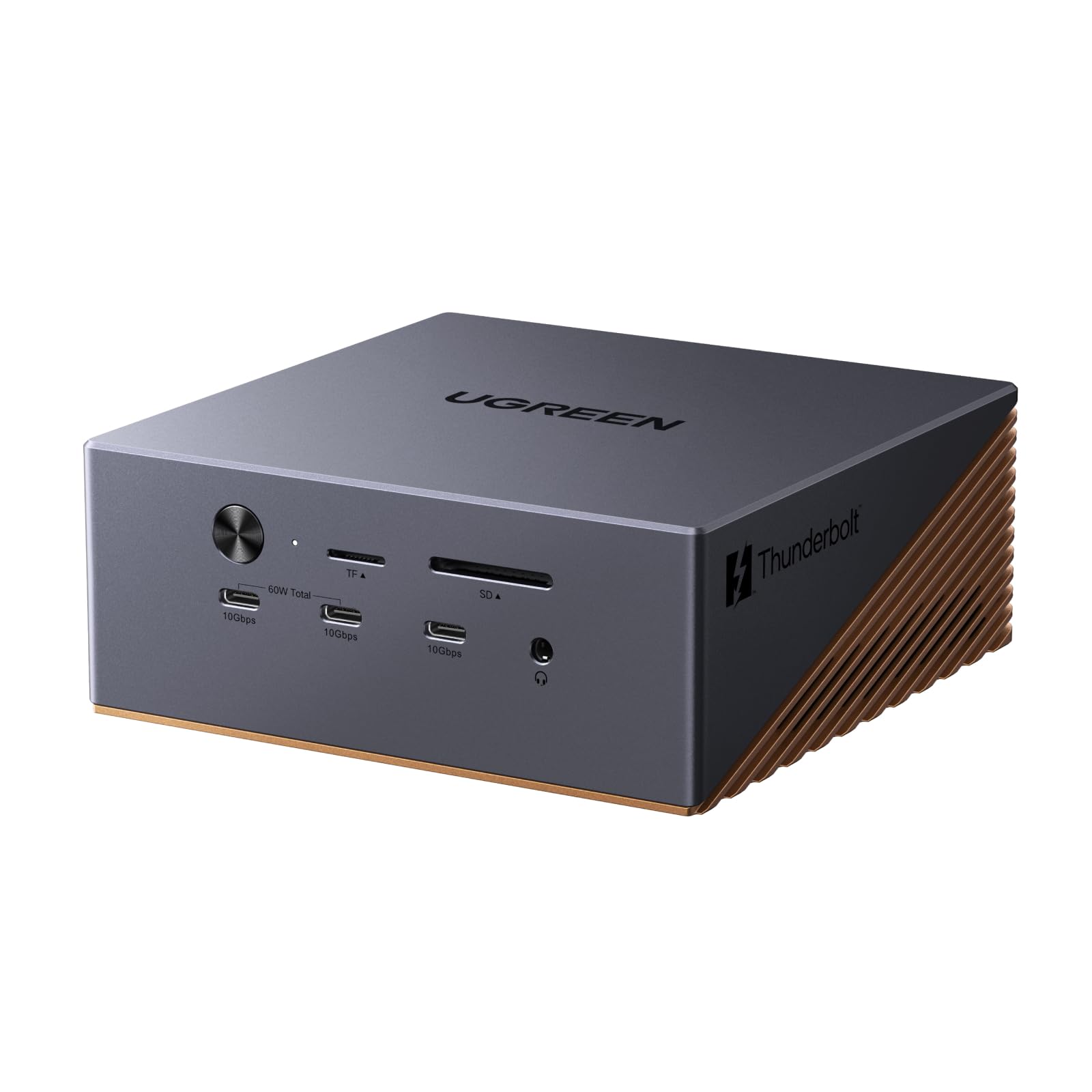
There is an M.2 slot inside the UGREEN Maxidok, and that one decision reorganizes the whole dock. Instead of a bus-powered SSD dangling off a cable, you fit a 2230-to-2280 NVMe drive inside the case, rated for up to 8TB, and your working files live in the dock itself. For video editors, or anyone moving large libraries between machines, that is a different way to work rather than one more port.

Everything else is the fullest specification here: 17 ports, three Thunderbolt 5 downstream, DisplayPort 1.4, six 10Gbps USB-C and USB-A ports, 2.5GbE, SD and TF 4.0 readers, three 3.5mm audio jacks, 140W to the laptop and 60W PD out to a second device. Triple displays on Windows, dual on a Mac. It is a big bronze aluminum box with a 60mm fan inside, and in our time with it the fan stayed quiet, with the chassis doing most of the cooling.

The failure to plan for is total. A dock that stops working can take the drive inside it with it, so whatever you fit, keep a copy somewhere else. That is true of any dock with a drive bay, and it is worth saying plainly, because the convenience of internal storage is exactly what makes the risk easy to forget.

Mac users have a second check to run first: this one wants macOS 15 or newer, which rules out older machines before you get anywhere near the ports. On a current Windows laptop or a recent Mac, it is the most capable dock in this group, and the only one that replaces an external SSD.

Pros

  • Internal M.2 slot for up to 8TB
  • 17 ports including 2.5GbE and three audio jacks
  • 140W laptop charging plus 60W PD out
  • Triple displays on Windows

Cons

  • A failed dock can take the internal drive with it
  • Macs need macOS 15 or newer
Our verdict

The pick for anyone who wants a drive inside the dock instead of another box on the desk, with the ports and charging to run a workstation.

Check Latest Price
4

Best Budget

UGREEN Revodok Max 208

82 /100
LBD Score Excellent

Key details

Total Ports
8
Display Support
Dual 4K@60Hz
Laptop Charging
85W
Thunderbolt 4 Down
3
View on Amazon

Eighty-five watts is the lowest laptop charge in this group, and it is the number that decides who should buy the UGREEN Revodok Max 208. On a MacBook Air, a 13-inch Pro or any recent ultrabook, 85W is plenty and the battery stays full. On a 16-inch MacBook Pro or a mobile workstation you will charge slowly at idle and lose ground during a long render.

What you accept that for is a tidy Thunderbolt 4 dock: three downstream Thunderbolt 4 ports, three USB-A at 10Gbps, Gigabit Ethernet, and a 140W GaN brick that stays on the wall socket instead of hanging off the dock. There is a power switch on the unit, a small thing that means you can shut the whole desk down without crawling underneath it.

The catch is what is not on the back: no HDMI, no DisplayPort, no card reader. Both monitors run from Thunderbolt 4 ports, so you need USB-C or Thunderbolt displays, or adapters. Plenty of people are already on USB-C monitors, and for them this is simply the cheapest way into a certified Thunderbolt 4 dock here. Everyone else should budget for the dongles.

It is also the least fussy unit in the group: eight ports, a power switch, a dark gray aluminum case and a two-year warranty. On a dual-4K desk with a 14-inch laptop on it, the case for spending more is thin.

Pros

  • Three downstream Thunderbolt 4 ports
  • 140W GaN brick sits on the wall
  • Cheapest Thunderbolt 4 dock here

Cons

  • 85W is the lowest laptop charge in this group
Our verdict

For a dual-4K desk built around a 14-inch laptop, this is the cheapest sensible way into Thunderbolt 4, as long as 85W covers your machine.

Check Latest Price
5

Best for Small Desks

Satechi Slim Hub Pro

86 /100
LBD Score Excellent

Key details

Weight
8.75 oz
Display Support
Dual 4K@60Hz or single 8K@30Hz
Laptop Charging
96W
Thunderbolt 4 Ports
4 (1 up, 3 down)
View on Amazon

Ours ended up behind the monitor, held on with a strip of tape, and we forget it is there until someone needs the card reader. At 8.75 ounces and two-thirds of an inch thick, the Satechi Slim Hub Pro is the only dock here that disappears like that; the others are 2.4 pounds of aluminum or a 1.4 kg brick that wants a corner of the desk.

Slim does not mean stripped. Three Thunderbolt 4 downstream ports, one USB-A at 10Gbps, a UHS-II SD reader rated to 312MB/s and 96W of charging back to the laptop, with dual 4K at 60Hz or a single 8K at 30Hz driven from the Thunderbolt ports. There are no dedicated video outputs, which is the main thing to understand before buying, so plan on USB-C displays or adapters.

What we keep coming back to is the power. Ninety-six watts from something this small is the neatest combination in the group: it will hold a MacBook Pro at full charge through a working day, and it does it from a unit you can hide behind a 27-inch screen. The aluminum case gets warm the way a fanless aluminum dock does, and with a deliberately short port list, one USB-A is the pinch point, this is a dock for a focused setup rather than a desk full of gear.

The one hard boundary is age. This is specified for Thunderbolt 4 and USB4 hosts, so an older Thunderbolt 3 laptop is the wrong pairing and a Thunderbolt 4 dock from an earlier generation is the safer buy there. For a second desk, a shared table or anyone who packs a laptop up at the end of the day, nothing else here fits the same space.

Pros

  • Slim enough to hide behind a monitor
  • 96W charging from a very small unit
  • Three Thunderbolt 4 downstream ports
  • UHS-II SD reader rated to 312MB/s

Cons

  • Only one USB-A port
  • No dedicated video outputs
Our verdict

A dock you can hide: 96W charging, three Thunderbolt 4 ports and a fast card reader in an 8.75-ounce slab that fits behind a monitor.

Check Latest Price
6

Quad-Display Windows

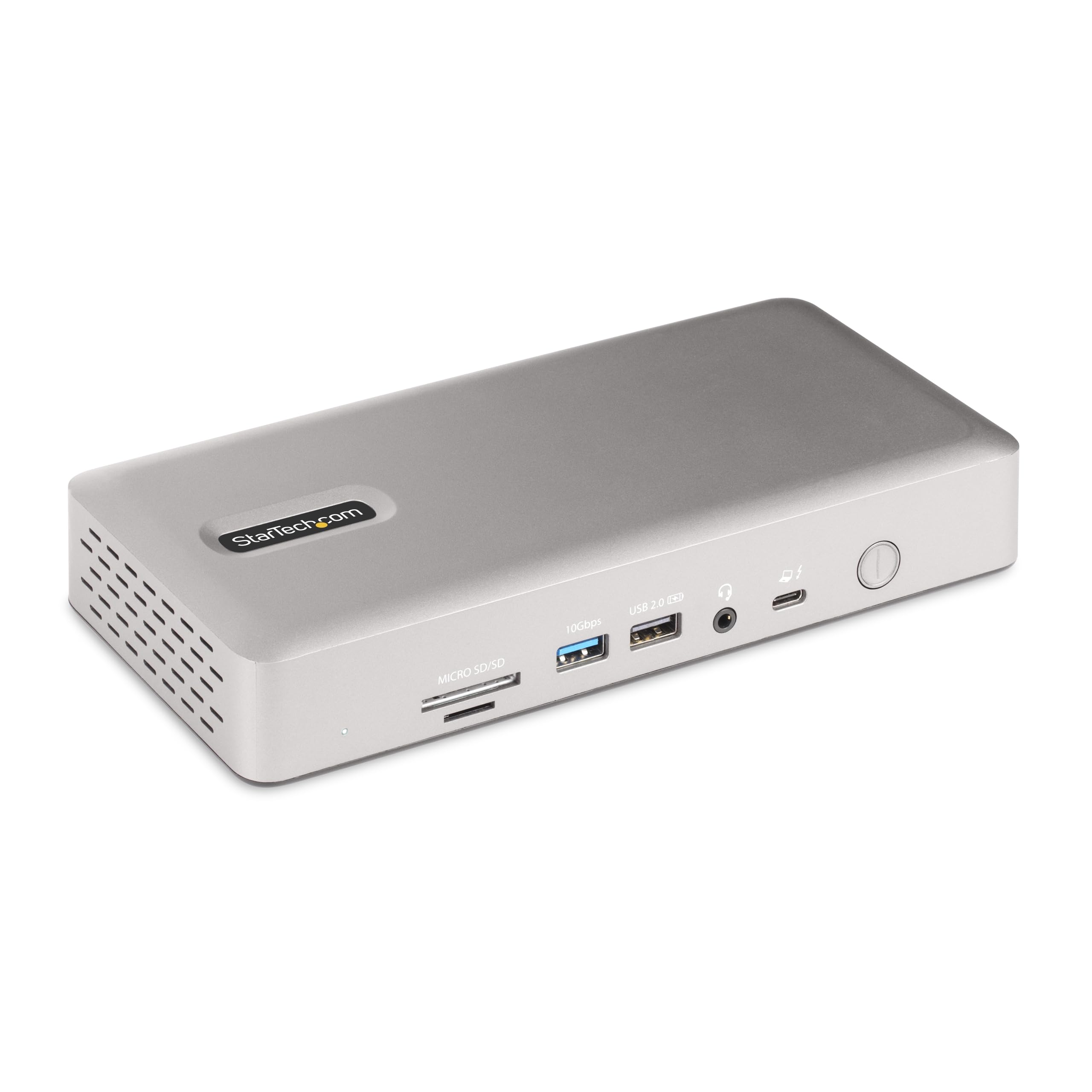
StarTech 132N-TB4USB4Dock

85 /100
LBD Score Excellent

Key details

Displays
4 at 4K on Windows, 2 on Mac
Warranty
3 years
Total Ports
17
Laptop Charging
98W
View on Amazon

Four 4K screens at 60Hz on Windows, two on a Mac, no drivers on either: the StarTech is the dock for the desk that has accumulated monitors. The four-screen mode is not unconditional. It wants a Windows laptop with an Intel 12th-gen CPU or newer and DisplayPort 1.4 with DSC, so check the processor before you plan the wall.

Otherwise it is the least dramatic dock here in the best way. Seventeen ports spread across USB-A, USB-C, two HDMI, microSD and Thunderbolt 4, 98W of charging, and a three-year warranty that is the longest in this group. In our testing it came up on both a MacBook and a Windows machine without a driver install, which you only appreciate after an evening spent with a dock that wants software.

Mac owners should read the display footnote properly: dual extended 4K needs clamshell mode on M3 and later, and M1 or M2 MacBook Pros have their own requirements. That is a limit of the host rather than of the dock, but it decides whether the multi-display pitch means anything for you. It is also a big, plain box at 8.3 inches wide, so it wants a permanent home rather than a bag.

Where it wins is the boring part. It behaves the same on Windows, macOS and Ubuntu, and the spec sheet is the kind you can hand to an IT department without a follow-up email.

Pros

  • Four 4K displays on Windows
  • Driverless on Windows, macOS and Ubuntu
  • 17 ports with two HDMI
  • Three-year warranty, longest here

Cons

  • Four-screen mode needs Intel 12th-gen or newer
  • MicroSD only, no full-size SD slot
Our verdict

The right dock for a Windows-first desk that needs four 4K screens, with driverless setup on macOS too and the longest warranty in this group.

Check Latest Price
7

Four Displays, Mac

Satechi TB4 Docking Station

81 /100
LBD Score Excellent

Key details

Displays
Up to 4 with DisplayLink
Ethernet
Gigabit
Total Ports
12
Laptop Charging
96W
View on Amazon

DisplayLink is why this Satechi can run four extended displays on a Mac, and it is also the reason to think twice. The two HDMI ports depend on DisplayLink drivers rather than native Thunderbolt video, so you install software and accept compression on those screens; the Thunderbolt 4 ports carry native video. It is the reason this one can claim four screens on a Mac at all.

Set that aside and the specification is generous: 12 ports, 96W of charging, a UHS-II SD 4.0 reader at up to 312MB/s, Gigabit Ethernet, a 180W external adapter and a 1.1-pound aluminum body roughly the size of a keyboard. Four displays total on most hosts, three on M1 and M2 Macs. The external brick is the price of that, and it makes this a two-piece dock in a way the Anker is not.

Two things to flag. The HDMI pair is where the heat shows: sustained multi-display work leaves the case properly hot, which is normal for a fanless design but worth knowing if the dock is going under a monitor arm. And it is a Thunderbolt 4 and USB4 dock, so older Thunderbolt 3 laptops are the gamble and worth confirming before you buy.

On an M-series Mac or a current Thunderbolt 4 Windows laptop, the four-screen trick is the reason to buy it and the DisplayLink driver is the price of admission. For a trading desk, an edit bay or anyone who genuinely runs four panels, that is a fair trade. For two screens, buy something simpler.

Pros

  • Up to four extended displays with DisplayLink
  • 96W charging and a fast UHS-II reader
  • 12 ports including Gigabit Ethernet

Cons

  • DisplayLink drivers required for four displays
  • Runs hot under sustained multi-display load
Our verdict

Choose it when four extended displays on a Mac matter more than simplicity, and accept the DisplayLink driver and the heat that come with them.

Check Latest Price

How We Tested the Best Thunderbolt Docks

We started by pulling together the Thunderbolt 4 and Thunderbolt 5 docks that actually fit current laptops, filtering by port count and type, display support, charging wattage, and footprint before narrowing the field to seven. Those seven went onto real desks, not a lab bench.

For seven months, the docks lived on home-office desks and came along on hybrid-office days. We plugged each one into both a Mac and a Windows laptop, then ran the same routine: two external monitors, a keyboard, mouse, Ethernet, an external SSD, and a phone charging from a downstream port. We woke the laptop from sleep and undocked it dozens of times, watching whether the monitors came back at the right resolution and whether the network and drives reconnected without a reboot.

We measured charging by noting the battery percentage after 30 minutes of video calls and large file transfers, rather than trusting the wattage on the box. Heat got the same treatment: after two hours of work, we felt the top and bottom of each case and checked whether fans or throttling became noticeable. Build quality and appearance we judged by flexing the chassis, plugging and unplugging every port, and seeing how the finish held up to daily handling. Value came down to how much of a desk setup each dock replaced—display outputs, Ethernet, USB, and enough charging for the laptop—without needing a dongle or a second power brick.

How to Choose a Thunderbolt Dock

Check the Thunderbolt Version at Both Ends

Every dock here uses the same USB-C connector, but the version of Thunderbolt at each end sets the ceiling. A Thunderbolt 5 dock attached to a Thunderbolt 4 laptop runs at Thunderbolt 4 speed, which costs you bandwidth and not function, so nothing breaks and most people never notice. The reverse is the awkward direction: docks built for 5 and 4 are the ones most likely to misbehave on an older Thunderbolt 3 machine.

Look your laptop up before you shop. If the spec sheet says Thunderbolt 3, buy a Thunderbolt 4 dock and spend the difference on a monitor. If it says 4 or 5, buy whichever dock fits your ports and budget without worrying about the version.

Count Screens Before You Count Ports

Screens are the hardest thing to add later, because the limit comes from the laptop as much as from the dock. Windows machines can run three or four external panels when the hardware supports it. Macs are stricter: base-chip MacBooks often need clamshell mode, and reaching a third or fourth extended display usually means DisplayLink drivers rather than native video.

Decide whether you need two screens or four, and at what refresh rate, then check that exact number against the listing. A dock advertising 8K is telling you about one screen, not four, and a four-screen claim on a Mac is usually telling you that software is involved.

Match the Wattage to Your Own Adapter

Read the output printed on your laptop's power adapter and treat it as the minimum. Ultrabooks and 13-inch machines are happy at 85W. A 16-inch MacBook Pro or a mobile workstation wants 130W to 140W, and a dock below that will charge slowly at idle and lose ground during a long export.

Two traps sit underneath that. Some docks deliver their headline wattage only to their own brand's laptops, so a Dell dock rated at 130W gives a MacBook 96W. And a dock's total power is not the power going up the cable: a 240W unit may send 140W to the laptop and split the rest between ports and a drive.

Read the Port List, Not the Port Total

A 14-in-1 with three USB-A ports and no card reader is a worse fit for a photographer than an 8-port dock with a UHS-II slot. Count what you plug in daily, mouse receiver and keyboard and headset and camera card and external drive, then check the mix rather than the headline figure.

The same applies to networking and to storage. 2.5GbE is worth paying for if you edit off a NAS and close to irrelevant if everything lives in the cloud. An internal M.2 slot can replace an external SSD altogether, which is the difference between one box on the desk and two.

Plan for the Power Brick and the Footprint

Most docks in this group come with an external supply, and a 180W brick is a real object that needs floor space or a cable tray. A few build the supply into the case, which costs more and buys a tidier desk. Weigh the dock itself too: an 8.75-ounce hub can hang off the back of a monitor with tape, while a 1.4 kg unit wants a shelf or a proper mount.

Decide where the dock lives before you decide how many ports it has. A dock that does not fit the space you have is a dock you stop using.

Frequently Asked Questions

Final Verdict

The Anker Prime TB5 is the dock we recommend to most people. It charges at 140W, carries fourteen ports and does it without a power brick on the floor, over a Thunderbolt 5 link that will still make sense when your next laptop arrives.

If four screens or 2.5GbE are the reason you are shopping, the Dell SD25TB4 does more of that work for less money. And if the desk is small, the Satechi Slim Hub Pro is the one that disappears behind the monitor.