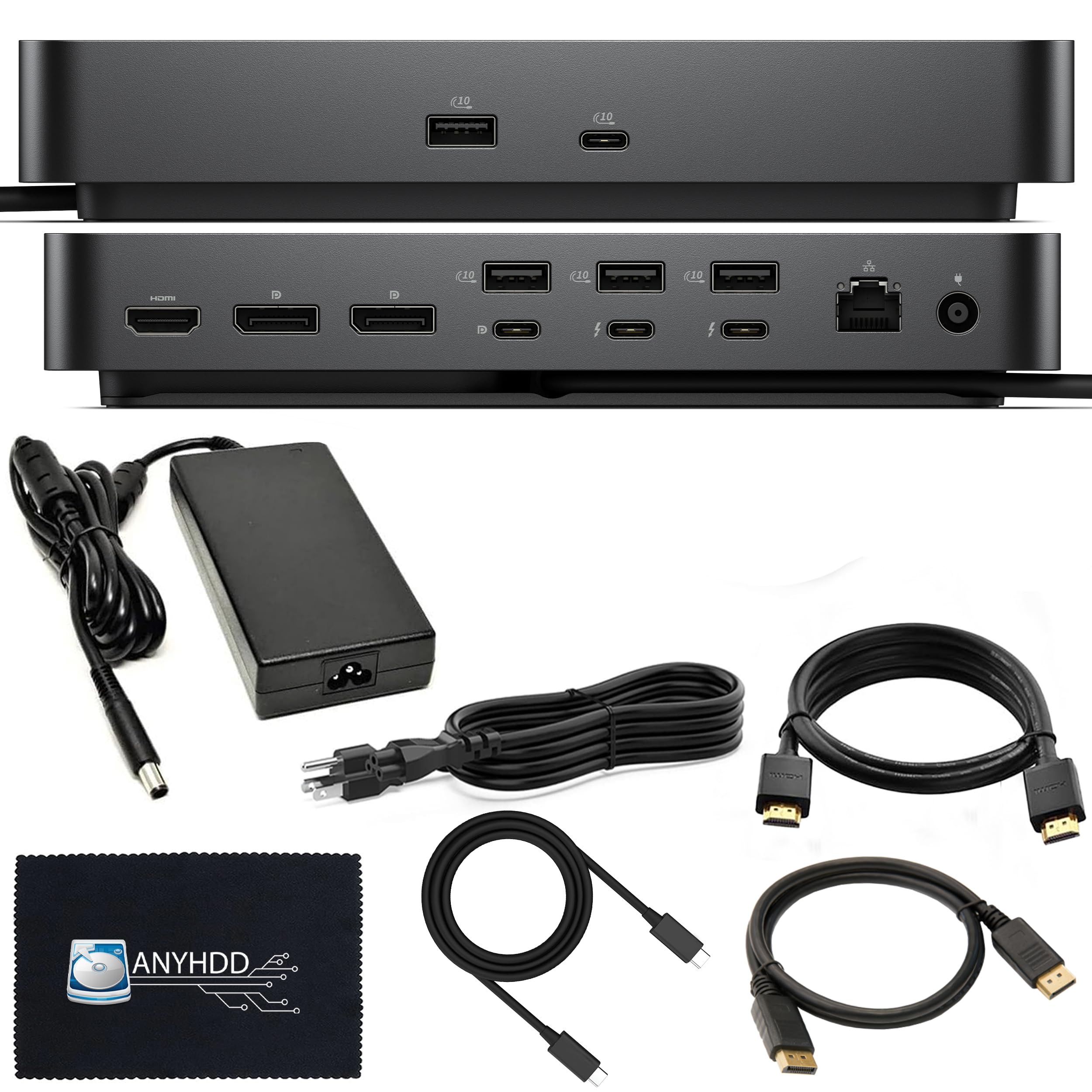
Best Thunderbolt 4 Docks of 2026

The worst thing a Thunderbolt dock can do is not fail loudly. I've had one work for a week, then drop a monitor mid-call, refuse to wake my laptop, or send me under the desk to reseat a cable. A good one turns that mess into a single connection: laptop in, monitor, keyboard, Ethernet, and a charged battery handled. But the category is a spec-sheet arms race, and what matters is whether the ports you need sit within reach, whether setup is plug-and-play, and whether the dock feels solid, stays cool, and works reliably all day.

We spent six months with eight docks on working desks: a Windows laptop driving two monitors, a macOS laptop moving between office and kitchen table, and a shared desk where people plug in whatever they carry. We charged laptops during video calls, moved large photo and video files, and left everything connected overnight to catch dropouts. The short list favors steady behavior over connector count, because a dock with every port is still a bad buy if it flakes at 9 a.m.

1

Best Overall

UGREEN 13-in-1 Thunderbolt 4 Dock

88 /100
LBD Score Excellent

Key details

Warranty
1 year
Host Charging
96W
Display Support
Dual 4K at 60Hz or single 8K at 30Hz
Thunderbolt 4 Ports
3
View on Amazon

Ninety-six watts is where we start, because charging is the number that decides whether a dock can replace your laptop's power brick. That figure comes from a 180W adapter, so there's headroom left for the drives, phone, and card reader hanging off the ports while the laptop still gets its full share. A 96W feed holds most 14- and 16-inch laptops at charge through an ordinary working day.

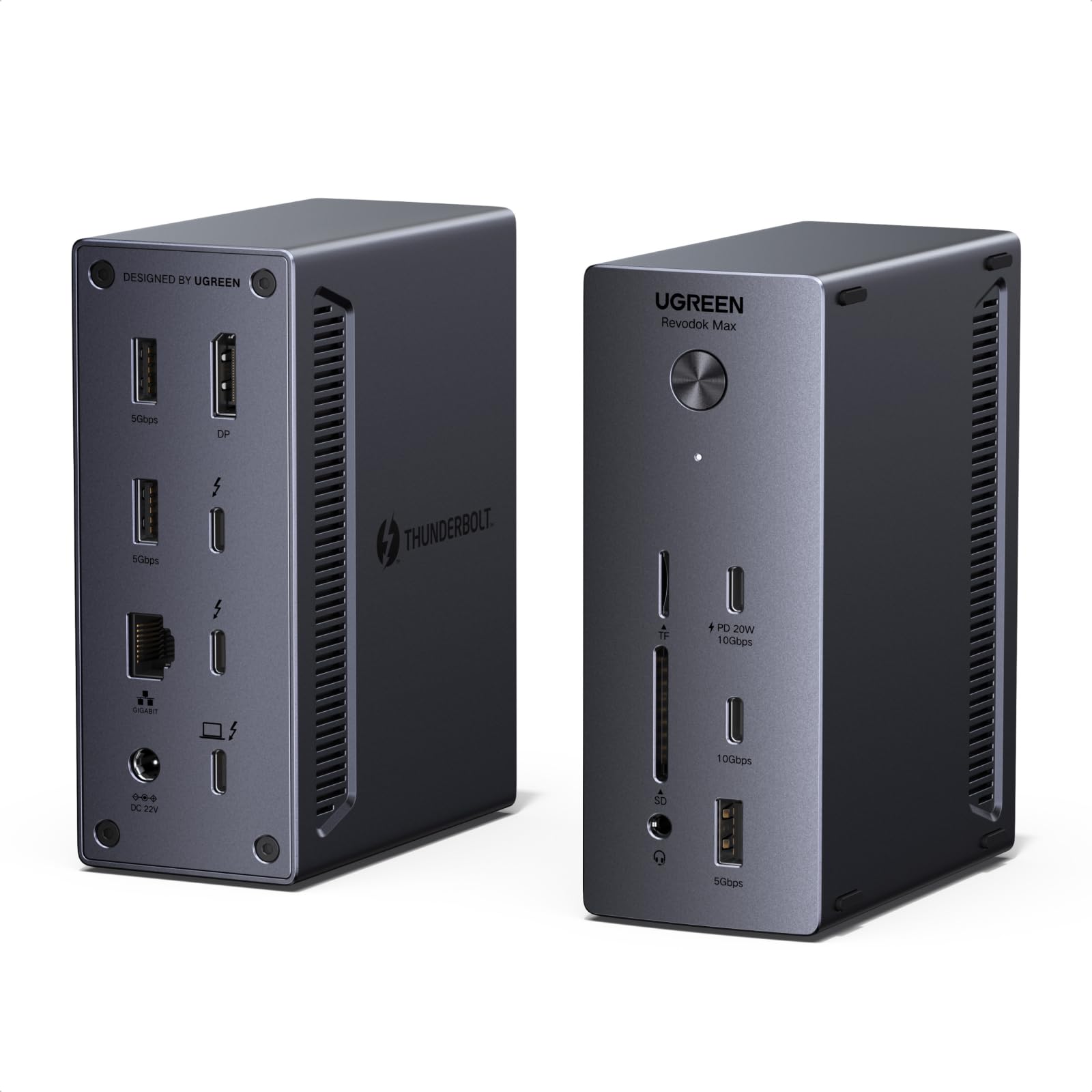
What earns it the top spot is the port mix behind that single cable: thirteen ports, three of them Thunderbolt 4 at 40Gbps, plus SD and microSD readers, a headphone jack, gigabit Ethernet, and two USB-C ports at 10Gbps. Dual 4K at 60Hz runs over one Thunderbolt port and the DisplayPort output, so your two screens don't have to share a connector type. For a desk with one USB-C monitor and one DisplayPort monitor, that is the whole job done without an adapter.

We were also struck by how little desk it asks for. The housing measures 3.7 by 1.96 by 5.78 inches, it stands on its side or lies flat on anti-slip pads, and there is no fan — nothing to whine at you mid-call and nothing pulling dust in behind a monitor.

The one thing missing is HDMI. If both of your monitors are HDMI-only, you're buying adapters, and the StarTech below is the more sensible answer. The warranty is a single year, well short of the three-year terms on the StarTech and the SD25TB4. Check which cable your second monitor takes before the box arrives — DisplayPort is the output doing that work here.

Pros

  • 96W charging from a 180W adapter
  • Three Thunderbolt 4 ports plus SD and microSD
  • Dual 4K at 60Hz over two connector types
  • Fanless, and small enough to stand upright

Cons

  • USB-A ports run at 5Gbps, not 10Gbps
  • One-year warranty
Our verdict

For most people with a Thunderbolt laptop and two 4K monitors, we think this is the dock to buy: 96W of charging, three Thunderbolt ports, and a card reader.
Check Latest Price
2

Best for Multi-Monitor Windows

StarTech Thunderbolt 4 Dock

85 /100
LBD Score Excellent

Key details

Warranty
3 years
Video Ports
2x HDMI
Host Charging
98W
Display Support
Up to four 4K at 60Hz on Windows
View on Amazon

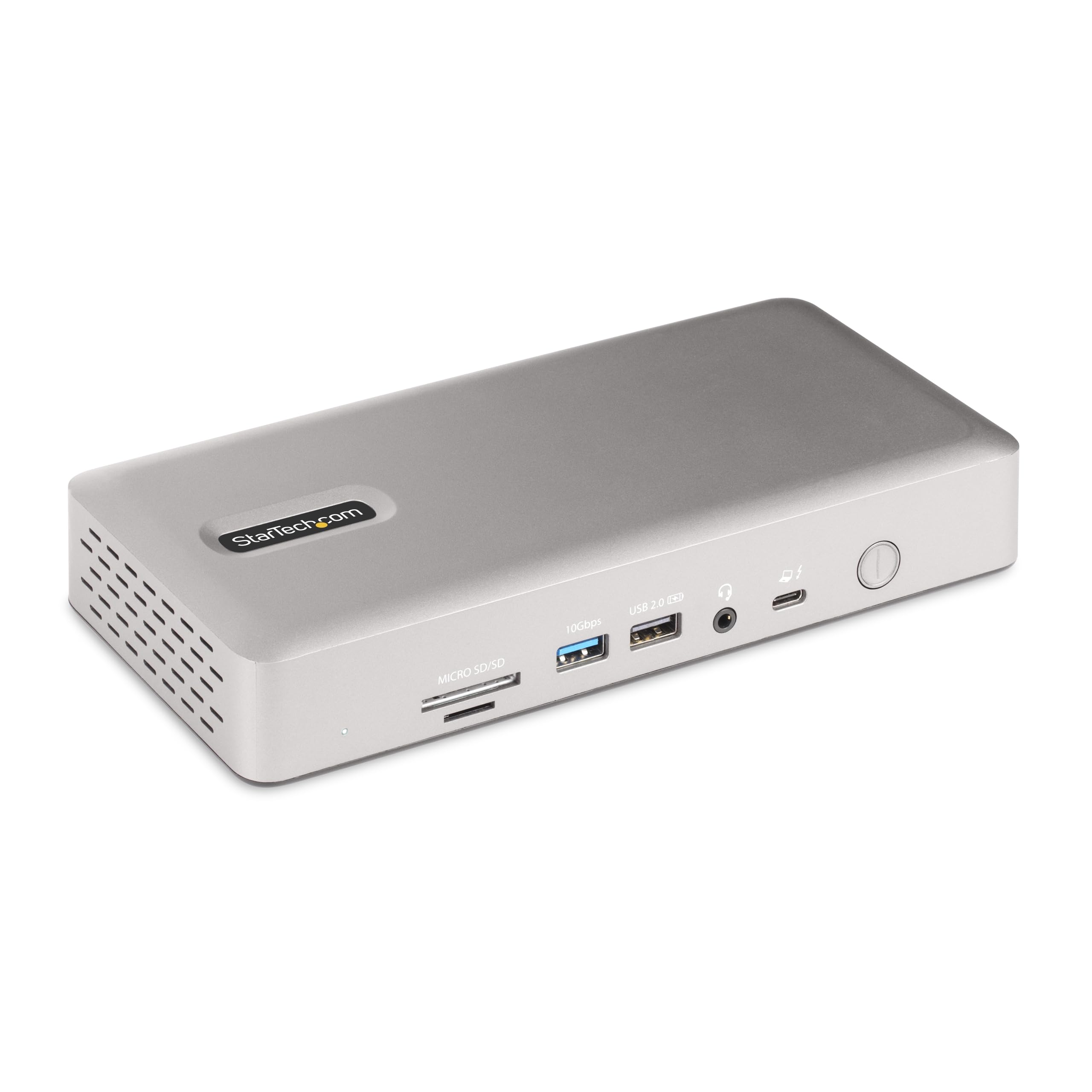
Four 4K monitors at 60Hz from one laptop is a trick almost nothing in this group can do, and this StarTech does it on Windows machines with Intel's 12th-generation chips or newer and DisplayPort 1.4 with compression. Drop to a Mac and the ceiling is two extended 4K screens on M3, M4, or M5 hardware, and with an M3 the manufacturer's notes call for the laptop closed.

Two HDMI ports on the back are what we like most about it. Most of us have HDMI cables in a drawer, and this is one of the few docks here that doesn't send you shopping for DisplayPort cables to get a second screen up. It's driverless on Intel, AMD, Snapdragon, and Apple Silicon, and 98W of power delivery keeps a 14-inch laptop at charge through a working day.

Three years of coverage is the other reason it stays on the list. Docks fail, usually at the least convenient moment, and a long warranty is what separates an annoying week from a wasted purchase. Only the SD25TB4 matches that term.

The four-screen figure is specific, though: it needs that recent Intel Windows machine, and other Windows hardware steps down to three or two screens. Check your processor before you count on four, and check how many Thunderbolt devices you plan to chain, because there's one downstream port to share.

Pros

  • Four 4K at 60Hz on recent Windows laptops
  • Two HDMI ports, so no cable shopping
  • 98W charging with three-year coverage
  • Driverless on Intel, AMD, Snapdragon, and Apple

Cons

  • Only one downstream Thunderbolt port
Our verdict

If your desk runs three or four screens off a recent Windows laptop, this is the dock we point you to, with two HDMI ports and three-year coverage.

Check Latest Price
3

Best for Power-Hungry Laptops

Dell WD22TB4 Thunderbolt 4 Dock

82 /100
LBD Score Excellent

Key details

Warranty
1 year
Video Ports
2x DisplayPort, 1x HDMI
Host Charging
130W
Display Support
Up to four 4K at 60Hz on Windows
View on Amazon

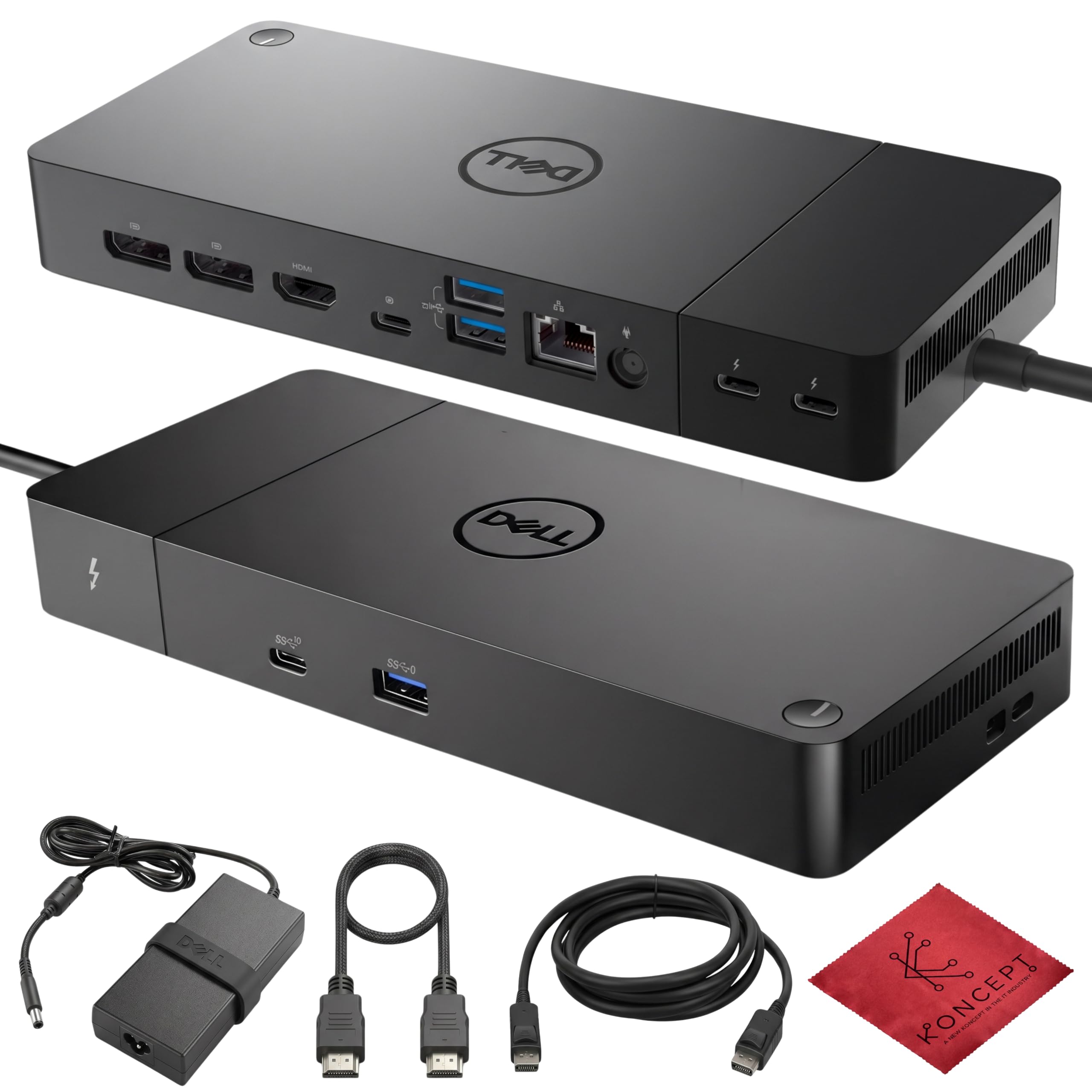
A workstation laptop plugged into a dock that tops out at 90W doesn't charge — it drains, just more slowly than usual. Dell's WD22TB4 is the answer to that specific problem: 130W over the Thunderbolt cable, fed by a 180W adapter, which is the largest charging figure in this roundup.

The display side is aimed at the same buyer. Two DisplayPort 1.4 outputs and an HDMI 2.1 get you up to four 4K screens at 60Hz on Windows, and two further Thunderbolt 4 ports at 15W each take care of drives and a second docked machine. Five USB ports, gigabit Ethernet, and a 3.5mm jack round out the back. Nothing here needs a dongle to reach a second or third screen, which is more than several of these picks can say.

For a 16-inch machine with a discrete GPU, that combination is worth paying for: you get the screens and you stop carrying a separate charger between the office and the kitchen table. For everyone else the case is thinner, because a 14-inch ultraportable never asks for 130W and the surplus is just a bigger brick under the desk.

Two things to weigh. The Mac story is narrower than the Windows one — four 4K screens are spelled out for Windows and macOS gets a shorter sentence — so confirm your machine's external-display limit before planning two screens. Coverage runs one year, matching the UGREEN and falling short of the StarTech and the SD25TB4, which is thin for the box your entire desk hangs off.

Pros

  • 130W charging, the most in this group
  • Two DisplayPort plus one HDMI output
  • Up to four 4K screens on Windows
  • Two extra Thunderbolt 4 ports for devices

Cons

  • One-year warranty
Our verdict

For a 16-inch workstation laptop that drains a smaller dock by lunchtime, we recommend this one: 130W of charging is more than anything else here.

Check Latest Price
4

Best for Surface Laptops

Microsoft Surface Thunderbolt 4 Dock

85 /100
LBD Score Excellent

Key details

Ethernet
2.5GbE
Warranty
1 year
USB Ports
3x USB-C, 3x USB-A
Display Support
Dual 4K over USB-C
View on Amazon

Surface owners have the shortest decision on this page. Microsoft's dock is shaped around that laptop: one cable, 2.5 gigabit Ethernet on the back, three USB-C and three USB-A ports, a headphone jack, and a security lock slot for a desk in a shared office.

The detail we didn't expect to care about is the raised tactile marker on every port. Reaching around the back of a dock under a monitor to plug in a flash drive is normally a two-hand, flashlight job; ridges you can feel solve it without a light.

The catch is video. There is no HDMI and no DisplayPort on this one at all, so both 4K screens run over USB-C — tidy if you own USB-C monitors, an extra purchase if you don't. Dual 4K also requires a Thunderbolt 4 host, which means a plain USB-C laptop gets one external screen rather than two. It's the right dock for a Surface and the wrong one for a mixed office, where the missing video ports cost more than the neat design gives back.

Charging is quoted as a full charge in about two and a half hours rather than a wattage, so compare that with your laptop's own adapter before you commit.

Pros

  • 2.5G Ethernet on a compact box
  • Tactile port markers you can find by feel
  • Six USB ports, three of them USB-C
  • Lock slot for a shared desk

Cons

  • Modest eight-port loadout
Our verdict

If your laptop says Surface on the lid, we think this is the dock to get: 2.5G Ethernet, six USB ports, and port markers you can find without looking.

Check Latest Price
5

Mixed Monitor Ports

Plugable 16-in-1 Thunderbolt 4 Dock

79 /100
LBD Score Very Good

Key details

Ethernet
2.5GbE
USB Ports
7
Video Ports
2x HDMI, 2x DisplayPort
Host Charging
100W
View on Amazon

Two HDMI and two DisplayPort outputs is a combination nothing else in this group offers, and it's the reason this Plugable stays on our list. Whichever cables came with your monitors, one of them fits without an adapter. Add 2.5 gigabit Ethernet, seven USB ports, and SD plus microSD readers, and the back of the box covers a whole desk.

It's a serious piece of hardware: 646 grams, a 135W adapter feeding 100W to the laptop, and enough weight that it stays where you put it when a cable gets yanked. The power supply is a full brick rather than a GaN puck, which is the price of the 100W ceiling.

Setup is driverless, and dual 4K at 60Hz is stated for M4 and M5 Macs, Windows, and USB4 laptops. On a base M3 the manufacturer asks for clamshell mode, which is worth knowing before you build a two-screen desk around a MacBook Air. Power delivery is claimed to be lab-tested to UL standards, which is the sort of detail we like to see on the part of a dock that sits under a monitor all day.

That leaves a specific buyer: one HDMI monitor, one DisplayPort monitor, and a wired network, all served from a single cable. If your two screens take the same connector, the UGREEN and the StarTech both do this job with fewer moving parts, and we rank them ahead of it for a matching-monitor desk.

Pros

  • Two HDMI and two DisplayPort outputs
  • 2.5G Ethernet and card readers
  • 100W charging from a 135W adapter
  • Solid build at 646 grams

Cons

  • Ethernet and peripheral dropouts
  • Wide 7.7-inch footprint on the desk
Our verdict

We recommend it for a desk with one HDMI and one DisplayPort monitor and a wired network, as long as you test every port early.

Check Latest Price
6

Long-Term Coverage

SD25TB4 Pro Thunderbolt 4 Dock

83 /100
LBD Score Excellent

Key details

Warranty
3 years
Video Ports
2x DisplayPort, 1x HDMI
Power Adapter
180W
Thunderbolt 4 Ports
2
View on Amazon

A dock you upgrade instead of replace is the idea here: the rear module comes off, so a future connector standard can be swapped in without buying a new box. That modular design and three years of coverage are why it stayed in the roundup, and why it's easy to justify across a row of desks that all have to match.

The hardware underneath is conventional and sensible: two Thunderbolt 4 ports, two DisplayPort 1.4 outputs and an HDMI 2.0, four USB ports, and a 180W adapter. It picks up a Dell laptop and two screens immediately, which is the whole job, and the stated 8K ceiling means the video side won't date quickly.

Two things to weigh before standardizing on it. Four USB ports is the lightest loadout among our picks, so a desk with a keyboard, mouse, drive, and phone charger is already full. And the 180W adapter figure doesn't tell you how much of it reaches the laptop — check that against your machine's own charger first.

Pros

  • Swappable rear module for future upgrades
  • Three-year warranty
  • Two DisplayPort plus HDMI outputs
  • 180W adapter and 8K display support

Cons

  • Only four USB ports
  • Top of the price range here
Our verdict

For a desk running Dell laptops and monitors, we like the swappable module and the three-year warranty more than the port count.

Check Latest Price
7

Compact Desks

UGREEN 8-in-1 Thunderbolt 4 Dock

82 /100
LBD Score Excellent

Key details

Ethernet
Gigabit
USB-A Ports
3 at 10Gbps
Host Charging
85W
Included Charger
140W GaN
View on Amazon

This is the least expensive dock in the group, and it buys three Thunderbolt 4 ports and a 140W GaN charger. If your monitors take USB-C, or you already own the right cables, that covers most of what a dock is for.

We like the power arrangement more than anything else here: a single GaN unit at the wall socket rather than a two-cord brick under the desk, delivering 85W to the laptop with the remainder spread across the ports. Three USB-A ports at 10Gbps are quick for external drives, and gigabit Ethernet is there when you want a wire.

Video is where it gives ground. There's no HDMI and no DisplayPort, so both 4K screens run over Thunderbolt or USB-C, and 85W is the lowest charge in this roundup — a large laptop will hold its level rather than gain on it. Check the dual-display notes for your Mac's chip, too, before you plan the desk around it.

Pros

  • Least expensive pick here
  • Three Thunderbolt 4 ports
  • 140W GaN charger, 85W to the laptop
  • Three USB-A ports at 10Gbps

Cons

  • 85W charging ceiling
Our verdict

The least expensive way into Thunderbolt 4 here, and enough if your monitors connect over USB-C — just accept 85W and no video ports.

Check Latest Price

How We Tested Thunderbolt 4 Docks

We built the shortlist from docks that appear in professional desk setups and owner reviews, then filtered for Thunderbolt 4 or USB4 certification, at least one downstream Thunderbolt port, wired Ethernet, enough USB-A for a keyboard and mouse, and display outputs that suit common Windows and macOS multi-monitor setups. We skipped models with vague host-charging claims or unclear port specs, then gathered eight units to test for six months.

Each dock lived on a working desk for the full period. We set it up from scratch, timed how long it took to get a monitor, keyboard, mouse, Ethernet, and a USB drive recognized without a support call, then unplugged and reconnected several times a day. We rotated between Windows and macOS laptops, noted wake-from-sleep failures and monitor flicker, and checked whether the laptop charged while we were on video calls.

For monitor support, we ran a single high-resolution display and dual high-resolution monitor setups where supported, checking refresh rate, arrangement after sleep, and whether the laptop screen stayed usable. We moved large photo and video libraries across Thunderbolt and USB drives to judge real-world speed, filled every port at once to see what caused dropouts, and felt each chassis after a full workday to catch heat or flimsy cable strain.

Build quality got the least glamorous test: we carried each dock between desk and bag, tugged cables gently, and checked whether ports stayed tight. We also tracked value beyond the sticker—whether the included power supply, cable, and port layout saved us from buying adapters, and whether front ports stayed reachable under a monitor stand. At the end, we compared notes on which units had gone six months without a mystery disconnect; that reliability record, more than any single spec, shaped the picks below.

How to Choose a Thunderbolt 4 Dock

Work Backward From Your Monitors

Write down the connector on each screen before anything else. A dock with two HDMI outputs solves a problem that two DisplayPort outputs doesn't, and the reverse holds just as true — several of our picks have no HDMI at all. Two 4K screens at 60Hz is the realistic target in this category. Four screens is a Windows trick that depends on a recent Intel chip and DisplayPort compression, so don't shop for four unless you know your hardware qualifies.

Apple Silicon adds a wrinkle: on some Macs two extended displays only work with the lid closed, and the manufacturer's notes say so in the fine print. Check the Mac guidance for your specific chip before you build a desk around the dock.

Match Charging Wattage to the Laptop, Not the Brick

The number that matters is what reaches the laptop, not the size of the adapter. A 180W power supply can send 96W up the cable and spend the rest on ports, so a box that only quotes the adapter has told you nothing about charging. Across our picks the range runs from 85W to 130W. A 13- or 14-inch ultraportable is happy at 85W to 100W; a 16-inch machine with a discrete GPU wants 130W or it slowly loses ground under load. Find your laptop's own charger rating and treat it as the floor.

Count Ports by Type, Not by Total

Total port counts are marketing arithmetic, because they include the host cable and often the power input. What matters is the split: USB-A for a mouse receiver, keyboard, or older drive; USB-C at 10Gbps for an SSD; and a downstream Thunderbolt port if you'd rather daisy-chain a drive than fill two slots. Built-in SD and microSD readers are worth checking too, since a card slot saves an adapter that is easy to lose.

Ethernet deserves its own line. Gigabit is plenty for most home networks; 2.5 gigabit only pays off if your router or NAS can feed it.

Decide How Much Desk the Dock Gets

These boxes run from a small upright slab to something the width of a tablet, and the power supply is half the footprint problem — a GaN charger at the wall socket is tidier than a two-cord brick under the desk. Fanless designs are silent and get warm to the touch, which is normal, but give them air rather than burying them behind a monitor.

Buy the Warranty, Then Test in Week One

A dock sits at the center of everything and fails more often than the laptop it serves. One year of coverage is the norm at this price and three years is the exception; when two docks are otherwise close, we treat the longer term as the tiebreaker. Then test it: run both monitors, the network port, and a USB drive for a full day before the return window closes. A dock that drops a display only under load is far easier to catch in week one than in month eight.

Frequently Asked Questions

Final Verdict

The UGREEN 13-in-1 is the dock we point most people to, because it settles the two questions that actually matter at once: 96W of charging and two 4K screens over two different connector types, with a card reader, three Thunderbolt ports, and no fan to listen to.

If both of your monitors are HDMI, take the StarTech instead — two HDMI outputs and three years of coverage. If your laptop came with a 130W charger, only the Dell keeps up.