Best Stream Decks of 2026

A stream deck is a small slab of buttons, and what it really buys you is never looking down at your keyboard mid-sentence. Each key fires a scripted action — mute the mic, cut to a scene, roll a sound clip, open an app — so the thing you do twenty times a night becomes one press. Whether a deck earns its spot on your desk comes down to what happens after the novelty wears off.

My team and I have spent six months with 12 of these controllers, through live broadcasts, recording sessions, and more video calls than I'd like to admit. The ones that stuck around shared a few things: keys you could label and relabel, setup that took minutes instead of an evening, and volume control that actually adjusts level rather than just muting.

Compatibility is the quieter trap — a deck that claims both Mac and PC support can still stumble on your streaming software or your call app. Below are the controllers we'd hand to a first-timer and to a five-nights-a-week streamer alike.

1

Best Overall

Elgato Stream Deck MK.2

96 /100
LBD Score Outstanding

Key details

Keys
15 LCD keys
Connection
USB-C
Dimensions
4.6"L x 3.3"W x 3"H
Works With
Mac and PC
View on Amazon

Fifteen keys in three rows of five looks like a hard ceiling until the folders start filling up: any key can open a bank of further keys, so this deck holds far more than fifteen commands. We kept expecting to run out of room and never did. For most people this is the deck to buy first, and the one we point to when someone asks where to start.

The reason it wins isn't the hardware. Elgato's app is drag-and-drop, and profiles switch themselves to match whichever window is in front — step into OBS and the keys become scenes and sources, jump to Photoshop and the same keys become tools. That automatic switching is the detail that changed how we think about it: you build the layout once and then stop managing it. Plugins cover OBS, Twitch, YouTube, Spotify, Discord and Philips Hue, plus a long tail of community actions.

The body is plainer than the price suggests — black plastic, a detachable stand that sets the angle, a rubber base that stops it skating. We don't hold the plastic against it much, because the parts you touch and look at are good: the keys click positively and the screens stay legible in a bright room. What's missing is a dial. Riding an audio level or scrubbing a timeline in steps is the one job this deck can't do gracefully.

As for the count, fifteen is the honest answer to how much most people press. A two-camera stream with a handful of scenes, a mute and a few app launchers fits with a page to spare. It starts to pinch when a switcher, a DAW and a chat tool all want keys on screen at once — and that's the sign you want something other than a bigger grid.

Pros

  • Profiles switch automatically with the frontmost app
  • Drag-and-drop app with a deep plugin library
  • Legible screens and a positive key click
  • Folders and pages stretch fifteen keys a long way

Cons

  • No dials for volume or timeline scrubbing
  • Plain plastic body
Our verdict

Our default pick: fifteen keys, an app that makes them easy to set, and profile switching that soon becomes invisible. Buy it if you want a deck that simply works on a Mac or PC.
Check Latest Price
2

Best for Audio

Elgato Stream Deck +

93 /100
LBD Score Outstanding

Key details

Controls
LCD keys, dials, touch strip
Software
Unlocks Wave Link mixing
Connection
USB-C
Dimensions
5.51"D x 5.43"W x 4.33"H
View on Amazon

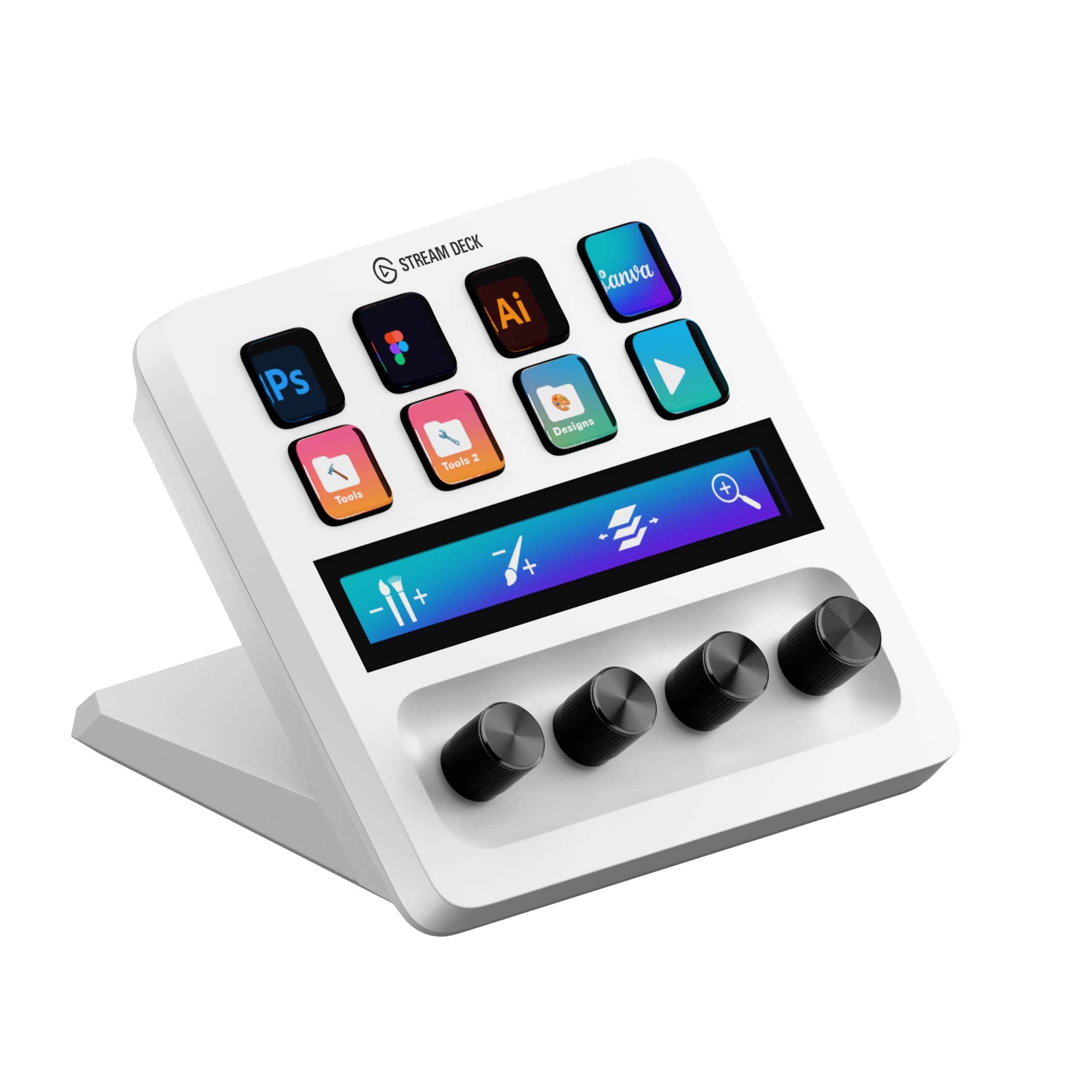
Dials are the whole argument for the Stream Deck + over the cheaper MK.2. A twist rides a fader, a press mutes that channel, and the touch strip above the keys shows what each dial is currently pointed at. If you mix anything live — a stream, a podcast, a voice-over — that's a different kind of control rather than simply more of it.

What we appreciate most is that the dials are good at exactly the jobs a key handles badly. Muting is a press either way, but level-riding, timeline scrubbing and nudging a lamp's brightness all want a knob under your fingers, and these turn with enough resistance that small adjustments stay small. The strip does more than decorate: it labels the current page of dial functions, so you aren't guessing which knob does what mid-sentence.

The cost of all that is keys. This deck has fewer physical keys than the MK.2 and sells for more, so a workflow built on scene changes and app launches is paying for dials it never turns. The other draw is Wave Link, Elgato's mixing software, which this deck unlocks — for a mic-and-music setup that pairing is the difference between a controller and a small console.

Two things worth knowing before you build a show around it. The keys feel softer under the finger than the MK.2's, which some hands prefer and others don't, and the software can need a restart before the dials pick system volume back up. Neither changes what the deck is for, but both are better discovered early.

Pros

  • Dials make level-riding and scrubbing natural
  • Touch strip labels the active dial functions
  • Unlocks Elgato's Wave Link mixing
  • Keys and tactile control in one unit

Cons

  • Fewer keys than the MK.2 at a higher price
Our verdict

We choose this one when audio is half the job: the dials turn fiddly level changes into a wrist movement, and the touch strip keeps you oriented while you do it.

Check Latest Price
3

Best Budget 15-Key Deck

fifine D6 Macro Keyboard

90 /100
LBD Score Outstanding

Key details

Keys
15 LCD keys
Weight
7.52 oz
Lighting
RGB ring
Connection
USB-C
View on Amazon

The D6 does most of what our top pick does for around half the money: fifteen LCD keys, an app that takes custom icons and multi-step macros, and enough integrations to cover OBS, Streamlabs and YouTube. We expected an obvious compromise and found a deck that gets the fundamentals right.

Where the saving shows up is the key press. The D6's keys need a firmer push than the Elgato decks, with a little less travel before the click arrives. Firing off scene changes and app launches, you won't notice. Chaining fast combos in a game, you will.

Setup runs through the D6's own software, and the drag-and-drop workflow is closer to Elgato's than the price suggests — you drop an action on a key, pick an icon or a GIF, and stack several commands into one press. The plugin catalogue is the shorter half of the story. OBS and the common streaming tools are covered; the long tail of niche apps that Elgato's community has built out simply isn't there.

So the check before you buy is your software list, not the hardware. If everything you use appears in the D6's integrations, this is fifteen keys and a light-up ring for a budget price and a genuinely good first deck. If your workflow leans on one specialist tool, confirm that pairing in the first week while you can still change your mind.

Pros

  • Fifteen LCD keys at a budget price
  • Multi-step macros and GIF icons supported
  • Simple drag-and-drop setup app
  • Covers OBS, Discord and editing apps

Cons

  • Keys need a firmer press than the Elgato decks
Our verdict

We rate it the best budget route to a full fifteen-key layout, as long as the apps you rely on appear on its supported list.

Check Latest Price
4

Most Keys for the Money

VSD M18 Macro Pad

87 /100
LBD Score Excellent

Key details

Keys
18 (15 LCD, 3 buttons)
Systems
Windows 11, macOS 14
Connection
USB-C
Dimensions
4.6"L x 4.1"W x 0.8"H
View on Amazon

Eighteen controls in a body 4.6 inches wide and just 0.8 inches thick: the M18 fits under a monitor where a bigger deck would sit in the way. Fifteen of those controls are LCD keys, three are physical buttons down the side, and a ring of RGB light runs around the edge. At 10.6 ounces it stays put without clamps or tape.

Setup runs through VSDinside's software rather than Elgato's, and the difference is visible — the interface is busier and the plugin list is shorter. It does the important things: JPG, PNG and GIF icons, folders, and multiple pages. We liked having three physical buttons beside the screens, which are the ones you can hit without looking down.

That price-to-key ratio is the whole case, and it's a strong one — eighteen controls for well under what our top pick costs. The hardware doesn't feel like the cheap option either: the screens are clear, the press is crisp, and the frame has no flex in it. The catch is the software around it, and it's specific: Bitfocus Companion, the free tool plenty of streamers build complex shows on, isn't supported here, so check that before you commit.

Pros

  • Eighteen controls in a slim, light body
  • GIF and image icons with folders and pages
  • Crisp key press and a rigid frame
  • Three physical buttons beside the screens

Cons

  • No Bitfocus Companion support
  • No dials or touch strip for audio
Our verdict

Eighteen controls in a deck that slides under a monitor — we think that's the strongest hardware-per-dollar argument in this roundup.

Check Latest Price
5

Knobs on a Budget

VSD N4 Pro Controller

85 /100
LBD Score Excellent

Key details

Stand
Foldable, 60 degrees
Systems
Windows 10, macOS 11
Controls
10 LCD keys, 4 knobs, touch bar
Connection
USB-C
View on Amazon

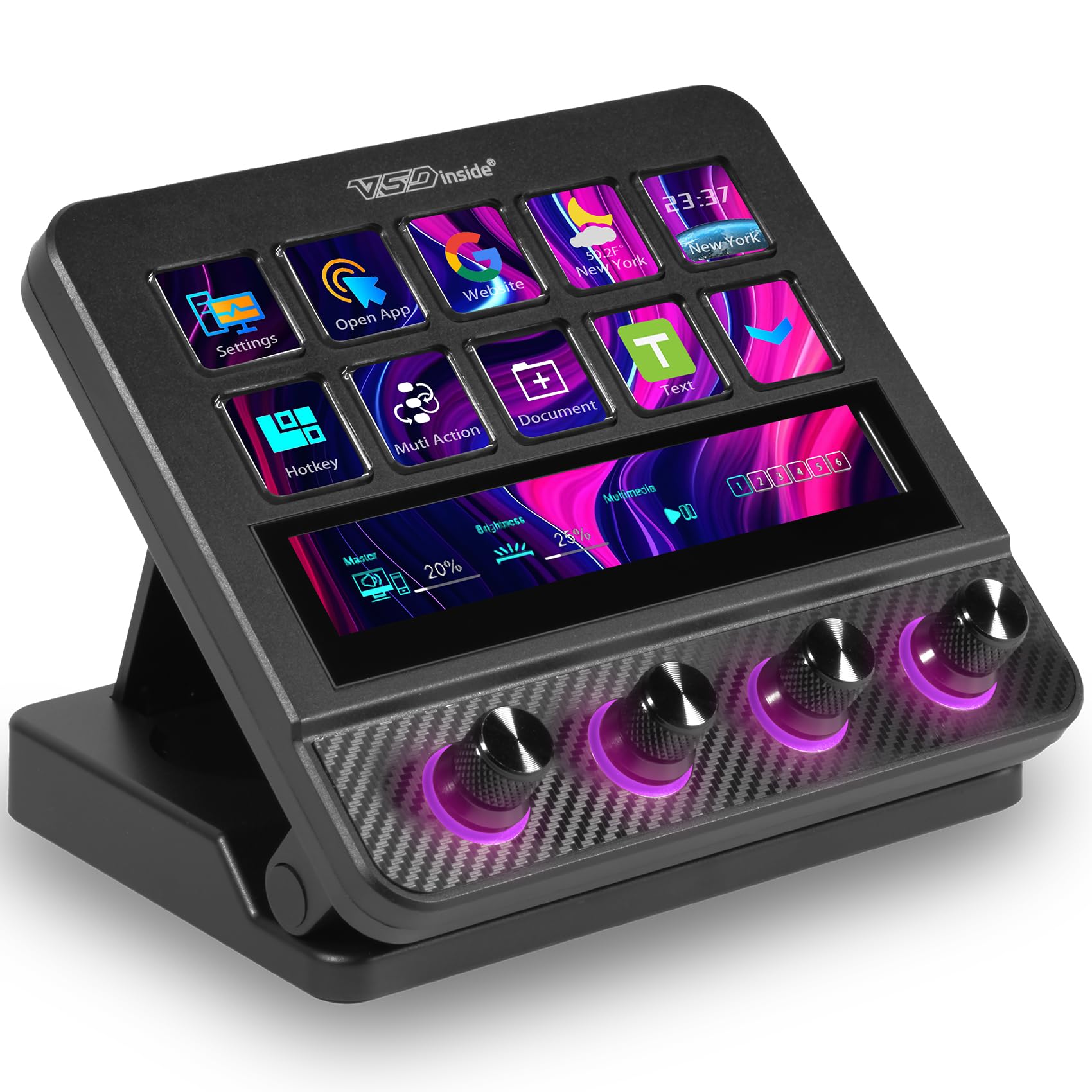
Ten LCD keys, four knobs, an interactive touch bar and a folding stand in one unit — on paper the N4 Pro is the closest thing here to a do-everything deck, and it undercuts the Stream Deck + by a wide margin.

The hardware is the pleasant surprise. The knobs click through each step with a definite notch, the touch bar registers taps quickly, and the stand props the whole thing at 60 degrees, which puts the screens at a readable angle without a separate mount. We also liked the built-in USB dock; a spare port on a crowded desk is never unwelcome. For the money, this is a well-made piece of kit.

The software is where the substitution gets bumpy. VSDinside's app is capable but assumes an evening of learning, and the plugin catalogue is patchier than Elgato's in the tools people reach for every day. Build your real layout in the first week rather than a test page — a handful of actions won't tell you how it behaves once twenty of them are chained.

For the right buyer, though, this is a lot of control for midrange money. If you want knobs for audio or scrubbing, don't need Elgato's plugin library, and don't mind spending a Saturday on setup, the N4 Pro hands you more hardware per dollar than anything else here. Expect polish a step behind; expect capability well ahead of its price.

Pros

  • Ten keys, four knobs and a touch bar in one unit
  • Knobs click through each step with a firm detent
  • Folding stand sets a readable 60-degree angle
  • Built-in USB dock adds a spare port

Cons

  • Software can go unstable under load
Our verdict

We point patient buyers here when they want knobs without Elgato prices, and we warn them to expect a rougher software ride.

Check Latest Price
6

At-A-Glance Info

Streonor S15

88 /100
LBD Score Excellent

Key details

Keys
15 LCD keys
Systems
Windows 10 64-bit, macOS 11+
Connection
USB-C
Status Panels
3
View on Amazon

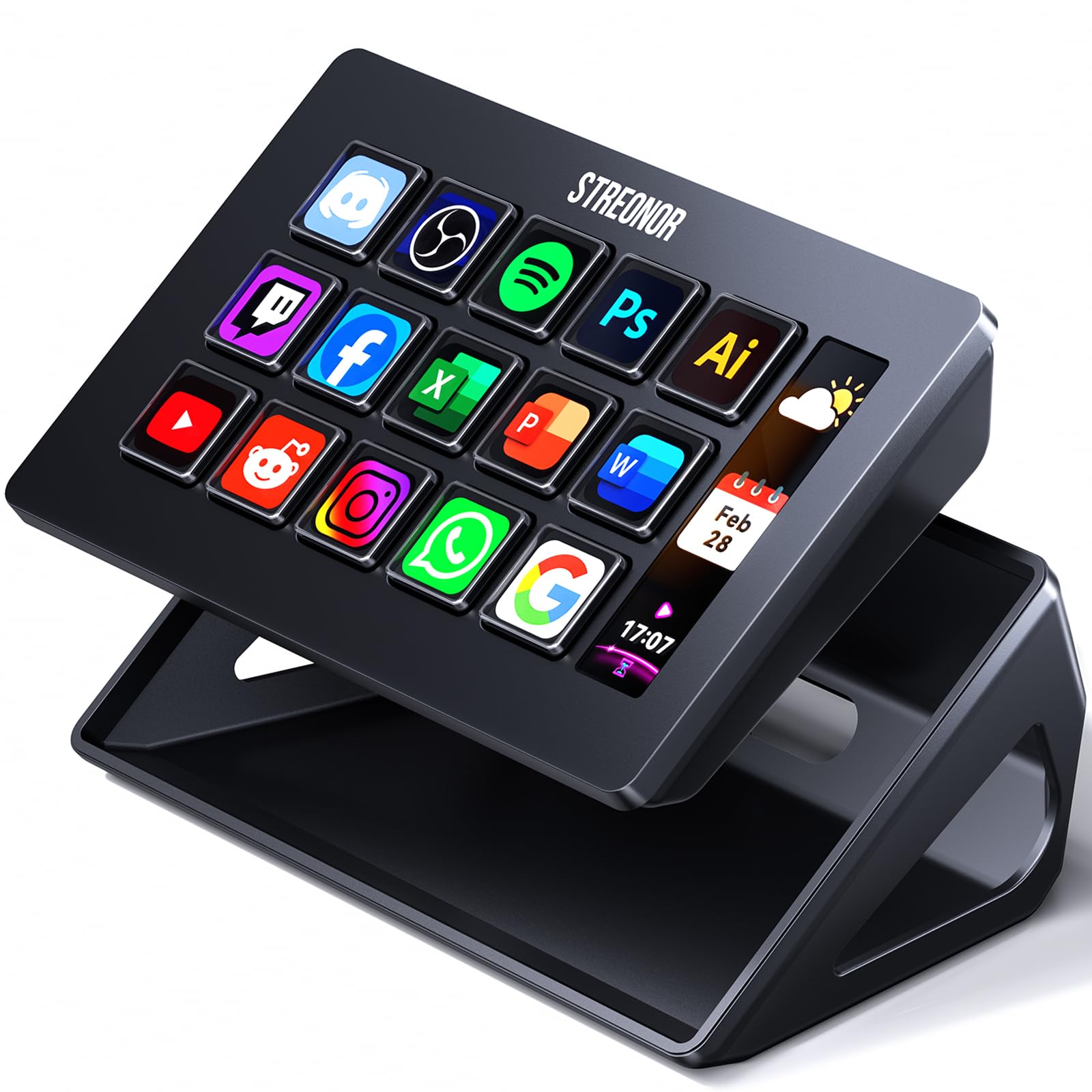
Three small status panels sit above the S15's fifteen keys, and they're the reason to look at this one rather than the other budget decks. The panels are read-only, so they hold information rather than take input: a glance takes it in, then you act on the keys below.

The rest is the formula the third-party decks here share — an app that takes icon packs and GIFs, action flows that chain several commands to a single press, preset pages built around different jobs, and a plugin library of more than a hundred entries. Fifteen keys with pages behind them is plenty for a stream layout, and the deck weighs 157 grams, so it moves between desks without a second thought.

Where we hesitate is longevity. A smaller brand's deck lives or dies on how long its software keeps getting attention, and that's the part of this purchase nobody can promise you up front. The flip side is that the hardware asks very little of you: USB-C, a light body, no driver gymnastics, and a plainly stated list of supported systems.

Pros

  • Three status panels above the keys
  • Fifteen keys with preset pages per scenario
  • Action flows chain several commands to one press
  • Light enough to move between desks

Cons

  • No Linux support
Our verdict

We see the appeal for anyone who wants live readouts beside their keys, provided they run Windows or macOS and don't need a long track record.

Check Latest Price
7

First Shortcut Deck

TreasLin N3

81 /100
LBD Score Excellent

Key details

Icons
Animated GIF support
Plugins
VSDinside marketplace
Controls
6 LCD keys, 3 buttons, 3 rotary knobs
Connection
USB-C
View on Amazon

The N3 splits its twelve controls three ways: six LCD keys across the top, three plain push buttons, and three rotary knobs with a tactile step. That mix is unusual at the entry end, where most decks give you a grid of screens and nothing else.

The knobs are the interesting part. Point one at system volume, one at scrolling and one at zoom, and you get fine control that otherwise means stepping up to a dial-equipped deck. The screens take animated GIFs as well as still icons, and the software pulls from the VSDinside marketplace — the same plugin library the other third-party decks here use.

That software is borrowed rather than built in-house, which is worth knowing if you ever need support: you're dealing with an app and a marketplace that belong to another company. In practice the library is broad, with hundreds of plugins, animated icons and the same action-chaining the pricier decks here manage.

Where we land: this is the cheapest way to get real screens and real knobs on the desk at once, and for a first shortcut setup built around OBS and a handful of apps it does the job. Treat it as the deck you learn on rather than the one your whole show depends on.

Pros

  • Knobs and screens together at the entry price
  • Animated GIF icons on every key
  • Access to a large plugin marketplace

Cons

  • One-year warranty
  • Connection setup can be finicky
Our verdict

Our entry point for someone testing the whole idea of a deck: real screens and real knobs for the least money here.

Check Latest Price

How We Tested These Stream Controllers

We started by pulling every controller we could find that shipped with its own software — a deck without a decent app is just an expensive numpad — then filtered by key count, whether it had dials or a touch strip, and how clearly Mac and PC support was documented. That shortlist came down to 12 units, which we lived with for six months.

Every deck got the same six actions mapped: mic mute, scene switch, master volume, a browser alert, a sound clip, and mute for meetings. I then worked a full week with each one, streaming two nights and taking calls on the others, noting how often I hit the wrong key or had to look down. For button responsiveness I pressed each key slowly, quickly, and twice in a row to see if it double-fired, then repeated the test after the deck had been asleep overnight.

Setup was timed from unboxing to first working macro, including downloads and firmware updates, and I noted how much of it I could finish without opening the manual. Volume got tested mid-call rather than on a bench, nudging dials and touch strips to see whether the level moved in smooth steps or jumped. Each unit stayed plugged in for a full week to catch dropped connections, profiles resetting after sleep, or keys that needed a second press — and I handed one to a colleague who'd never used a controller to watch her build three keys unaided.

Customizability was judged by rebuilding my layout for a different job each week — a podcast, then a game stream, then an ordinary workday — and checking whether profiles swapped on their own when a new app opened. Value came down to how much deck you got for the money and whether the software was included and kept updated.

How to Choose a Stream Deck

Count the Actions, Not the Keys

The number on the box is the wrong number to shop by. What matters is how many commands you need visible at once, because folders and pages turn a fifteen-key deck into a hundred commands. In our testing, a stream layout with a handful of scenes, a mute and a few app launchers sat comfortably inside fifteen keys with a page to spare.

Six- and eight-key decks push you into paging almost immediately, which is fine for a meeting-and-mute setup and frustrating for a live show. If a switcher, a DAW and chat all want to be on screen together, plan on eighteen controls or more, and budget the desk space that comes with them.

Decide Whether You Actually Need Dials

Keys are binary; dials aren't. If your session involves levels, scrubbing or gradual adjustments — audio mixing, video editing, dimming a light — a rotary control is the difference between nudging a value and setting it. The dial-equipped decks here cost more and usually carry fewer keys, so the honest question is which one your hand reaches for mid-session.

A scene-only stream runs fine on a grid and gains nothing from knobs. A podcast or a live mix is the opposite, and that's the point at which the Stream Deck + or the VSD N4 Pro starts earning its place on the desk.

The Software Outlasts the Hardware

A deck is a shell of screens and switches; the app behind it decides what the shell can do in two years. Elgato's ecosystem is the deepest in this group, with automatic profile switching and a plugin for almost everything, and that's the main reason our top pick holds its position against cheaper hardware.

The third-party decks here are competent but lean on smaller catalogues. Before you buy, search the maker's plugin or integration page for the one app your workflow can't survive without, and check the OS version it supports. That five-minute search is worth more than any feature list.

Check the Connection Before the Features

This is where decks quietly disappoint. Most are USB-powered and particular about where they're plugged in; an unpowered hub or a front-panel port can leave a deck dropping in and out mid-session, and certain Thunderbolt cables simply don't agree with some units. Plan a direct port on the machine.

Cable length decides desk position more often than people expect, and a bundled cable that's too short will pull a deck out of the spot you wanted. Set it up in its final location during the return window, not on the day it arrives.

Feel, Noise and Viewing Angle

Membrane keys are quiet and a little soft; scissor and mechanical switches give a crisper click with more sound. Neither is better in the abstract — a deck in a shared room benefits from quiet keys, while one used for fast combos benefits from a detent you can feel without looking down.

Angle matters as much as feel. A stand that tilts the screens toward you keeps them readable under a bright lamp, and a deck that sits flat slides under a monitor arm when the desk gets crowded.

Frequently Asked Questions

Final Verdict

Buy the Elgato Stream Deck MK.2 unless something specific in your setup says otherwise. Fifteen keys, an app that takes an evening to learn, and profiles that follow whatever you're working in make it the deck most people should own — and its plugin library is why it stays useful after the novelty wears off.

If you mix audio live, step up to the Stream Deck + for its dials; that's the one requirement the MK.2 genuinely can't meet. If the budget is tighter, the VSD M18 gets you eighteen controls for well under the price of either, as long as you can live with a smaller ecosystem.