Best NAS for Home of 2026

A NAS is a small computer that sits on a shelf and holds your files so every device in the house can reach them — no cloud subscription, no photo library living on someone else's server. The box itself is the easy part. What you actually live with, day after day, is the software layered on top of it, and that is where two machines with nearly identical spec sheets start to feel like different products.

I've moved a decade of family photos twice now, and the second migration taught me more than the first. Over the past eight months, my team and I have set up and lived with six of these machines, from two-bay starter boxes to four-bay units meant for a household that backs up everything, and the differences showed up in ordinary moments: a phone backup at 10 p.m., a movie night, a power strip kicked loose by a vacuum.

Here's what first-time buyers rarely account for: the drives usually cost as much as the enclosure, and a two-bay unit running mirrored disks leaves you with less usable space than you expect. Work out how much room you actually need before you fall for a spec sheet. The picks below are grouped by who they suit, from a first private cloud to a full household backup hub.

1

Best Overall

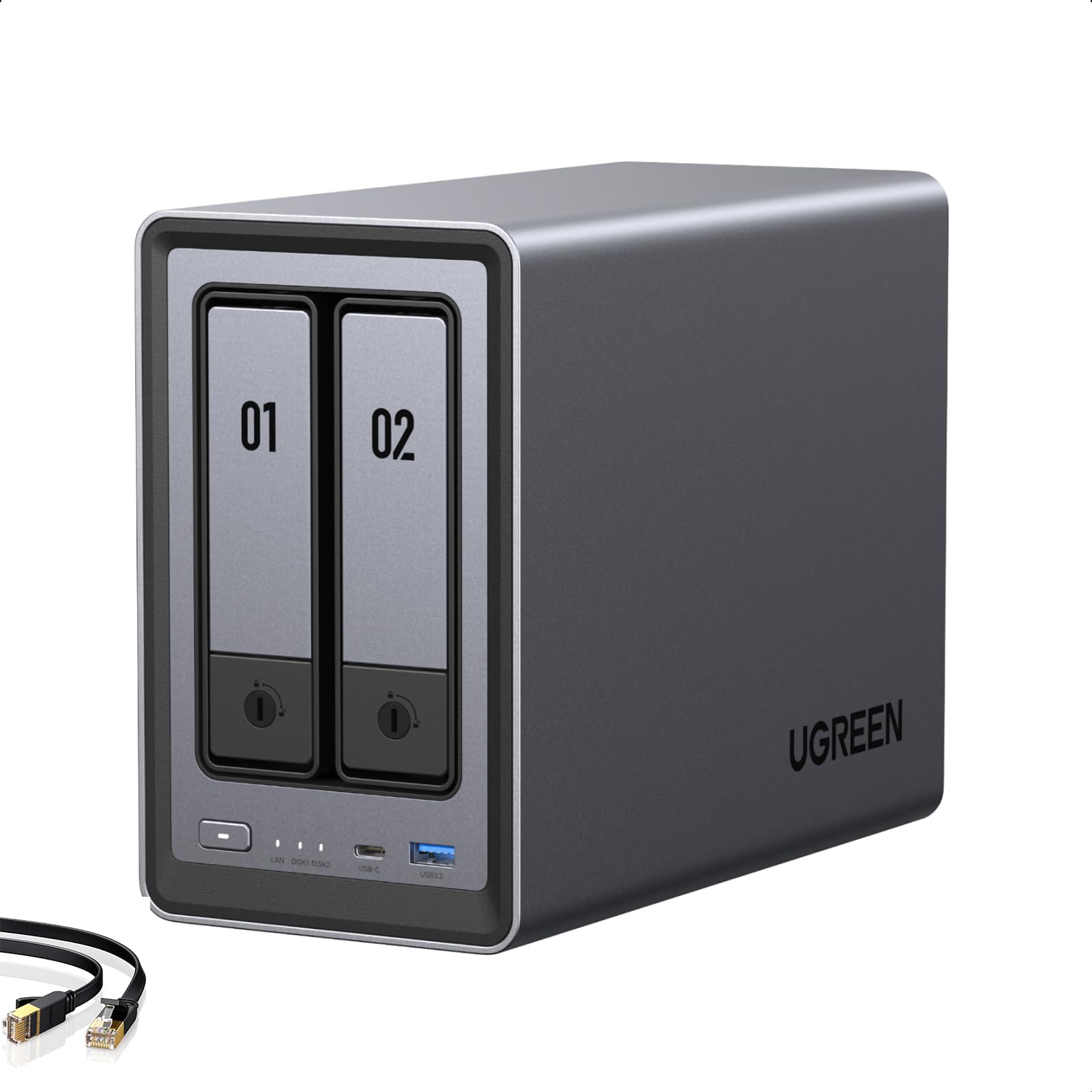
UGREEN NAS DXP2800

91 /100
LBD Score Outstanding

Key details

Memory
8GB DDR5
Network
2.5GbE
Drive Bays
2
Max Capacity
80 TB
View on Amazon

The 2.5GbE port is what separates this from everything else we recommend here. A gigabit connection caps a wired backup at roughly 125 MB/s however fast the drives are; this one has more than twice that ceiling to work with, provided your router or switch can carry it. Add the Intel N100, 8GB of DDR5, and two M.2 slots that serve as cache or as a fast working volume, and you have the one box in this group that will not be the slowest link in a home network.

Setup is the part we expected to be a chore and was not. The software walks you through drives, users, and shared folders, and the jobs that usually cost an evening, including a Plex library, a Docker container, and automatic phone photo backup, are switches rather than projects. It runs quietly enough for a shelf in a spare room; you hear the drives when they wake and not much else. The case is plastic, but it is tight and heavier than it looks, and UGREEN even ships the screwdriver for the trays.

The long haul is the part we cannot vouch for. Stability over months of use is the least consistent thing about this one, and the two-year warranty is a year short of the DS225+. That is not a reason to skip it, since no array here replaces a second copy of the folder that would hurt to lose, but it is a reason to keep that copy somewhere else. Two bays and two SSD slots give you 80TB to grow into in the meantime.

Pros

  • 2.5GbE port more than doubles the transfer ceiling
  • Intel N100 and 8GB DDR5 run Plex and Docker
  • Two bays plus two SSD slots, 80TB total
  • Guided setup that handles drives and users

Cons

  • Long-term stability is the least settled thing here
  • Two-year warranty trails Synology's three
Our verdict

We recommend this for most homes: the 2.5GbE port, N100, and dual M.2 slots buy headroom the cheaper boxes cannot match.

Check Latest Price
2

Best for Media Servers

Synology DS225+

89 /100
LBD Score Excellent

Key details

Warranty
3 years
Drive Bays
2
Max Capacity
40 TB
Transfer Speed
282 MB/s
View on Amazon

DiskStation Manager is the reason to pay for this one, and it is not a small reason. Photo backup that actually indexes, snapshot schedules you set once and forget, a media server that hardware-transcodes, and a permissions screen a normal person can finish without a forum thread: this is the most complete software in the group, and we think it is what turns a two-bay box into something the whole household can use without asking you for help.

The hardware is modest but sensible. Two bays, an Intel chip built for hardware transcoding, a listed 282 MB/s transfer speed, and the longest warranty here at three years. Snapshots and RAID cover the accidental delete as well as the dead drive, and the black metal-and-plastic body is compact enough to tuck beside a router.

The catch is drives. The compatibility list for this model is narrow, and popular NAS-rated drives that work in other enclosures do not always appear on it, so price your exact drive model before you commit, because the enclosure is only part of the bill. If polished software and reliable media playback are what you are after, this is the one; if raw throughput matters more than the interface, the DXP2800 is the better buy.

Pros

  • DSM is the most complete software here
  • Hardware transcoding for media playback
  • Three-year warranty, the longest in this group
  • Snapshots and RAID cover mistakes and failures

Cons

  • Drive support is restricted to approved Synology-branded models
Our verdict

Buy this one for the software and the transcoding: it is the easiest home media server here, as long as you price its approved drives first.

Check Latest Price
3

Best Budget

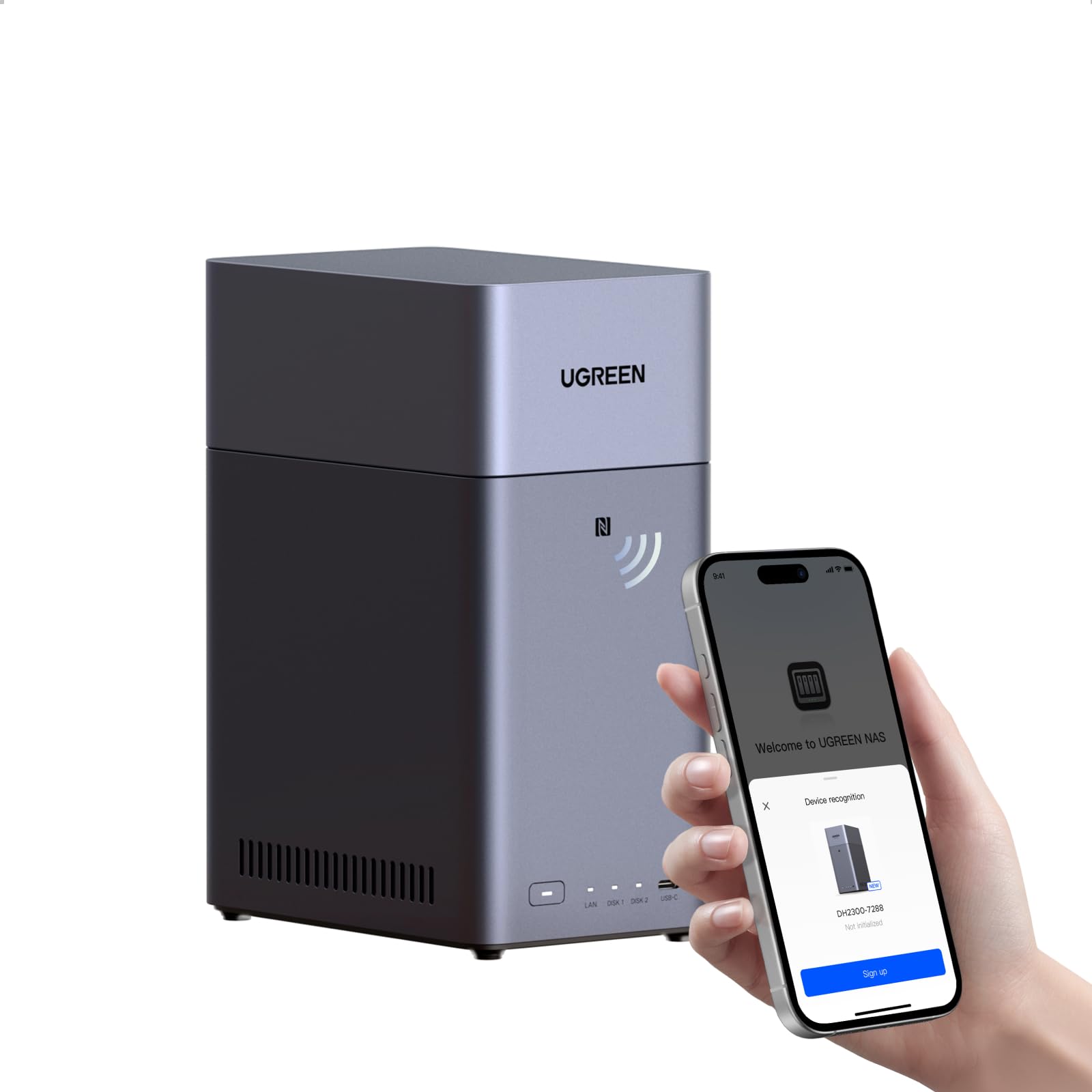
UGREEN NAS DH2300

88 /100
LBD Score Excellent

Key details

Memory
4GB
Network
1GbE
Drive Bays
2
Max Capacity
64 TB
View on Amazon

If you have never owned a NAS, the DH2300 is the least intimidating way in. Two bays, an app that sweeps up your camera roll, an AI album that tags faces and places so you can search for a person instead of scrolling three years of thumbnails, and a setup routine that assumes you have never seen a RAID menu. It is the cheapest pick here and the only one that reads as a starter box rather than a small server.

What it does, it does well. Photos, videos, and documents from phones, laptops, and tablets land in one place, and we liked how little it asks of you: no RAID decision you can get wrong, no port forwarding, and a 64TB ceiling that means you will not be hunting for a second box anytime soon. It runs cool and quiet and sits on a shelf without announcing itself.

The limits arrive once you stop asking it to do backup. Reliability is the thing to watch, since some units quit within a couple of months, so buy it somewhere with easy returns and keep an off-device copy of anything you cannot lose. The two bays protect you from a dead drive, which is not the same thing as a backup.

Pros

  • Cheapest way into a two-bay NAS
  • AI photo tagging makes a large library searchable
  • Quiet, low-power, and simple to set up

Cons

  • Gigabit networking limits large transfers
  • 4GB of onboard memory caps app and container use
Our verdict

This is the one we point first-time buyers to, provided backup and photo sharing are the whole job and reliability risk is acceptable.

Check Latest Price
4

Room to Grow

Synology DS423

85 /100
LBD Score Excellent

Key details

Warranty
2 years
Enclosure
Metal
Dimensions
9"D x 6.6"W x 7.24"H
Drive Bays
4
View on Amazon

Four bays is the entire argument for the DS423. Mirroring two drives protects you from a dead disk; four drives let you run a parity array that keeps most of the capacity, hold a spare slot, and swap in larger drives later without starting from scratch. If your library is already in the terabytes and still climbing, that headroom is worth more than the extras the two-bay units compete on, and it is why this one makes the guide as the priciest of our four.

It runs the same DSM software as the DS225+, so photo backup, snapshots, shared folders, and camera recording all behave the way Synology users expect, and the all-metal case is the most solid enclosure here. Setup is the usual Synology walkthrough: create an account, let it find the drives, choose a RAID type, and start copying. We came away thinking it is the sensible buy for a family that has already outgrown a couple of external drives.

The premium buys bays, not features, since the software is identical to the DS225+, so start with two drives if that is what the budget says and add the third and fourth when the library catches up. The array grows into them. We just do not see the point of four bays for a few hundred gigabytes of photos.

Pros

  • Four bays for parity and expansion
  • All-metal case, the sturdiest here
  • Runs the full DSM app suite

Cons

  • Four bays invite four drives, and the bill with them
Our verdict

Choose the DS423 when bay count is the constraint: it gives a growing family library four slots for parity and expansion in a metal case.

Check Latest Price

How We Tested Home NAS Units

We started with the current lineups from the established NAS makers, filtered out anything without a recent-generation processor or a workable path to remote access, and narrowed the field to two- and four-bay models a household could realistically afford once disks were factored in. Six made the cut. Each one ran for eight months with drives we bought ourselves, so no unit had a spec-sheet advantage over another.

Setup was timed, not just judged. I unboxed each unit, installed the drives, and ran the initial configuration solo with a stopwatch going, noting where the wizard assumed I already knew what a storage pool was and where it actually explained itself. Then I connected two phones, a laptop, and a TV, and wrote down every step that sent me to a support article. Partway through, I swapped in a larger drive to see whether the system picked it up without a rebuild, since compatibility with the disks you already own matters more than any headline number.

After that, the machines went into ordinary service. Phones backed up overnight, I pulled RAW files off camera cards on deadline, and movies streamed to the living room TV while someone else was on a video call upstairs. I copied a folder of large video files and watched the transfer rate, then repeated it with a second device streaming, and I paid attention to how the drive trays felt going in and whether the fan was audible from a desk three feet away. Remote access got tested from a coffee shop and from a rental with bad Wi-Fi, on both phone and laptop.

Reliability got the least glamorous test: I pulled power on each unit without warning and watched how long it took to come back and whether it complained about the array afterward. I also tracked how often each one nagged for firmware updates and how quickly I could find a file I'd moved six months earlier. Value came down to usable space per dollar after disks, plus how much the software does before it asks you to pay for an add-on.

How to Choose a Home Nas

Buy the bays before you need them

Two bays can mirror one drive onto the other, which survives a dead disk but leaves you no room to grow without replacing both drives at once. Four bays let you run a parity array, keep a spare slot, and expand as the library fills. If you are storing years of photos and video, pay for the extra bays up front. The gap between a two-bay and a four-bay enclosure is usually smaller than the cost of the drives you will add later anyway.

Match the port to the rest of your network

A gigabit port tops out near 125 MB/s, which is fine for phone backups and documents and slow for a terabyte of video. 2.5GbE more than doubles that ceiling, but only if your router or switch and the computer you are copying from can run at that speed too. Plug a 2.5GbE NAS into a gigabit router and you have paid for headroom you cannot use. Check the switch before you pay for the port.

Decide how much software you want to manage

Synology's DSM is the deepest ecosystem in this guide: mature photo and surveillance apps, snapshots, and documentation behind nearly every setting. UGREEN's system is younger and friendlier, with the same big pieces, including Docker, media serving, and photo tagging, in a simpler wrapper. Neither is wrong; pick the one that matches your appetite for tinkering. Whichever you land on, check the maker's drive compatibility list before you order, because a narrow list can push you onto pricier drives.

Give it a cable and somewhere to live

Every NAS here is wired, and it should stay that way, since bridging it over Wi-Fi throws away the speed you paid for. Plan a spot near the router, on a hard surface, with air around the case. Spinning drives are audible when they wake, so a shelf in the room where you work is a worse home than a hallway cabinet. A small uninterruptible power supply is cheap insurance against a power cut in the middle of a write.

Frequently Asked Questions

Final Verdict

For most homes, we recommend the UGREEN DXP2800. The 2.5GbE port, the Intel N100, and the two M.2 slots are what keep a family NAS from feeling slow in year three, and it costs about what the Synology DS225+ does.

Choose the DS225+ if polished software, hardware transcoding, and a three-year warranty matter more than the network ceiling, and price its approved drives first. On a tight budget, the DH2300 covers phone backups and file sharing well; the DS423 is the one to buy when four bays of room to grow is the whole point.