Best Multicolor 3D Printers of 2026

Every multicolor printer is really two machines sharing one frame: the one that melts plastic and the one that swaps the spools. The second one is where things get interesting, and where most of the disappointment lives — purge towers taller than the model you're printing, filament wasted by the ounce, a color change that jams at hour six of an overnight job.

Eight months and eight printers later — set up in my office and on a spare-room workbench — I can tell you the gap between a good one and a frustrating one rarely shows up in the first hour. It shows up on the third print, when you've stopped hovering over it, which is when ease of use and reliability actually mean something.

One thing I wish someone had told me earlier: the speed on the box is a single-color number. Load four filaments and the same model can take two to three times as long, and the gap widens with every color change. We kept that in mind for every pick here — these are the printers I'd hand to a friend who has never owned one, and the ones I'd keep for myself.

1

Best Overall

Bambu Lab P2S Combo

87 /100
LBD Score Excellent

Key details

Chamber
50 °C
Max Speed
600 mm/s
Filament Drying
Up to 65 °C
Multicolor System
AMS 2 Pro, 4 spools
View on Amazon

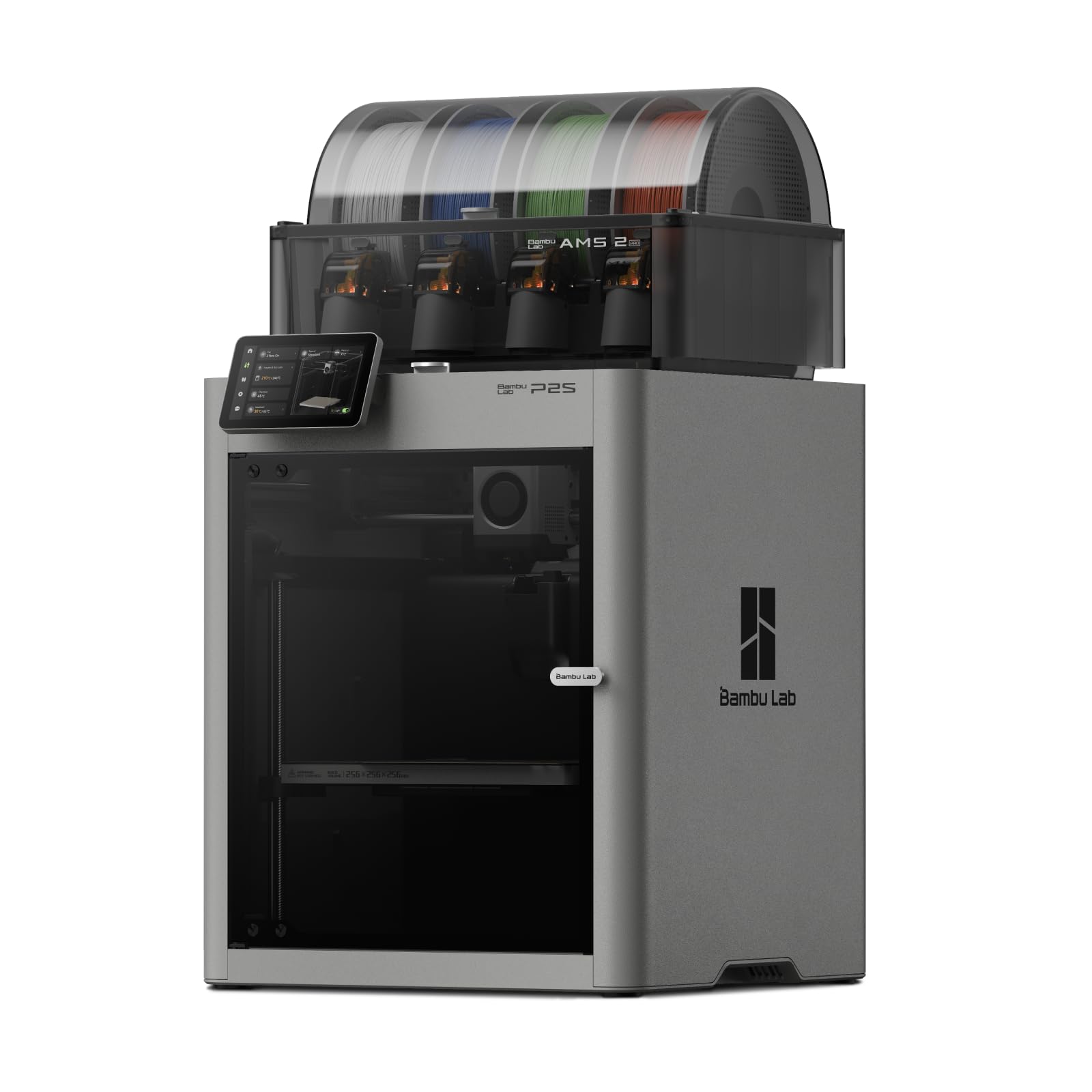
Four open spools are four chances for a print to go wrong, and the AMS 2 Pro is the only filament box in this group that does something about the cause: it dries while it holds, at up to 65 °C. That is why the P2S Combo is our top pick. Multicolor printing multiplies the number of spools you keep loaded, and damp filament shows up as stringing and weak layers long before anyone thinks to blame the printer.

The rest of the package is the most complete here. A 600 mm/s CoreXY with a servo extruder and active flowrate compensation, an adaptive airflow system that either cools overhangs or holds a 50 °C chamber for engineering filaments, AI failure detection, quick-swap nozzles. Bambu's 15-minute setup claim is believable because calibration is automatic — this is a machine you can hand to someone who has never sliced a file.

Then there is MakerWorld and Bambu Studio. A library of ready-made multicolor models, already sliced for the AMS, changes the hobby more than any single specification: your first month goes into printing rather than tuning. We also noted how quiet it runs for a machine this size, which matters when it lives in the same room as the people using it.

What you spend instead is filament. The AMS feeds one nozzle, so every color change purges and builds a prime tower, and a model with dozens of swaps costs real material and real hours. At 46.3 pounds it also wants a permanent spot rather than a shelf you reorganize.

Pros

  • AMS 2 Pro dries filament up to 65 °C
  • 600 mm/s with active flowrate compensation
  • Up and printing in about 15 minutes
  • MakerWorld library of pre-sliced color models

Cons

  • Single nozzle purges on every color change
  • 18 by 22 inch footprint wants a permanent bench
Our verdict

We recommend the P2S Combo to most people buying their first multicolor printer: the AMS 2 Pro dries filament, setup takes minutes, and Bambu's model library does the rest.

Check Latest Price
2

Best for Multi-Material

Snapmaker U1

89 /100
LBD Score Excellent

Key details

Weight
57.9 lb
Toolheads
4 independent
Tool Change
5 seconds
Color-change Waste
No purge between colors
View on Amazon

Every multicolor print on a single-nozzle machine pays a tax: filament flushed into a waste bin or a prime tower, minute after minute, once per color change. The U1 does not pay it. Four independent toolheads park and swap in about five seconds, so a color change is a movement rather than a flush and the waste drops close to zero.

That is the design decision we kept coming back to, because it changes what you are willing to print. A four-color figure with two hundred swaps becomes a normal evening instead of a spool. And since each toolhead carries its own filament, the U1 handles genuinely different materials in one job — rigid PLA in one, TPU in another, water-soluble support in a third. No other pick here does mixed-material work as cleanly, and the print quality coming off this machine is the most consistent in the group.

Setup is guided rather than assumed: automatic toolhead offset calibration, vibration compensation and first-layer tuning, plus the open-source Snapmaker Orca slicer and a built-in model library. It is not as hand-held as the Bambu workflow — the phone-first, pick-a-model-and-print loop is still smoother on the P2S — and there is a real learning curve if this is your first machine.

The trade-off is bulk: 57.9 pounds of printer, and four toolheads are four things that can drift out of alignment. It is the pick for someone printing color often enough that waste and swap time show up in the monthly filament bill.

Pros

  • Near-zero purge waste between colors
  • Five-second tool changes
  • Rigid, flexible and soluble materials in one job
  • Automatic toolhead offset calibration

Cons

  • 57.9 pounds is a lot of machine to move
Our verdict

If you print color often, the U1's four toolheads buy back the filament and hours that purging eats, and they let you run dissolvable supports.

Check Latest Price
3

Best for Large Prints

Creality K2 Plus Combo

85 /100
LBD Score Excellent

Key details

Chamber
Heated to 60 °C
Max Speed
600 mm/s
Build Volume
350 x 350 x 350 mm
Color Capacity
4, up to 16 with four CFS
View on Amazon

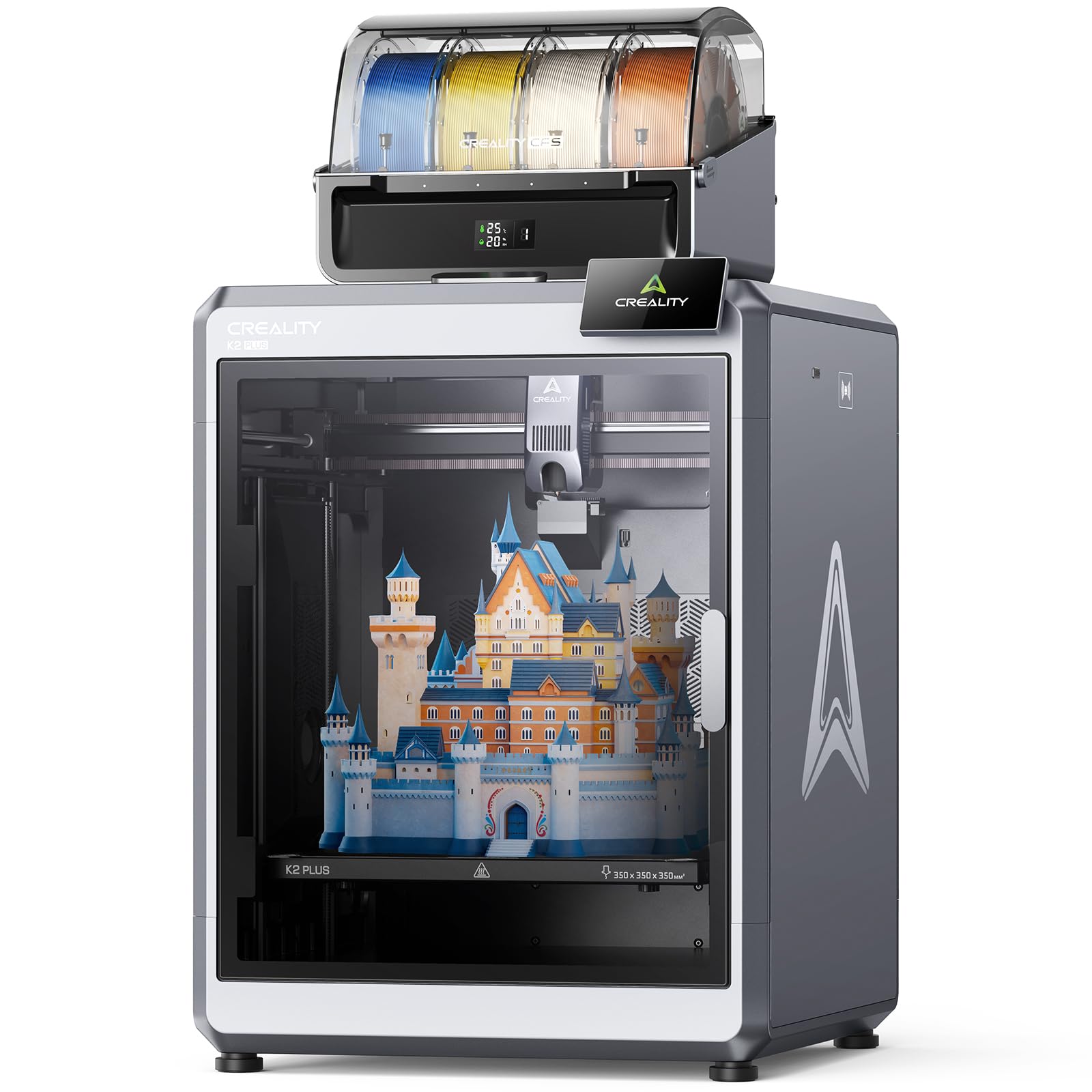
A 350 mm cube is the whole argument for the K2 Plus. It is the largest build volume here by a wide margin, and it rewrites the print list: a helmet in one piece, a plate of twelve brackets at once, furniture parts that do not need to be split, glued and sanded.

Size alone would not earn a runner-up slot. What makes it worth the footprint is that Creality built the rest of the machine around that volume — a 60 °C actively heated chamber for ASA and PPA, 600 mm/s motion on FOC step-servo motors, dual AI cameras watching for spaghetti, 18 sensors. Size plus a heated chamber is the combination; nothing else in this group covers large parts in engineering filaments, and that is the reason to buy it.

The CFS adds four colors, and four CFS units chained together reach 16. That is the most color capacity in the group, though we suspect most buyers run the one unit and rarely fill it. Two things to plan for instead: assembly takes the better part of an hour and the documentation is the weakest part of the package, so budget time for video guides rather than the printed manual; and at 70.4 pounds, decide where it lives before it arrives.

Pros

  • 350 x 350 x 350 mm build volume
  • 60 °C heated chamber for ASA and PPA
  • Dual AI cameras and 18 sensors

Cons

  • Long-run reliability is the open question
  • Assembly and setup take the better part of an hour
Our verdict

Buy the K2 Plus when the model is the point: a 350 mm cube and a heated 60 °C chamber cover prints no other machine here can take in one piece.

Check Latest Price
4

Best Budget Multicolor

Anycubic Kobra X

84 /100
LBD Score Excellent

Key details

Nozzle
Hardened steel
Max Speed
600 mm/s
Build Volume
260 mm cube
Color Capacity
4 built in, up to 19
View on Amazon

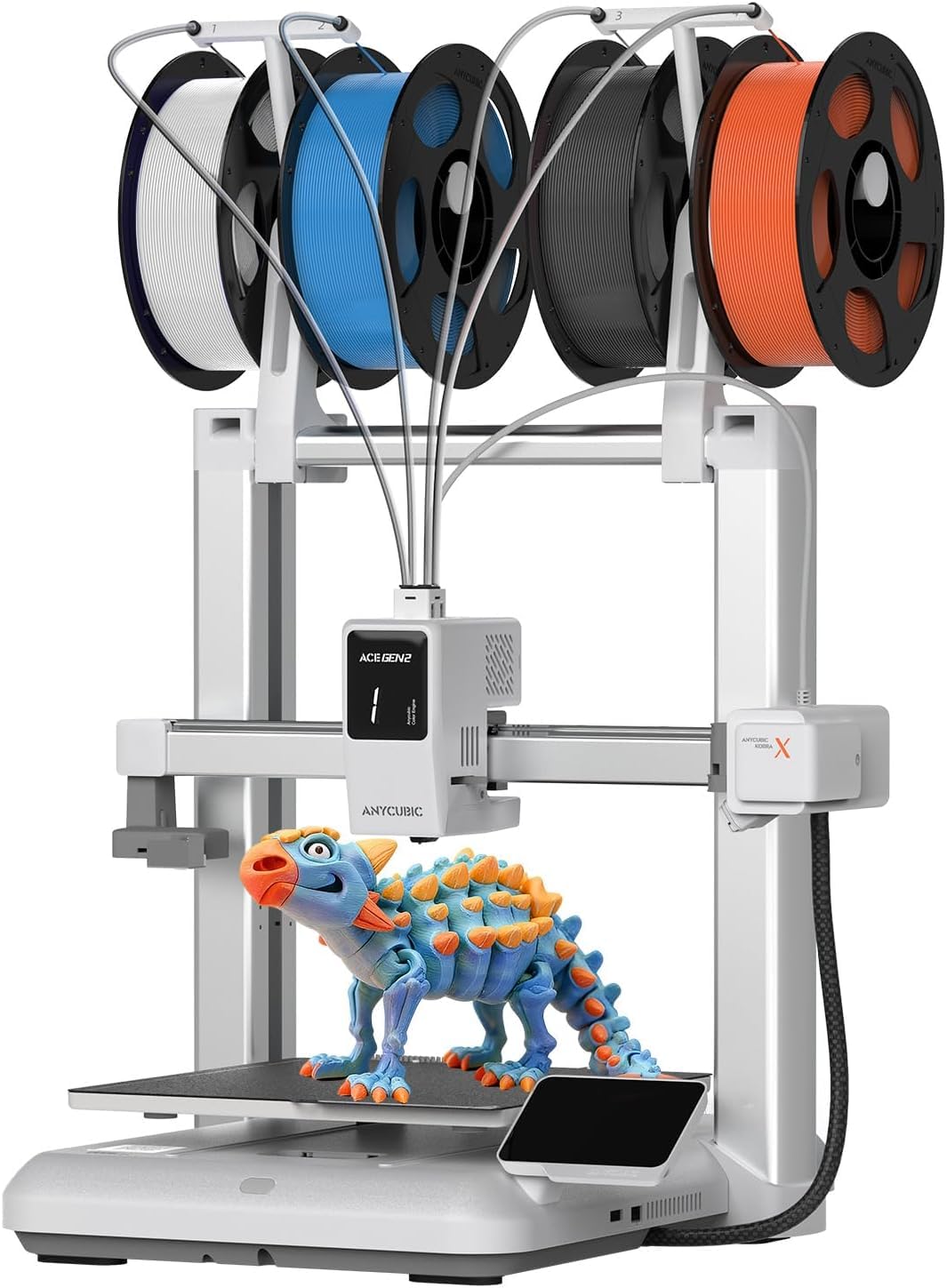
The Kobra X is the least expensive way into four-color printing here, and it has an upgrade path: four ACE 2 Pro units in total reach 19 colors. We like that shape of a deal — you start with the four colors in the box and add capacity only once the hobby proves it deserves the shelf space.

The hardware does not read as budget. A hardened steel nozzle, vibration compensation, 600 mm/s travel and a 49-point auto-leveling routine are the same ingredients the mid-range machines use, and the top-mounted spool holder keeps the desk underneath it clear. At 20.9 pounds it is light enough to lift onto a bench alone, which is not something we can say for most of this group.

Anycubic also attacks waste from a different angle than Bambu or Creality: it claims the filament path and travel are shortened by roughly 81 percent, which it says doubles multicolor speed and cuts material cost. Treat that as the manufacturer's figure rather than a measured result, but the direction is right, and it is why this machine is competitive at its price.

Where it gives ground is consistency. Setup and print quality land well, while reliability past the first few weeks is the uneven part. For a first printer that is a manageable risk at this price — just keep the return window in mind and run a few multi-hour prints inside it.

Pros

  • Four colors out of the box, up to 19
  • 600 mm/s with a hardened steel nozzle
  • 49-point auto bed leveling
  • 20.9 pounds and a compact frame

Cons

  • Reliability is uneven past the first weeks
Our verdict

We point budget buyers at the Kobra X: four colors in the box, a hardened nozzle, and room to grow to 19 colors if the hobby sticks.

Check Latest Price
5

Best for Quick Setup

Creality SPARKX i7 Combo

79 /100
LBD Score Very Good

Key details

Setup
Fully pre-assembled
Camera
AI failure detection
Build Volume
260 x 260 x 255 mm
Color Capacity
4 with CFS Lite
View on Amazon

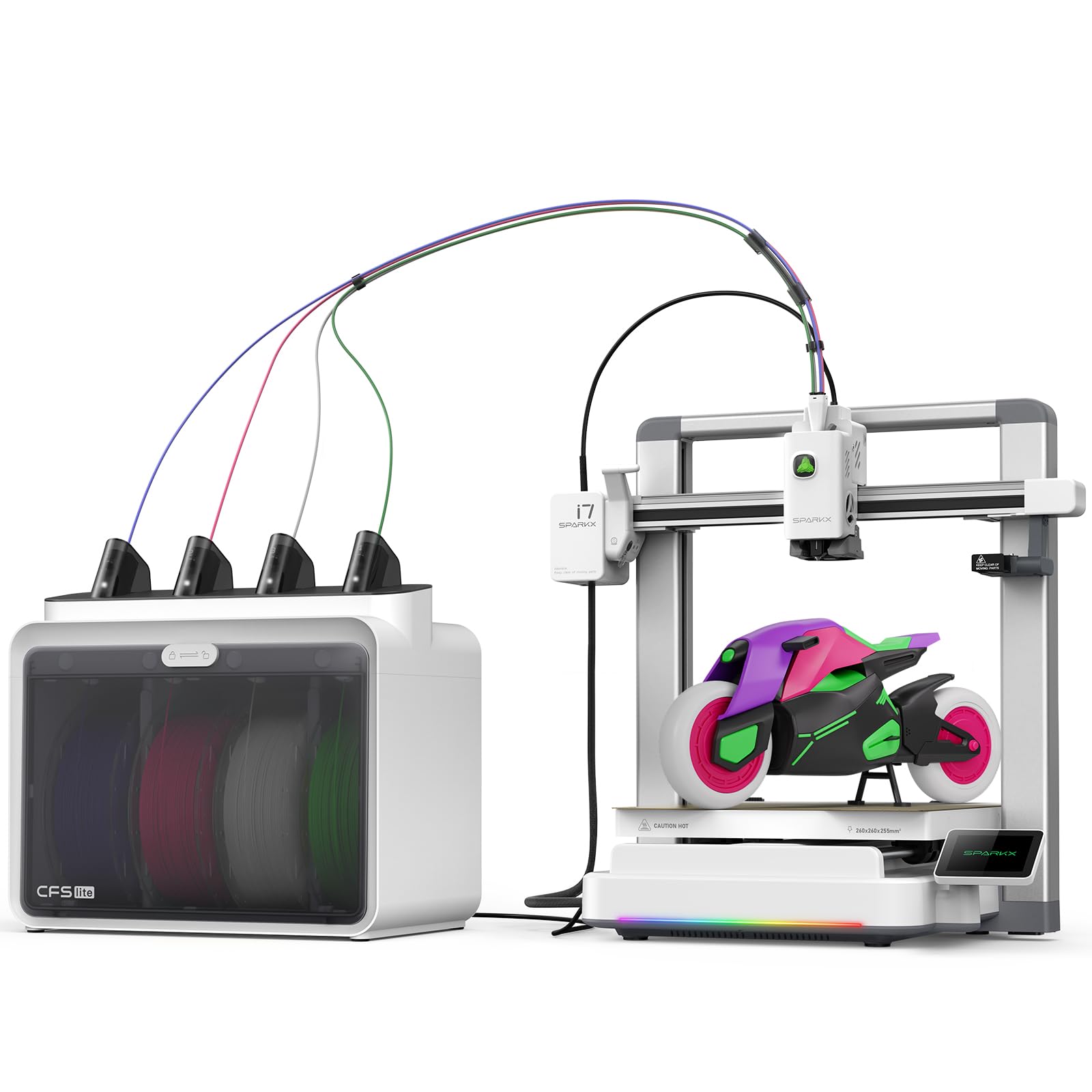
Creality ships the SPARKX i7 fully assembled and claims five minutes from unboxing to first print, no tools involved. The interesting part is not the number but what it implies: nothing to bolt together and nothing to square before you find out whether you actually enjoy this.

Behind that sits a sensible first machine. A 260 x 260 x 255 mm build area, a four-color CFS Lite that Creality says produces about half the waste of a conventional multicolor setup, a quiet night mode for printing in the room where you sleep, and an AI camera watching for spaghetti, air printing and tangles. The photo-to-3D feature that turns a portrait into a printable model looks like a gimmick until the afternoon you want a small figurine of the family dog, and then it earns its place.

The honest caveat is polish: setup steps and software do not always agree, so expect to check versions and re-read a screen rather than follow one sheet end to end, and long-run reliability is the part we trust least. Even so, it is the printer we point at people who want color printing this weekend and will trade a little troubleshooting for that.

Pros

  • Arrives assembled and prints in minutes
  • 260 x 260 x 255 mm build area
  • AI camera catches spaghetti and tangles

Cons

  • Setup guidance and software don't always match
Our verdict

For a first multicolor printer with the least possible setup, the SPARKX i7 gets you printing the same afternoon, and the AI camera covers early mistakes.

Check Latest Price
6

Tight Workbenches

Flashforge AD5X

83 /100
LBD Score Excellent

Key details

Max Speed
600 mm/s
Nozzle Temp
300 °C
Build Volume
220 x 220 x 220 mm
Color Capacity
4 with IFS
View on Amazon

At roughly 14 by 15 by 16 inches, the AD5X is the smallest machine here and the only one that sits on a bookshelf without hanging over the edge. In an apartment or on a shared desk, that is a feature no specification sheet quantifies.

It does not shrink the interesting parts. A 300 °C direct-drive hotend with a 32 mm³/s flow rate handles PLA-CF and PETG-CF, the all-metal CoreXY frame runs to 600 mm/s with 20 m/s² acceleration, and the four-color IFS loads and swaps filament on its own. One-click leveling, vibration compensation, a 4.3-inch touchscreen and resume-after-power-loss round out a package that reads like a much larger printer.

The 220 mm cube is what that small body costs you, and it will decide a lot of models: a full-size helmet or a wide organizer tray has to be split. Long-term reliability is the least settled thing about it, and the connection troubles are the kind that turn an evening's printing into an evening's troubleshooting. We treat it as a tinkerer's bargain rather than a first machine — and if you have the desk for it, the Kobra X gives you a bigger build area for about the same money.

Pros

  • Fits a shelf at 14.3 by 16.3 inches
  • 300 °C hotend for PLA-CF and PETG-CF
  • 600 mm/s all-metal CoreXY

Cons

  • 220 mm cube rules out larger single prints
Our verdict

Choose the AD5X if the desk is the constraint: it is the only four-color machine here that fits a shelf, and the 300 °C hotend is no compromise.

Check Latest Price
7

Bambu on a Budget

Bambu Lab A1 Combo

82 /100
LBD Score Excellent

Key details

Bundle
LED lamp kit
Calibration
Fully automatic
Acceleration
10,000 mm/s²
Multicolor System
AMS lite, 4 spools
View on Amazon

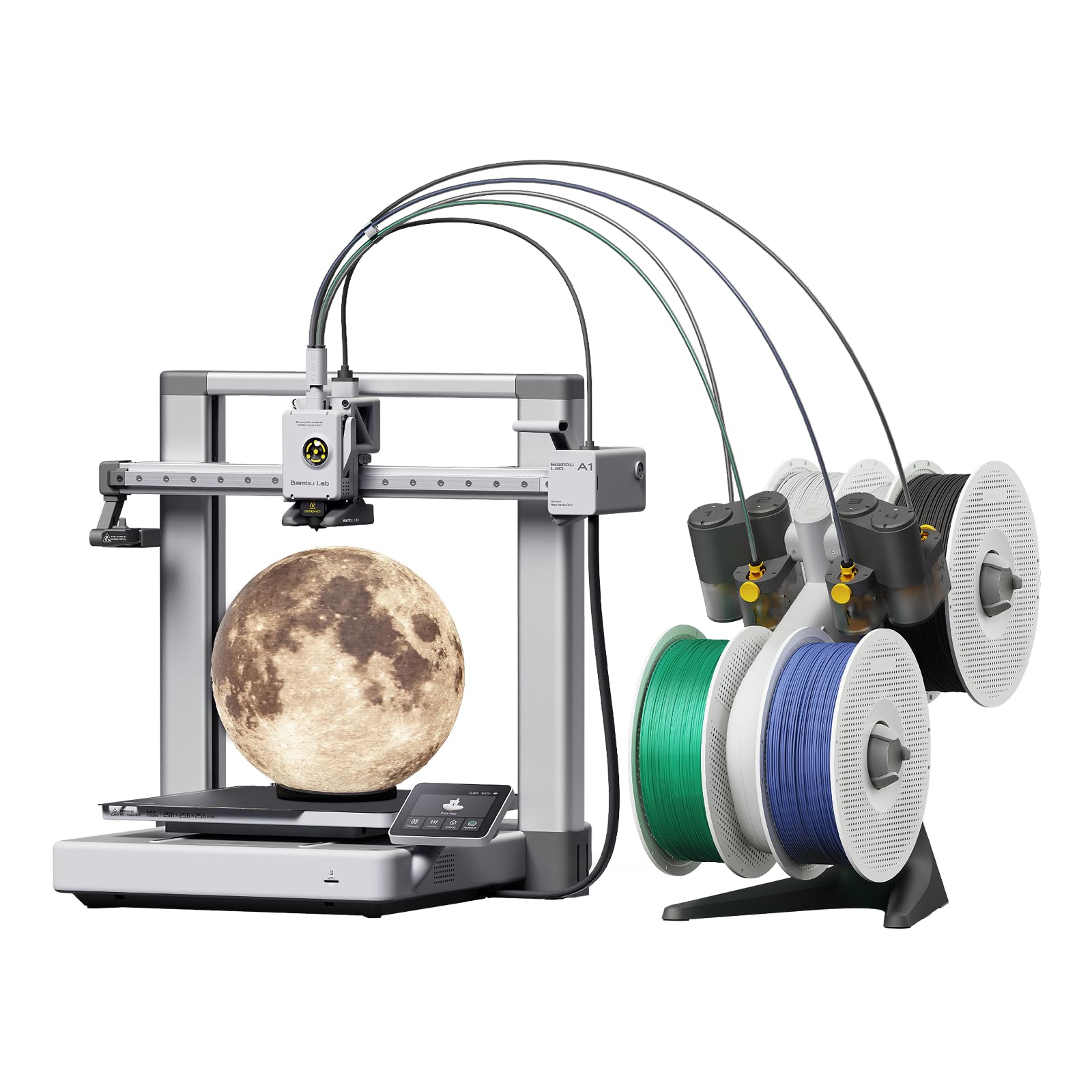
The odd thing about this listing is the lamp kit, and it is worth understanding before you buy. This A1 Combo ships with an LED kit for printing illuminated models, so the bundle is aimed at people who want lamps, signs and light-up decorations rather than at anyone who simply wants the cheapest four-color Bambu. If that is you, it is a nice inclusion. If it is not, you are paying for an accessory that stays in the box.

The printer underneath is the approachable one: AMS lite for four colors, full-auto calibration, active flow rate compensation and 10,000 mm/s² acceleration, all in 28.5 pounds. Setup is genuinely beginner-shaped, and the MakerWorld library does most of the work of deciding what to print next, which is the part new owners underestimate.

Print quality is the least consistent thing about it. When it lands, it lands well, and this is still a Bambu. But filament feeding is the specific trouble spot here, and a jam early on will cost you an evening and a nozzle's worth of confidence. Feeding and unloading carefully between spools is the habit that prevents most of it.

Think of the A1 Combo as the entry ticket rather than the best value in this guide. The drying that the AMS 2 Pro does is one of the things the extra money buys on the P2S, and if you plan to keep four spools loaded for months, that is the upgrade to make.

Pros

  • AMS lite four-color printing
  • Fully automatic calibration
  • LED lamp kit included for lit models

Cons

  • Print quality is the least consistent of the Bambu pair
  • Lamp kit only pays off if you print lit models
Our verdict

We see the A1 Combo as the entry ticket to Bambu's four-color workflow, best for a beginner who wants the ecosystem without the P2S outlay.

Check Latest Price

How We Tested Multicolor 3D Printers

We started by pulling every machine that shipped with its filament-changing system in the box, then cut anything that demanded a weekend of assembly or a paid add-on to print in more than one color. Build volume, enclosure, and whether the spool system handled four colors out of the box narrowed the field to eight. Each one lived in a real workspace — my office, a spare-room bench, a garage — rather than a lab.

Setup was timed, solo, with only the manufacturer's instructions in front of me. I logged how long it took from box to first print, whether the manual matched what the hardware actually did, and how many rounds of bed leveling and calibration the machine demanded before it would accept a job. Then I connected each printer to Wi-Fi and its companion app and noted whether that took one attempt or five.

Every printer ran the same files: a four-color model with fine detail, a tall overnight print, and a spool of abrasive filament. I weighed the purge waste from each multicolor job, recorded wall-clock print times instead of trusting the slicer's estimate, and counted failed color swaps. Overnight runs got checked in the morning for stringing, layer shifts, and whether the onboard camera had actually caught a problem or just watched it happen.

Then we simply used them — weeks of after-dinner prints, school-project requests, replacement parts for things around the house, plus repeated reprints of the same file to see whether quality drifted as belts and nozzles broke in. The machines that stayed on the bench printed the tenth job as cleanly as the first, kept the noise down in a shared room, and didn't need a babysitter during a color change. Value came down to what the combo cost against what it wasted.

How to Choose a Multicolor 3D Printer

Toolheads or a Filament Box?

Two designs do multicolor. A filament changer — AMS, CFS, IFS, ACE — feeds four or more spools into one hotend and purges between colors. An independent-toolhead machine parks a separate hotend for each filament and swaps in seconds. The Bambu and Creality picks here use the first approach; the Snapmaker U1 uses the second.

Count the color changes a typical model needs before you decide. A nameplate with three swaps is fine on either design. A figurine with two hundred swaps is a spool of waste and hours of purging on a single nozzle, and close to nothing on a toolchanger. Toolheads also let you pair a rigid filament with a flexible one or a dissolvable support, which a shared nozzle handles badly.

Match Build Volume to the Models You Actually Print

Build volumes in this group run from a 220 mm cube to a 350 mm cube, and the gap is not cosmetic. A helmet, a large bracket or a full organizer tray that fits the Creality K2 Plus has to be split, glued and sanded on the smaller machines.

Measure your largest planned print before you choose, and remember that a multicolor job also spends room on a prime tower. If your list is keychains, planters and models under 200 mm, a compact machine frees up the desk for nothing lost.

Decide How Much Setup You Want to Do

A fully assembled machine that prints in minutes is a different purchase from a kit you build over an evening. Guidance varies just as widely: the Bambu and Snapmaker workflows hold your hand, while the large Creality rewards a video guide over the printed manual.

The software ecosystem counts too. A model library with pre-sliced multicolor files removes the hardest part of the learning curve; a bare slicer means you supply both the models and the profiles. If this is your first printer, weight that more heavily than any speed figure on the box.

Plan the Space Before the Machine Arrives

Machines here span 20.9 to 70.4 pounds, and the heaviest is a two-person lift onto a bench. Give the printer a hard, level surface with clearance behind it for the filament system, and keep it out of the room where people sleep unless it has a quiet mode you trust.

Noise is the specification nobody prints on the box. Enclosed chambers and night modes help, but placement helps more: a solid table on a ground floor beats a wobbling desk upstairs every time.

Frequently Asked Questions

Final Verdict

For most people buying a multicolor printer, the Bambu Lab P2S Combo is the answer. It is the only machine here that dries filament while it prints, it gets from box to first print in about a quarter of an hour, and the model library means you have something worth printing on day one. Purging on every color change is the price, and it is one worth paying for the smoothest experience in the group.

Change the requirement and the pick changes. If waste and mixed materials are the point, the Snapmaker U1's toolheads beat every single-nozzle system here. If the model itself is large, nothing else covers a 350 mm cube behind a heated chamber.