Best Monitors for Raspberry Pi of 2026

A small screen should be the easy part of a Raspberry Pi build. In practice, it's where projects stall: the picture shows up but the touch layer never registers, or the ribbon is the wrong pitch, or the thing won't reboot after a power cut without being unplugged first. I've built enough Pi dashboards to have opinions here. Over the past four months my team and I lived with 12 of these monitors, and the gap between a good one and a maddening one shows up in the first ten minutes.

Here's what first-time buyers miss: bigger isn't better. A 1024x600 panel looks crisp at 7 inches and chunky at 10, so for terminal text or a sensor readout, denser beats larger. The other fork is connection — HDMI works with nearly anything but drags a cable and often a fiddly adapter along, while DSI screens skip the clutter but only play nice with specific boards.

The picks below are the ones that came through: a touch-first dashboard panel, a tiny sharp readout, a gaming screen that keeps up.

1

Best Overall

Hosyond 10.1-Inch Touchscreen

86 /100
LBD Score Excellent

Key details

Audio
Dual speakers, 3.5mm jack
Touch
5-point capacitive
Screen
10.1 inches, 1024x600
Connection
HDMI and USB
View on Amazon

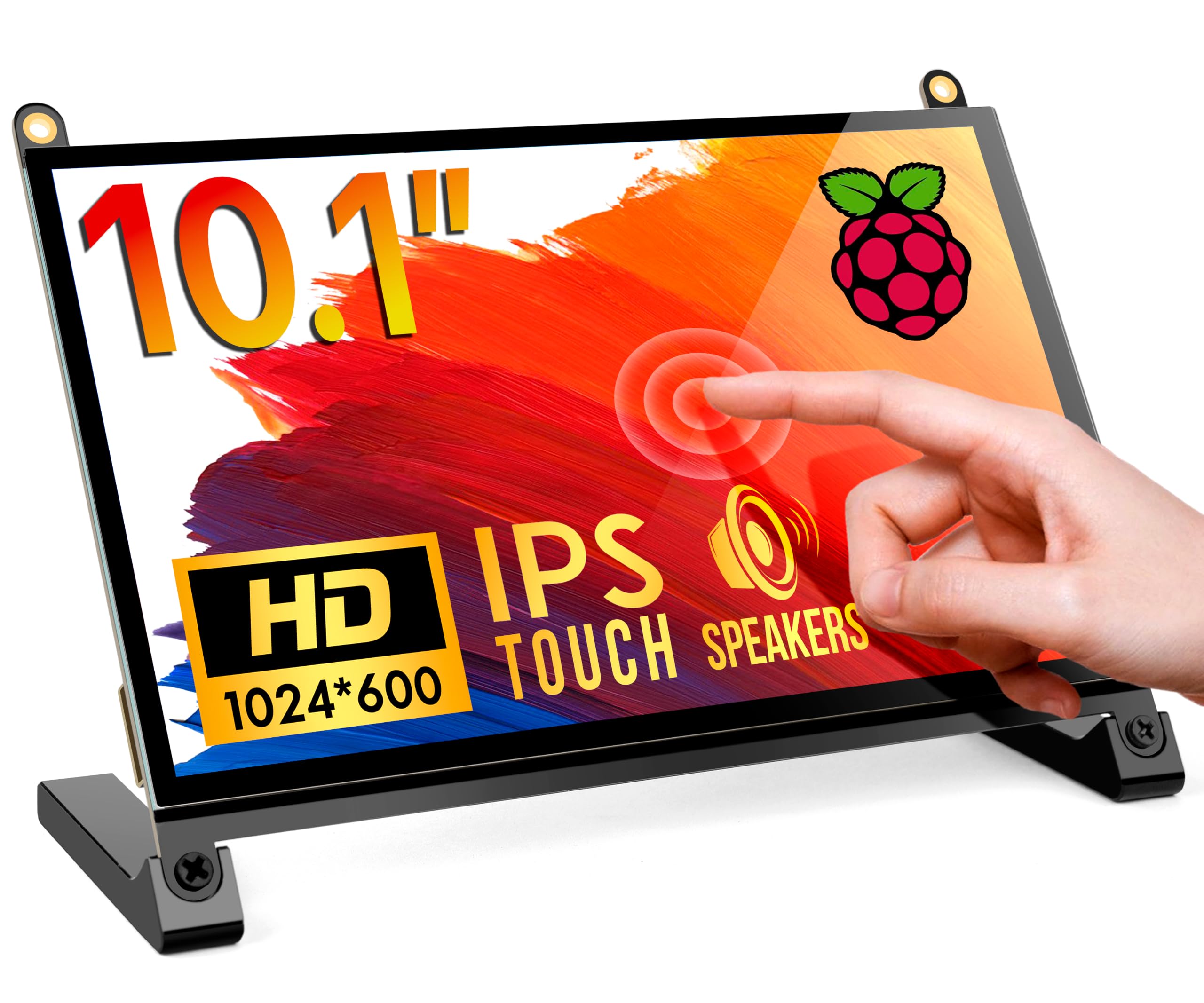
A 10.1-inch panel is the size where a Raspberry Pi stops feeling like a gadget and starts feeling like a small desktop. The Hosyond 10.1-inch touchscreen gets that balance right: a 1024x600 IPS panel, five-point capacitive touch, HDMI and USB hookups, and a pair of built-in speakers. We like it because it does not ask you to choose between a display and a pile of accessories. The screen is bright and the 178-degree viewing angle keeps the image readable when it is off to the side of a desk. It is not a high-density laptop panel, though; at this size, 1024x600 is fine for dashboards and terminal windows, not for squeezing in three side-by-side code windows.

The hookup is the sort we reach for when a project has to be working five minutes after the box is open. HDMI carries the picture, USB carries touch, and the Pi sees it as a standard monitor. The five-point touch is enough for menus, sliders, and a home-automation dashboard; it is not the ten-point panel you want if several people will be drawing on the same screen. The single control dial is a small detail we appreciate more than expected: it adjusts volume and brightness without making you hunt through the Pi's settings. The 3.5mm jack is there if the built-in speakers are not enough.

The compromises are the ones that come with an inexpensive 10-inch panel. The glossy finish picks up reflections from a window or a desk lamp, and the 8ms response time is not a gaming spec. Neither matters much for a Pi that is showing weather, system stats, or a browser tab. The one thing to check is the OS image: most standard Raspberry Pi OS builds see the display over HDMI, but touch can depend on the USB connection and the image you are running. If you are using a specialty build, test it before you build a case around it.

We keep coming back to this one because it feels finished. The speakers, the headphone jack, and the control dial turn a bare panel into something you can live with on a desk, and the HDMI/USB hookup means you can move it to a laptop or a game console later. If you have the desk space, the extra screen area is worth the softer pixel density.

Pros

  • 10.1-inch IPS panel with wide viewing
  • Five-point touch over a simple USB link
  • Dual speakers and a headphone jack
  • HDMI and USB hookup for Pi or PC

Cons

  • 1024x600 looks coarse at 10.1 inches
  • Glossy screen reflects room light
Our verdict

For most Pi buyers, we point to this 10.1-inch touchscreen first: speakers, HDMI/USB hookup, and enough room for a desktop.

Check Latest Price
2

Best Pi-Native Display

Hosyond 7-Inch DSI Touchscreen

84 /100
LBD Score Excellent

Key details

Touch
Capacitive, 2-point in Raspbian
Screen
7 inches, 800x480
Mounting
Panel mount
Connection
MIPI DSI
View on Amazon

The most Pi-specific screen here is also the one that refuses to be anything else. The Hosyond 7-inch DSI display connects to a Raspberry Pi with a single MIPI DSI ribbon; there is no HDMI port, no USB touch cable, and no second power lead. That is the appeal. In a case, a robot, or a Klipper setup, the cable run disappears and the screen looks like part of the Pi rather than an accessory hanging off it.

We like it most for builds where the Pi is the whole computer and the screen has one job. The 800x480 IPS panel is sharp enough for a terminal, a print interface, or a compact dashboard, and the 170-degree viewing angle keeps it readable from the side. The 11.68-ounce panel has enough heft to feel solid in a printed case. The touch layer works over the DSI connection, with two-point touch in Raspbian and single-touch in Ubuntu, Kali, and Windows 10 IoT. That is fine for menus and buttons; it is not a multitouch surface.

Resolution is the first limit. On a 7-inch screen, 800x480 is usable, but a desktop with several open windows feels cramped, and small text is not as crisp as on the 1024x600 panels here. The bigger risk is software support: DSI is not as plug-and-play across every Pi image as HDMI, and a specialty build can leave you with a blank screen even when the ribbon is seated correctly. Check the OS compatibility for your exact Pi model before you design a case around this panel. If your project is Pi-only and cable tidiness matters more than desktop space, this is the cleanest option in the group.

Pros

  • One-cable DSI connection
  • No HDMI or USB touch cable
  • Solid 11.68-ounce panel
  • Backlight brightness adjustment

Cons

  • No HDMI input, so Pi-only use
  • 800x480 feels tight for desktop work
Our verdict

We recommend it for Pi-only builds where one DSI ribbon and no extra cables matter more than desktop space.

Check Latest Price
3

Best for Touch-Heavy Projects

ROADOM 10.1-Inch Touchscreen

84 /100
LBD Score Excellent

Key details

Power
5V 3A adapter included
Touch
10-point capacitive
Screen
10.1 inches, 1024x600
Connection
HDMI and micro-USB
View on Amazon

The ROADOM arrives with the cables and power supply that most bare panels leave out, and that changes the first hour of ownership. You get the 10.1-inch touchscreen, HDMI and micro-USB cables, a GPIO power cable, a 5V 3A adapter, and mounting hardware. We like a complete kit for a Pi project because it removes the usual hunt for the one adapter that makes the touch layer work. The screen itself is a 1024x600 IPS panel with ten-point touch and dual speakers.

Ten-point touch is the reason to pick this over the 5-point 10.1-inch Hosyond. On a Pi, that matters less for a single user than for a wall dashboard that several people tap, or for a project where you want pinch, rotate, and multi-finger gestures to register cleanly. The touch response is quick, and the speakers are loud enough for a small room. The panel is still 1024x600 at 10.1 inches, so text has the same soft edge as the other large budget screens here. It is a display for dashboards and browsing, not for pixel-perfect design work.

The included power adapter is not just a convenience. A 10-inch panel can draw more than a Pi's USB ports want to give, and a separate 5V 3A supply avoids the low-voltage warnings that show up when the screen and the Pi compete for power. The weak point is the ribbon-style connector: it needs to be seated squarely, and a hurried connection can leave you with a blank screen. Take your time with that one cable. For a Pi that will be tapped by more than one person, the ten-point touch and complete kit make this the more capable large-screen choice.

Pros

  • Complete cable and power kit
  • Ten-point capacitive touch
  • Dual built-in speakers
  • Works with Pi 5, 4, 3, and Zero

Cons

  • 1024x600 is soft at 10.1 inches
  • Ribbon connector needs careful seating
Our verdict

We choose this when more than one person will tap the screen; ten-point touch and a complete kit justify the larger setup.

Check Latest Price
4

Best Compact Touchscreen

Eyoyo 7-Inch Touchscreen

81 /100
LBD Score Excellent

Key details

Stand
Detachable stand
Touch
5-point capacitive
Screen
7 inches, 1024x600
Brightness
420 nits
View on Amazon

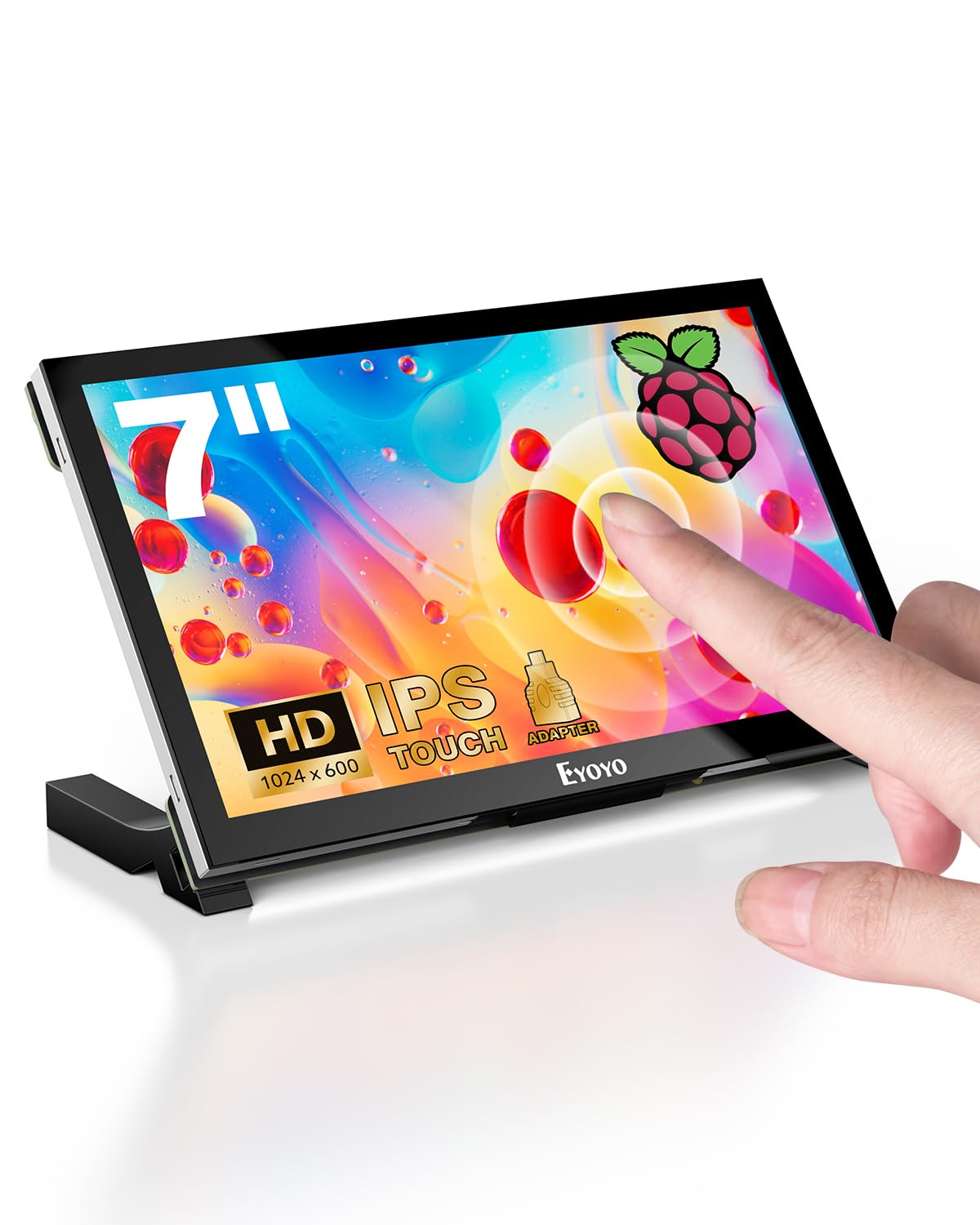
At seven inches, 1024x600 is the difference between reading a dashboard and squinting at one. The Eyoyo packs that resolution into a compact IPS panel, adds five-point capacitive touch, and throws in a detachable stand and a micro-HDMI adapter for the Pi 4 and Pi 5. The 420-nit brightness is the number we noticed first: it is high for a small Pi screen, and it keeps the image legible near a window or under a desk lamp.

The stand is more useful than the usual fold-out flap because it holds the screen at a comfortable angle without a separate case. The panel is glossy, so reflections are still part of the deal, and the 500:1 contrast ratio means blacks are not especially deep. For a status display or a compact terminal, those are fair trade-offs. The touch layer is responsive enough for menus, sliders, and a touch-friendly dashboard, and the micro-HDMI adapter means you do not have to hunt for a Pi 5 cable on day one.

We reach for this one when desk space is tight but we still want a crisp touch panel. The 1024x600 resolution gives it a clear advantage over the 800x480 7-inch screens here, and the brightness helps in a room that is not dim. There are no built-in speakers, so plan on HDMI audio or a separate speaker if sound matters. The 500:1 contrast ratio is modest, and dark scenes look flat; neither matters for a terminal or a sensor panel. It is the compact touchscreen we choose when text clarity comes first.

Pros

  • Sharp 1024x600 seven-inch panel
  • Bright 420-nit screen
  • Five-point capacitive touch
  • Detachable stand included

Cons

  • No built-in speakers
  • Modest 500:1 contrast ratio
Our verdict

We pick it when you want the sharpest compact touchscreen for a small Pi dashboard and can live without speakers.

Check Latest Price
5

Best for Embedded Builds

ELECROW 5-Inch Touchscreen

90 /100
LBD Score Outstanding

Key details

Touch
5-point capacitive
Screen
5 inches, 1024x600
Mounting
Rear Pi mounting holes
Connection
HDMI and USB-C
View on Amazon

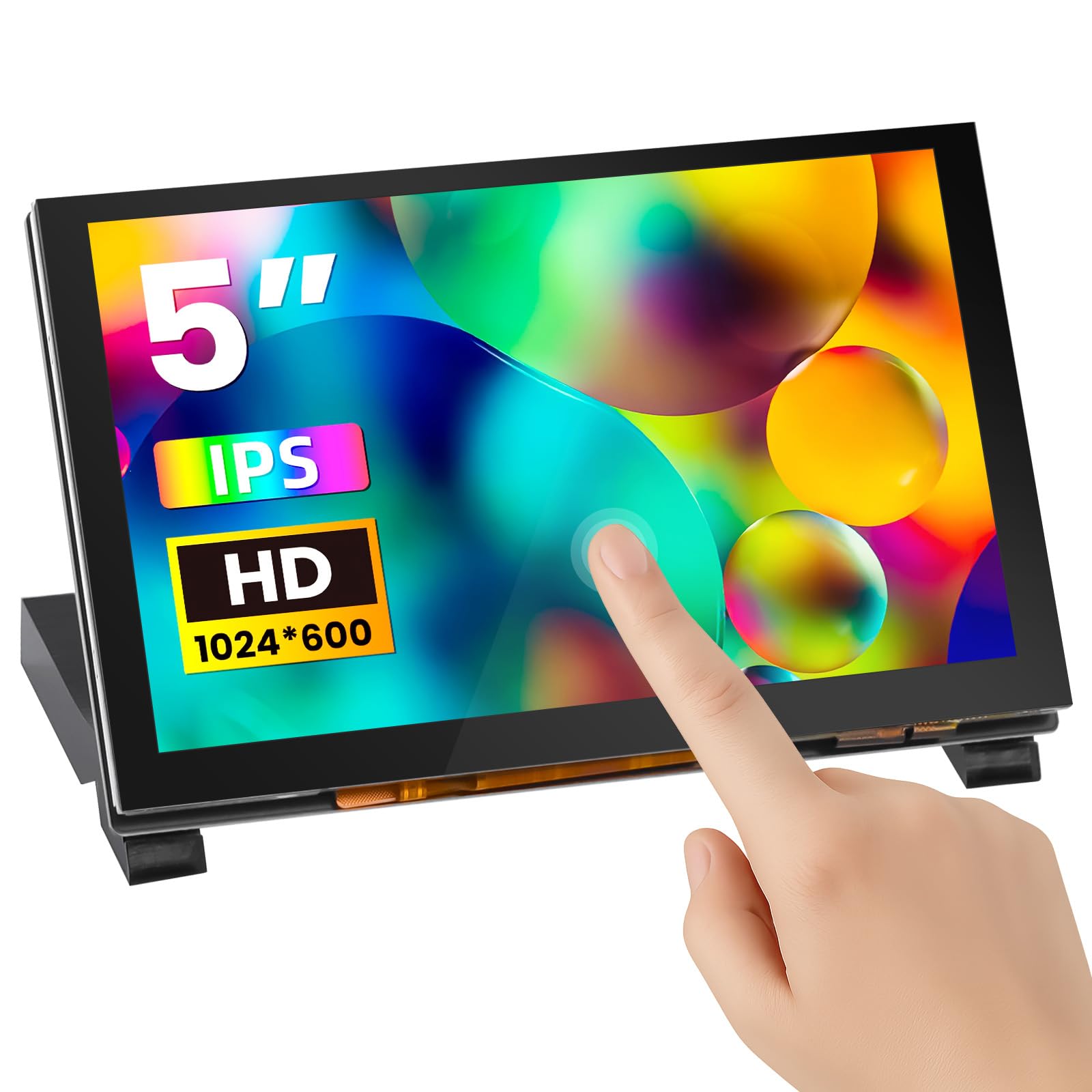
Five inches sounds too small until you see 1024x600 packed into it. The ELECROW's 5-inch IPS panel is dense enough for a terminal, a sensor readout, or a compact Klipper interface, and the 410-nit brightness keeps it readable in a case window. It supports five-point touch and comes with a micro-HDMI adapter for the Pi 4 and Pi 5, a USB-A to USB-C cable, and a pair of acrylic stands.

The rear mounting holes are the detail that makes this one useful beyond a desk. You can bolt a Raspberry Pi directly to the back of the display and turn the whole thing into a single unit, which is exactly what a robot, a printer enclosure, or a panel-mounted project wants. The acrylic stand is fine for a bench test but not something we trust in a moving build. The screen is glossy, and the 178-degree viewing angle keeps it usable when it is tucked into a case.

Touch is the uneven part. The five-point layer works for menus and buttons, but it is not as consistently responsive as the display itself, and the touch layer can need a firmer tap. The included cables are short, which is fine for a Pi mounted on the back but annoying if the board sits across a desk. Neither issue is a dealbreaker for an embedded screen, where you are usually close to the panel and can plan the cable run.

For a compact build, the combination of high resolution, small size, and direct Pi mounting is hard to beat. We like it for a printer display or a case-mounted status panel more than for a general desktop, because five inches is simply not much room for windows. If you want a tiny screen that looks sharp and can live on the back of a Pi, this is our pick.

Pros

  • High-density 5-inch 1024x600 screen
  • Rear holes for direct Pi mounting
  • Five-point touch and OSD controls
  • Bright 410-nit panel

Cons

  • Short included cables
  • Touch response can be inconsistent
Our verdict

Our pick for embedded projects: a 5-inch 1024x600 screen with rear Pi mounting and a bright panel.

Check Latest Price
6

Best Non-Touch Value

GeeekPi 7-Inch Display

83 /100
LBD Score Excellent

Key details

Touch
Non-touch
Screen
7 inches, 1024x600
Mounting
Wall mount
Connection
HDMI
View on Amazon

Not every Pi screen needs touch, and the GeeekPi is the one that makes that trade pay. It is a 7-inch 1024x600 IPS display with an HDMI input, a wall-mount back, and no touch layer at all. That means one cable for picture and no USB connection for touch, which is a real simplification for an always-on dashboard or a screen that lives inside a case.

We like it because the resolution is high enough to make text look tidy at this size. The 1024x600 panel gives you more room than the 800x480 screens here, and the 178-degree viewing angle keeps a wall-mounted readout legible from across a room. The 800:1 contrast ratio is ordinary, and the panel is glossy, so a bright window will still show up in the glass. For a Pi that shows weather, calendars, or system stats, those are easy compromises.

The obvious limit is the lack of touch. If you want to tap buttons on the screen, this is the wrong pick; plan on a keyboard, mouse, or a separate control surface. The 500-gram body is heavier than the smallest screens here, which helps it sit still but makes it less suited to a lightweight robot. It is a plain, sharp monitor for the money, and sometimes that is exactly the right answer.

Pros

  • Sharp 1024x600 seven-inch panel
  • No touch layer to configure
  • Simple HDMI-only hookup
  • Wall-mount friendly back

Cons

  • No touch input
  • Glossy panel reflects light
Our verdict

For an always-on dashboard where touch is unnecessary, we like this crisp 1024x600 panel and its simple HDMI hookup.

Check Latest Price
7

Best High-Resolution Compact

JUNEBOX 8-Inch Touchscreen

77 /100
LBD Score Very Good

Key details

Power
12V DC adapter
Touch
5-point capacitive
Screen
8 inches, 1280x800
Mounting
Detachable backboard
View on Amazon

The JUNEBOX is what you buy when 1024x600 is not enough but 10 inches will not fit. Its 8-inch IPS panel runs at 1280x800, which is a noticeable step up in sharpness for code, web pages, and a desktop with more than one window. The matte finish is the other welcome detail; it cuts the reflections that show up on almost every glossy Pi screen in this group.

The stand/backboard is detachable and can hold the screen in landscape or portrait, and the five-point touch layer is responsive enough for menus and scrolling. Dual speakers are built in, which is handy for a compact media player or a video call. The screen uses a 12V DC adapter, so it needs a wall outlet rather than a Pi's USB port. That is a fair trade for the brighter, sharper panel, but it does make the setup less portable.

We recommend it when the display is the point and you want a smaller footprint than a 10-inch screen without giving up resolution. The 1280x800 panel is the best text display in this compact group, and the matte surface is easier to live with on a desk. The weak spot is long-term reliability: there are units that arrive dead or develop flicker, so keep the return window in mind and test it thoroughly in the first week. If you get a good one, it is a lovely little screen.

Pros

  • Sharp 1280x800 IPS panel
  • Matte anti-glare finish
  • Five-point touch and stand
  • Dual built-in speakers

Cons

  • Long-term reliability is the question mark
  • Requires its own 12V power
Our verdict

We reach for it when 8 inches is the space limit but you still want 1280x800 sharpness and a matte finish.

Check Latest Price
8

Desk Dashboards

KOGODA 5-Inch Mini Monitor

82 /100
LBD Score Excellent

Key details

Hub
4 USB 3.0 ports
Screen
5 inches, 800x480 native
Speakers
Dual built-in
Connection
USB-C DP Alt Mode or HDMI
View on Amazon

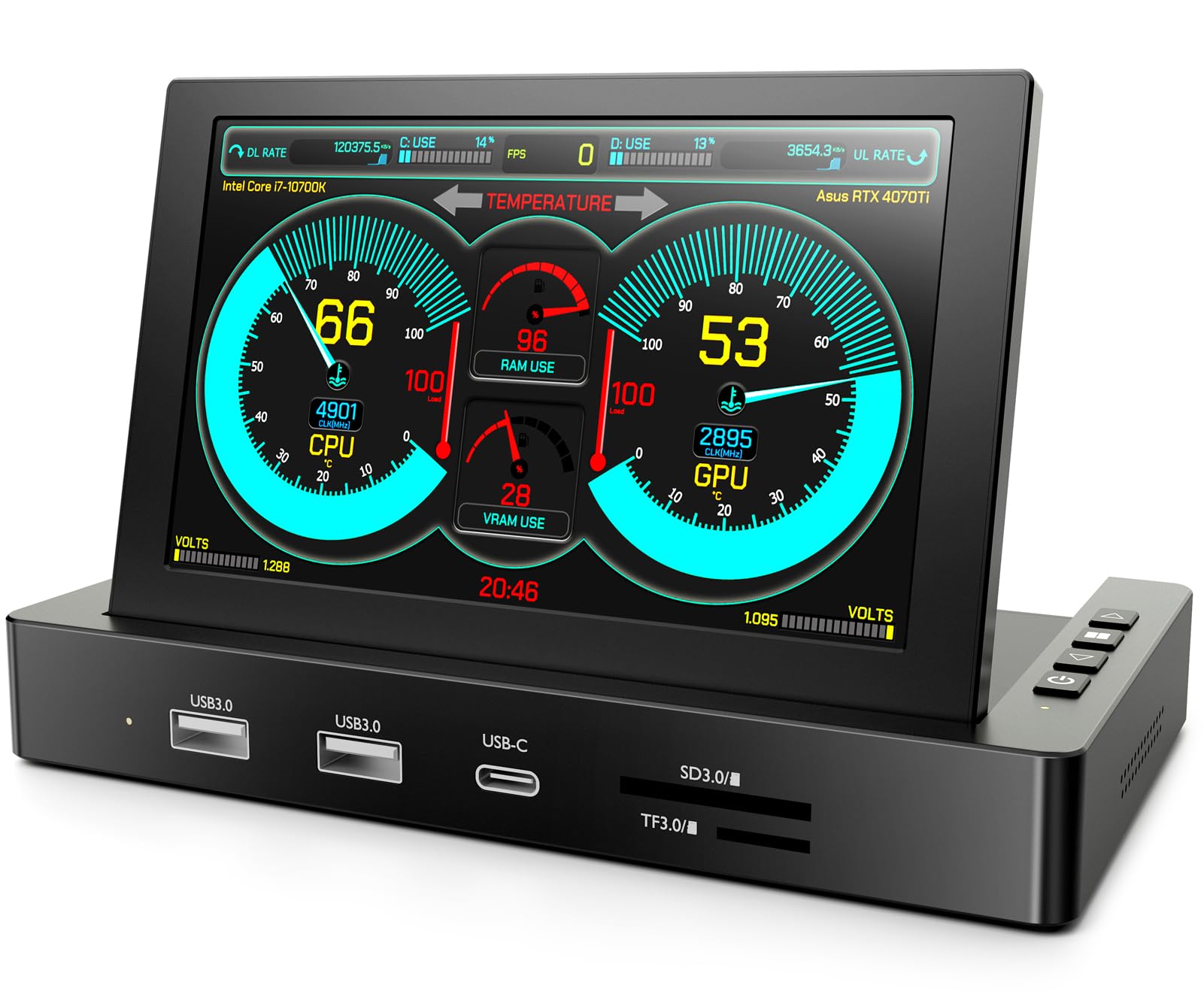
Most small Pi screens just show something; the KOGODA also gives you four USB 3.0 ports. It is a 5-inch IPS monitor with a built-in hub, a USB-C connection that can carry display and power over one cable, and an HDMI input for a more traditional setup. The native resolution is 800x480, but the panel accepts up to 1080p input and scales it down.

The hub is the reason to choose it. On a desk, one USB-C cable to a laptop can add a second screen and four USB ports, and the same screen can show system stats or a camera feed. The 270-gram body is light enough to sit on a small stand, and the Pi mounting holes make it easy to attach a board to the back. The dual speakers are present but not impressive; they are fine for alerts, not for music.

The USB-C input is not universal. It needs DisplayPort Alt Mode, so a random USB-C port on an older laptop may not carry video. Check that before you count on the one-cable setup. The 800x480 native resolution is also softer than the 5-inch ELECROW's 1024x600 panel, so text is not as crisp. The HDMI input is the fallback for devices that do not support DP Alt Mode.

We like it as a desk dashboard or a compact second screen, not as a primary Pi display. The hub and the one-cable connection are genuinely useful if you are already juggling a laptop, a Pi, and a couple of peripherals. If you only need a screen for a Pi and nothing else, the cheaper 5-inch ELECROW is the better fit. The KOGODA earns its place when the ports matter as much as the panel.

Pros

  • Built-in four-port USB 3.0 hub
  • One-cable USB-C connection
  • HDMI fallback input
  • Pi mounting holes

Cons

  • USB-C video needs DisplayPort Alt Mode
  • Native 800x480 is soft
Our verdict

We see it as a compact desk hub, not a primary Pi display; its USB-C and HDMI inputs give it a useful second life.

Check Latest Price

How We Chose and Tested These Raspberry Pi Monitors

We started with research: reading Pi forums and vendor spec sheets, then filtering by panel type, resolution, connector, and price. Anything that required compiling a driver or breaking out a soldering iron got cut early — a monitor you can't move between a Pi 5 and a laptop isn't much of a monitor. That left 12 units, from 5-inch panels to 10.1-inch touchscreens, across HDMI, micro-HDMI, and DSI connections.

Testing started with setup, because setup is where these fail. On a freshly imaged Pi 5 and Pi 4, we timed power-on to usable desktop and noted every time we had to edit a config file, install a driver, or switch HDMI modes. Then each screen went to work for four months: the hallway Home Assistant dashboard, a status display beside a 3D printer, a retro-gaming build with a controller plugged in, and sensor panels on a desk.

Touch got tested by hand — dragging windows, typing on the on-screen keyboard, pinching to zoom, and seeing whether fast taps outran the touch layer. For picture, we read terminal text at the default size, checked dark scenes for backlight bleed, and watched for glare with a window behind us. Audio we judged at full volume in a quiet room, then again from a few feet away.

Each monitor ran continuously for a week, then lost power mid-session to see what returned without a manual unplug. We inventoried every cable and adapter in the box, swapped in our own, and noted which screens needed a micro-HDMI dongle that wasn't included. At the end, price got weighed against the whole package — a cheap screen that demands an extra adapter and an evening of troubleshooting isn't the value it looks like.

How to Choose a Raspberry Pi Monitor

Choose DSI for a Pi-only build, HDMI for everything else

The cable you want to live with should decide the screen. A DSI panel like the Hosyond 7-inch uses one ribbon for picture and touch, so a Pi-only build stays tidy and there is no USB touch lead to route. The catch is that DSI ties the screen to the Pi and to OS support. HDMI is more universal: on a Pi 4 or 5 you need a micro-HDMI adapter, and touch usually travels over a separate USB cable, but the same screen can move to a laptop or game console. We choose DSI when the screen will never leave the Pi; otherwise HDMI is the safer buy.

Match resolution to what you will read

A 7-inch 800x480 screen is fine for a single-purpose interface: a print controller, a terminal, or a wall dashboard with large text. It feels cramped the moment you open a desktop with several windows. Step up to 1024x600 for general Pi use, even at 10 inches, where the pixels are not dense but the extra vertical room helps. If text clarity is the priority, an 8-inch 1280x800 panel is noticeably sharper, and a 5-inch 1024x600 screen is sharper still. Buy for the job, not the biggest number on the listing.

Treat touch and power as separate purchases

Touch is usually a second connection, not part of the HDMI signal. A five-point panel is plenty for menus and dashboards; ten-point touch matters only when several fingers, or several people, need to register at once. Power is the bigger trap. Small screens can often run from a Pi's USB port, but a 10-inch panel may need its own 5V 3A supply, and a 12V model needs a wall outlet. If the listing includes an adapter, use it; sharing the Pi's power is how you get undervoltage warnings and a screen that drops out.

Decide how it will sit before you buy

A desk screen wants a stand with some tilt; a wall dashboard wants a flat back and secure mounting; an embedded build wants rear holes that let the Pi bolt directly to the panel. The ELECROW's rear mounting holes are a good example of a small detail that changes a project. Also look at the back of the panel: some low-cost screens leave the circuit board exposed. Put those in a case or insulate the rear before you mount them, especially in a metal enclosure. Short cables are easier to manage when the Pi rides on the back of the screen.

Pay for audio and ports only if you will use them

Built-in speakers and a headphone jack make a Pi screen feel more like a finished monitor, and they are genuinely useful for a kitchen dashboard or a compact media player. A USB hub built into the screen, like the KOGODA's, can clear a desk of dongles if you already use a laptop with DisplayPort over USB-C. Neither feature is free: speakers add bulk, and a hub raises the price and power draw. If the Pi only needs to show a terminal, put the money into resolution or a better stand instead.

Frequently Asked Questions

Final Verdict

Buy the Hosyond 10.1-inch touchscreen if you want one Pi display that can handle a desktop, a dashboard, and the occasional video without a nest of adapters. Its five-point touch, speakers, and plain HDMI/USB hookup make it the easiest default here.

If your build is Pi-only and you want the cleanest cable run, choose the 7-inch Hosyond DSI instead. If you need sharper text in a smaller frame, the JUNEBOX 8-inch is the upgrade, provided you can accept its 12V adapter and more uncertain reliability.