Best Dual Monitor KVM Switches of 2026

Most home offices end up in the same place: one desk, two monitors, and two computers fighting over them — a work laptop on one side, a personal desktop on the other, cables everywhere. A dual monitor KVM switch is supposed to fix that, letting both machines share the same screens plus one keyboard and mouse. The catch is that "dual monitor" means different things to different makers, and some of them mirror the same image onto both screens instead of extending your desktop across them.

I've run a two-computer desk for years, and my team just spent six months with 12 switches. The differences rarely show up in a listing: whether monitors wake cleanly after a switch, whether your windows stay put, and whether the USB hub keeps up with an external drive.

One thing to settle before you buy: match the inputs to your actual machines, not the biggest number on the box. A switch with both HDMI and DisplayPort covers a work laptop and a gaming desktop without adapters. The picks below earned their spots on clean switching, honest specs, and setups you can finish before your first meeting.

1

Best Overall

CMSTEDCD 8K HDMI KVM

84 /100
LBD Score Excellent

Key details

Switching
Button and wired controller
USB Ports
4x USB 3.0
Resolution
8K@60Hz, 4K@120Hz
Computer Inputs
2x HDMI
View on Amazon

A KVM switch is two devices sharing one box: a video switcher and a USB hub, and the USB half is where most of them get skimped. This one arrives with a 12V adapter and runs its four USB 3.0 ports from that supply instead of drawing on the computers, so a webcam, a headset and an external drive behave the same way on both machines.

That is a large part of why it sits at the top of this list. The video side is rated to 8K@60Hz and 4K@120Hz over HDMI, which is more headroom than a pair of 60Hz office screens needs but costs nothing to have, and the switching settled into the background within a day of use: press the button on the box, or the wired controller if the unit lives under the desk, and both screens come back with the layout intact.

The small things are the ones we kept noticing. The indicator light says which computer is live without ducking behind the monitor, and the metal case stays put when a stiff HDMI cable tugs at it. Nothing here feels like a compromise at this money, which is not something we can say about most of the switches below it.

Pros

  • Four USB 3.0 ports on a 12V supply
  • 8K@60Hz and 4K@120Hz HDMI headroom
  • Panel button plus wired desktop controller
  • Metal housing that stays put

Cons

  • No video cables in the box
  • HDMI only; two outputs needed per computer
Our verdict

For two HDMI computers on two HDMI monitors, this is the switch we point to first: powered USB ports, 8K-rated video paths, and switching that stops being noticeable.
Check Latest Price
2

Best for Laptop and Desktop

AV Access iDock B10

84 /100
LBD Score Excellent

Key details

Network
Gigabit Ethernet
Resolution
Dual 8K@60Hz, 4K@165Hz
Computer Inputs
USB-C laptop, HDMI/DP desktop
Laptop Charging
100W power delivery
View on Amazon

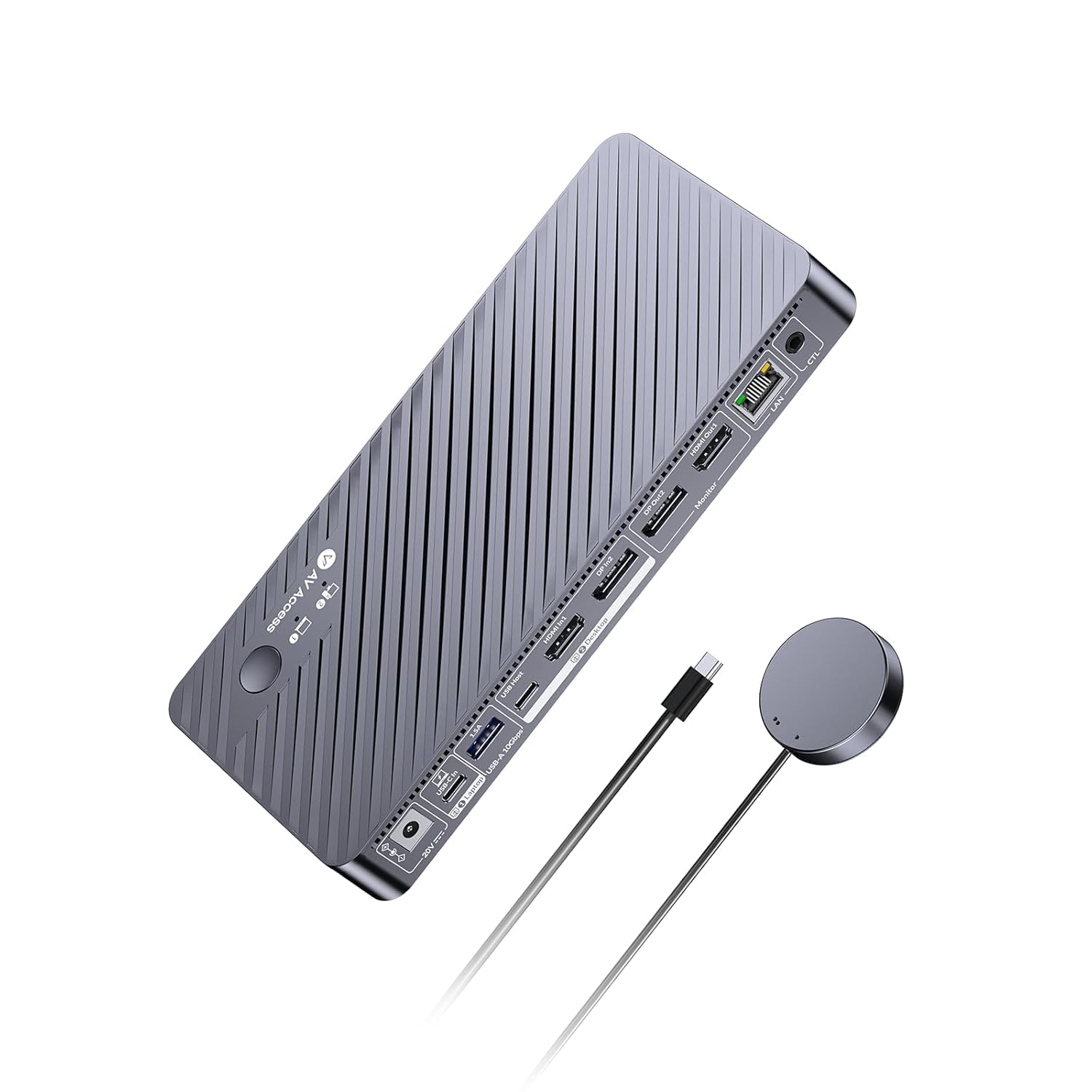
It costs several times what the HDMI-only boxes here cost, and for the right desk it is still the easiest recommendation we can make on this page. The iDock B10 is a KVM and a docking station in one: the laptop connects through a single USB-C cable that carries both displays, USB data, wired network and up to 100W of charging, while the desktop side uses ordinary DisplayPort or HDMI.

The desktop side is rated to dual 8K@60Hz or dual 4K@165Hz, and the laptop side to dual 4K@60Hz, so a high-refresh gaming monitor is not wasted. Both computers keep their gigabit Ethernet link even when they are not the selected input, which means a background download or a cloud sync keeps running while you work on the other machine. It is the kind of thing you only miss after living without it.

The check before buying is the laptop port. It has to be a full-featured USB-C connection with video output; a charging-only USB-C port, or an older laptop with nothing but HDMI, will not feed both displays. Anyone running two desktop towers should skip this one entirely, since the HDMI switches here do the same job for a fraction of the money.

Pros

  • One USB-C cable for video, data and charging
  • Dual 8K@60Hz or 4K@165Hz on the desktop side
  • Gigabit Ethernet stays live on both machines
  • Doubles as an 11-in-1 docking station

Cons

  • Far more expensive than the HDMI-only picks
  • Laptop needs full-featured USB-C with video
Our verdict

If your second computer is a USB-C laptop you dock and undock every day, this is the switch we point to: one cable carries both displays, the peripherals and 100W of charging.

Check Latest Price
3

Best for Mixed Connectors

TJCXELE HDMI + DisplayPort KVM

85 /100
LBD Score Excellent

Key details

Power
12V adapter
USB Ports
4x USB 3.0
Resolution
4K@60Hz
Computer Inputs
1x HDMI + 1x DisplayPort
View on Amazon

Connector mix decides more KVM purchases than any spec on the box, and this is the one we hand to someone with a work laptop on HDMI and a desktop on DisplayPort. Each computer feeds one HDMI and one DisplayPort connection, the two monitors take one of each, and nothing gets adapted or quietly dropped to a lower refresh. Both paths run 4K@60Hz, which is the right ceiling for a pair of 27-inch office screens.

The rest is the standard arrangement done properly: a button on the unit, a wired controller that reaches the desktop, and a 12V adapter so the four USB 3.0 ports are not living off host power. Switching takes a couple of seconds while the displays renegotiate, normal for this class and short enough that we stopped counting. If both of your computers are HDMI-only, this is the wrong box and the HDMI models here do that job with fewer cables.

Pros

  • Accepts HDMI and DisplayPort from each computer
  • 4K@60Hz on both display paths
  • 12V adapter keeps USB ports powered
  • Wired controller and panel button

Cons

  • Each computer must output both HDMI and DisplayPort
  • Ships with USB cables only
Our verdict

The pick for a desk where one computer outputs HDMI and the other DisplayPort: it takes both without adapters and keeps a wired controller within reach.

Check Latest Price
4

Best for DisplayPort Setups

VPFET 8K DisplayPort KVM

88 /100
LBD Score Excellent

Key details

Power
12V/1A adapter
USB Ports
4x USB 3.0
Resolution
8K@60Hz, 4K@120Hz
Computer Inputs
2x DisplayPort
View on Amazon

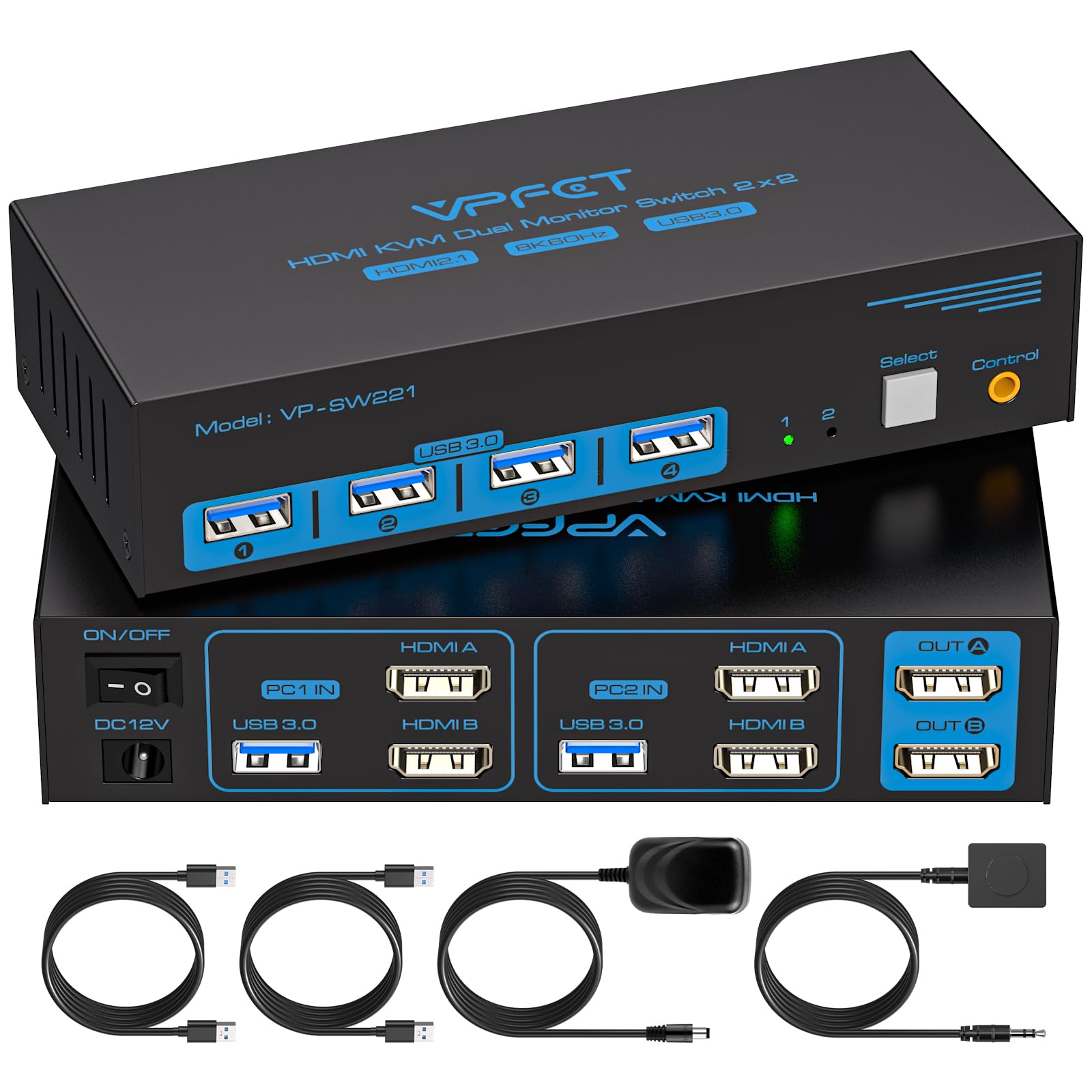
Plenty of two-monitor desks are DisplayPort on both screens, whether that is a pair of gaming monitors or two displays hanging off one dock, and the HDMI switches here will not drive them without adapters. This VPFET takes a DisplayPort run from each computer for each screen and passes dual 8K@60Hz or 4K@120Hz through to the monitors.

The hardware around it follows the same pattern as the top pick: a small metal case, four USB 3.0 ports, a 12V/1A adapter so peripherals are not drawing on the computers, and two ways to switch, with the panel button on the unit and a wired controller carrying the indicator light to the desk. Nothing about the build feels like a corner was cut.

We rank it near the top for DisplayPort desks because it does the demanding half without charging dock money: the two DP paths are rated well past what any current monitor will show, and the external power keeps a webcam and a headset behaving identically on both machines. The boundary is the connector, since there are no HDMI inputs at all, so it suits a pair of DisplayPort screens that need to stay at high refresh and not much else.

Pros

  • Two DisplayPort paths rated to 8K@60Hz
  • 4K@120Hz for high-refresh monitors
  • Four USB 3.0 ports with external power
  • Wired controller plus panel button

Cons

  • No HDMI inputs at all
Our verdict

For two DisplayPort machines and a high-refresh monitor, this is the right box: dual DP paths rated to 8K@60Hz, four USB 3.0 ports and a wired remote.

Check Latest Price
5

Best Budget

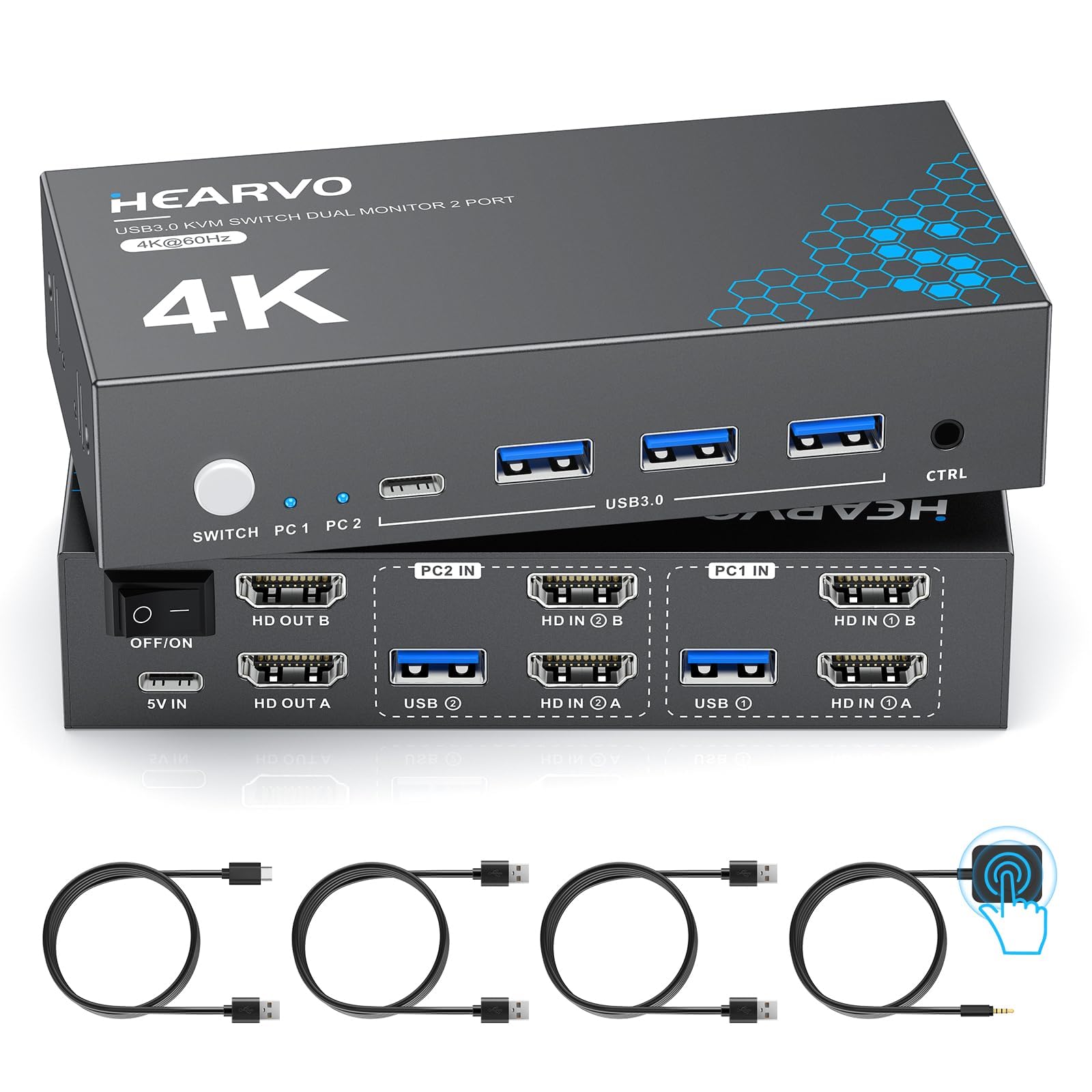
Hearavo S7232H2

80 /100
LBD Score Excellent

Key details

USB Ports
4x USB 3.0 (3 USB-A, 1 USB-C)
Resolution
4K@60Hz
Computer Inputs
2x HDMI
Display Handling
Adaptive EDID
View on Amazon

Cheap KVM switches tend to fail the same way: you switch computers, both monitors renegotiate, and every open window ends up piled on one screen. Adaptive EDID is the fix, since the switch keeps presenting the monitors' identity so the desktop comes back where you left it, and this is the least expensive box here that builds it in.

That is why we gave it the budget pick. Four USB 3.0 ports, three USB-A and one USB-C, a wired remote as well as a panel button, and 4K@60Hz on both screens are all present, and setup is as close to plug-and-play as this category gets. What you give up is headroom: a 144Hz monitor is wasted here, and the whole package is happiest on Windows desktops.

Switching takes a beat longer than on the powered boxes in this group, about the length of a breath, and the unit is light enough that a stiff cable can drag it toward the desk edge until a strip of adhesive putty settles the argument. For a home office where the button gets pressed a few times a day rather than a few dozen, none of that registers.

Pros

  • Adaptive EDID keeps the window layout
  • Four USB 3.0 ports including USB-C
  • Wired remote as well as panel button
  • Cheapest switch we recommend here

Cons

  • No power adapter for high-draw USB devices
  • Mac compatibility is hit-or-miss
Our verdict

The budget pick for two HDMI computers: adaptive EDID keeps windows in place, the wired remote is included, and nothing essential was cut to hit the price.

Check Latest Price
6

Best Warranty

TIGKTING 4K HDMI KVM

86 /100
LBD Score Excellent

Key details

Warranty
2 years
USB Ports
4x USB 3.0
Resolution
4K@60Hz
Computer Inputs
2x HDMI
View on Amazon

Two years of warranty is unusual in a category where most boxes carry one, and it is the first line of this one's spec sheet. A warranty is only worth what the hardware behind it is worth, so the rest of the package is what actually matters: two HDMI inputs per computer, two HDMI outputs to the monitors, 4K@60Hz on both, and extended or duplicate display modes.

It runs four USB 3.0 ports from the included 12V adapter rather than host power, the same arrangement that keeps the top pick steady when a webcam and an external drive are connected at once. The case is metal, the footprint is small, and the box includes the desktop controller, the adapter and two USB 3.0 cables.

The two display modes are worth understanding before you buy. Extended mode spreads one computer across both screens and copy mode mirrors them, and both are set from the operating system rather than the switch, so there is nothing to configure on the box itself. That also means the switch stays out of the way and simply passes whatever each computer sends.

We place it in this tier rather than beside the top pick because there is far less of a track record behind it, and no feature here earns a premium over the better-established 4K boxes. What it does earn is a place for a buyer who wants the ports, the power adapter, the metal case and warranty coverage that stretches past the first year, a combination that costs more elsewhere in this list.

Pros

  • Two-year warranty
  • Four USB 3.0 ports on 12V power
  • Extended and copy display modes
  • Includes USB cables and desktop controller

Cons

  • Capped at 4K@60Hz on both screens
  • HDMI inputs only, no DisplayPort
Our verdict

Two years of warranty is the reason to look here, and the rest of the package holds up: dual HDMI at 4K@60Hz and four powered USB 3.0 ports.

Check Latest Price
7

All Cables Included

UGREEN AK500

80 /100
LBD Score Excellent

Key details

USB Ports
4x USB 3.0 (3 USB-A, 1 USB-C)
Resolution
4K@60Hz
Computer Inputs
2x HDMI
Included Cables
4 HDMI, 2 USB
View on Amazon

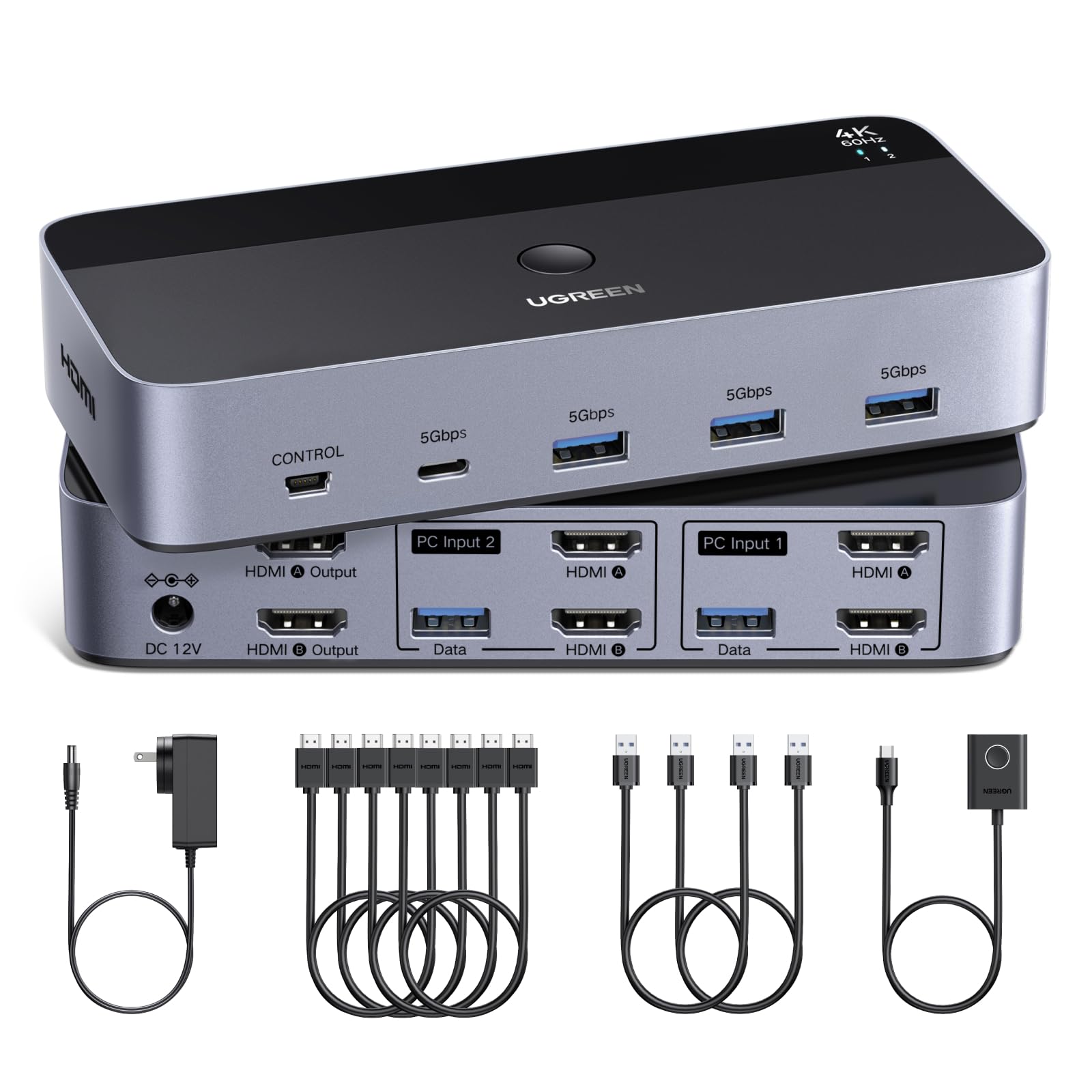
Almost every switch on this page ships with USB cables and nothing else, so the first evening of a KVM install is usually a second order for video cables. UGREEN puts four HDMI runs and two USB cables in the box, along with the power adapter and the desktop controller, which is enough to wire two computers to two monitors without another purchase.

The switch itself is an HDMI 2.0, 4K@60Hz design with four USB 3.0 ports, three USB-A and one USB-C, so a phone or a USB-C drive can stay plugged in. The ports are labeled clearly enough that the manual stays in the box, and the whole thing was passing video and USB within a few minutes of opening it.

Where we hesitate is the part that matters most. Dual-monitor handoff is the shakiest in this group: screens that swap positions or lose signal after a switch are the failure to watch for, and reseating the output cables is the usual workaround, which is not really a workaround at all. Ours ran clean, and we still rank it below the top pick for a desk that has to be reliable every morning.

Pros

  • Four HDMI and two USB cables included
  • Four USB 3.0 ports with one USB-C
  • Desktop controller plus panel button
  • Quick, clearly labeled setup

Cons

  • Capped at 4K@60Hz with no high-refresh headroom
  • HDMI only, with no DisplayPort inputs
Our verdict

A tidy one-box answer for two HDMI computers: it arrives with the video cables, adds a USB-C port beside three USB-A, and switches from the desktop.

Check Latest Price
8

Two Desktop Towers

Unitek V1311A

90 /100
LBD Score Outstanding

Key details

Switching
Button and desktop controller
Resolution
4K@60Hz
Host Support
Desktop computers only
Computer Inputs
1x HDMI + 1x DisplayPort
View on Amazon

The case is what you notice first: a small aluminum block, gray, with a footprint that disappears behind a monitor riser and enough weight that it stays where you put it. It takes one HDMI and one DisplayPort from each of two computers, drives two monitors at 4K@60Hz, and switches from a button on the unit or the desktop controller.

One setup detail is easy to miss. The included USB A-to-B cable is not optional if you want HDMI and DisplayPort running at the same time, because that cable is how the switch sees each computer's USB, and skipping it is the usual reason one screen stays dark on a first install.

USB behavior is the thing to plan around. A port that stops responding, or a webcam that stutters after a switch, is the weak spot of this style of hub, and reseating the USB cable usually brings it back. With a keyboard, a mouse and a printer on the ports, you are unlikely to run into it at all.

It stays on our list for the physical side and the connector flexibility: a metal body, a genuinely small footprint, HDMI and DisplayPort from the same box, and a controller that reaches the desktop. It rewards two tower computers and a simple peripheral load; add a laptop to the mix and one of the dock-style units is the better answer.

Pros

  • Aluminum case with a small footprint
  • HDMI and DisplayPort from each computer
  • Wired controller plus panel button

Cons

  • Designed for desktop computers only
Our verdict

A compact aluminum switch for two desktop towers on HDMI and DisplayPort, as long as three USB ports and no laptop support are acceptable.

Check Latest Price

How We Tested Dual Monitor KVM Switches

We started with spec sheets rather than reviews. Anything that couldn't extend two displays at once, or that claimed 4K but only passed 30Hz, got set aside, and we made notes on what actually shipped in the box — video and USB cables, a power adapter, a desktop controller — because a cheap switch that needs extra cables isn't a bargain. That left 12 units, which we ran for six months on desks with one 4K and one 1440p monitor, a work laptop, and a personal desktop.

Each switch lived through full workdays: video calls with a webcam and headset plugged into the hub, a large folder copied to an external SSD while I kept typing, and evening gaming sessions on the desktop. To check extension, I dragged windows onto the second screen and confirmed the two displays showed separate desktops rather than a mirrored copy. We timed every switch with a stopwatch, from both the desktop button and the keyboard hotkey, and noted whether windows jumped back to the primary screen or the second monitor went dark and needed a power cycle.

Setup was timed from unboxing, with the manual left in the box for the first attempt, and we deliberately mixed HDMI and DisplayPort sources to see how each unit handled a laptop and a desktop with different outputs. We measured cable reach against monitors mounted on arms, and compared bus-powered switches with ones running off a DC adapter, watching for a dropped second display when a drive and a webcam drew power at the same time. All 12 stayed in service for the full six months, unplugged and reconnected the way you would in real life, and we logged every unit that needed a reboot to come back.

How to Choose a Dual Monitor Kvm Switch

Start with the ports on your two computers

The most common way to buy the wrong switch is to match it against your monitors and forget the computers. A dual monitor switch needs two video outputs from each machine: two HDMI, two DisplayPort, or one of each on the hybrid models. A laptop with a single HDMI port cannot feed both screens through any of these boxes.

Count outputs before you compare anything else, and remember the box usually ships with USB cables only, so four video runs go on the shopping list. That is where a budget switch stops being the cheap option.

Power matters more than port count

Four USB 3.0 ports on a bus-powered switch share whatever the computers will give them, which is fine for a keyboard and a mouse and not fine for a portable drive that spins up. Units with their own 12V adapter keep peripherals on steady power and behave the same on both machines.

We weigh an included adapter heavily. It is the difference between a hub that works and one that resets your webcam mid-meeting, and it costs less than buying a powered hub to put behind the switch.

Buy for the monitors you own, not the spec sheet

4K@60Hz covers two office displays and is where most of this category sits. Step up to 4K@120Hz or 8K only if high-refresh panels are already on the desk or arriving soon; the premium is real and the benefit is invisible on a 60Hz screen.

The other half of this is cabling. A rated 8K switch fed by cheap HDMI cables behaves like a cheap switch, so match the cable rating to the box and keep the runs as short as the desk allows.

Switching, EDID, and what a good switch feels like

Every box here takes a second or two to renegotiate the displays, and that pause is normal. What separates them is what comes back afterward: a switch with EDID handling keeps the monitors' identity stable, so windows return roughly where you left them instead of piling onto one screen.

Wired controllers are worth having, since the box can live behind a monitor while the button sits within reach. Expect USB devices to re-enumerate on each switch too, which is why a webcam sometimes needs a moment to come back.

Frequently Asked Questions

Final Verdict

We put the CMSTEDCD 8K HDMI KVM at the top because it gets the unglamorous parts right: a powered USB hub that behaves the same on both computers, two HDMI paths with headroom you may never use, and switching that fades into habit.

If one of those computers is a laptop you carry away every evening, the AV Access iDock B10 is the better buy, because one cable covers video, peripherals, network and charging. For a DisplayPort-only desk, the VPFET does the same job without a single adapter.