Best Digital Wall Calendars of 2026

The paper calendar on the fridge has one flaw nobody mentions: it only works if everyone walks into the kitchen. That's where the schedule went to die in my house — school forms, soccer practice, the dentist appointment I found out about that morning. A digital wall calendar moves all of it onto a screen the whole household can see and edit, drawing from the calendars already on your phone.

I've spent the past six months with eight of these screens, from a 10-inch model that fits on a counter to a 21-inch board that takes over a wall, mounting some and setting others on desks. Size mattered less than whether the sync held when someone added an event from work, and whether the features you'd actually use were free or locked behind a monthly fee.

First-time buyers tend to overrate screen size. What makes a calendar readable from across a kitchen is how many columns it fits at once and whether the glass throws glare. The picks below are the ones still earning their wall space.

1

Best Overall

Dragon Touch 15.6

90 /100
LBD Score Outstanding

Key details

Display
15.6-inch 1080p touchscreen
Mounting
Wall and desk mountable
Subscription
No monthly fee
Calendar Sync
Google, Outlook, iCloud
View on Amazon

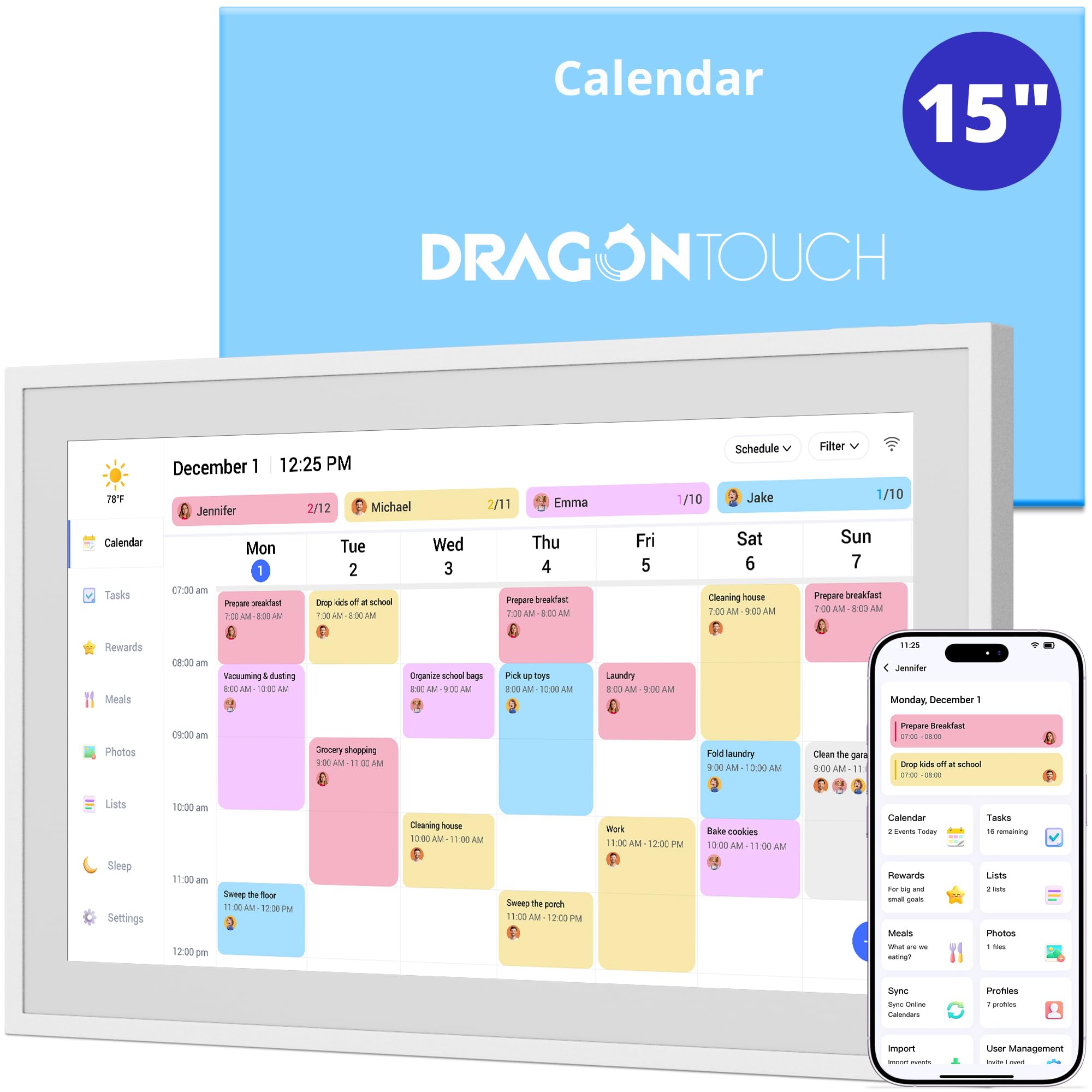
The Dragon Touch 15.6 is the first calendar here we recommend without a caveat: it gives you a big 1080p touchscreen, syncs Google, Outlook, and iCloud, and handles chores and meal planning without asking for a monthly fee. That combination is why it tops this set.

At 15.6 inches, the screen is the sweet spot for a kitchen wall. It is big enough to read a week of color-coded schedules from the table, but it does not take over the room the way a 21-inch panel does. We like that it can hang on the wall or sit on a desk, which makes it easier to try in one spot before committing to another. The free companion app is the quiet convenience: you can add an event or a grocery list from your phone and see it on the display when you walk in.

The family tools are more than a checklist. Chores can be assigned and checked off on the touchscreen, and the photo-frame mode gives the screen a second job when the calendar is idle. The touch interface is simple enough that kids can use it without a tutorial, which matters more than a longer feature list. For most households, that focus is a feature: the screen does one job well, and the family tools are easy to find.

Pros

  • No monthly fee for core planning
  • 15.6-inch 1080p touchscreen
  • Syncs Google, Outlook, and iCloud
  • Chore chart and photo-frame mode

Cons

  • Dedicated app, not an open app platform
Our verdict

We recommend the Dragon Touch 15.6 as the best all-around digital wall calendar here: it has the size, sync, and family tools most households need, with no monthly fee.
Check Latest Price
2

Best Premium

Skylight Calendar 15

89 /100
LBD Score Excellent

Key details

Display
15.4-inch Full HD touchscreen
Mounting
Wall mount included
Family Tools
Chores, meals, lists
Calendar Sync
Google, iCloud, Outlook, Cozi, Yahoo
View on Amazon

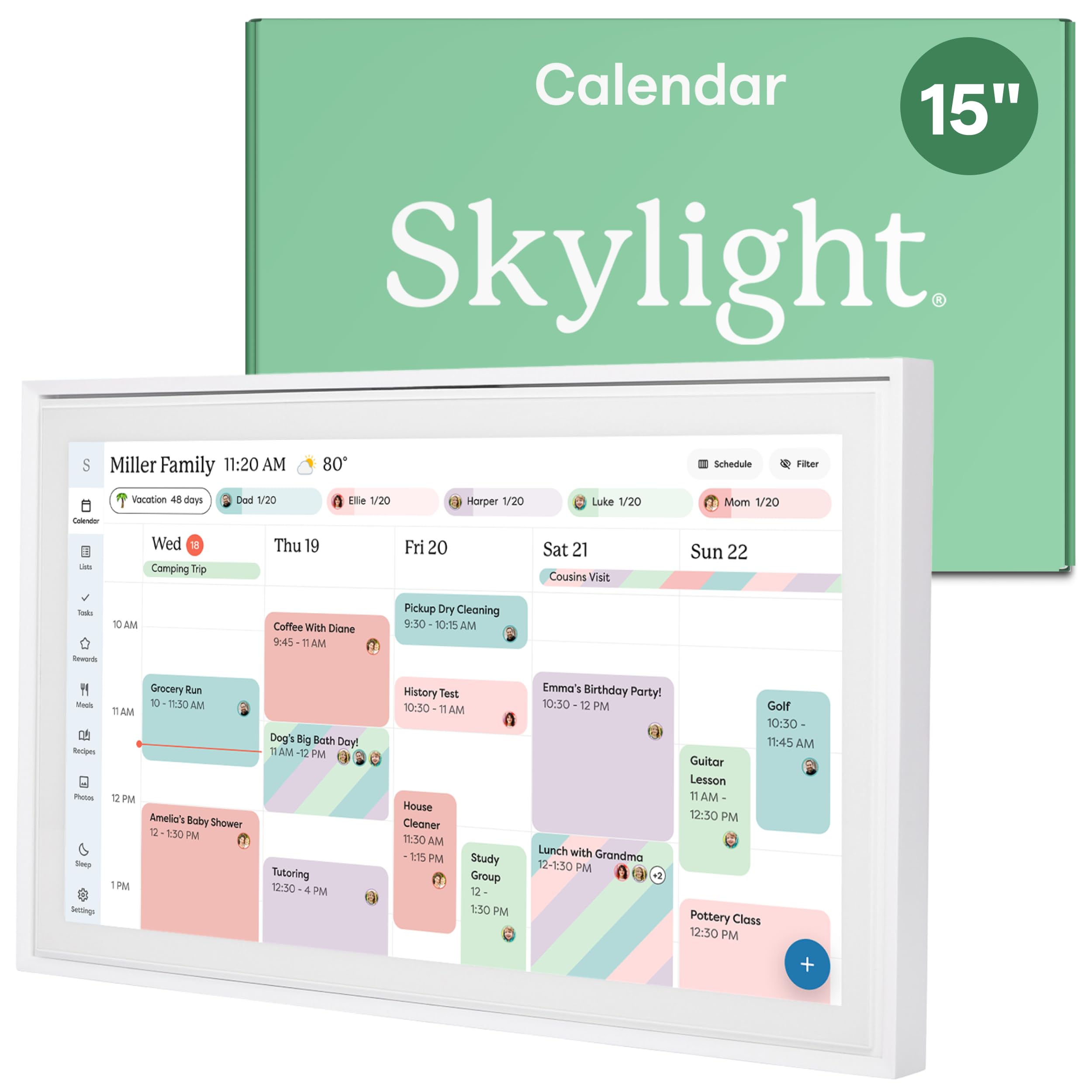
Skylight is the calendar that made this category feel like furniture: a 15.4-inch Full HD touchscreen with a metal body and a wall mount in the box. It syncs with Google, iCloud, Outlook, Cozi, and Yahoo, and it puts chores, meals, and lists on the same screen.

We rank it as the premium choice rather than the default because the polish is real but the price is higher than our top pick. The design is the most considered here: it looks like a digital frame on the wall, and the layout gives each person a color-coded lane without turning the screen into a spreadsheet. The wall mount is included, so you are not hunting for a bracket on day one.

The family tools are the reason to pay up. Chores can be assigned and checked off on the screen, meal plans are visible, and the companion app lets you add events from your phone. We do think the subscription extras and the need for a solid Wi-Fi signal are worth weighing; if you want the most polished hub and do not mind the premium, this is the one. If you mainly need sync and chores, the Dragon Touch covers the core for less.

Pros

  • Broadest calendar-sync list here
  • Polished 15.4-inch Full HD display
  • Wall mount included
  • Chores, meals, and shared lists

Cons

  • Large panel needs dedicated wall space
Our verdict

We recommend Skylight for households that want the most polished family hub and will use the chore and meal tools; if you mainly need scheduling, the Dragon Touch is the easier call.

Check Latest Price
3

Best Large Screen

Dragon Touch 21

89 /100
LBD Score Excellent

Key details

Display
21.5-inch 1080p touchscreen
Mounting
Wall and desk mountable
Family Tools
Tasks and rewards
Calendar Sync
Google, Yahoo, and more
View on Amazon

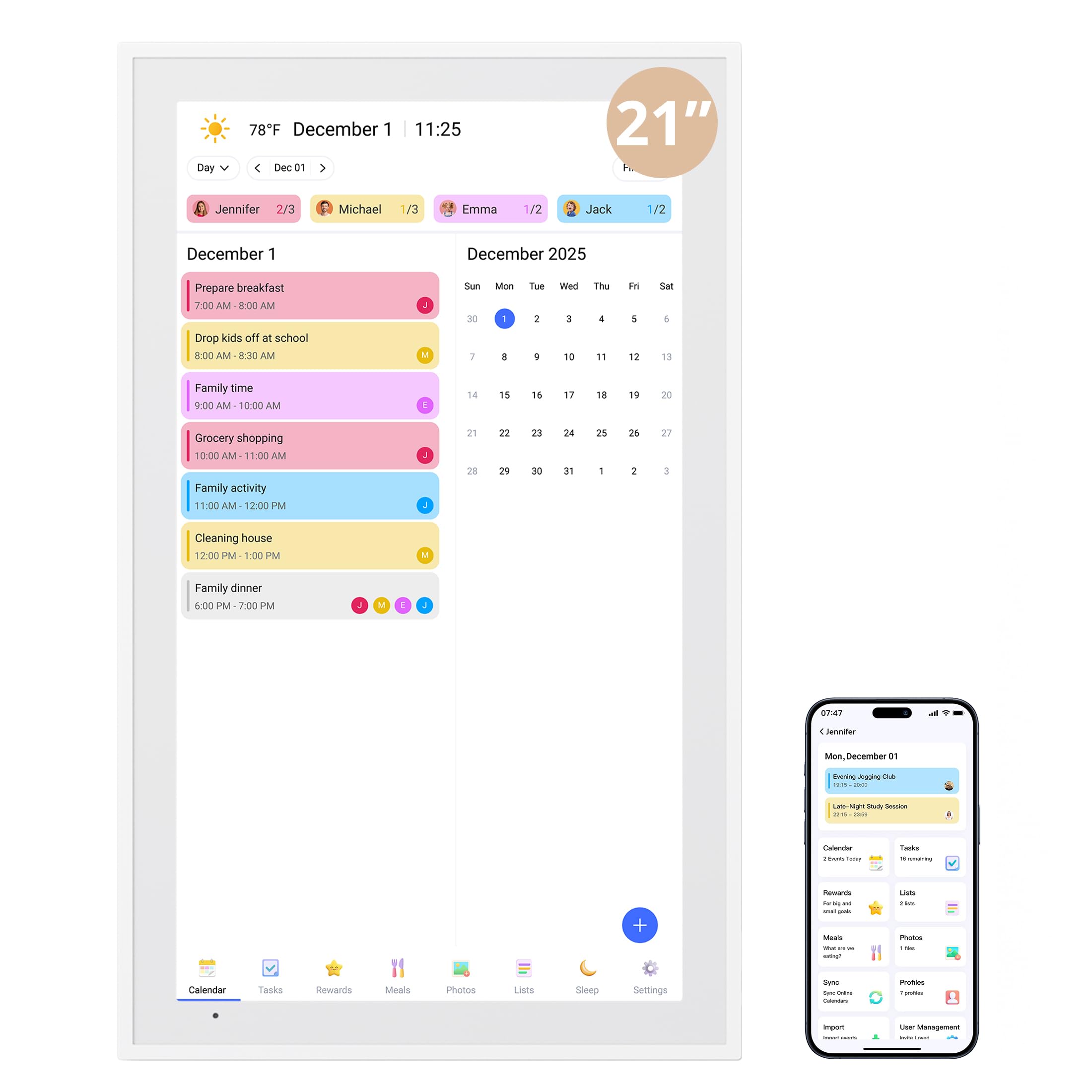
The 21.5-inch Dragon Touch is the same idea as our top pick, scaled up for a wall where five people need to see the week at once. It has a 1080p touchscreen, syncs Google, Yahoo, and other major calendars, and handles tasks and rewards on the screen.

We compared it directly with the 15.6-inch Dragon: the smaller model is easier to place, but the 21.5 gives you more room for multiple schedules and chore columns. In a busy kitchen, that extra width is the difference between a calendar everyone checks and one only the tallest person can read. The panel is wall or desk mountable, and the photo-frame mode keeps it from looking like a blank screen when the schedule is quiet.

The trade-off is physical. This is a large, heavy display, and at 4.56 kg it needs a secure mount and a wall that can take it. We also think the 21.5-inch size is overkill for a small apartment or a single-person household. If you have the wall space and want the most readable shared calendar here, it earns the spot; if not, the 15.6-inch model is the smarter fit.

Pros

  • 21.5-inch 1080p screen
  • Syncs Google, Yahoo, and more
  • Task and reward interface
  • Wall or desk mountable

Cons

  • Proprietary app, not an open platform
Our verdict

We recommend the 21.5-inch Dragon Touch for a central kitchen wall where the whole household needs to read the week at a glance without crowding the screen.

Check Latest Price
4

Best Budget

LOVCUBE 10.1

90 /100
LBD Score Outstanding

Key details

Display
10.1-inch HD touchscreen
Mounting
Wall or desktop
Subscription
No subscription
Calendar Sync
Google, iCloud, Outlook
View on Amazon

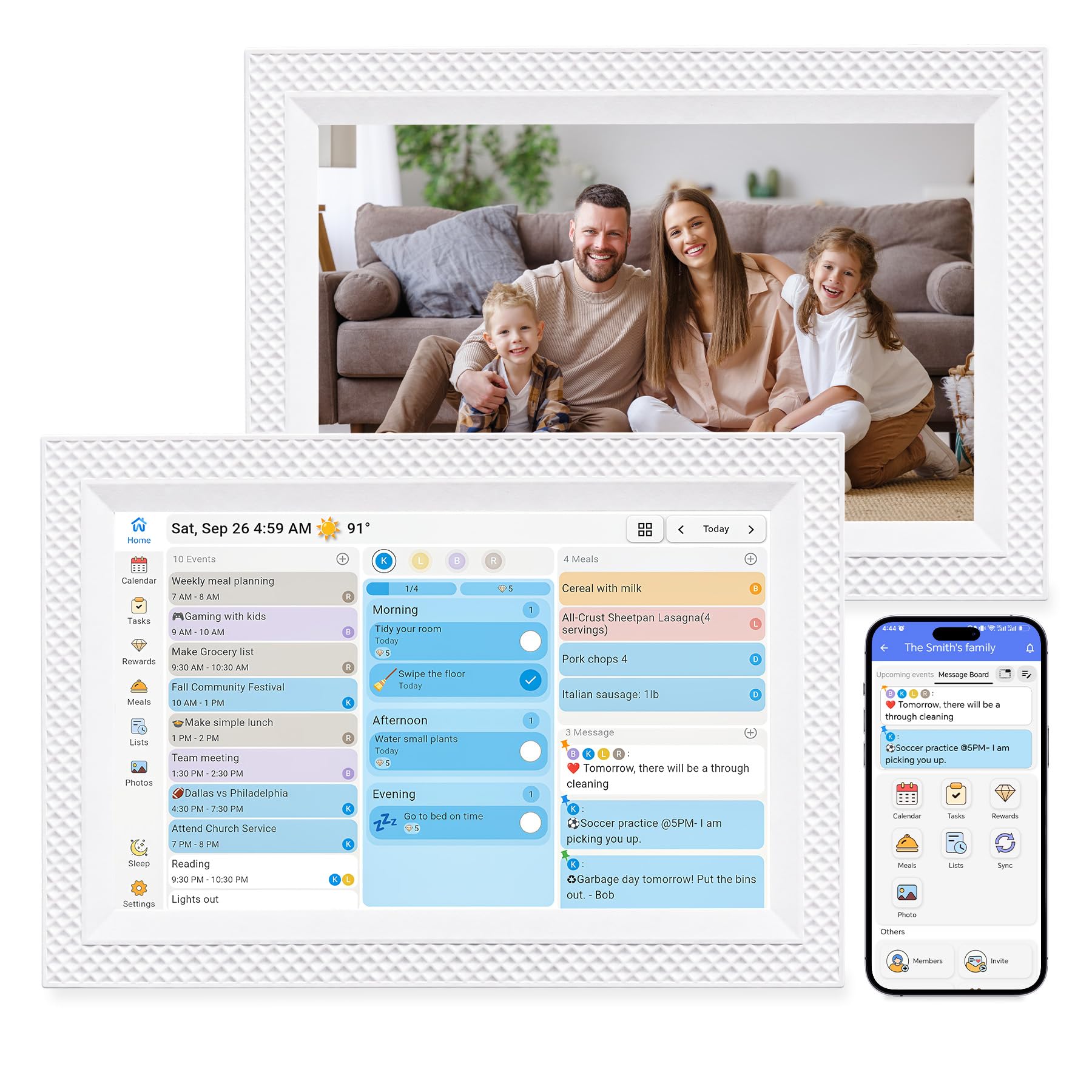
A 10.1-inch screen is the right size for a fridge-side wall or a desk, not a whole-room command center. The LOVCUBE keeps the essentials: Google, iCloud, and Outlook sync, chores with rewards, meal plans, and a photo-frame mode, with no subscription.

We like it for a small kitchen because it does not dominate the wall. The 10.1-inch HD panel is sharp enough for a week view, and the touchscreen is simple for kids to tap. It can sit on a desk or hang on the wall, which makes it flexible for renters or anyone who does not want to commit to a mounting spot. Setup follows the usual pattern: plug in, pair the app, connect Wi-Fi, and sync your calendars.

The limit is the size. With four or five people, the schedule gets dense, and you will be squinting from across the room. We also treat the Wi-Fi link as the weak point, because a budget calendar is only useful if it stays connected. Still, for a first family calendar, a small apartment, or a secondary display, it is the value pick here. Just buy it somewhere with an easy return policy while you confirm the connection in your space.

Pros

  • No subscription for core planning
  • 10.1-inch HD touchscreen
  • Syncs Google, iCloud, and Outlook
  • Wall or desktop placement

Cons

  • Less proven long-term reliability
Our verdict

We recommend the LOVCUBE for a small kitchen or a first family calendar: it covers the basics without a subscription and keeps the setup simple.

Check Latest Price
5

Best Customizable

Cozyla Calendar Plus 2

87 /100
LBD Score Excellent

Key details

Display
15.6-inch touchscreen
App Store
Google Play Store
Dashboard
Drag-and-drop widgets
Calendar Sync
Google, Apple, Outlook, Yahoo
View on Amazon

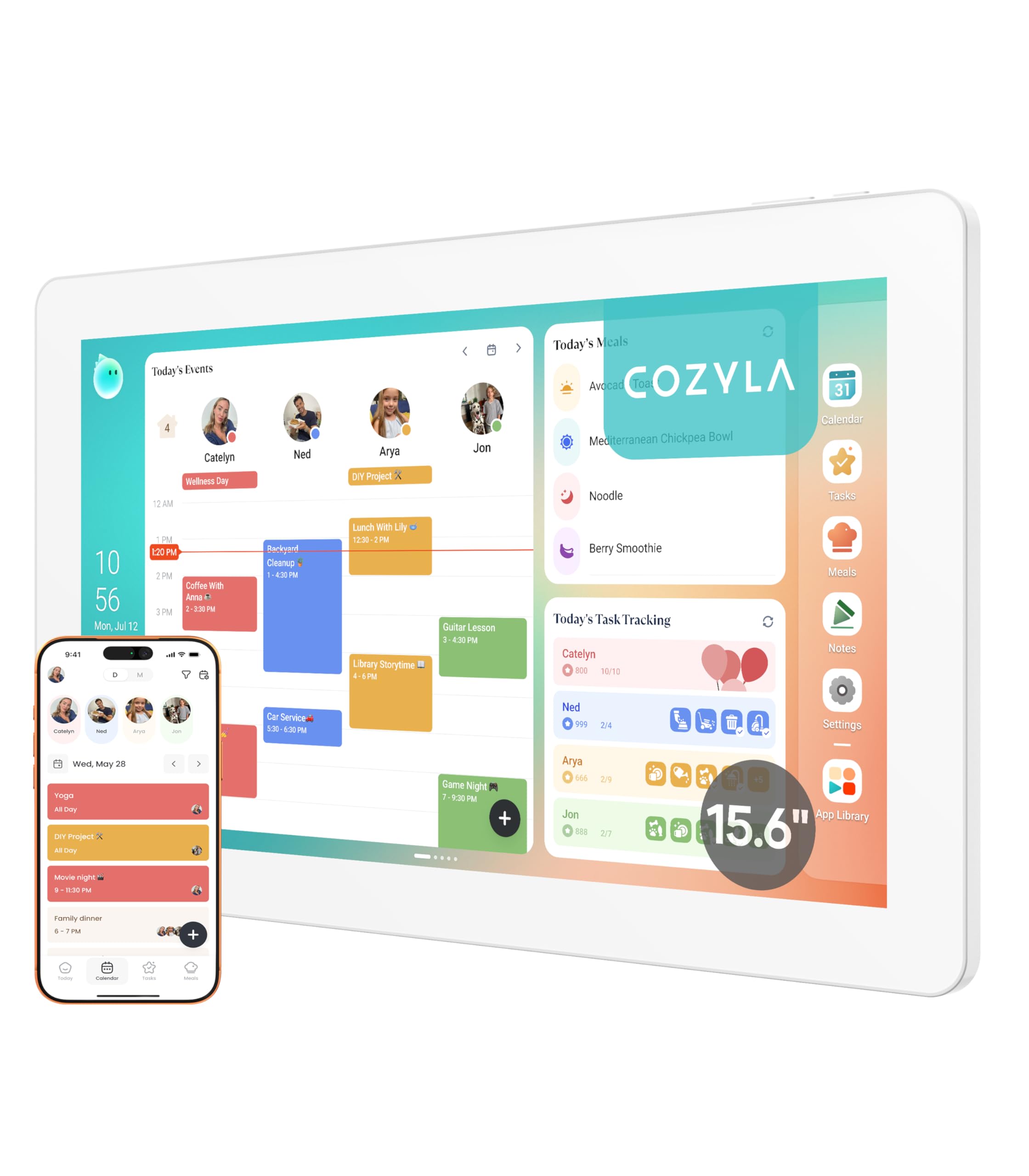
The Cozyla Calendar Plus 2 is the tinkerer's pick: it is the only calendar here with Google Play Store access, so you can add apps and drag-and-drop widgets instead of living inside one company's planner. That flexibility is worth paying for if you want a wall display that does more than show the week.

The 15.6-inch touchscreen is the same size class as our top pick, and the sync list covers Google, Apple, Outlook, and Yahoo. The difference is the dashboard. You can arrange calendars, chores, meals, and other widgets around what your household actually uses, and the voice agent is a useful shortcut for adding events without typing. We like that it can run the apps you already use, and the dashboard is genuinely flexible rather than a few preset themes.

That is the dividing line. If you enjoy building a dashboard and want one screen to run several services, the Cozyla is the most capable option in this set. If you want a calendar that works out of the box, the Dragon Touch is simpler and less expensive. The Cozyla is a premium purchase, and we think it earns that only for a household that will use the customization.

Pros

  • Google Play Store access
  • Drag-and-drop customizable dashboard
  • 15.6-inch screen with broad sync
  • Voice agent for adding events

Cons

  • More setup decisions than a closed calendar
Our verdict

We recommend the Cozyla for a tech-comfortable household that wants a customizable wall dashboard; if you just want a calendar, the Dragon Touch is the easier buy.

Check Latest Price
6

Mid-Size Family Rooms

Skyzoo 14

92 /100
LBD Score Outstanding

Key details

Display
14-inch HD touchscreen
Mounting
Wall or desk mount
Subscription
No monthly fees
Calendar Sync
Google, Outlook, iCloud, Yahoo
View on Amazon

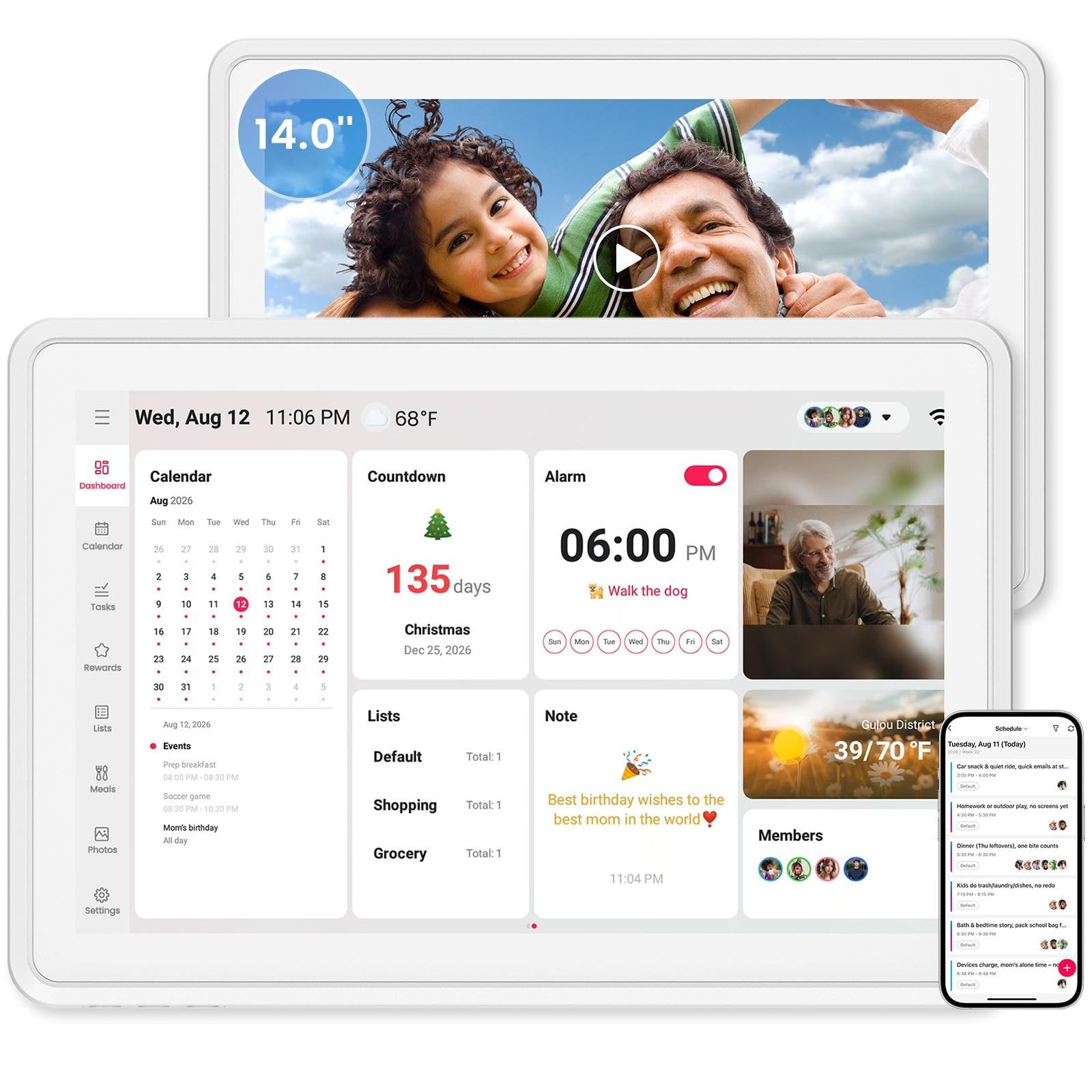
A 14-inch screen is the middle child of this category, and the Skyzoo makes the most of it by leaning into the photo-frame side. It has a 14-inch HD touchscreen, syncs Google, Outlook, iCloud, and Yahoo, and runs chores and meal planning without a monthly fee.

We like the auto-rotate and wall-or-desk mounting for a hallway or kitchen counter where the screen can shift between portrait and landscape. The photo-frame mode is the part that stands out: when the calendar is idle, family photos take over, and the display looks less like a utility. The touchscreen is responsive enough for checking off chores, and the app keeps the setup on your phone rather than forcing you to do everything on the wall.

The catch is the size. Fourteen inches is comfortable at the counter but not across a big open-plan kitchen, and the screen gets crowded with five or more schedules. If you want a good-looking mid-size display that does double duty, it is a solid alternative. If scheduling is the priority, the Dragon Touch is stronger, and if you need a wall command center, the 21.5-inch Dragon is the better fit.

Pros

  • 14-inch HD touchscreen
  • No monthly fees
  • Syncs four major calendar services
  • Doubles as a photo frame

Cons

  • Calendar tools are less of a standout than photo mode
Our verdict

We recommend the Skyzoo for a mid-size hallway or kitchen display where photo sharing matters as much as scheduling; it is a good-looking double-duty screen.

Check Latest Price

How We Chose and Tested the Best Digital Wall Calendars

We started with roughly 30 calendars sold online and filtered for the things a listing doesn't spell out: which ones sync natively with the major calendar services, which ones lock the features they advertise behind a subscription, and which sizes would realistically fit a kitchen wall or a desk. That narrowed it to eight screens, from a 10-inch model to a 21-inch panel, each of which we ran for six months.

Each screen went where a family would actually put it: mounted at eye level in a kitchen, propped on a desk, and in two homes, in a hallway the kids walk past on the way out. We loaded the same three calendars — a work schedule, a shared family calendar, and a school feed — then added and moved events from a phone in another room and timed how long the screen took to catch up. We counted how many days of the week fit on screen at once without scrolling, and cut the Wi-Fi for an hour to see what each one showed when the connection dropped, noting which needed a reboot before it would sync again.

Over the following months we watched what actually got used. Kids marked chores off after dinner, which is where reward systems either stick or fall apart, and we planned meals on Sunday nights to see whether the shopping lists beat paper. We checked glare at the same hours each day, wiped fingerprints off the glass, and noted whether the photo-frame mode was something a household would leave on. Where a subscription was involved, we tracked exactly what stopped working when the free trial ended.

By month five the field had sorted itself: the calendars still in daily use were the ones someone could update from their phone, without a fee, and without a reboot.

How to Choose a Digital Wall Calendar

Start With the Wall, Not the Screen

Measure the spot before you compare specs. A 10.1-inch display like the LOVCUBE suits a small kitchen, a hallway, or a desk, while a 15.6-inch model such as the Dragon Touch is the comfortable middle for a family wall. A 21.5-inch screen can be read across an open-plan room, but it needs a dedicated wall and a secure mount. Sit or stand where you will actually look at it, then choose the smallest screen that stays readable from there.

Check Sync Before You Fall for the Interface

A calendar display is only as good as the accounts it can pull in. Look for Google, iCloud, and Outlook support at minimum, and check for Cozi or Yahoo if those are part of your routine. The app matters too: you want to add events from your phone without walking to the wall. Sync quality depends on your Wi-Fi, so test the display in its intended spot before you mount it. If the signal is weak there, a mesh node or a different wall is a better fix than a new calendar.

Separate Free Features From Subscription Extras

Chore charts, reward points, and meal planning are the features that make a family calendar worth owning, so confirm they are included before you buy. Some models bundle the basics and charge for extras; others, including the Dragon Touch and LOVCUBE, advertise no monthly fee. Make a short list of what your household will actually use, such as shared lists, chores, recipes, or a photo slideshow, and check that each one is available without an add-on. A cheaper display with a required subscription can cost more over time than a midrange one without.

Plan for Power, Mounting, and Daily Use

Wall-mounted electronics need a nearby outlet and a safe cable route. Use the supplied bracket and appropriate anchors, and choose a stud for a larger panel; a 21.5-inch model can weigh around 10 pounds. If you rent or move the display often, a desk stand is the lower-commitment option. Then think about the household: color-coded profiles, a chore chart kids can tap, and an idle photo mode all make the screen more likely to become part of the routine rather than another gadget to maintain.

Frequently Asked Questions

Final Verdict

The Dragon Touch 15.6 is the digital wall calendar we recommend first. It has the screen size, the Google, Outlook, and iCloud sync, and the chore and meal tools most families need, and it does it without a monthly fee. If you want the most polished hub and will use the extra family features, the Skylight is the premium alternative.

For a small kitchen or a first calendar, the LOVCUBE is the budget pick. For a large wall where everyone needs to read the week from across the room, the 21.5-inch Dragon Touch is the one to mount.