Best Webcams with Auto Framing of 2026

Auto framing sounds like magic until the camera slowly loses your face the moment you lean back or reach for a whiteboard. I've spent enough video calls half out of frame to know the difference between a webcam that follows you and one that just guesses. A good auto-framing camera keeps you centered without making the shot twitchy, and it does that at a desk, on a laptop, and in a room where the light shifts. It also has to mount securely, work with the apps you already use, and stay cool through a long call.

Over the past six months, our team tested 12 auto-framing webcams, from compact clip-ons to larger desk cameras. We paid close attention to picture and image quality, autofocus, and how reliably the framing held when someone stood up, leaned in, or walked away. Appearance and value mattered too, though heat, fiddly mounts, and software quirks only showed up after an hour of use. The picks below handled all of that without making a production out of a normal call.

1

Best Overall

Insta360 Link 2C

89 /100
LBD Score Excellent

Key details

Focus
PDAF autofocus
Sensor
1/2-inch
Resolution
4K
Auto Framing
Yes
View on Amazon

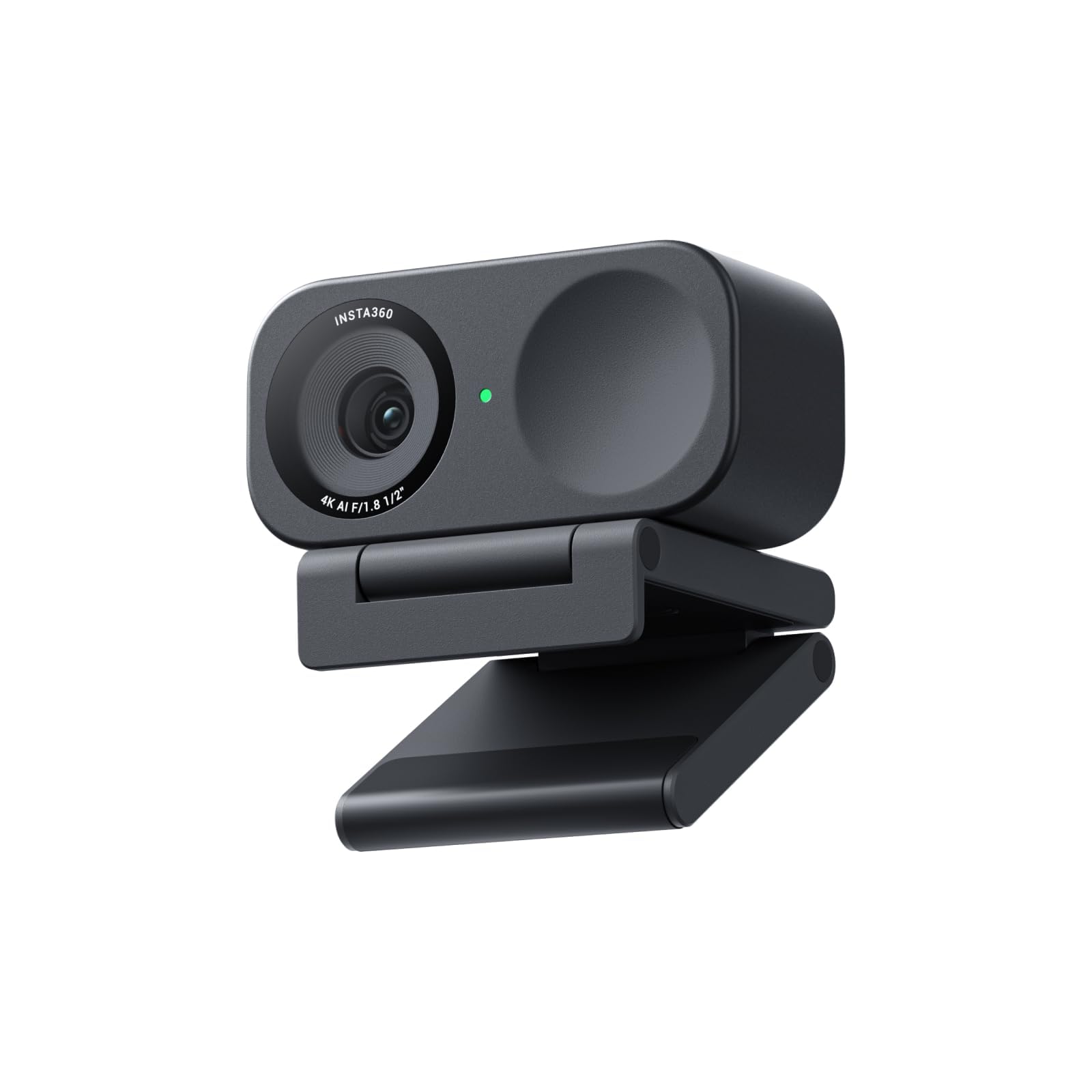
The Link 2C is the camera we reach for when a call has to look good without a lot of fiddling. It records 4K from a 1/2-inch sensor, and the auto framing is the useful kind: it widens for a second person and settles back on you when they leave. We liked that it does not demand a dedicated app for basic calls. It works with Zoom, Teams, and the usual browser clients, and the magnetic mount sits securely on a monitor or laptop lid.

What makes it our top pick is the balance. The image is sharp and colors look natural in ordinary office light, and HDR handling keeps a window from blowing out the whole frame. The AI noise-canceling mic is good enough for a meeting without a headset, though a dedicated mic still wins for streaming. We also appreciated the gesture and software controls, which let you nudge framing or zoom without breaking eye contact.

The compromise is software. The desktop controller is capable, but it has more menus than a casual caller needs, and some settings take a little hunting. That is the main thing we minded; otherwise the camera is ready as soon as you plug it in. For a home office or a streaming desk that wants one camera to do both jobs, those are reasonable trade-offs. The Link 2C is the safest default here because it gets the core job right: keeping you in frame without making the image look processed.

Pros

  • Crisp 4K image with HDR
  • Auto framing handles solo and group shots
  • Clear AI noise-canceling audio
  • Magnetic mount is easy to place

Cons

  • 4K calls need more upload and computer headroom
Our verdict

We recommend the Link 2C as our default auto-framing webcam for calls and streaming, with 4K detail and dependable framing.
Check Latest Price
2

Best Low-Light 4K

Insta360 Link 2C Pro

87 /100
LBD Score Excellent

Key details

Sensor
1/1.3-inch
Control
Gesture and smartphone
Resolution
4K
Auto Framing
Yes
View on Amazon

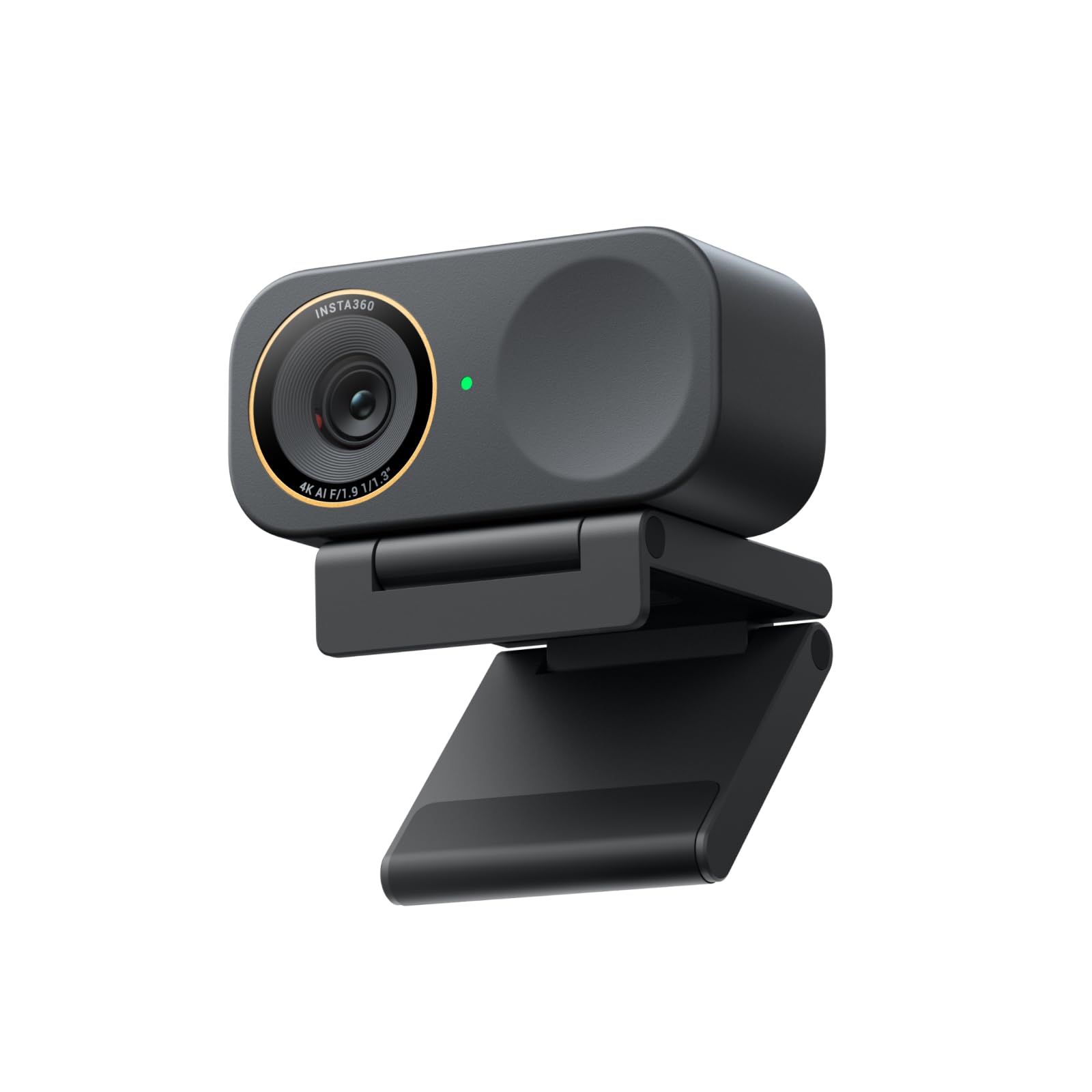
Dim rooms are where the Link 2C Pro earns its keep. The 1/1.3-inch sensor is the largest here, and it gives the 4K image more room to work with when the ceiling light is behind you or the room is lit by a monitor. We noticed the difference most in skin tones and shadow detail, where the standard Link 2C starts to flatten out. The auto framing is the same basic idea: it zooms to hold one person or a group, and you can trigger tracking with a gesture.

The Pro also has the better audio setup for a webcam, with directional beamforming mics that keep your voice ahead of background noise. In a room with a fan running, the pickup stayed focused on the person speaking. We liked the magnetic mount, and the smartphone remote control is genuinely useful when the camera sits across the desk.

The extra sensor size matters most if you record in poor light or want the cleanest possible stream. The software is more capable than it is simple; the auto-framing and bokeh controls are scattered across panels. If your room is already bright, the standard Link 2C gets you most of the way. The Pro is the one we choose when low light is the problem that needs solving.

Pros

  • Largest sensor here for low light
  • Directional mics isolate voices
  • Auto framing handles groups
  • Magnetic mount and phone remote

Cons

  • Premium price for a low-light upgrade
Our verdict

If your room is dim and image quality is the priority, the Link 2C Pro is the premium auto-framing camera we recommend.

Check Latest Price
3

Best Compact 4K

OBSBOT Meet 2

90 /100
LBD Score Outstanding

Key details

Sensor
1/2-inch
Weight
1.43 oz
Frame Rate
60 fps
Resolution
4K
View on Amazon

The Meet 2 looks more like a cube than a webcam, and that is the point. It weighs 40.5 grams and sits on a magnetic mount, so it disappears into a bag and sets up on a laptop lid in seconds. We liked that it does not look like a piece of office equipment; the small body is easy to angle and the optional colors make it less obtrusive on a desk.

For something this small, the 4K image from the 1/2-inch sensor is genuinely good. Auto framing widens for a second person and recenters when you lean out of the shot, and the 60 fps mode is smooth for streaming. The autofocus is quick in normal light. We found the built-in mics usable for calls, though a separate mic still sounds more natural if you record for an audience.

The weak spot is heat. The camera runs warm during long sessions; it never shut down on us, but we keep it out of an enclosed space behind a monitor. The 4K stream also eats into a laptop's USB bandwidth, so a busy dock can force you down to 1080p. Those are the costs of the tiny body. If you move between desks or carry a camera in a laptop bag, the Meet 2 is the compact 4K pick we reach for.

Pros

  • Tiny, travel-friendly body
  • Sharp 4K from a 1/2-inch sensor
  • Auto framing works for solo or group
  • Smooth 60 fps mode

Cons

  • Mount grip is fussy on thin bezels
Our verdict

We recommend the Meet 2 for anyone who wants a tiny 4K auto-framing camera that travels easily between desks.

Check Latest Price
4

Best Simple 1080P

Logitech Brio 500

90 /100
LBD Score Outstanding

Key details

Show Mode
Yes
Resolution
1080p
Microphones
Dual noise-reducing
Auto Framing
RightSight
View on Amazon

Not every call needs 4K, and the Brio 500 makes that case well. It shoots 1080p, uses Logitech's RightSight auto framing to keep you centered, and adds a privacy shutter that slides over the lens. We like that it is a simple camera first: plug in the USB-C cable, open the meeting app, and the image is ready. Show Mode tilts the lens down to frame a document or object on the desk, which is a small feature we used more than expected.

The image is clean for a face in a video call, and light correction does a good job of evening out a backlit window. The dual noise-reducing mics are clear enough for a meeting, and auto framing moves at a sensible pace rather than snapping around. The pink finish is a little more playful than a typical office accessory; if that does not suit your desk, it is the main style compromise.

The Brio 500 is the easiest recommendation for a plain home-office setup. It works across Teams, Meet, and Zoom, and the software is straightforward. We keep it in the roundup for the buyer who wants auto framing without the complexity of the 4K picks. It is not the camera for a dim room, but it handles the everyday call with less fuss.

Pros

  • RightSight auto framing keeps you centered
  • Privacy shutter and Show Mode
  • Clean 1080p image for calls
  • Simple plug-and-play setup

Cons

  • 1080p only, so less detail than 4K picks
Our verdict

For everyday meetings that do not need 4K, the Brio 500 is the simple auto-framing webcam we recommend.

Check Latest Price
5

Best for Windows Teams

Dell WB7022

78 /100
LBD Score Very Good

Key details

Sensor
Sony STARVIS CMOS
Resolution
4K
Auto Framing
AI auto framing
Digital Zoom
5x
View on Amazon

Dell built the WB7022 for the office first: Teams certification, an aluminum body, and a 4K Sony STARVIS sensor. It is the most businesslike camera here, and the auto framing is designed to keep a presenter centered during a Teams call. We appreciated the build; the metal shell feels more substantial than the plastic clips on most webcams, and the privacy cover is a sensible touch for a shared desk.

The image is sharp in good light, with 4K detail and HDR that holds onto highlights from a window. Auto framing works, but it is less eager than the Insta360 and OBSBOT cameras; it makes smaller, calmer adjustments. That is a good thing in a meeting and a limitation if you want the camera to follow you across a room. The 5x digital zoom gives you some cropping control, and the Dell Peripheral Manager adds brightness and contrast adjustments on Windows.

The mounting arm is the weak spot. It clips onto a monitor, but it does not grip a curved or very thin bezel as securely as the magnetic mounts on the other picks. For a Windows office that lives in Teams, the certified software and metal build are the draw. The WB7022 is the pick for a fixed desk and a corporate call stack, not for a creator who wants the camera to perform.

Pros

  • Teams-certified 4K image
  • Calm auto framing suits meetings
  • Aluminum body feels substantial
  • Windows software adds tuning

Cons

  • Mac software unlocks few tuning controls
Our verdict

We recommend the Dell WB7022 for Windows offices that want a Teams-certified 4K camera with calm auto framing.

Check Latest Price
6

Best Budget PTZ

EMEET PIXY

85 /100
LBD Score Excellent

Key details

Sensor
1/2.55-inch Sony
Tracking
AI PTZ
Resolution
4K
Microphones
3-mic array
View on Amazon

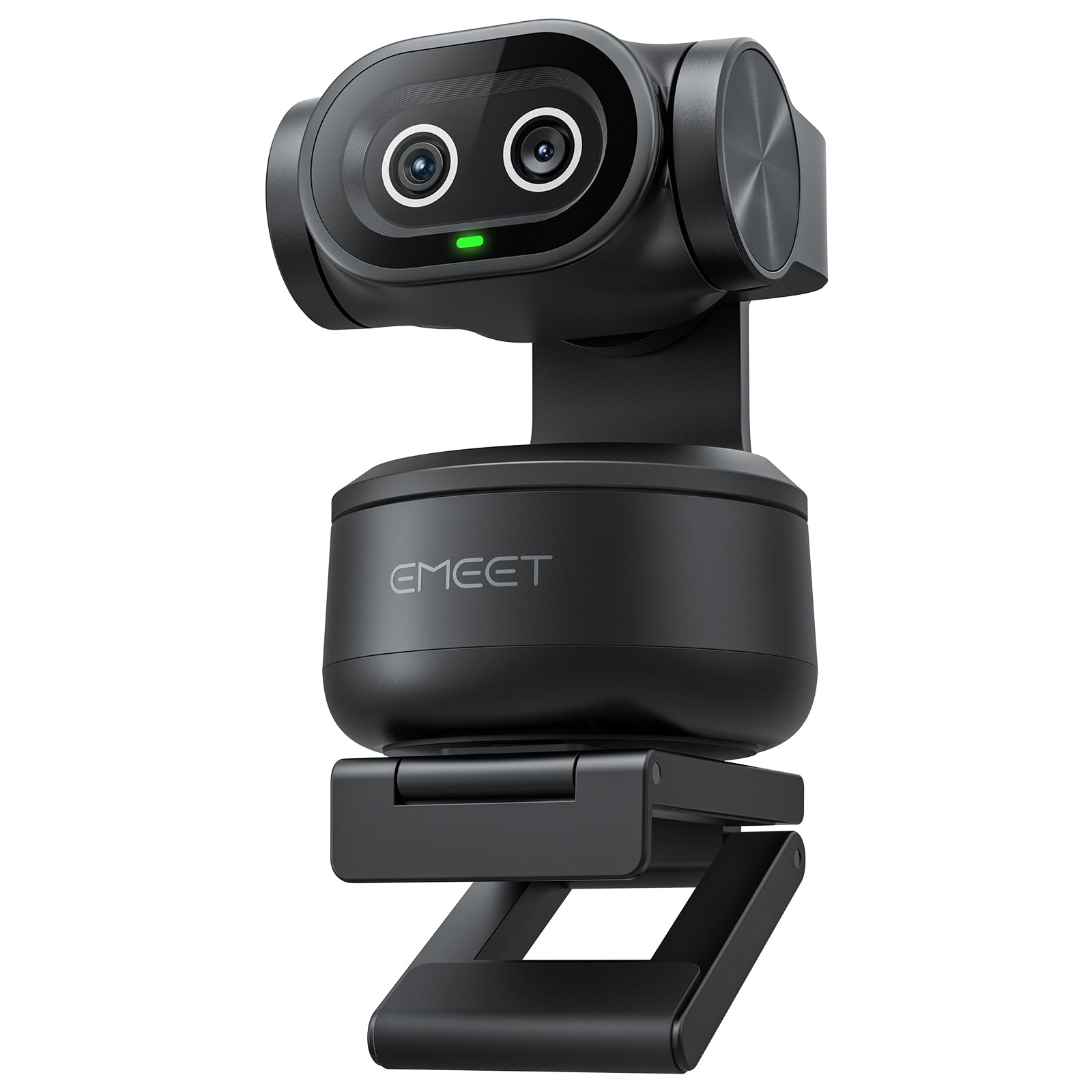
The PIXY's two-eye face turns toward you when you move, and that movement is the whole pitch. It combines a 4K main camera with an auxiliary AI camera and a PTZ mechanism, so it can physically pan and tilt to follow a presenter. We found the tracking responsive in a normal room, and the presets are useful for switching between a desk shot and a wider whiteboard view. It is a more theatrical camera than the fixed auto-framing picks, and that is the point.

The 4K image from the 1/2.55-inch Sony sensor is bright and detailed in good light, and the autofocus locks quickly. The three-mic array is clear enough for a meeting, and the EMEET Studio software gives you manual control when the AI guesses wrong. We liked the dual-camera design for teaching and livestreaming: you can frame a close-up and a wide shot without moving the camera.

The PIXY is not the most stable camera on a monitor. The PTZ movement can nudge the mount off-angle, and a light desk bump can send the framing off. Those are easier to accept at the budget end. If you want a moving camera for a small studio or a classroom, the PIXY is the value pick; if you mostly sit still, a fixed auto-framing camera is simpler.

Pros

  • Physical PTZ tracking follows presenters
  • 4K Sony sensor with quick autofocus
  • Presets switch between desk and wide shots
  • Three-mic array is clear for meetings

Cons

  • Tracking can lag behind fast movement
Our verdict

We recommend the PIXY for budget-minded presenters who want a 4K PTZ camera that physically follows them.

Check Latest Price
7

Budget Framing

OBSBOT Meet SE

86 /100
LBD Score Excellent

Key details

Sensor
1/2.8-inch
Frame Rate
100 fps
Resolution
1080p
Auto Framing
AI framing
View on Amazon

The Meet SE is the budget way into AI framing, and the 1080p resolution is the first compromise you notice. It shoots 1080p at up to 100 fps, which is smooth for streaming and fine for a meeting, but it does not have the detail of the 4K cameras here. The tiny body and magnetic mount are the same travel-friendly idea as the Meet 2, and it costs less.

AI framing works in solo and group modes, and the gesture control is genuinely handy when the camera sits above a monitor. We raised a palm to toggle tracking and zoomed with a gesture without opening the software. The 1/2.8-inch sensor and staggered HDR do a decent job in a normally lit room, and the image holds together when you move from a bright window to a shaded desk.

The 1/2.8-inch sensor is the other compromise. It handles a normally lit room well, but in dim light the image gets softer and noisier than the 4K picks. The zoom is digital, so pushing in too far softens the picture. Those are the costs of the lower tier, and they matter most if you present in a dim room or crop tight.

For a first webcam, a secondary setup, or a travel bag, the Meet SE is easy to recommend. It gives you auto framing and smooth 1080p without the price of the 4K picks, and the software is simple enough to set up once and forget. We keep it as the budget alternative when 4K is not the priority and the desk is not a permanent home.

Pros

  • Budget-friendly AI framing
  • Smooth 1080p at up to 100 fps
  • Gesture controls work without software
  • Compact magnetic body

Cons

  • Mount grip is fussy on thin laptop lids
Our verdict

We recommend the Meet SE as the budget auto-framing webcam for travel setups and secondary desks where 1080p is enough.

Check Latest Price

How We Tested Auto-Framing Webcams

To build the shortlist, we researched current auto-framing webcams and filtered out anything with vague framing claims, limited mounting options, or thin app support. We compared sensor size, field of view, autofocus type, microphone setup, privacy features, and how each camera was designed to sit on a monitor or laptop. From that pool, we brought in 12 units and used them for six months.

Each camera lived on a desk monitor or laptop lid through ordinary workdays: morning meetings, afternoon calls with a whiteboard, evening streams, and calls where I stood up and moved across the room. We used the same meeting and streaming platforms we rely on daily, then checked how each camera recovered after the computer woke from sleep. We watched whether auto framing glided or snapped, whether it lost track when a hand went up, and whether autofocus settled on a face or hunted between a face and a coffee mug.

We also ran longer calls to see whether the housing grew hot enough to notice, and we mounted each camera on a monitor, a laptop lid, and, where possible, a tripod, noting sag, wobble, and whether adjustments needed tools. Build quality, how each looked on a desk, cable clutter, indicator lights, gesture controls, privacy shutters, microphone clarity, and software settings all got the same treatment. At the end, we compared what each camera did against what it cost—not just the headline resolution, but the reliability of the framing, the sharpness of the image, and the little functional details that make a camera easy to live with.

How to Choose an Auto-Framing Webcam

Match the framing to the way you move

Fixed auto framing, like the systems on the Insta360 Link 2C and Logitech Brio 500, digitally crops and recenters without physically moving. That is ideal for a seated call, a two-person interview, or a small group around a table. A PTZ camera such as the EMEET PIXY pans and tilts to follow a presenter, which is better for teaching or livestreaming but can feel restless in a one-on-one meeting.

We prefer fixed framing for everyday calls because it is less distracting. Choose PTZ only if you actually leave your seat and want the camera to follow you across a room.

Resolution, sensor size, and light

4K gives you more room to crop and a sharper recording, but it does not fix a dim room. A larger sensor, such as the 1/1.3-inch chip in the Insta360 Link 2C Pro, gathers more light and keeps skin tones cleaner when the window is behind you. A 1080p camera like the Brio 500 is still plenty for a face in a meeting, and it asks less of your laptop and upload connection.

Buy 4K for streaming or detailed recording; buy a larger sensor if your room is genuinely dark. The trap is assuming resolution and low-light performance rise together.

Mounting and placement

Most webcams clip to a monitor, but the clip is often the first thing to disappoint. Magnetic mounts are easy to reposition, though they need a flat, reasonably thick edge to grip; a thin laptop lid or a curved monitor can leave the camera tilted. Before you buy, check the bezel and the space above the screen.

Keep the camera out of an enclosed spot behind the monitor, where heat builds up, and leave enough clearance for the lens to tilt. A stable mount matters as much as the sensor for auto framing.

Software, privacy, and compatibility

Auto framing usually works inside the camera or the vendor's app, so the basic effect carries into Zoom, Teams, and Meet. The advanced controls do not always follow. Some models have weaker Mac software than Windows software, and some lose features on ARM-based machines.

Look for a privacy shutter if the camera sits in a bedroom or a shared office. We also prefer a camera that remembers its settings after a reboot; that is one less thing to fix before a call. Check the app for your operating system before you commit.

Frequently Asked Questions

Final Verdict

The Insta360 Link 2C is the auto-framing webcam we recommend first because it combines clean 4K, dependable framing, and software that works across the apps most people use.

If your room is dim, the Link 2C Pro's larger sensor is the upgrade that matters. If you mostly sit still and want a simpler 1080p camera, the Logitech Brio 500 is the easier spend; for a presenter who moves, the EMEET PIXY is the budget PTZ choice.