Best USB-C Docking Stations of 2026

A docking station's whole job is to make one cable do the work of six. You drop your laptop on the desk, plug in a single USB-C connector, and the monitor wakes up, the keyboard reconnects, ethernet comes alive, and the battery starts charging. The trouble is that docks look identical on a product page and behave very differently under a desk. My team and I spent six months living with 12 of them, from palm-sized hubs to heavy aluminum blocks with three video outputs.

Nobody tells a first-time buyer that the port count on the box is rarely the number you can use at once. Push two monitors, a card reader, and an external drive through one cable and you learn fast whether the dock has bandwidth to spare — and whether your laptop even supports multiple displays over USB-C, which varies more than the listings admit.

What mattered most was unglamorous: whether setup means a driver hunt, whether the connection holds through a two-hour video call, and whether charging keeps pace with a full workday. The ones that did are below.

1

Best Overall

UGREEN Revodok Pro 10-in-1

89 /100
LBD Score Excellent

Key details

Warranty
24 months
Total Ports
10
Display Outputs
2x HDMI, dual 4K@60Hz
Laptop Charging
85W pass-through
View on Amazon

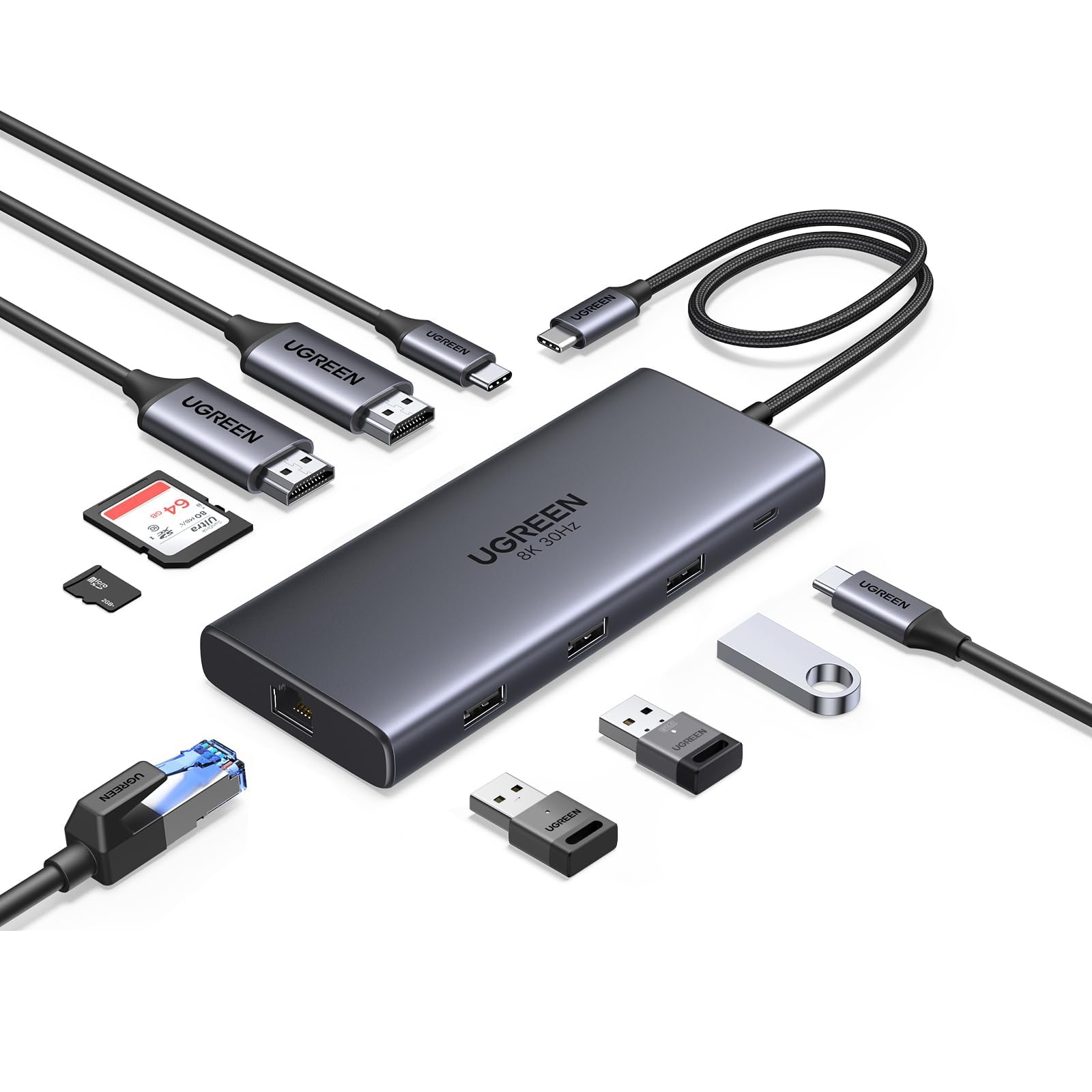
Ten ports, two HDMI outputs at 4K@60Hz, gigabit ethernet, SD and microSD slots, and up to 85W of charging to the laptop. That list covers the desk most people actually have — two monitors, a wired network drop, a camera card — from a 4.5-inch aluminum body that weighs a little over three ounces and needs no power brick under the desk.

What makes it our top pick is the refresh rate rather than the port count. Dual HDMI at 4K@60Hz means both screens scroll like the laptop's own display, and that is still not a given at the affordable end of this category, where a 30Hz output feels sticky the moment you drag a window across it. It also drives a single screen at 8K@30Hz for anyone who prefers one huge panel to two.

The compromises are speed and power. Its USB-A and USB-C data ports run at 5Gbps, half what the Anker Nano 8-in-1 offers, so pulling a big media card or an SSD's worth of footage takes roughly twice as long. The USB-C PD port is an input rather than a charger: it reserves 15W to run the dock's own electronics and passes up to 85W to the laptop, so charging speed follows the charger at the other end. Neither matters for a keyboard, a mouse and a couple of monitors.

If your desk is one screen and a wireless mouse, this is more dock than you need, and the smaller Anker is the better buy. For everyone else it is the safest place to start, and the 24-month warranty is longer than most here.

Pros

  • Dual 4K@60Hz over two HDMI ports
  • Gigabit ethernet and SD/microSD slots
  • 85W pass-through charging
  • 24-month warranty

Cons

  • USB data ports max out at 5Gbps
  • Needs your own 100W PD charger
Our verdict

Our default for a two-monitor desk: dual 4K@60Hz, ethernet and 85W charging in one small aluminum body, with only USB speed as a real compromise.
Check Latest Price
2

Best for Desk and Travel

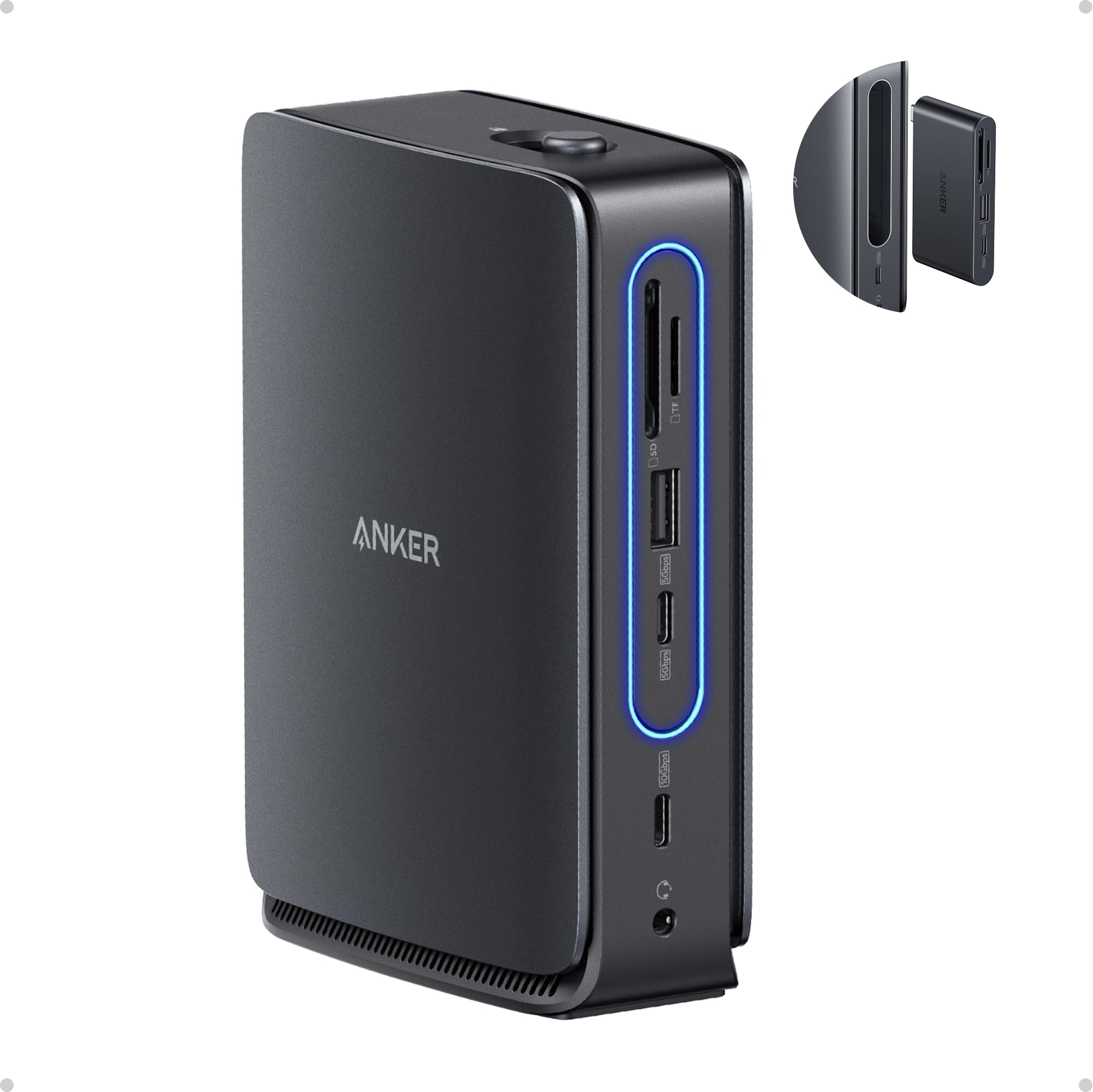
Anker Nano 13-in-1 Dock

82 /100
LBD Score Excellent

Key details

Total Ports
13
Detachable Hub
6-in-1 travel hub
Display Outputs
2x HDMI + 1x DisplayPort
Laptop Charging
100W, 140W adapter included
View on Amazon

A six-port hub that snaps out of the dock's body sounds like a gimmick until you pack for a trip. We like it for the dullest reason imaginable: one purchase covers the desk and the bag, and the part that comes out is small enough to live in a laptop sleeve.

As a desktop dock it is a 13-port unit: two HDMI plus DisplayPort for three screens on a Windows laptop, 100W of charging from the included 140W adapter, gigabit ethernet, a 3.5mm jack, SD and TF slots, and five USB ports split between A and C. The fast C port moves data at 10Gbps; everything else sits at 5Gbps.

Two practical notes. The body is light, so a stiff HDMI cable will drag it around the desk — a strip of Velcro on the base fixes that in a minute. And the triple-display mode is a Windows feature; on a MacBook, the external screens mirror each other rather than extending.

The travel half is the part you notice in week two: leaving the desk for a meeting with the small piece in your bag, then clicking it back into the dock when you return, with your monitors, network and keyboard picking up where they left off.

Pros

  • Detachable 6-in-1 hub for travel
  • 100W charging from the included 140W adapter
  • Three displays on Windows laptops
  • 10Gbps USB-C data port

Cons

  • Premium price for the detachable-hub design
Our verdict

The best one-dock answer for a hybrid week: a 13-port desk dock with a detachable travel hub, 100W charging and three Windows displays.

Check Latest Price
3

Best for Managed Offices

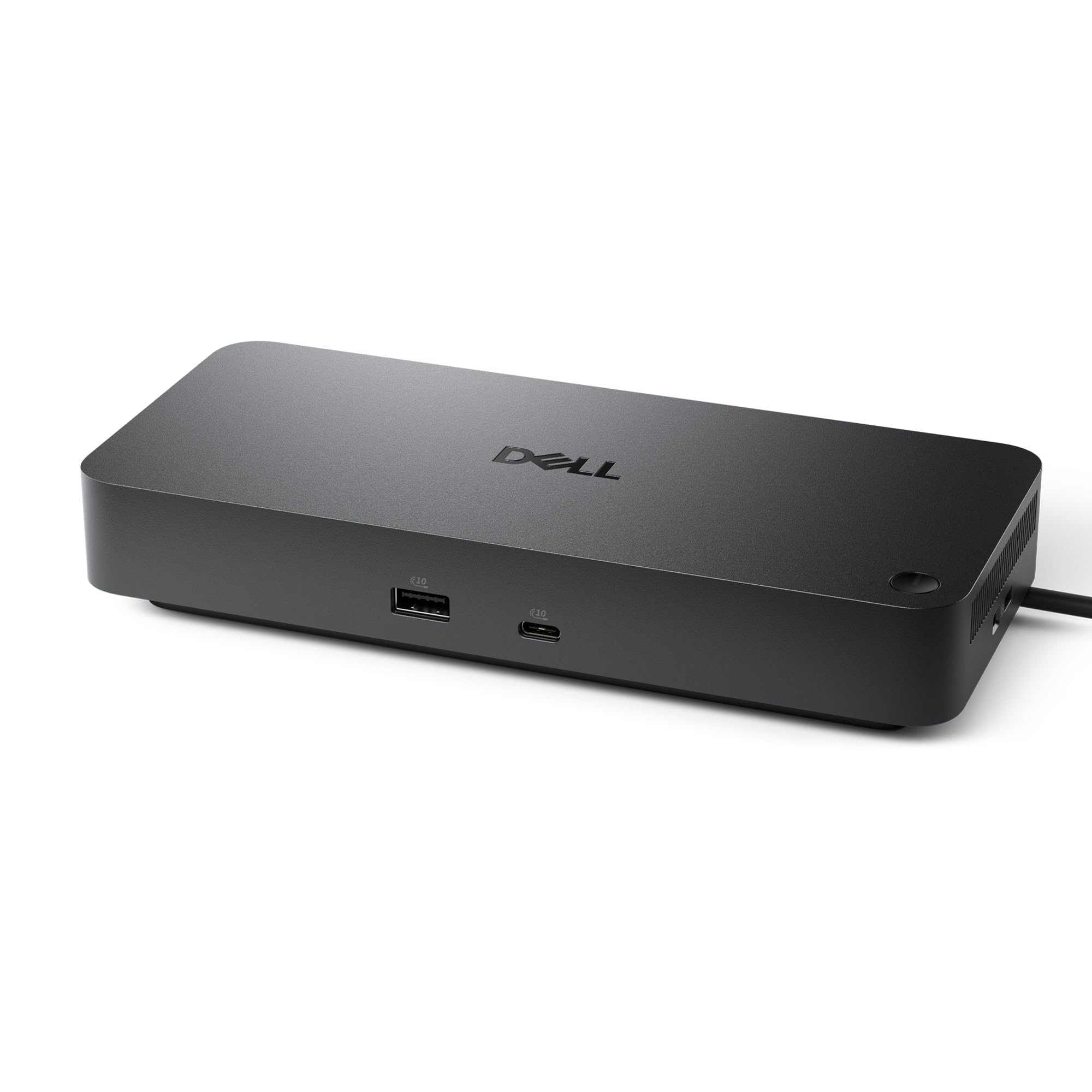
Dell Pro Dock WD25

86 /100
LBD Score Excellent

Key details

Warranty
3-year advanced exchange
Total Ports
10
Display Outputs
Up to 4 displays
Laptop Charging
100W
View on Amazon

Three years of warranty with advanced exchange is the outlier here, where most docks carry 18 months to two years. On a device that sits at the center of a desk and swallows every cable you own, it is the first specification we look at.

The hardware is office-grade rather than travel-grade. It sends 100W to the laptop, offers ten ports including six USB plus HDMI, DisplayPort and ethernet, and supports up to four high-resolution displays. The USB-C cable routes out of either side of the dock, which we appreciated the moment the laptop moved to the left-hand end of the desk: no loop of cable dragged back across the keyboard.

For a desk that has to work every day, and especially one that someone else has to support, this is the dock we point to. The catch sits in the port mix: one HDMI and one DisplayPort on the chassis, so the four-display claim depends on the rest of your chain — count your monitors' inputs and plan on USB-C or daisy-chained DisplayPort for screens three and four. If all your monitors are HDMI, the Plugable UD-3900PDZ has three of those ports and needs no adapters.

Pros

  • Three-year advanced-exchange warranty
  • 100W charging and six USB ports
  • Up to four high-resolution displays
  • USB-C cable routes either side

Cons

  • Only one HDMI and one DisplayPort
Our verdict

Buy this one for the office desk that has to survive three years of daily plugging, with 100W charging and a warranty nobody else here matches.

Check Latest Price
4

Best for Mac Multi-Display

Plugable UD-3900PDZ

86 /100
LBD Score Excellent

Key details

Driver
DisplayLink
USB Data Ports
6x USB 5Gbps
Display Outputs
3x HDMI (1x 4K@30Hz, 2x 1080p@60Hz)
Laptop Charging
100W
View on Amazon

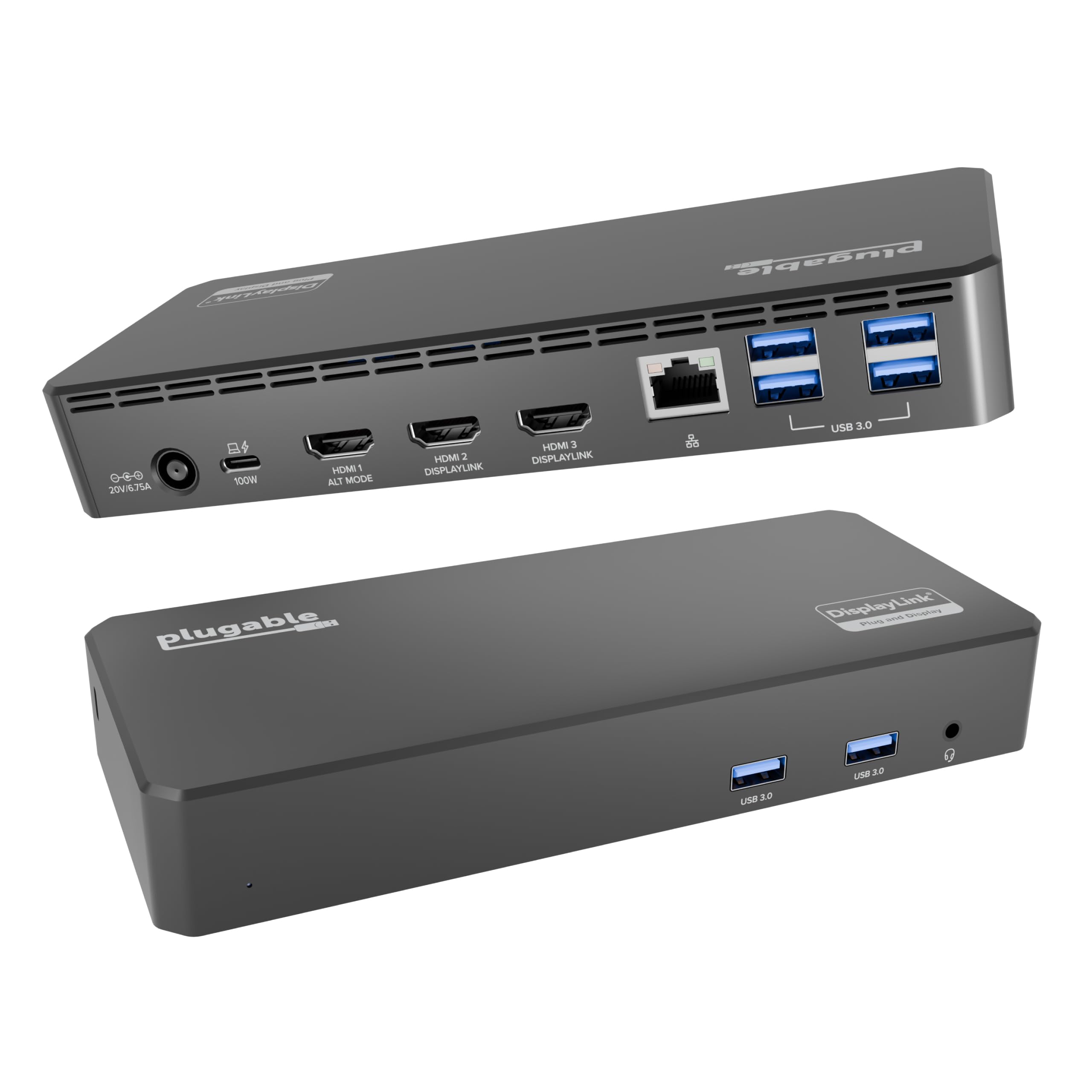
Apple's laptops extend to exactly one external display, and a plain USB-C dock cannot change that. The UD-3900PDZ works around the limit with DisplayLink, which handles the extra screens in software after a driver install.

It is the dock we point Mac users to, and the compromise is in the resolution split: one HDMI output runs 4K at 30Hz, the other two run 1080p at 60Hz. For a document, a chat window and a dashboard, that is a fine trio. Put three matching 4K panels on it and the unevenness shows — motion on the 30Hz screen looks less smooth than on the laptop's own display, and text on the two 1080p screens looks coarser.

Around the back there are six USB-A ports at 5Gbps and 100W of power delivery, and the driver download is the only setup step. Windows and ChromeOS machines work too, without leaning on DisplayLink for the extra screens. Two-year warranty, North American support and a compatibility guarantee are the other half of the pitch, and the reason this one turns up in offices that standardized on Macs. Windows users with three screens have cheaper routes, though: the Acer 13-in-1 does that job with no driver at all.

Pros

  • Three external displays on Apple Silicon Macs
  • 100W charging over the same cable
  • Six USB-A ports at 5Gbps
  • Two-year warranty with direct support

Cons

  • 4K output capped at 30Hz
  • Second and third screens are 1080p
Our verdict

The only pick here that puts three separate screens on an Apple laptop, provided you can live with one output at 30Hz.

Check Latest Price
5

Best Budget Pick

Anker Nano 8-in-1 Hub

86 /100
LBD Score Excellent

Key details

Power Adapter
Not included
USB Data Speed
10Gbps
Display Outputs
2x HDMI, dual 4K@60Hz
Laptop Charging
85W pass-through
View on Amazon

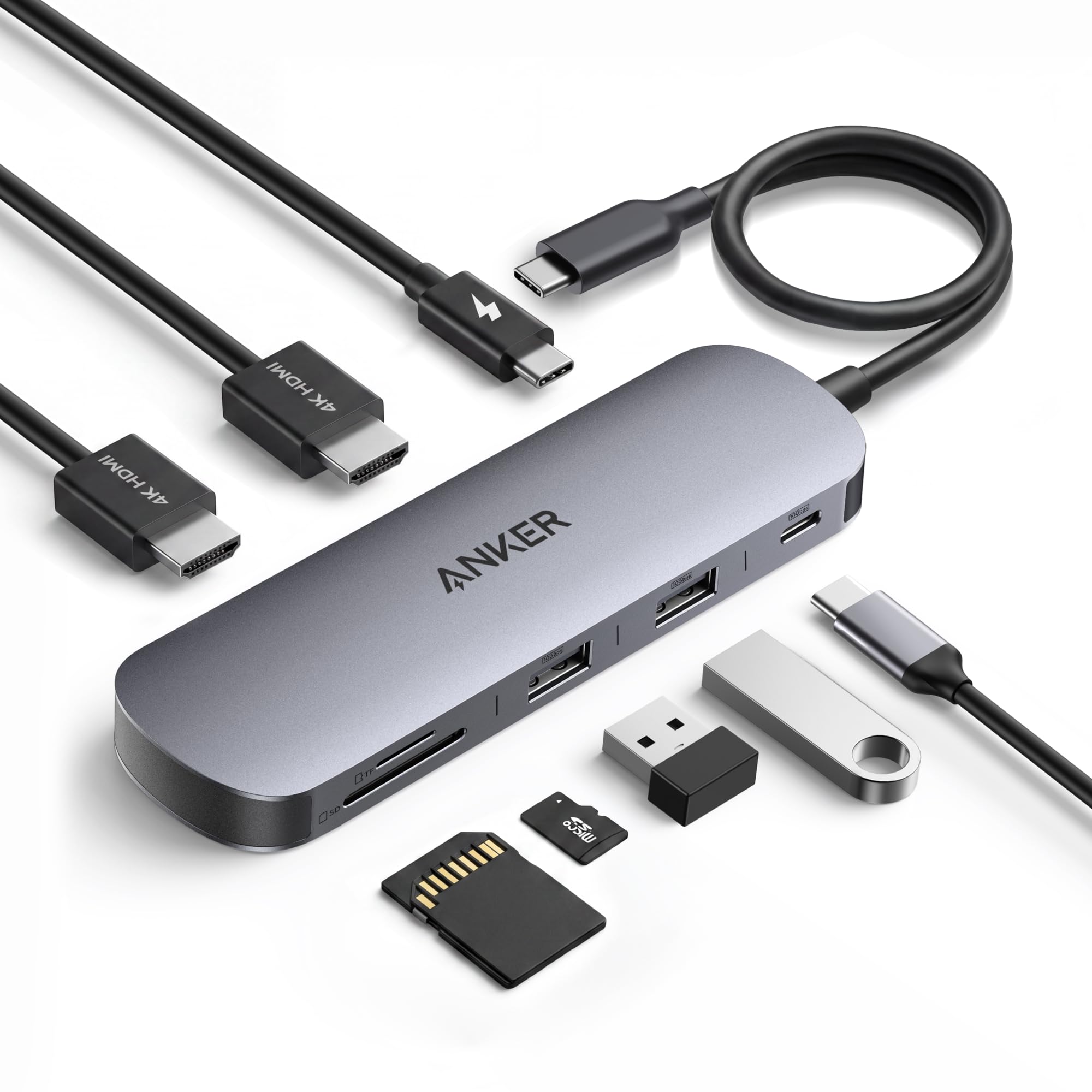
Ten gigabits a second on every port is rare at this size, and it is the detail that makes this the budget pick we hand to anyone setting up a Windows desk who does not need a network cable. Two HDMI outputs run dual 4K@60Hz, and the whole thing weighs under four ounces.

The port list is short and fast: two USB-A and one USB-C at 10Gbps, SD and microSD slots, a 100W PD input, and the two HDMI outputs. No ethernet, no audio jack, nothing you did not ask for. For a keyboard dongle, an external SSD and a card reader, that is the whole desk.

Charging is pass-through: the 100W input reserves 15W for the hub and sends up to 85W to the laptop, so the charging speed you get is the charger you plug in. And Anker sells this one for Windows, where the two external screens extend properly; on a Mac they mirror. On the Windows desk it is built for, the 10Gbps ports are the part you notice every time you move a folder.

Pros

  • 10Gbps on every USB-A and USB-C port
  • Dual 4K@60Hz on Windows laptops
  • 85W pass-through charging
  • Small aluminum body under four ounces

Cons

  • No ethernet or audio jack
Our verdict

The budget pick that does not feel like one: dual 4K@60Hz and 10Gbps ports in a pocketable body, for a desk with no wired network.

Check Latest Price
6

Windows Triple Display

Acer 13-in-1 Dock

81 /100
LBD Score Excellent

Key details

Total Ports
13
Display Outputs
2x HDMI + 1x DisplayPort
Laptop Charging
100W
Included Adapter
110W
View on Amazon

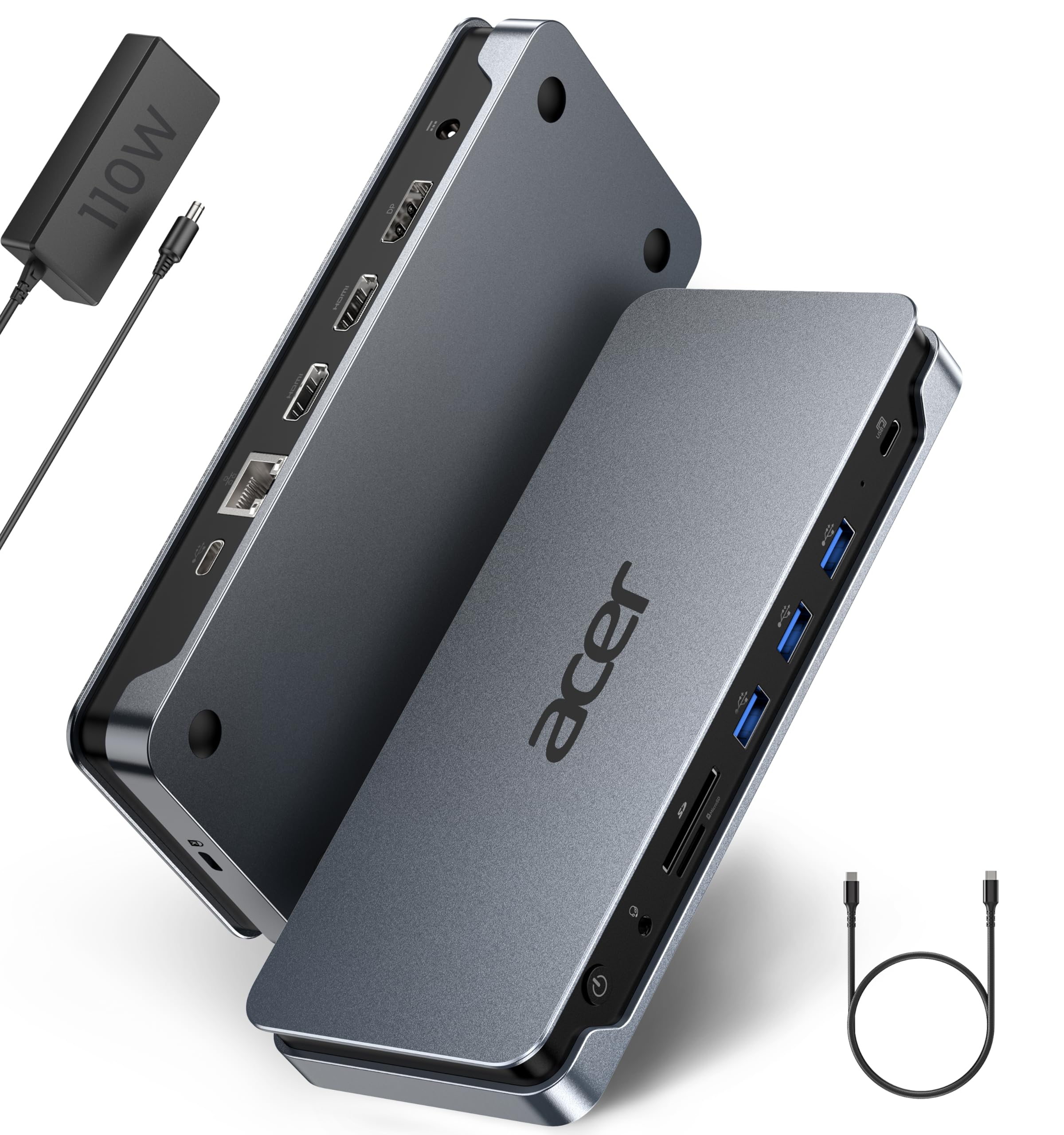
The 110W adapter in the box is what separates this Acer from the bus-powered docks here: it feeds 100W to the laptop while running three displays, so the laptop's own charger can stay in the bag.

Thirteen ports, laid out for a desk: two HDMI and a DisplayPort 1.4 for three independent screens on Windows, three USB-A and one USB-C, gigabit ethernet, a 3.5mm audio jack and card slots. The body is a flat 7.9-inch slab in space gray that sits still on the desk instead of hanging off its cable.

Among the powered docks this is the one we point to when three screens matter more than portability, though there is less of a track record behind it than behind the Anker and UGREEN picks. Set against the Anker Nano 13-in-1, it trades the detachable travel hub for a lower price and a body that stays where you put it — a fair swap if the dock never leaves the desk.

Pros

  • 110W adapter included, 100W to the laptop
  • Three independent displays on Windows
  • Gigabit ethernet, audio jack and card slots

Cons

  • macOS extends only one external display
  • USB ports are limited to 5Gbps
Our verdict

The powered triple-display dock to beat on value: a 110W adapter in the box, 100W to the laptop and three Windows screens from one cable.

Check Latest Price

How We Tested 12 USB-C Docking Stations

I started the shortlist with roughly 30 docks pulled from spec sheets and buyer reviews, then filtered by what the hardware actually does: how many displays it drives and at what resolution, whether it powers the laptop or needs its own brick, which laptops it officially supports, and where it sits on price. That left 12 units spanning budget hubs and dual-monitor workhorses.

Testing ran six months. I timed setup on both a Windows laptop and a Mac, from unboxing to a live second monitor, counting driver installs, forced reboots, and adapters I had to hunt down.

Each dock then took over a desk for a normal workweek: two 27-inch monitors, a wired keyboard and mouse, 1Gb ethernet, and a webcam, with the laptop lid shut. I timed 20GB transfers to an external SSD, sat through video calls to see whether the cursor stuttered or the second screen blinked out, and loaded every port at once to find out which ones throttled. Battery percentage got tracked across a full day to see how close each dock came to matching the laptop's own charger.

The compact hubs came with me to a coworking space and the kitchen table, where I checked whether they held a monitor signal without a power brick. Every unit got plugged and unplugged dozens of times a day, since that's the part that fails first, and I felt each housing for heat after a long afternoon.

How to Choose a Usb-C Docking Station

Start with the laptop's port, not the dock

Every dock here needs a USB-C port that carries video and power, which the spec sheet calls DisplayPort Alt Mode and USB Power Delivery. Plenty of budget laptops have USB-C ports that do neither, and no dock can add what the port cannot carry. Look up your model's port specification before you shop. If it lists Thunderbolt 3, 4 or 5 you're covered, since those ports run every dock in this guide.

The quick test: search your laptop model with the words DisplayPort Alt Mode. If nothing confirms it, spend the money elsewhere.

Match the outputs to the monitors you already own

Two screens at 4K@60Hz is the comfortable target. At 30Hz a cursor feels sticky when you drag a window, and the Plugable's 4K output tops out there for exactly that reason. A third screen is where docks economize, dropping to 1080p or leaning on DisplayLink software to do the work.

The bigger trap is the operating system. Windows extends a desktop across several screens from one cable; macOS mirrors them, so a Mac needs a DisplayLink dock to gain a second and third desktop. Count your monitors, then check which of those two worlds you're in.

Decide whether the dock supplies the power

A 100W USB-C claim on a dock usually describes its input: about 15W runs the dock's own electronics and the rest, typically 85W, reaches the laptop. That arrangement is the cheapest way to build a desk, but only if you already own a 100W PD charger and a cable rated for it.

If you don't, price the charger in. The Acer 13-in-1 and the Anker Nano 13-in-1 both ship with an adapter large enough to run the dock and charge the laptop at once, which is why they look expensive until you add up the parts you'd otherwise buy.

Count the ports you touch every day, then check their speed

Ten ports is plenty for most desks; the question is which ten. Three or four USB-A connections cover a keyboard, a mouse and a headset dongle, one fast USB-C handles an external SSD, and a card reader only earns its slot if you actually shoot photos.

Watch for USB-C ports that carry data only, with no video and no charging, since they are common on cheaper hubs. Then check the data speed: 5Gbps ports halve the transfer rate of a fast external drive compared with the 10Gbps ports on the Anker Nano 8-in-1.

Treat the warranty as part of the specification

Docks fail at the connector and the power path, usually while the rest of the desk is working fine, so the support terms deserve a look before the port list. Eighteen months is the norm in this group.

Two stand out: Dell's three-year advanced exchange on the WD25 and Plugable's two-year cover with direct support. Register the product the week it arrives and keep the box and receipt, because an exchange is far easier in the first month than in the fourteenth.

Frequently Asked Questions

Final Verdict

For most desks the UGREEN Revodok Pro 10-in-1 is the dock to buy: two screens at 4K@60Hz, ethernet, card slots and 85W of charging over one cable, at the low end of what these cost. Its 5Gbps data ports are the only real concession, and most people never notice them.

Change one requirement and the answer changes. Want a powered triple-display desk that travels? Take the Anker Nano 13-in-1. On a Mac with two or three monitors, only the Plugable UD-3900PDZ gets you there, at the cost of a 30Hz 4K output.