Best Touchscreen Monitors of 2026

A touchscreen monitor is two things bolted together: an ordinary LCD panel and a sheet of glass with a grid of sensors behind it. Stack them and something always gets lost — the glass throws glare, adds haze, and the touch layer can soften small text that looked crisp on the spec sheet.

I've kept touch displays on a front desk and a kitchen counter for years, mostly because tapping a recipe beats hunting for a mouse. Over the past seven months my team and I have lived with 11 of them, from a 22-inch desk unit to a 32-inch screen on a wheeled base, and the gaps show up fast — how the glass reads under office lights, how many cables it takes to get touch, video, and charging running at once, and whether a tap near the bezel actually registers.

One thing worth knowing before you shop: 10-point touch is printed on nearly every box, but the number only matters if your software reads more than one finger at a time. The picks below run from a compact desk to a shared counter.

1

Best Overall

ASUS VT229H 22-Inch Touchscreen Monitor

87 /100
LBD Score Excellent

Key details

Ports
HDMI, VGA, USB
Resolution
1920 x 1080
Screen Size
21.5 inches
Touch Points
10-point
View on Amazon

A 22-inch touchscreen is the Goldilocks size for a checkout counter, a school station, or a second screen that gets poked more than typed on. The ASUS VT229H earns our top spot because it does that job without asking you to learn a new setup: a 21.5-inch 1080p IPS panel, 10-point touch, HDMI and VGA, and a matte finish that keeps glare manageable. It is not the sharpest or largest screen here, but it is the easiest one to recommend to a mixed office.

In our testing, taps and swipes registered cleanly, and the frameless design makes it feel less like a commercial kiosk panel than the bezel-heavy alternatives. The touch layer is still the first thing to check on arrival; touch is the feature that can arrive misbehaving, and a five-minute test during the return window saves a lot of setup frustration. We also paid attention to the stand because touch changes the physics of a monitor: every tap pushes the screen back. The included stand is fine for occasional use, but it can wobble under a firm press. If this sits on a counter or a shared desk, the VESA mount and a solid arm are the better long-term setup.

Connections are simple, and that is a virtue here. HDMI handles video, USB handles touch, and VGA keeps older point-of-sale hardware in play. The built-in speakers are useful for confirmation chimes and video calls in a pinch, not for much else. Against the BE24ECSBT, the VT229H gives up USB-C docking and height adjustment, but it fits into tighter spaces and is the easier monitor to hand to a cashier or a student. For a straightforward touch display, this is the one.

Pros

  • Simple 1080p touchscreen for desks and counters
  • Matte IPS panel with wide viewing angles
  • HDMI, VGA, and USB cover older hardware
  • VESA mount solves the light stand

Cons

  • 250-nit brightness struggles in direct sun
Our verdict

We recommend the VT229H as the default touchscreen for a desk, counter, or school station because it is simple, bright, and broadly compatible; just test the touch layer during the return window.

Check Latest Price
2

Best for Laptop Docking

ASUS BE24ECSBT 24-Inch Touchscreen Monitor

78 /100
LBD Score Very Good

Key details

Resolution
1920 x 1080
Adjustments
Height, tilt, swivel, pivot
Screen Size
23.8 inches
USB-C Power
80W
View on Amazon

The ASUS BE24ECSBT is the monitor we point to when a laptop user wants a desktop setup without a dock. Its USB-C port carries video, touch data, and up to 80W of power over one cable, so a compatible laptop can arrive at the desk, connect once, and charge while the screen wakes up. That is a cleaner setup than the HDMI-plus-USB arrangement most touch monitors require.

The 23.8-inch 1080p IPS panel is not exciting on its own; 75Hz and 300 nits are ordinary. What makes it worth the premium is the stand: 130mm of height adjustment, 180 degrees of swivel, 90 degrees of pivot, and a tilt range that lets the screen sit at a comfortable angle for finger input. We spent more time adjusting this one than any other pick because the range actually changes where it can live, on a desk, at a standing station, or beside a laptop. The 10-point touch works well in Windows, though the touch layer needs the USB connection as well as the video signal. If you use HDMI or DisplayPort for video, run the included USB-C-to-A cable too.

This is a business monitor, and the ports show it: HDMI, DisplayPort in and out for daisy-chaining, a USB hub, and an earphone jack. The daisy-chain support is the detail we appreciate most for a two-screen setup because it keeps the second display from demanding another full set of cables. It is not the choice for a bright, color-critical studio, and the 24-inch size is modest for a primary workspace. For a laptop dock, though, the combination of one-cable charging and a genuinely adjustable stand is the strongest here.

Pros

  • One USB-C cable for video, touch, and charging
  • 80W laptop power delivery
  • Height, swivel, pivot, and tilt adjustment
  • DisplayPort daisy-chaining and USB hub

Cons

  • Premium price for a 1080p panel
Our verdict

For a laptop that needs one cable for video, touch, and charging, we choose the BE24ECSBT; its USB-C dock and height adjustment justify the premium over simpler 24-inch touchscreens.

Check Latest Price
3

Best 2K Value

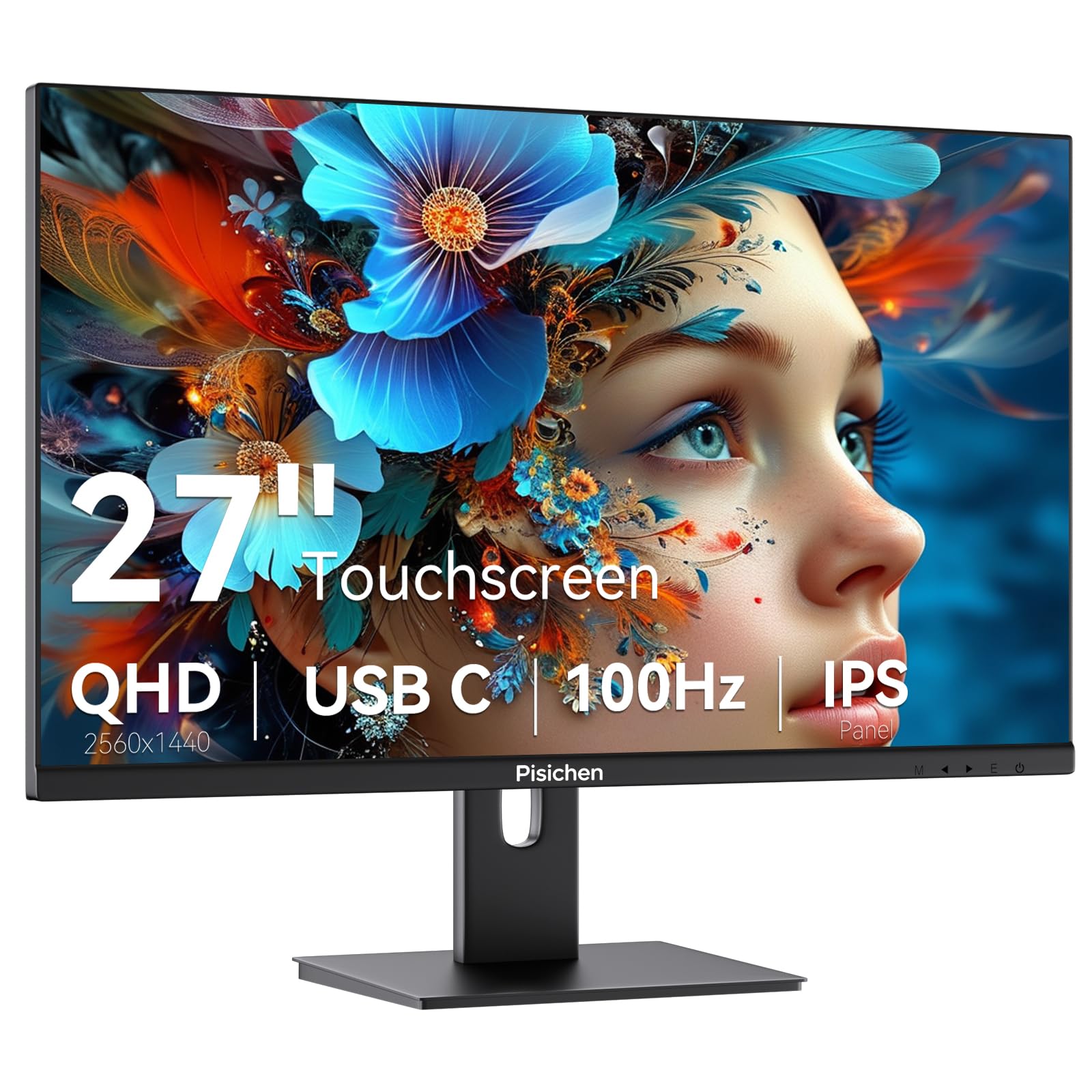
Pisichen 27-Inch 2K Touchscreen Monitor

81 /100
LBD Score Excellent

Key details

Ports
USB-C, HDMI, DisplayPort
Resolution
2560 x 1440
Screen Size
27 inches
Refresh Rate
100 Hz
View on Amazon

At 27 inches, most budget touchscreens make you choose between a big panel and a sharp one. The Pisichen avoids that trade with a 2560 x 1440 IPS panel, 100Hz refresh, and a 400-nit rating, all of which put it closer to a proper desktop monitor than the 1080p 27-inch alternatives here. On paper, it is the resolution-first value pick in this group.

We think the 2K resolution is the reason to choose it. Text is crisper than on a 27-inch 1080p screen, and the extra vertical room makes a spreadsheet or a browser with a dozen tabs less cramped. The 100Hz refresh is a welcome bonus for scrolling and casual games, though the 3ms response time does not turn this into a competitive gaming monitor. Touch is the question mark: it is responsive when it works, but touch can arrive not working, so test the layer immediately and buy where returns are easy. The panel is also glossy, which looks crisp in a dim room and shows every fingerprint in a bright one.

The panel is slim, but the stand is the part we trust least. A 27-inch touchscreen invites firm taps, and this one reads as top-heavy if you are pushing on the upper corner. Keep it on a solid desk away from foot traffic. For a home office that wants 2K sharpness without jumping to a premium price, it is a strong alternative to the 1080p CUNPU.

Pros

  • Crisp 27-inch 2K resolution
  • 100Hz refresh for smoother motion
  • 400-nit brightness for brighter rooms
  • USB-C, HDMI, and DisplayPort inputs

Cons

  • Built-in speakers sound thin
Our verdict

We like the Pisichen for a sharp 27-inch 2K desktop on a touchscreen budget, provided you place it securely and confirm the touch layer as soon as it arrives.

Check Latest Price
4

Best Premium Rolling Display

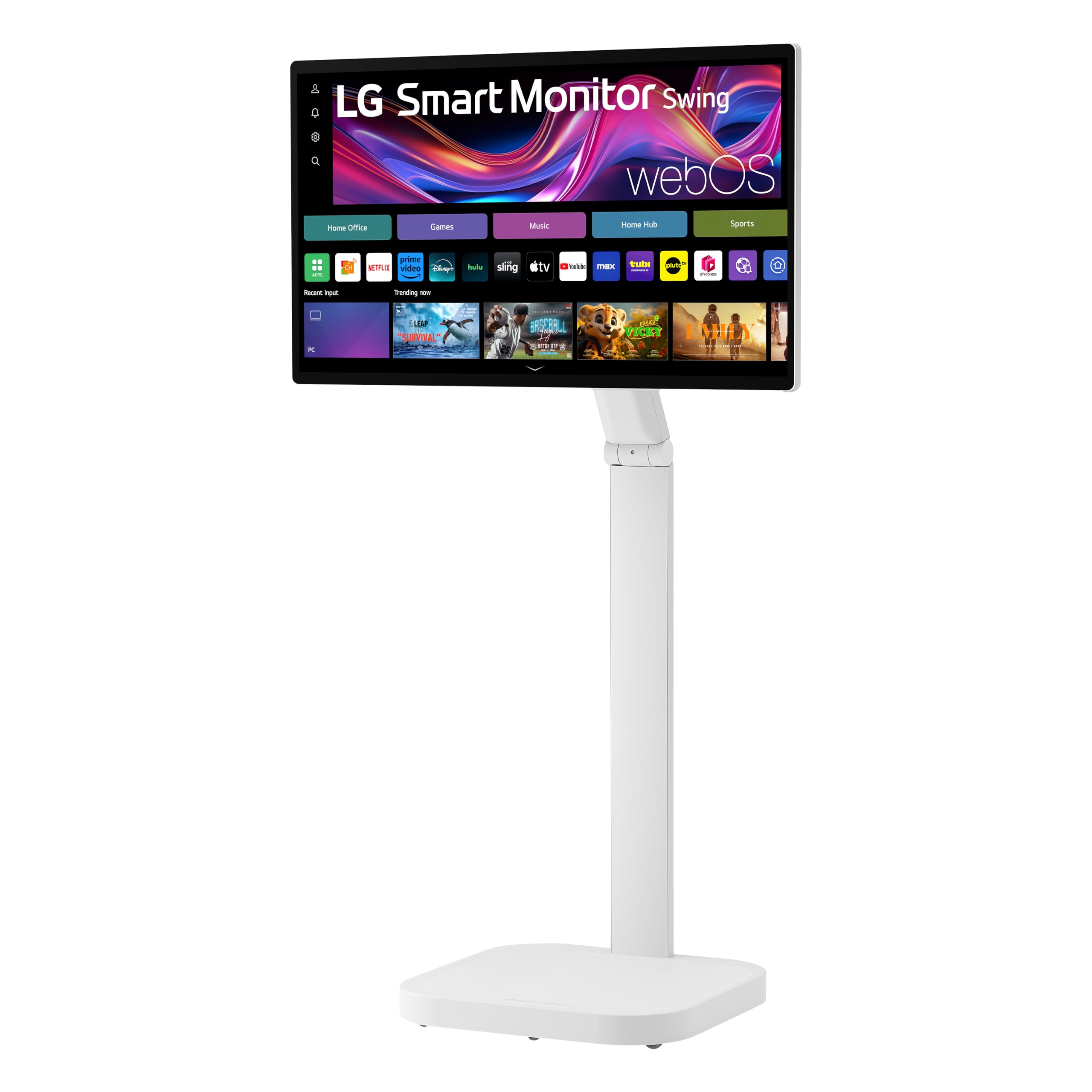
LG Smart Monitor Swing 32-Inch 4K Touchscreen

79 /100
LBD Score Very Good

Key details

Stand
Wheeled, height adjustable
Resolution
3840 x 2160
Screen Size
32 inches
Smart Platform
webOS
View on Amazon

The first thing you notice about the LG Smart Monitor Swing is the wheeled base, and that is the right place to start. This is a 32-inch 4K touchscreen built to move: roll it from a home office to a kitchen, pivot it for a standing session, or swing it toward a couch. At 46.7 pounds, it rolls easily but is not a monitor you tuck under an arm. The mobility is the product; the panel is the supporting act.

The 4K IPS screen is sharp for documents, photos, and streaming, with 95% DCI-P3 coverage and 350 nits. It is not a reference display for color grading, and 60Hz keeps it in comfortable-office territory rather than gaming territory. What we like most is the range of the stand: height, tilt, swivel, and pivot adjustments mean the screen can meet you where you are, and the hidden adapter compartment keeps the power brick out of the way. webOS is a genuine convenience for quick video calls, streaming, or a dashboard without a PC attached.

The touch layer is the caveat. It works for everyday taps and navigation, but touch is the function that can arrive inconsistent, so test it thoroughly during the return window. The 32-inch panel also makes fingerprints part of the scenery. This is a premium, space-hungry solution, not the sensible default for a desk. If the screen has to move, though, nothing else here does what the Swing does.

Pros

  • Rolling stand moves between rooms
  • 32-inch 4K IPS touchscreen
  • Height, tilt, swivel, and pivot adjustment
  • webOS works without a PC

Cons

  • Built-in speakers lack depth
Our verdict

We recommend the LG Swing when the screen has to move from room to room; its rolling 4K touch display is a niche splurge, not the value pick.

Check Latest Price
5

Large-Screen Budget

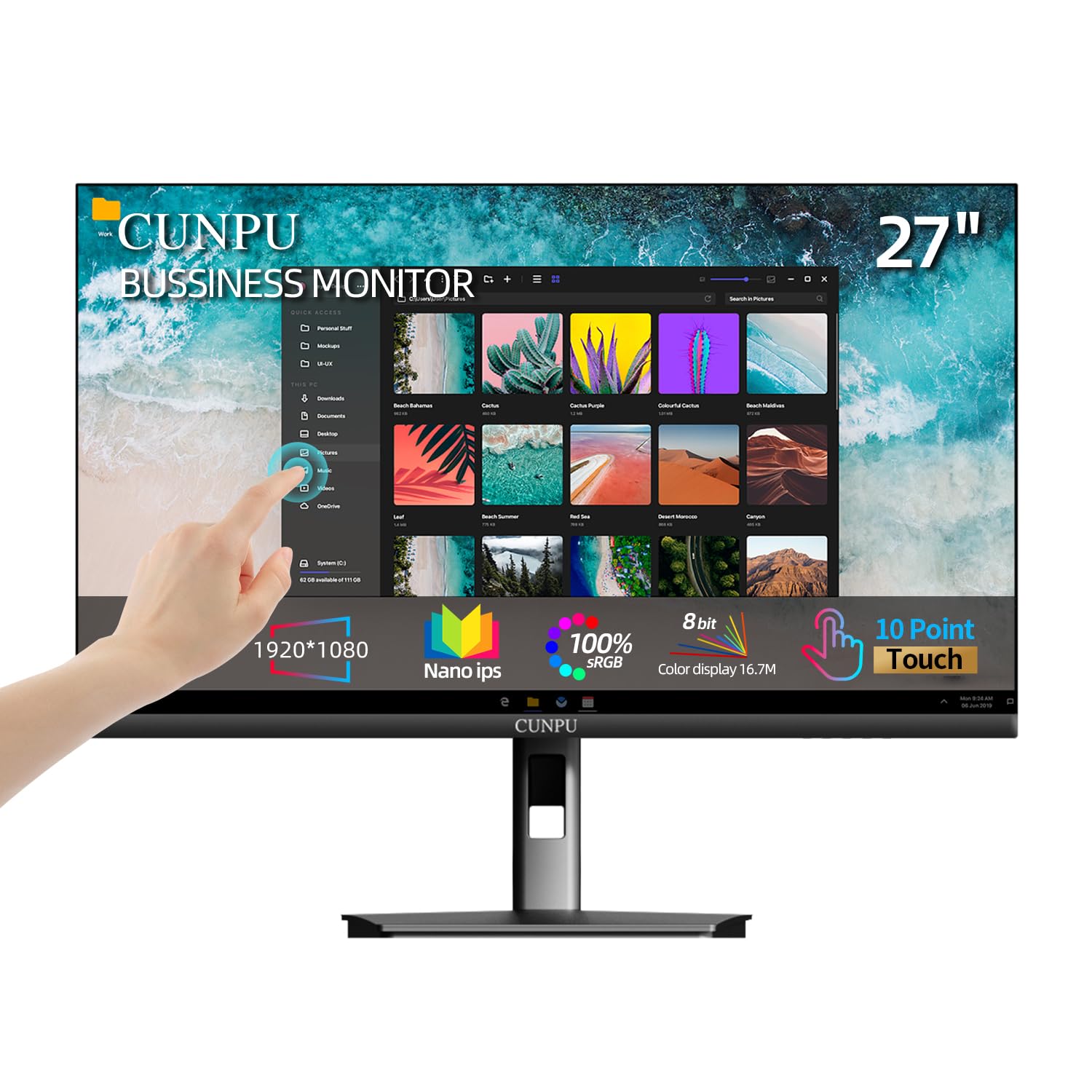
CUNPU 27-Inch Touchscreen Monitor

81 /100
LBD Score Excellent

Key details

Mounting
100*100 mm VESA
Resolution
1920 x 1080
Screen Size
27 inches
Color Coverage
100% sRGB
View on Amazon

A 27-inch touchscreen usually means paying for resolution you may not need. The CUNPU takes the opposite approach: a big 1080p panel with 100% sRGB coverage, a 60Hz refresh, HDMI and VGA inputs, and a USB connection for touch. It is the size-first budget choice in this group, and for a reception desk, a classroom station, or a home office where the screen is viewed from a few feet away, that can be the right trade.

The first thing we noticed is how much room 27 inches gives a touch interface. Buttons, forms, and a virtual keyboard are easier to hit than on a 22-inch screen, and the 100% sRGB coverage keeps documents and video from looking washed out. The 1080p resolution is the compromise: at this size, text shows visible pixels, and two side-by-side windows feel tighter than they do on the 2K Pisichen. HDR10 is listed, but at this brightness it does not add much.

Touch responsiveness is the other thing to watch. The panel responds well to taps and swipes when everything is connected properly, and the USB cable is not optional because it carries the touch signal. The monitor also has a tilt-adjustable stand and a 100*100 mm VESA pattern, so it can sit on a desk or go on an arm. It is not the pick for color-critical work, and the 60Hz panel is ordinary. For a large touch surface on a budget, though, it earns a look.

Pros

  • Large 27-inch touch area
  • 100% sRGB coverage
  • VESA mount for flexible placement
  • HDMI and VGA for older hardware

Cons

  • No USB-C input
Our verdict

The CUNPU is the 27-inch pick for buyers who want size first and can accept 1080p resolution and a touch layer that needs a careful setup.

Check Latest Price

How We Tested Touchscreen Monitors

We built the shortlist from every touch display between 22 and 32 inches we could find at mainstream retailers, then cut anything with a TN panel, a single touch point, or no USB connection to carry the touch signal back to the computer. Price mattered less than what you get for it, so budget 1080p units stayed in the mix alongside 2K and 4K screens. That left 11 units, which we used for seven months on real desks and counters.

Each monitor went to work on a home-office desk and, for a few weeks apiece, on a kitchen counter where recipes and timers got tapped with damp fingertips. We drew straight lines in a sketching app, dragged windows corner to corner, and tapped small toolbar icons tight against the bezel to find where the touch layer stopped registering. For picture quality we opened a white document over a black background to check for backlight bleed, read a page of small print at arm's length, and watched dark video scenes.

For connectivity we set each one up three ways — HDMI with a separate USB cable, DisplayPort, and USB-C — and counted how many cables it took to get video, touch, and laptop charging going at once, then unplugged and replugged to see whether touch returned without a reboot. We worked full days in split-screen windows, raised and tilted every stand, mounted the VESA-ready ones on arms, and wiped the glass with a microfiber cloth each week to watch for smudging, scratches, and ghost taps that only appear after a few hundred hours.

How to Choose a Touchscreen Monitor

Touch Input Needs Its Own Connection

A monitor can show a perfect picture and still ignore your finger if the USB upstream cable is missing. HDMI, DisplayPort, and VGA carry video; touch travels over USB or, on some models, USB-C. That is why a USB-C dock is so useful: one cable handles video, touch, and charging. If you plan to use HDMI, plan for the extra USB cable and check that the monitor has the right upstream port. The ASUS BE24ECSBT is the cleanest example here.

Match Resolution to Size

A 21.5- or 24-inch panel is comfortable at 1080p; at 27 inches, 1080p starts to show its pixels, especially in text. If you work with spreadsheets, code, or side-by-side windows, 2K is the better match at 27 inches, and 4K makes sense at 32. The trade-off is cost and sometimes refresh rate: the CUNPU gives you 27 inches at 1080p, while the Pisichen gives you 2K for a similar budget.

The Stand Is Part of the Touch Experience

Every tap pushes against the monitor, so a stand that is fine for a passive display can feel light on a touchscreen. Look for height and tilt adjustment if more than one person uses it, and a VESA pattern if you want an arm or a wall mount. A wheeled base, like the LG Swing's, is a different answer: it trades desk space for mobility. For a counter or kiosk, mount the screen or choose a stand with a wide, weighted foot.

Panel Finish and Brightness

Touchscreens collect fingerprints, and the finish decides how much you notice. Matte panels, like the VT229H's, diffuse reflections and hide smudges better in a bright office; glossy panels look punchier but turn into a fingerprint map under overhead lights. For brightness, 250 to 300 nits is fine for a controlled room, while 400 nits gives you more headroom near windows. Color coverage matters if you edit photos or review brand assets; 100% sRGB is a useful baseline.

Buy Where You Can Test the Touch Layer

Touch is the one feature that can fail without affecting the picture, and a monitor with a dead touch layer is just a display. Before you buy, check the return window and the warranty terms; a three-year warranty is more useful than a one-year one on a business fixture. When the box arrives, connect both video and touch, then test taps, drags, and a virtual keyboard before the return window closes.

Frequently Asked Questions

Final Verdict

The ASUS VT229H is the touchscreen monitor we recommend to most people. It is the right size for a counter, a school station, or a second desk screen, and its matte 1080p panel, simple HDMI/VGA/USB connections, and VESA mounting make it easy to live with. The touch layer is the one thing to test on arrival.

If your laptop is the source, step up to the ASUS BE24ECSBT for USB-C charging and a height-adjustable stand; if you need 2K at 27 inches, the Pisichen is the sharper value.