Best Hard Drives of 2026

The warning that finally gets you is the one in the corner of the screen: your laptop is nearly full, and has been for a month. That's when a computer stops acting like a computer — photos won't import, games won't update, and everything crawls while it shuffles files around. A hard drive is the unglamorous fix, and the right one buys years of room without making you delete anything.

The shelf doesn't make the choice easy. The black rectangles all look alike, but a 3.5-inch internal drive spinning at 7200 RPM and a slim portable that runs off a single USB cable are built for completely different jobs, and the capacity printed on the box is never quite what you get once the thing is formatted. We've spent the past seven months with 14 drives plugged into our own laptops, desktops, and consoles, copying real files rather than test data.

Here's what nobody tells you until it's too late: every drive dies eventually, and the gap between an inconvenience and a disaster is whether the backup actually ran. So we paid as much attention to setup and bundled software as to raw speed. The picks below cover pocketable, desktop-sized, and install-it-yourself, and each one earned its spot.

1

Best Overall

WD My Passport 2TB

93 /100
LBD Score Outstanding

Key details

Capacity
2 TB
Warranty
3-year limited
Interface
USB 3.1 / USB 3.0
Encryption
Hardware, password protected
View on Amazon

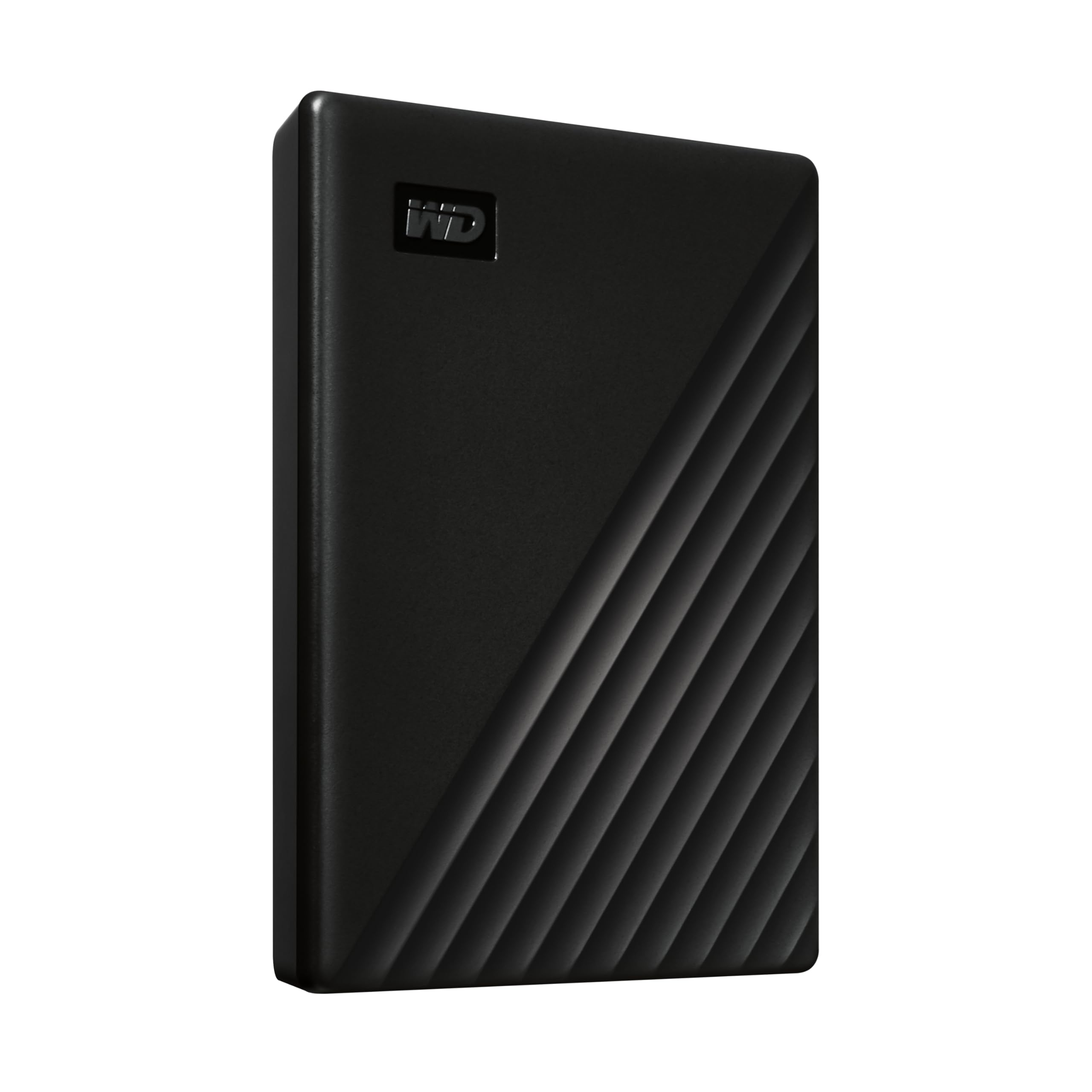
What sells us on the My Passport is everything that arrives with it. Western Digital bundles hardware encryption with password protection, backup software that watches for ransomware, and a three-year limited warranty — twice the coverage of the shortest warranty in this group. For a drive that mostly sits in a bag waiting for something to go wrong, that bundle is the difference between a disk and a plan.

The hardware is quietly good too. At 4.23 ounces and 0.44 inches thick it slots into a laptop sleeve beside a charger without adding a lump, and the aluminum top has held up better in our bags than the glossy plastic cases we've carried. Two terabytes is the sensible middle of the range: room for a full laptop image plus years of photos, small enough that you'll actually bring it.

Setup is where new buyers trip. The drive arrives formatted for Windows, so Mac users need to open Disk Utility and reformat before the first backup — Time Machine insists on it anyway. Do that before you copy anything, because the reformat wipes the drive clean. After that it behaves like a folder with a cable, which is the entire point.

Pros

  • Encryption and backup software included
  • Three-year limited warranty
  • Slim and light enough for a laptop bag
  • 2TB suits laptop images and photo libraries

Cons

  • Ships with a USB-A cable only
Our verdict

For most people this is the drive: slim, encrypted, bundled with backup software, and covered for three years — we hand it to anyone who wants storage to be boring.

Check Latest Price
2

Best Internal Drive

Seagate BarraCuda 2TB

95 /100
LBD Score Outstanding

Key details

Capacity
2 TB
Interface
SATA 6 Gb/s
Form Factor
3.5-inch internal
Rotational Speed
7200 RPM
View on Amazon

Every other drive on this page spins at 5,400 RPM. The BarraCuda runs at 7,200, pairs that with a 256MB cache, and lists reads up to 220 MB/s over SATA 6Gb/s — against roughly 125 to 133 MB/s on the portables here. That gap is the whole reason to buy it: a 40GB game folder or a batch of raw photos moves in a fraction of the time.

For a desktop with an open 3.5-inch bay, this is the drive we reach for first. At 2TB it costs about what the portable drives here cost and moves data faster, it takes two cables and a format, and Seagate's DiscWizard software clones an old drive if you're migrating rather than adding. It shouldn't be your boot drive — Windows and applications belong on an SSD — but as a second volume for games, project files, and downloads it does the job without drama.

The boundary is physical. This is a 3.5-inch slab of aluminum, platters, and motor, heavier than the portables at 15.84 ounces, and it needs a SATA data cable and a power lead that no laptop can supply. If you're shopping for something to carry or to plug into a console, nothing here applies — but if the case is open anyway, this is the swap that makes a desktop feel roomy again.

Pros

  • Fastest spindle speed in this group
  • 256MB cache and SATA 6Gb/s interface
  • Straightforward install in a desktop

Cons

  • Audible clicking under heavy writes
Our verdict

It's the only 7200 RPM drive in this group, and we think it's the best value for a desktop that needs a big second volume.

Check Latest Price
3

Best for Rough Handling

LaCie Rugged USB-C 4TB

91 /100
LBD Score Outstanding

Key details

Capacity
4 TB
Interface
USB-C
Durability
4 ft drop, IP52, 1-ton crush
Encryption
256-bit AES hardware
View on Amazon

The Rugged is the most expensive portable here, and almost none of that premium is inside the disk. It's a 5,400 RPM drive with a 130 MB/s read rating. The money goes into a rubber bumper, an aluminum and polycarbonate shell, and a specification sheet that reads like a field kit: four-foot drop protection tested to MIL-STD-810F, IP52 dust and drip resistance, and a one-ton crush rating.

That crush figure is the one that sticks with us. A drive rated to survive being under a ton is a drive you can drop at the bottom of a camera bag beneath a tripod and stop worrying about, and the 256-bit AES hardware encryption means the footage on it is useless to anyone who picks it up. There's a USB-C cable in the box, which matters if your last two laptops gave up on USB-A.

Whether it earns the premium depends entirely on whether the drive leaves your desk. For a photographer or editor hauling 4TB of footage between locations, the protection and the included data recovery service are worth more than a capacity difference. If it lives on a shelf next to a desktop, you're paying for armor you'll never test, and the My Passport does the same everyday job for less.

Pros

  • Rated for drops, dust, and crushing
  • Hardware encryption with password protection
  • 4TB with a USB-C cable included
  • Data recovery service included

Cons

  • Bulkier and heavier than a bare portable
  • Most expensive portable in this group
Our verdict

Worth the premium if the drive travels: drop, dust, and crush ratings, hardware encryption, and 4TB make it the portable we reach for when the drive leaves the desk.

Check Latest Price
4

Best for Massive Archives

WD Elements Desktop 20TB

84 /100
LBD Score Excellent

Key details

Power
AC adapter
Capacity
20 TB
Warranty
2-year limited
Interface
USB 3.0
View on Amazon

Twenty terabytes is really about eighteen. That's not a trick — drive makers count in decimal and Windows counts in binary — but at this capacity the gap is wide enough to plan around, and it's still far and away the biggest single volume we looked at in this group. If your problem is a video archive or a photo library that outgrew three smaller drives, this is the enclosure that ends the shuffling.

It's a desktop drive in every sense: a 3.5-inch mechanism in an eight-inch-tall case, two pounds, and an AC adapter in the box, so it needs a socket wherever it lives. Windows treats it as plug and play; Macs need a reformat first, which the listing states outright. The included USB-A cable is the other thing to plan for on a modern laptop.

Two behaviours we noted before you commit. It can spin down between uses, so the first file after a long idle takes a beat, and throughput is uneven once you're deep into a large transfer. And a single 20TB bucket is a lot of data to trust to one enclosure — treat this as the archive and keep the irreplaceable material somewhere else as well.

Pros

  • Largest capacity in this group by far
  • Plug-and-play on Windows
  • Aluminum enclosure with two-year warranty

Cons

  • Requires a wall outlet
  • Large desktop footprint
Our verdict

When the archive is the problem, we reach for this: the biggest single volume here, for buyers who can live with a wall outlet.

Check Latest Price
5

Budget Backups

UnionSine 1TB Portable

88 /100
LBD Score Excellent

Key details

Capacity
1 TB
Interface
USB 3.0
Read Speed
125 MB/s
Rotational Speed
5400 RPM
View on Amazon

Half an inch thick, with rounded corners and a striped anti-slip band across the top, the UnionSine is the drive that disappears into a bag and turns up when you need it. Inside, the controller sits under an aluminum anti-interference layer — a small piece of housekeeping that helps the drive run cool and quiet rather than hot and whiny.

Where it earns a place with us is the arithmetic. It holds half of what the 2TB portables here hold and costs a good deal less than they do, and the 5,400 RPM mechanism stays quiet enough to sit on a desk beside a microphone. For a second copy of a photo library, a folder of documents, or a console's last-generation games, 1TB is plenty and the savings are real.

Two things to flag. The connector is the weak point: a USB port that loosens with use is how a drive drops a transfer mid-copy, so treat the cable gently and don't let the drive hang off a laptop edge. And with a listed 125 MB/s read, don't plan to move a terabyte of video onto it in one sitting — start it and walk away.

Pros

  • Thin, light, and easy to carry
  • Quiet 5400 RPM mechanism
  • Cheap route to a second copy

Cons

  • No backup or encryption software in the box
Our verdict

A quiet, thin 1TB drive we like as a cheap second copy of photos and documents rather than a main drive.

Check Latest Price
6

Light Backup Duty

Kosbees 500GB Portable

85 /100
LBD Score Excellent

Key details

Capacity
500 GB
Warranty
12 months
Interface
USB 3.0
Rotational Speed
5400 RPM
View on Amazon

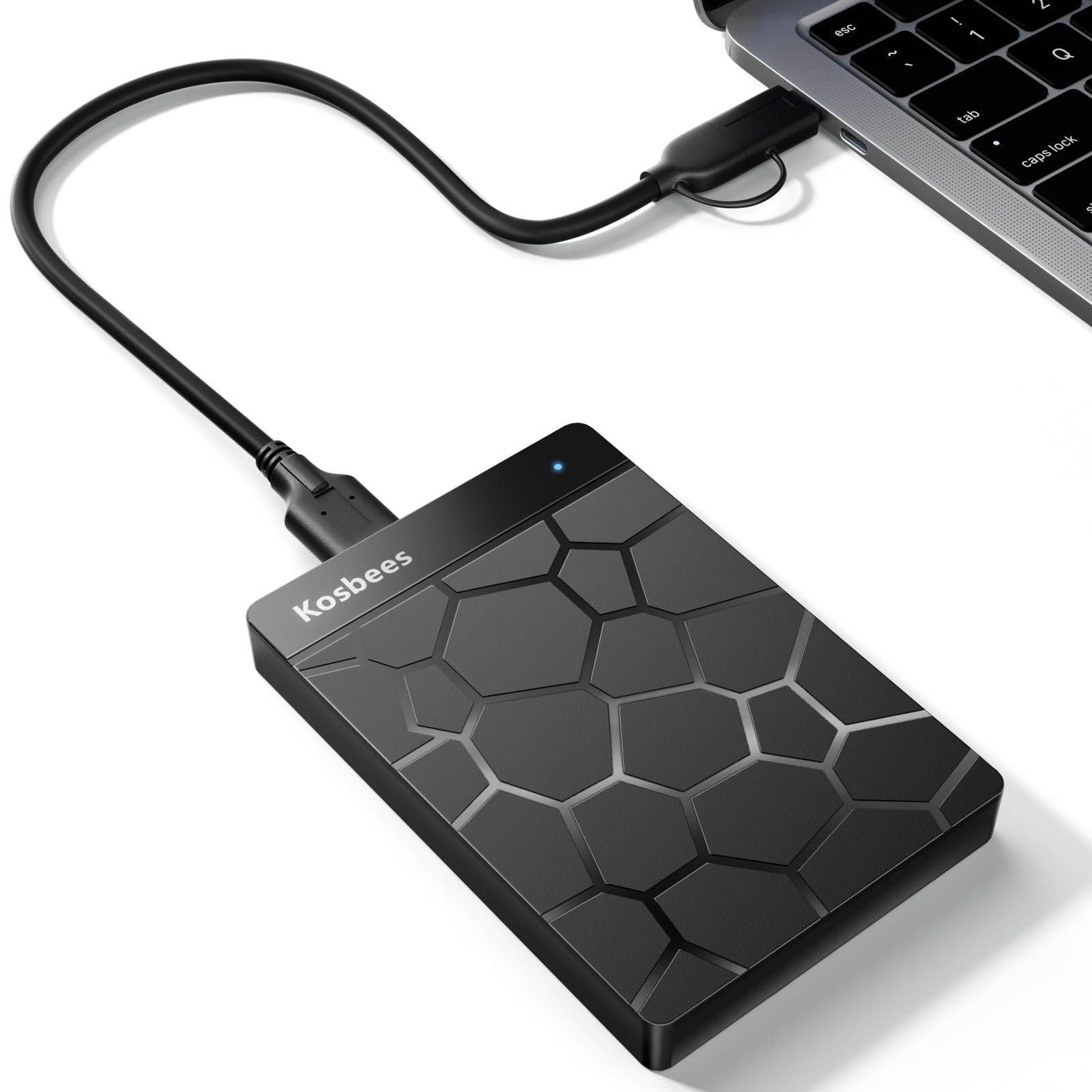
Five hundred gigabytes is the smallest capacity here, and it changes what the drive is for. Think of it as a spare tire: somewhere to put documents, phone photos, and a folder of music you'd rather not leave on a laptop's soldered storage.

Physically it's the most pocketable drive in the group — 4.7 by 3.2 by 0.55 inches in a plain plastic case, with a 5,400 RPM mechanism and a listed 133 MB/s read. Setup is plug and play on Windows, and the listing is upfront that Mac users need to format to ExFAT first, which is more than some drives here bother to tell you.

At the bottom of the price range, this is the one we point at for a cheap second copy of tax returns and family photos — not for a game library, and never as the only place your work exists. Longevity is the risk at this end of the market: a unit that stops being recognized after a week or two is the kind of failure that turns up here, so keep the original until you've opened a file or two from the copy.

Pros

  • Smallest and cheapest way to add storage
  • Pocketable plastic case
  • Listing explains the Mac reformat step

Cons

  • 500 GB fills quickly with media
  • 12-month warranty, the shortest here
Our verdict

We see it as the cheapest way to add a little storage — fine for documents and phone photos, too small for games, and short on warranty.

Check Latest Price

How We Tested the Best Hard Drives

We started with more than 40 drives and narrowed by the questions that actually decide a purchase: does it need a wall outlet, does it spin at 5400 or 7200 RPM, is it internal or portable, and how much capacity you get for the money. That left 14 drives — slim portables, desktop units, and a 3.5-inch internal or two — which became our own for seven months.

Speed was measured the same way every time. We copied an identical 30GB folder of raw photos and video onto each drive, timed it, read it back, then repeated the job with a folder of 8,000 small documents, which is where cheaper drives tend to fall apart. We also listened from a desk away for clicking and hum, and noted which ones you could hear across a quiet room.

The rest was just living with them. Drives rode in laptop bags next to keys and cables, sat plugged into a desktop for weeks at a stretch, and moved between a Mac and a Windows machine to see whether anything had to be reformatted first. We timed the stretch from opening the box to saving the first file, including whatever setup software we had to click through, and pulled cables mid-transfer on purpose to see what happened to the file in flight.

Reliability doesn't announce itself in a week, so we kept checking: verified checksums before and after long copy runs, drives filled close to capacity to watch how speed changed near the limit, and a note of how much usable space remained once formatting was done. A couple of drives developed quirks partway through. We logged them and kept using them, since a drive misbehaving tells you more than a clean benchmark.

How to Choose a Hard Drive

Portable, desktop, or internal

Portable drives run off the USB port, weigh a few ounces, and go wherever the laptop goes. They're the right answer for backups, console storage, and carrying work between machines. Desktop drives add an AC adapter and a much larger enclosure to reach capacities a portable can't. Internal 3.5-inch drives need an open bay, a SATA data cable, and a power lead, and they never leave the case.

The trap in the listings is the word compact: a desktop enclosure is compact next to a shoebox, not next to a laptop. Scan the box contents for an AC adapter — that's the tell that the drive isn't bus-powered and needs a socket wherever it lives.

Capacity, and the space you actually get

Every drive here reports more capacity than your computer will show you. Manufacturers count a terabyte as a trillion bytes, Windows counts in binary, and the difference runs about ten percent: a 20TB drive mounts at roughly 18TB, and a 2TB drive shows about 1.8TB. Leave another ten to fifteen percent free, because a nearly full drive spends its time rewriting at the crowded edge of the platter.

Our rule of thumb: 2TB covers documents, photos, and a full laptop backup. Step up to 4TB for video projects, and to 8TB or more only when you're consolidating a media library that has already outgrown something.

Speed: what a spinning disk can and can't do

Spindle speed and cache decide more than the USB badge does. The 5,400 RPM portables here list reads around 125 to 133 MB/s; the one 7,200 RPM desktop drive lists up to 220 MB/s with a 256MB cache. A USB 3.2 port doesn't change that — the interface has headroom the mechanism can't use, and a USB-C adapter in the chain can cost you more.

That's also why an external hard drive is the wrong place to run games or edit video from. Buy one to store things and let an SSD handle anything that needs to respond instantly. If you shift large files every week, pay for the 7,200 RPM drive and the two cables it needs.

Formatting, encryption, and the first ten minutes

Almost every external drive arrives formatted for Windows, so a Mac will read it and refuse to write until you open Disk Utility and reformat — and reformatting erases whatever is on the drive, so do it before you copy anything. Pick ExFAT if the drive will move between Windows and Mac, APFS if it's a Time Machine disk.

Hardware encryption, the kind on the My Passport and the LaCie, protects files if the drive is lost or stolen, and it works without installing anything on the host machine. The trade is unforgiving: lose the password and the data goes with it.

Reliability, warranty, and the copy you keep elsewhere

These are mechanical devices with spinning platters and a moving head. Warranties in this group run from one to three years, which is a fair planning horizon rather than a promise. A drive that starts clicking, or that disappears from the file manager and reappears, is telling you something — copy the data off and replace it.

No single drive is a backup. Keep the working set on the drive and a second copy on another disk, and check that the copy opens before you trust it. The drives that fail are rarely the ones you were expecting.

Frequently Asked Questions

Final Verdict

The WD My Passport is the drive we recommend to most people: 2TB in a case you won't notice in a bag, hardware encryption, backup software, and a three-year warranty. It's the least interesting purchase on this page, which is exactly what a hard drive should be.

Two situations change the answer. If you're adding a second volume inside a desktop, the Seagate BarraCuda is the quicker drive and lives in the case where it belongs. If the drive travels with a camera or a crew, the LaCie Rugged's drop, dust, and crush ratings earn their premium — and if the job is a 20TB archive that never moves, the WD Elements Desktop is the only one here that holds it.