Best Gaming Monitors of 2026

Monitors are the rare upgrade you feel within thirty seconds — swing the camera in a fast shooter at a high refresh rate and the game smooths out under your hands. The catch is that the spec sheet stops being useful there. A 240Hz badge won't tell you whether shadowed corners turn to gray mush, whether the stand rattles when you type, or whether color washes out on half the screen.

We've spent the past six months with 11 gaming monitors, from a 22-inch budget panel to a 32-inch curved display, and the differences that matter never make the box. A well-tuned IPS at a modest refresh rate beats a sloppy one with a bigger number on it, and glossy OLED finally kills the gray-blacks this category lived with for years. Several of these have no speakers at all, and the ones that do sound thin.

What's left is the daily stuff: how far the stand tilts, how colors hold up across a long evening, and whether it still feels solid in month three. The picks below got all of that right.

1

Best Overall

ASUS ROG XG27AQDMGR

87 /100
LBD Score Excellent

Key details

Panel
OLED
Resolution
2560 x 1440
Refresh Rate
240 Hz
Response Time
0.03 ms
View on Amazon

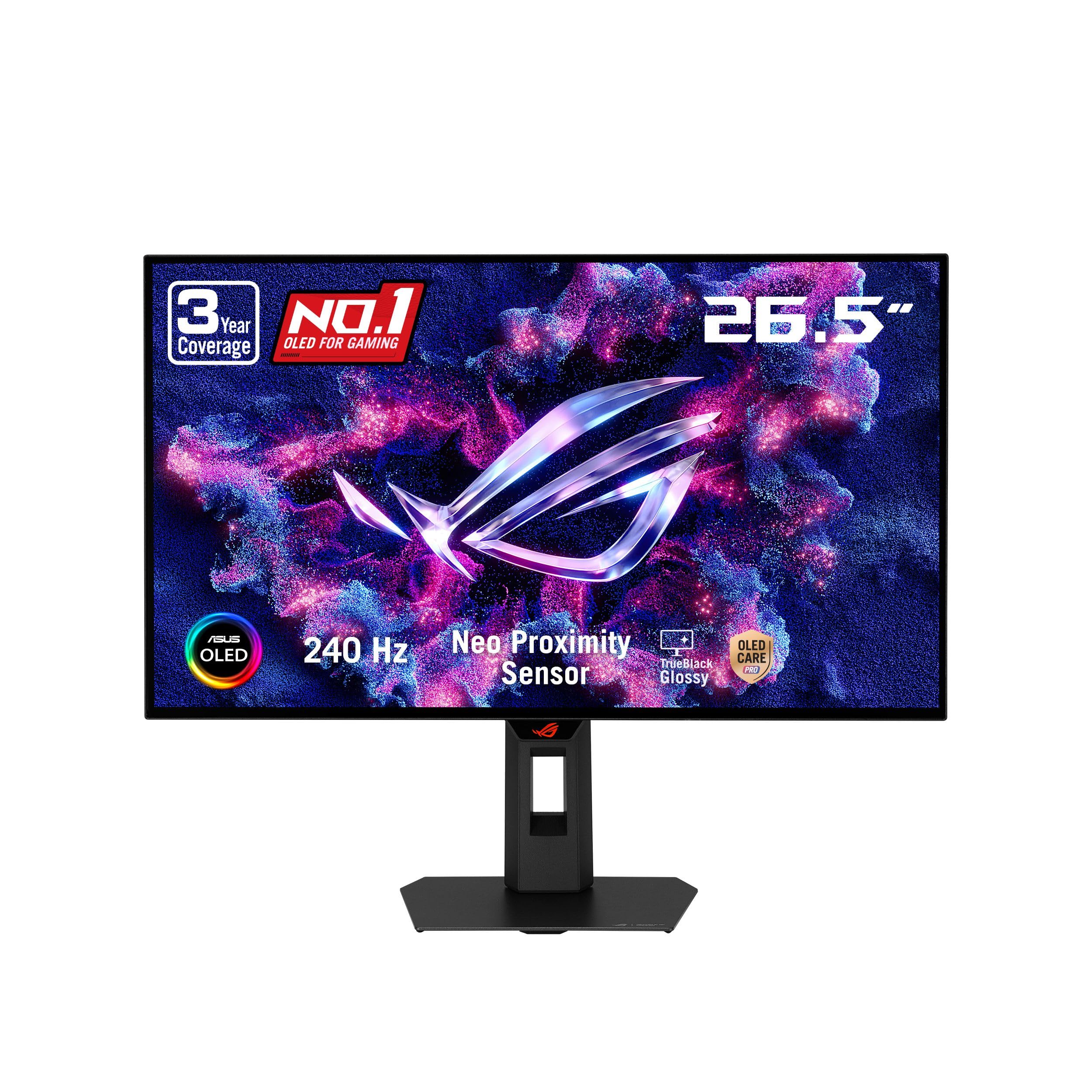
The first thing that hits you about the XG27AQDMGR is the glossy OLED panel: blacks go genuinely black, and color has that saturated pop that makes games look expensive. At 27 inches and 2560 x 1440, it also hits the sweet spot where text is crisp without demanding a huge desk. The 240Hz refresh and 0.03ms response are not just numbers on a box; they make fast camera turns feel clean.

That combination is why this is our top pick. We prefer it for the buyer who wants one monitor for both competitive play and single-player games, because the OLED contrast holds up in dark scenes while the 240Hz panel keeps motion clear. The 99% DCI-P3 coverage and DisplayHDR 400 True Black are useful, though HDR is modest rather than spectacular. G-Sync compatibility and FreeSync support cover both major GPU camps, and the three-year warranty with burn-in coverage is a meaningful reassurance for OLED.

We did have to think about the glossy finish. It looks superb in a controlled room, but it reflects a window or lamp behind you more than a matte panel. The OLED care features, including the proximity sensor that blanks the screen when you step away, are the kind of small convenience that makes living with OLED easier. Brightness is the other caveat: dark-room image quality is superb, but a sunlit room can make HDR highlights feel less dramatic.

The glossy finish is the one thing we cannot get past in a bright room. Set it up away from a window and it is the most satisfying monitor here.

Pros

  • OLED contrast and rich color
  • 240Hz with 0.03ms response
  • Three-year burn-in warranty

Cons

  • Glossy panel reflects room light
  • HDR brightness is limited
Our verdict

The XG27AQDMGR is our top pick because it pairs OLED contrast with 240Hz speed in a 27-inch 1440p panel that suits both competitive and single-player games.
Check Latest Price
2

Best Value 1440P

AOC Q27G41ZE

90 /100
LBD Score Outstanding

Key details

Panel
IPS
Resolution
2560 x 1440
Refresh Rate
240 Hz (260 Hz OC)
Response Time
0.3 ms
View on Amazon

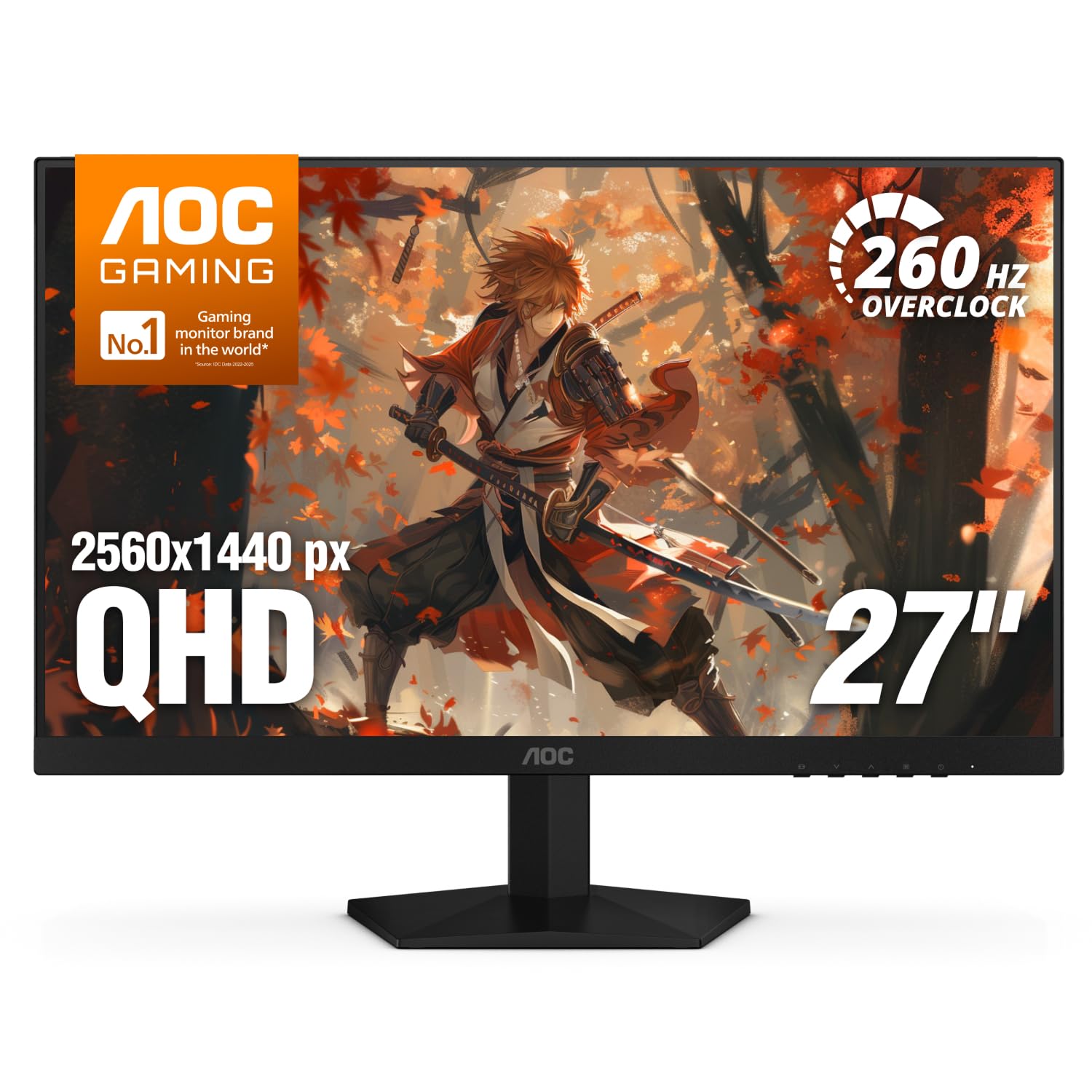
A 27-inch 1440p monitor at 240Hz used to be a premium purchase. The Q27G41ZE is the one that makes it feel almost routine, and that is why it earns our value pick. The 2560 x 1440 IPS panel is sharp enough for both games and desktop work, and the 240Hz native refresh (260Hz with overclock) is the kind of upgrade you notice immediately in fast shooters. The 0.3ms MPRT figure is a marketing number, but the motion is quick and clean in practice.

We like the balance here: the IPS panel gives you wider viewing angles and better color than a cheap VA, while G-Sync compatibility and FreeSync support mean it plays nicely with either GPU brand. The 27-inch size is the sweet spot for a normal desk, and the 1440p resolution keeps text crisp without making a 24-inch monitor feel cramped. It is not an OLED, so black levels are merely fine, and the glossy finish can catch a lamp.

The stand is the first thing we want to change. It tilts but does not adjust height, so you may need a stack of books or a VESA arm to get the top of the screen at eye level. The other caveat is panel consistency: some units arrive with a dead pixel or colors that need tuning. Buy from a retailer with an easy return window and check the panel in the first week.

The compromise is the last word in contrast and stand flexibility, not the speed that makes the format worth buying.

Pros

  • 240Hz 1440p at a midrange price
  • IPS colors and wide viewing angles
  • G-Sync and FreeSync support
  • Three-year warranty

Cons

  • Tilt-only stand lacks height adjustment
  • Panel lottery on dead pixels and color
Our verdict

For 1440p PC gaming on a midrange budget, the Q27G41ZE is the value pick we keep coming back to, provided you check the panel and plan for a monitor arm.

Check Latest Price
3

Best 32-Inch Curved

Samsung Odyssey G55C 32"

88 /100
LBD Score Excellent

Key details

Curve
1000R
Resolution
2560 x 1440
Screen Size
32 inches
Refresh Rate
165 Hz
View on Amazon

The 1000R curve is the reason to look at the G55C. At 32 inches, it wraps the edges of the screen toward you in a way a flat panel does not, and for racing games or third-person adventures it makes the image feel more enveloping. The 2560 x 1440 resolution is the right match for this size: sharp enough for detail, not so demanding that you need a flagship GPU.

This is our pick for the buyer who wants a big, immersive screen without going ultrawide. We found the 165Hz refresh and 1ms MPRT response more than enough for fast play, and FreeSync keeps the image stable when frame rates dip. HDR10 is present but modest; it adds a little punch rather than a true HDR experience. The 1000R curve takes a day or two to get used to, especially for spreadsheets, but it is easy to forget once you are in a game.

The stand is where Samsung cuts a corner. It tilts but does not adjust height, so the screen sits where it sits unless you use a VESA mount. That is a real annoyance on a tall desk or for a shorter player. The risk to weigh is early failure; keep the box and stress the panel during the return window.

The G55C is not the sharpest or fastest monitor here, but it is the one that makes a big screen feel like a cockpit. Solve the height issue with an arm and the curve does the rest.

Pros

  • Immersive 1000R curve
  • 32-inch QHD sharpness
  • 165Hz and FreeSync
  • Good color and contrast

Cons

  • No height adjustment
  • Early-failure risk to test
Our verdict

The Odyssey G55C earns our recommendation for a 32-inch curved setup, as long as you can mount it or live without height adjustment.

Check Latest Price
4

Best Budget 1080P 240Hz

Dell SE2726HG

86 /100
LBD Score Excellent

Key details

Panel
IPS
Resolution
1920 x 1080
Refresh Rate
240 Hz
Adaptive Sync
FreeSync Premium
View on Amazon

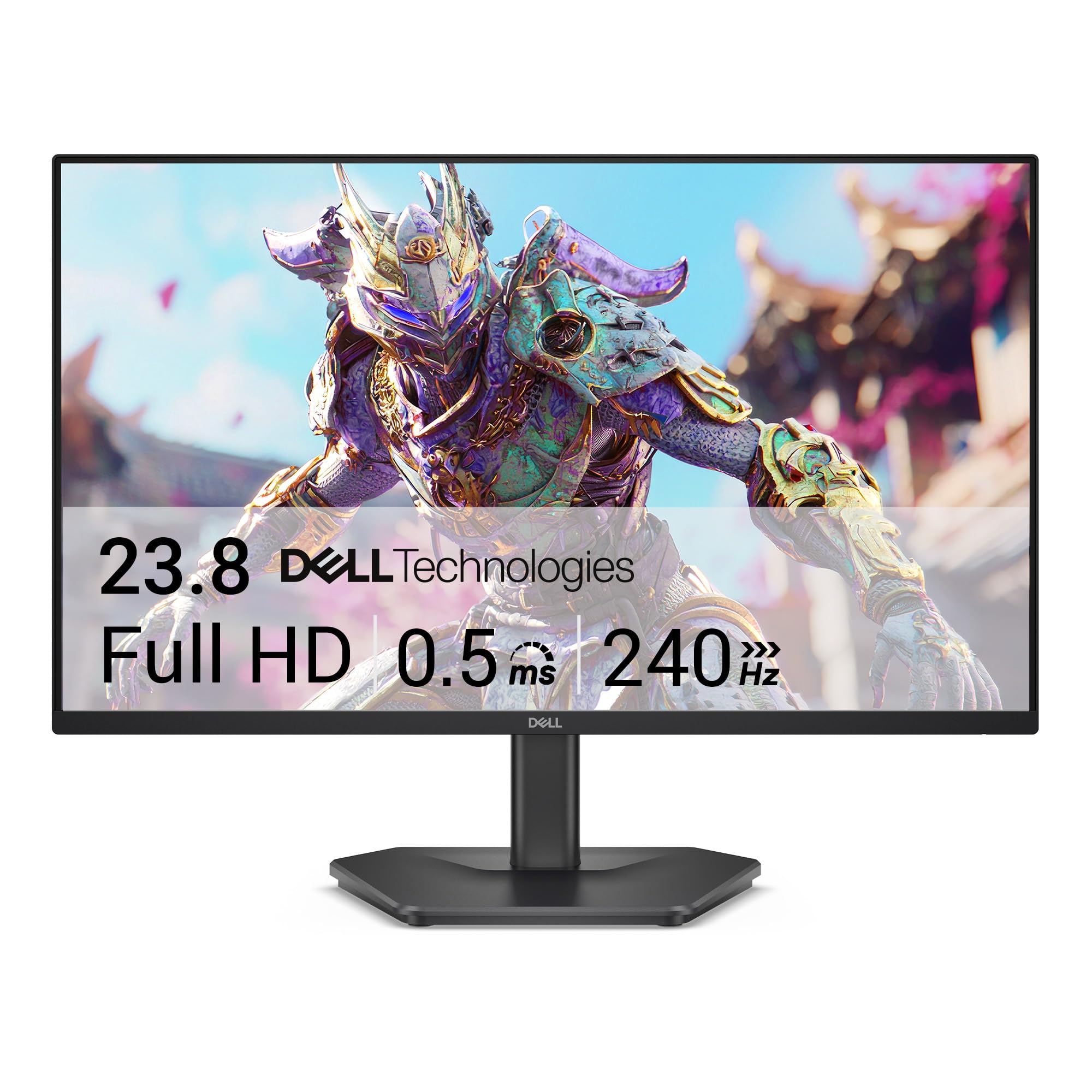
The SE2726HG is the monitor we reach for when someone wants a 240Hz panel and has a strict budget. At 27 inches and 1920 x 1080, it is not the sharpest screen in this group, but the 240Hz IPS panel is the part that matters for competitive play. The 1080p resolution also keeps the GPU load low, which is the point of a budget esports monitor.

We like that Dell did not strip the panel down to a TN. The IPS screen has good viewing angles and color that looks natural for the price, and the matte finish keeps glare under control. FreeSync Premium and HDMI VRR cover both PC and console use, and the two HDMI ports plus DisplayPort give you room for a PC and a console without swapping cables.

The SE2726HG makes the most sense when 240Hz is the priority and resolution is not. It trades sharpness and stand quality for refresh rate, and that is the right trade if you play fast games more than you edit photos.

The stand is the part we mind. It is light and a little wobbly, and a hard bump can send the screen nodding. The other thing to know is that 240Hz is not always automatic: check the display settings in your OS, use the DisplayPort cable, and confirm the monitor is running at 240Hz rather than 60Hz. That is a setup issue, not a panel limitation, but it catches people.

Pros

  • 240Hz IPS panel at a budget price
  • Low 1080p GPU load
  • FreeSync Premium and HDMI VRR
  • Two HDMI ports plus DisplayPort

Cons

  • Wobbly stand
  • 1080p looks soft at 27 inches
Our verdict

A budget esports build is where the SE2726HG makes sense: 240Hz matters more here than sharpness or a rock-solid stand.

Check Latest Price
5

Work and Gaming

Acer KB272 G0bi

92 /100
LBD Score Outstanding

Key details

Panel
IPS
Resolution
1920 x 1080
Refresh Rate
120 Hz
Response Time
1 ms
View on Amazon

The KB272 G0bi is not trying to be a dedicated esports screen. It is a 27-inch 1080p IPS monitor with a 120Hz refresh rate, and that combination makes it a better desk companion than a pure gaming panel for a lot of people. The IPS panel gives you wide viewing angles and 99% sRGB coverage, so documents, photos, and games all look consistent. We appreciate that Acer kept the price low without using a washed-out TN panel.

The 120Hz refresh is a clear step up from 60Hz, but it is not the 240Hz experience the Dell or AOC offers. For strategy games, indies, and everyday work, that is a fair trade; for fast shooters, it is not. Adaptive-Sync keeps light gaming smooth, and the matte screen handles office glare well.

There are no built-in speakers, which is worth knowing before you buy. You will need a headset or desk speakers, and the monitor gives you HDMI and VGA only, so newer consoles and laptops should check their ports. The stand tilts but does not adjust height, and the plastic housing feels basic. The panel is the reason to buy; the missing speakers and basic stand are the reasons to look elsewhere.

Pros

  • 27-inch IPS with 99% sRGB
  • 120Hz Adaptive-Sync
  • Easy setup and matte finish
  • Low price for the size

Cons

  • No built-in speakers
  • Tilt-only stand
Our verdict

We like the KB272 G0bi as a 27-inch home-office screen that handles light gaming, not as a competitive monitor.

Check Latest Price
6

Dorm-Room Gaming

Sceptre E225W-FW144

88 /100
LBD Score Excellent

Key details

Resolution
1920 x 1080
Screen Size
22 inches
Refresh Rate
144 Hz
Response Time
1 ms
View on Amazon

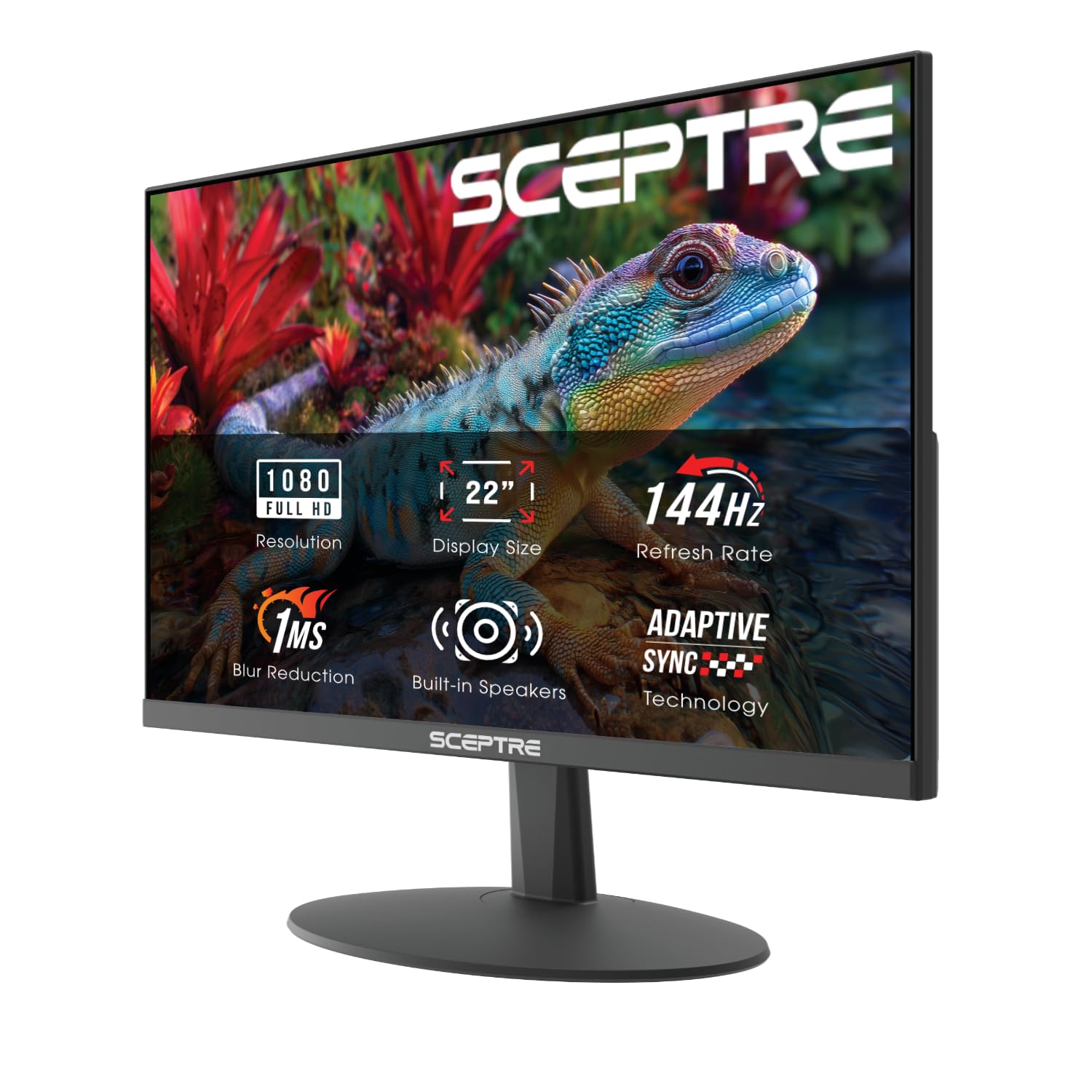
A 22-inch monitor sounds like a step backward until you see the E225W-FW144 on a small desk. The 1920 x 1080 panel is dense enough at this size to look crisp, and the 144Hz refresh gives it a responsiveness that a cheap 27-inch office screen cannot match. It is the monitor we point to for a dorm room, a second setup, or a first PC build on a tight budget.

The basics are all here: HDMI and DisplayPort, FreeSync, a matte screen, and a stand that is simple to attach. The built-in speakers are convenient for a quick video or a system alert, but they are thin and quiet, so plan on a headset for games. The 1ms response time is a best-case figure, but the motion is still quick enough for casual competitive play.

The refresh rate is the setting to verify. Some units need to be told to run at 144Hz, and the right cable matters. Once it is set, the little Sceptre feels surprisingly quick, and the small screen keeps the whole field of view in sight. That is the trade we recommend for a tiny desk: speed and price over size and immersion.

What it lacks in size it makes up for in focus: a crisp 1080p image, fast refresh, and a bezel that gets out of the way. On a small desk, that is a better fit than a bigger screen that overwhelms the space.

Pros

  • 144Hz in a small 22-inch frame
  • Crisp 1080p pixel density
  • HDMI and DisplayPort
  • FreeSync support

Cons

  • Weak built-in speakers
  • Small screen limits immersion
Our verdict

The E225W-FW144 is the one for a tiny desk or dorm room, where 144Hz and a low price matter more than screen size or speakers.

Check Latest Price
7

Everyday Budget Gaming

Sceptre E275W-FW100T

90 /100
LBD Score Outstanding

Key details

Resolution
1920 x 1080
Screen Size
27 inches
Refresh Rate
100 Hz
Built-in Speakers
Yes
View on Amazon

The E275W-FW100T is the practical choice for a desk that needs one screen for work, video, and a little gaming. The 27-inch 1080p panel gives you a lot of desktop space, and the 100Hz refresh is a noticeable improvement over 60Hz without pretending to be a competitive esports display. The built-in speakers are the feature that makes it easy to live with: one cable and you have sound, no separate speakers required.

We like the color coverage. The 100% sRGB panel looks vivid for a budget monitor, and the matte finish keeps reflections down in a bright room. Two HDMI ports plus DisplayPort give you flexibility for a PC and a console, and FreeSync helps with light gaming. The 1ms response time is an MPRT figure, so do not expect OLED-level motion clarity, but it is fine for casual play.

The speakers are convenient, not good. They are thin and do not have much bass, so a headset is still the better choice for games. The stand tilts but does not adjust height, and the 1080p resolution is spread thin across 27 inches; text is readable, but a 24-inch screen at the same resolution looks sharper.

The panel is the reason it works: 100% sRGB, a matte finish, and enough size for a spreadsheet or a video. The speakers are a bonus, not a substitute for a headset, and the 100Hz refresh is a bonus, not a competitive edge.

Pros

  • 27-inch 100% sRGB panel
  • Built-in speakers for basic audio
  • 100Hz FreeSync gaming
  • Two HDMI plus DisplayPort

Cons

  • Speakers are thin and quiet
  • 1080p looks soft at 27 inches
Our verdict

We recommend the E275W-FW100T when you want a budget 27-inch all-rounder with built-in speakers and are not chasing competitive refresh rates.

Check Latest Price

How We Tested the Best Gaming Monitors

We started with every gaming monitor between 22 and 32 inches a normal person might buy — 1080p panels near the bottom of the price range, 1440p IPS and OLED displays higher up — then filtered for honest refresh-rate claims, VESA mounting, adaptive sync support, and a return window long enough to catch a bad panel. That left 11 monitors, each of which spent at least a week as the main display on my desk, with a few staying in daily rotation for the full six months.

Testing happened where these actually live: my home office for spreadsheets and evening shooters, the living room when I hauled a console over, and a dark bedroom after everyone else went to bed. I measured color with a colorimeter against sRGB and DCI-P3 references, pulled up a full white field to see whether one corner ran warmer than the rest, and watched dark scenes with the lights off to catch backlight bleed and the hazy gray that passes for black on cheaper panels.

Adjustability got tested the boring way: raising the stand to eye level, working through the tilt and swivel range, then typing hard to see if the screen wobbled. I hung each one on a VESA arm to check the pattern and how much the panel flexed. For audio, I ran built-in speakers at maximum volume during games and calls to hear how fast they distorted, and checked the audio-out jack with a headset — several of these have no speakers at all.

Performance meant pausing fast pans to look for smearing, alt-tabbing through HDR and adaptive sync toggles, and watching for flicker over long sessions. Reliability was mostly patience: a few units stayed in daily use the entire six months, which is how late problems surface — a stuck pixel, a menu button that stops responding, a creak in the housing. Value and appearance came down to whether the stand and bezels looked like the money.

How to Choose a Gaming Monitor

Match Resolution to Size and GPU

Resolution is not a quality badge; it is a density decision. At 24 inches, 1080p looks crisp, but the same resolution stretched across 27 inches starts to show its pixels, which is why the Dell SE2726HG is a refresh-rate play rather than a sharpness play. At 27 inches, 1440p is the sweet spot for most desks, and it is what the AOC and ASUS ROG use to keep text and textures clean without demanding a huge room.

We prioritize 1440p for anyone with a midrange GPU or better and a desk that puts the screen 24 to 30 inches from their eyes. If the budget is tighter, choose a smaller 1080p panel or accept the softer 27-inch image. Do not buy 1440p just because it sounds better if your GPU cannot feed it at a smooth frame rate.

Buy Refresh Rate You Can Feed

A 240Hz monitor is only worth it if your PC can push high frame rates in the games you play. We treat 165Hz to 180Hz as the practical sweet spot for most 1440p builds, and 240Hz as the competitive upgrade for fast shooters. The Samsung G55C's 165Hz and the ASUS ROG's 240Hz both make motion clearer, but neither fixes a GPU that is already struggling.

Response time is the other half of the story. A 0.03ms OLED and a 1ms IPS are not directly comparable because the numbers measure different things, and MPRT figures flatter fast panels. Look for a clean image in motion rather than the smallest number on the box. If you play single-player games at 60 to 100 fps, a 120Hz or 165Hz panel is plenty.

Choose the Panel Before the Badge

Panel technology changes the feel of the monitor more than most spec bumps. OLED gives the ASUS ROG its deep blacks and instant motion, but it is glossy, and it asks for a room where you can control reflections. IPS, as on the AOC and Acer, gives you wide viewing angles and dependable color for work and games. VA, as on the Samsung G55C, brings strong contrast and a natural fit for a curved screen.

We choose OLED for a dark-room single-player setup, IPS for a bright room or a monitor that does double duty, and VA when immersion and contrast matter more than perfect motion. Check the finish, too: a glossy panel looks richer but mirrors a window, while matte is easier to live with under office lights.

Plan the Stand, Desk, and Connections

The stand is the part you notice every day after the honeymoon ends. Height adjustment matters more than most buyers expect, and a tilt-only stand can leave a tall player looking down or a shorter player craning up. The Samsung G55C has no height adjustment, the AOC tilts only, and the Dell's stand is light enough to wobble. Budget for a VESA arm if the stand is the weak point.

Connections are the other practical check. Confirm the ports your PC and console need before you buy, and give a 32-inch curved screen more desk depth than a 27-inch flat panel. A curve is immersive at the right distance and awkward if the screen is too close.

Weigh Warranty and Panel Lottery

Gaming monitors are a panel lottery, and the warranty is part of what you are buying. The ASUS ROG comes with three years of coverage that includes burn-in, which is a meaningful advantage for OLED. The AOC and Dell also carry three-year warranties, while the Samsung G55C is a one-year proposition. That difference matters if you keep a monitor for five years.

We check the return policy before the spec sheet when a budget panel is involved. A dead pixel or an early failure is much easier to solve in the first month than after the warranty expires. Keep the box until you have tested the panel and confirmed the refresh rate.

Frequently Asked Questions

Final Verdict

The ASUS ROG XG27AQDMGR is the monitor we recommend first because it gets the hard parts right: 1440p at 27 inches, 240Hz, and OLED contrast that makes both fast games and dark scenes look their best. It is a premium buy, and the glossy panel rewards a room where you can control reflections. If you want most of that speed for far less, the AOC Q27G41ZE is the value alternative; if a 32-inch curve is the priority, the Samsung Odyssey G55C is the one to mount at eye level.