Best Flight Simulator Yokes of 2026

I flew simulators with a joystick for years and insisted it was fine, right up until I tried to hold a stabilized approach in a small prop and spent the whole descent sawing at the center. A yoke doesn't just look like a cockpit; it moves like one, sliding fore and aft and turning through an arc. That's why rotation range, centering, and shaft stiffness matter more than the button count printed on the base.

Our team has spent the past seven months flying nine yokes in sims old and new, on PC and on console, and the gap in build quality is wider than the prices suggest. Two things surprised me. Rotation range is the spec shoppers skip and then regret, since a long 180-degree arc feels like a control surface while a short pendular throw feels like a lever. And the bundled throttle quadrant or switch panel usually changes how you fly more than another row of programmable buttons does.

Clamps that slip mid-approach, yokes that drift off center, controls that only half-register in your sim of choice: those are the reasons a unit gets boxed up again. Every pick below survived all three.

1

Best Overall

Honeycomb Alpha Flight Controls Yoke & Switch Panel

91 /100
LBD Score Outstanding

Key details

Controls
33 buttons plus switch panel
Mounting
Two desk clamps or micro-suction pad
Centering
Self-centering, no center detent
Roll Travel
180 degrees
View on Amazon

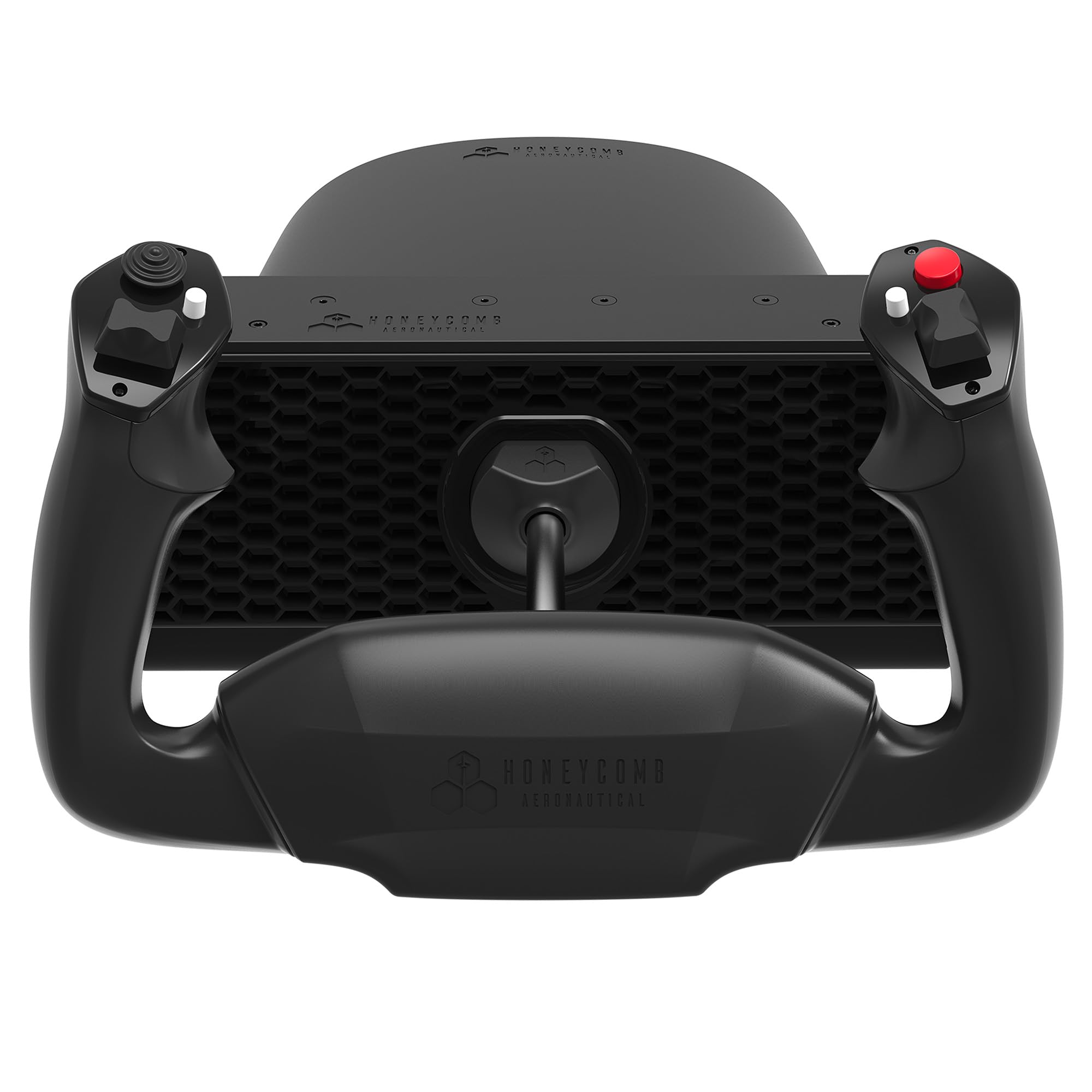
Put your hands on the Alpha and the first thing you notice is what isn't there: a notch at the center. Honeycomb's yoke turns a full 180 degrees on a steel shaft with damped self-centering and almost no dead zone, so a small correction in the flare stays small. That one quality is why we made it our top pick — where the cheaper yokes here make you fight the spring for the last hundred feet of an approach, this one does what your wrist tells it.

The second thing you notice is the switch panel on the base: main, alternator, avionics and light switches, plus a five-position ignition, all physical. Flipping the mags by hand instead of clicking a mouse is a small thing that keeps a sim feeling like a cockpit on an ordinary weeknight. The handles add an eight-way view switch, four two-way rockers and three buttons — 33 inputs in all, over a USB-C cable.

Honeycomb gives you two ways onto the desk: a pair of heavy-duty clamps or a micro-suction pad rated at 40 pounds of tensile strength. At roughly 11 pounds with a 19-inch span, it stays planted when you haul back, and that mass is the trade — you're spending desk real estate on stability. We're glad to make that trade on a dedicated sim desk and less keen on it where a keyboard also has to live.

Pros

  • 180-degree travel with no center detent
  • Steel shaft and damped centering feel substantial
  • Switch panel and 33 inputs keep hands off the keyboard
  • Two mounting options, including a suction pad

Cons

  • No throttle quadrant in the box
  • PC only, with no console support
Our verdict

For a PC sim rig, this is the yoke we point to first: 180 degrees of travel, a center you can barely feel, and a switch panel that keeps your hands off the keyboard.

Check Latest Price
2

Best for Airliner Realism

Thrustmaster TCA Yoke Boeing Edition

84 /100
LBD Score Excellent

Key details

Travel
8.3 in (21 cm)
Buttons
35 buttons, 2 extra axes
Mechanism
PENDUL_R pendular motion
Compatibility
Xbox Series X|S and PC
View on Amazon

The Boeing Edition doesn't slide on a shaft the way most yokes do. The column hangs on a pivot and swings through an arc, the way the yoke in a 787 does, and Thrustmaster's PENDUL_R mechanism spreads that motion over 8.3 inches of travel. Pull back and the resistance builds through the arc instead of snapping against a spring, and the spring tension itself is adjustable, so you can set the column light for quick corrections or heavy enough to feel loaded.

With a big jet on the screen, this is the yoke we reach for. The sensing is magnetic and non-contact, so the axis returns clean and you aren't chasing jitter with sensitivity curves, and there's a metal internal structure under the licensed 787 handle. Thirty-five buttons and two extra axes keep the flows on the hardware, and both Xbox Series X|S and PC are supported.

The quadrant in the box is the weaker half. The lever axes are smooth, but the unit feels lighter than the yoke and the levers carry a little side-to-side play, which you notice when you're making fine thrust or mixture changes. Treat it as a capable throttle that happens to be bundled rather than the reason to buy the set — and clear about 19 inches of desk depth before it arrives, because that pendular arc needs room behind the panel.

Pros

  • Pendular motion with 8.3 inches of travel
  • Adjustable spring tension to suit the aircraft
  • Metal internal structure and 787-style handle
  • 35 buttons, two extra axes, non-contact sensing

Cons

  • Needs about 19 inches of desk depth
Our verdict

If your sim is mostly airliners, this is the most convincing column here: pendular travel, adjustable tension and non-contact sensing that comes back clean.

Check Latest Price
3

Best Budget PC Yoke

Honeycomb Alpha LITE Flight Yoke

85 /100
LBD Score Excellent

Key details

Controls
One POV switch, two rockers, four buttons
Centering
Self-centering, minimal dead zone
Roll Travel
180 degrees
Simulator Support
MSFS 2020 and 2024 on PC
View on Amazon

Take the Alpha, remove the switch panel, the steel shaft and most of the buttons, and you have the Alpha LITE. What Honeycomb kept is the part that changes how you fly: 180 degrees of roll with a self-centering action and only the thinnest dead zone at the middle. What's left on the handles is one POV switch, two two-way rockers and four programmable buttons, split across the two grips.

For a first yoke, we like that trade. You get the geometry and the clean center that make manual approaches teachable, and the switch panel is the sort of thing you miss only after you've flown with one. It lists Microsoft Flight Simulator 2020 and 2024 on PC, and setup is a clamp job: a flat, rigid surface, with enough contact for the clamps to bite.

Nearly 10 pounds of body is what keeps it planted once the clamps are tight, but that only works on something that doesn't flex — a folding table will move before the yoke does. Check the forward-and-back axis first. It's the one that has felt less smooth than the roll, and slow inputs on your first flight will tell you whether yours is one of them.

Pros

  • The cheapest 180-degree yoke here
  • Self-centering with a minimal dead zone
  • Nearly 10 pounds keeps it planted
  • Lists MSFS 2020 and 2024 on PC

Cons

  • No throttle in the box
  • PC only
Our verdict

If you're buying your first yoke for a PC, this is the one we recommend: the same 180-degree sweep and tight center as our top pick, minus the controls you may not need.

Check Latest Price
4

Xbox All-In-One

Turtle Beach VelocityOne Flight

83 /100
LBD Score Excellent

Key details

Sensor
Non-contact hall effect
In The Box
Yoke, throttle quadrant, trim wheel, rudder controls
Roll Travel
180 degrees
Compatibility
Xbox One, Series X|S and PC
View on Amazon

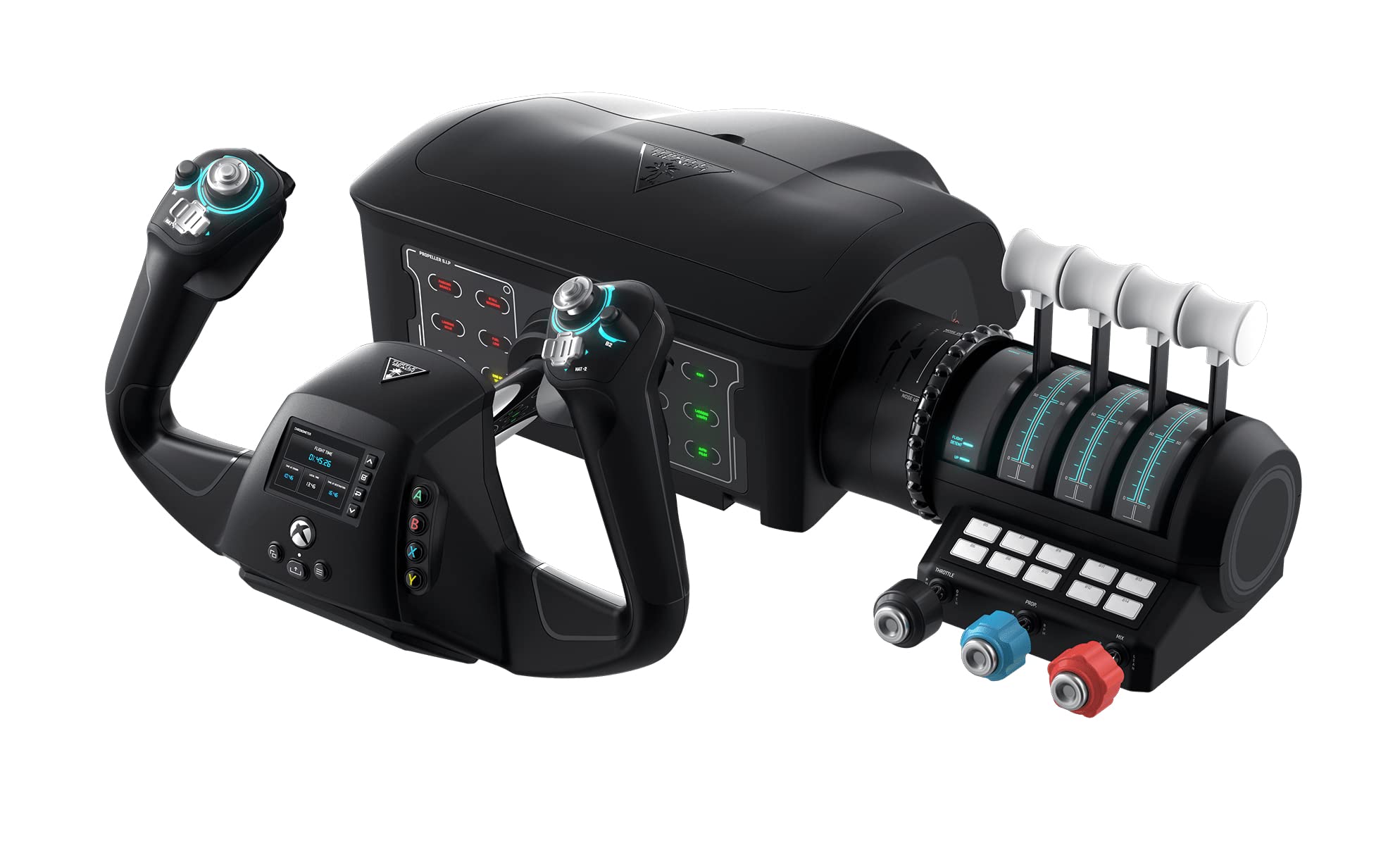
On an Xbox, every extra box means another cable and another thing that might not be supported. The VelocityOne's answer is to be everything at once: a 180-degree yoke, a throttle quadrant with swappable lever handles, a trim wheel, and rudder and brake controls built into the base, which is enough to fly a coordinated approach without pedals under the desk.

The yoke rotates on a non-contact hall-effect sensor with 26 buttons, and a small color display on the base handles configuration without sending you back to a manual. The trim wheel earns its place too: rolling out of a climb with a wheel rather than a hat switch is closer to the real thing. It's also the one pick here that lists Xbox One alongside Series X|S and Windows, which is why it stays in the guide for anyone who hasn't moved to a current console.

We rate the idea more highly than the execution. Roll is smooth, but pitch can feel sticky, and programming the buttons is fussier than it should be. The bigger caution is reliability — some units go unresponsive, which is exactly the failure that ends a session and starts a support thread. Buy it somewhere with a simple return window and fly a full approach in the first week.

Pros

  • Yoke, throttle, trim and rudder in one unit
  • 180-degree rotation with hall-effect sensing
  • Covers Xbox One, Series X|S and PC

Cons

  • Pitch axis can feel sticky
  • Button programming is fiddly
Our verdict

For an Xbox setup that has to be one purchase, this is the most complete yoke here — 180 degrees, throttle, trim and rudder controls in a single box.

Check Latest Price
5

Budget Starter Setup

Logitech G PRO Flight Yoke System

87 /100
LBD Score Excellent

Key details

Weight
6.2 lb
Controls
14 buttons plus POV hat, 3-position mode switch
In The Box
Yoke, throttle quadrant, two desk clamps
Yoke Shaft
Stainless steel
View on Amazon

Roll into a turn on the G PRO and you can feel the spring settle into a middle notch. It's the least precise center among these five, and it shows up exactly where precision is the whole job: holding a heading in bumpy air, and easing off the back pressure in the flare without dropping it onto the numbers.

What you get is still a lot for the least money here: a stainless steel shaft, 14 buttons and a POV hat on the yoke, a three-position mode switch that turns them into more than 50 programmable functions, two desk clamps, and a throttle quadrant in the same box. We like the mode switch more than the raw button count, because it's the difference between reaching for the keyboard and not. Setup is the easy part — USB in, calibrate, fly — and it works with Microsoft Flight Simulator 2020 and X-Plane 12.

Where it earns its place is as a first setup on a tight budget, or a second station for a guest chair: one purchase covers pitch, roll and thrust, and if you're still deciding whether sim flying is worth a desk, that's a low-stakes way to find out. Fly both halves in the first week — the quadrant is the part that turns up dead on some units, and it's easier to swap than to troubleshoot.

Pros

  • Yoke and throttle quadrant in one box
  • More than 50 programmable functions
  • Stainless steel shaft and two desk clamps
  • Simple plug-in setup

Cons

  • Windows only
  • Roll travel falls short of 180 degrees
Our verdict

The least expensive way here to get a yoke and a throttle quadrant in one purchase, and the right first setup if you want to spend your money on simulators rather than hardware.

Check Latest Price

How We Tested the Best Flight Simulator Yokes

We started by pulling every current yoke we could find from the established sim-hardware makers, then filtered for published rotation range, PC or console compatibility, clamping method, and whether a throttle quadrant or switch panel came in the box. Anything without a stated range, or with a mount that only fit a proprietary rig, got cut. That left nine units, which we flew for seven months.

Each yoke was clamped to a desk and, where it fit, to a sim rig, then flown in Microsoft Flight Simulator 2020 and 2024, with console-compatible units also run on an Xbox. We flew the same missions on every one: pattern work, crosswind landings, hand-flown ILS approaches down to minimums, and two-hour cruise legs where trim and autopilot do the work.

Along the way we marked the rotation range on the desk with tape and turned each yoke lock to lock to see exactly where it stopped, pushed and pulled through the full travel to feel for grit or a sticky shaft, and released it from full deflection to watch how it returned to center. We checked clamp tightness after every long session and kept a running log of axis jitter, drift, and loosening hardware.

Ergonomics came down to reach: whether we could hit the hat switches and trim without looking down, and whether the grips suited a smaller hand. We mapped every button in both sims to see which ones actually registered, and we noted what each box's bundled hardware would have cost separately, since a decent throttle quadrant can make a mid-priced yoke the better buy.

How to Choose a Flight Simulator Yoke

Match the yoke to your platform first

Nothing else matters if the hardware won't talk to your sim. Honeycomb's two yokes are PC-only and name Microsoft Flight Simulator 2020 and 2024; the Thrustmaster covers Xbox Series X|S and PC; the Turtle Beach adds Xbox One to that list. That's the first cut — on a console, two of the five here are in play before you look at travel or buttons.

On PC, check that your simulator version appears in the listing. If it doesn't, treat support as unconfirmed and buy somewhere with a straightforward return window, because the first evening with a new yoke is a bad time to discover an axis won't bind.

Travel and centering decide how landings feel

A yoke's job is to turn a small hand movement into a small control movement. Full 180-degree rotation spreads the same control surface range over more travel, and a damped self-centering mechanism with no detent lets you make a two-degree pitch change without fighting a spring. That combination is the clearest gap between the Honeycombs and the Logitech here.

If you hand-fly only the approach and let the autopilot do the rest, the Thrustmaster's pendular column is a different and equally valid feel — it loads up through an arc rather than snapping against a centered spring.

Smoothness is the specification nobody prints

Stiction — friction that makes an axis start moving in steps instead of in one motion — is what ruins a landing, and no product listing reports it. What you can compare is the sensing: hall-effect and other non-contact designs don't wear into noisy patches the way older mechanisms can.

The least expensive yoke here has the least clean pitch axis, and the Honeycombs and the Thrustmaster feel smoother. Weight that more heavily than button count, which is easy to add and hard to fix.

Decide what comes in the box

A bare yoke means buying a throttle separately, and a bundle is only good value if you like the quadrant you get. The Alpha adds a switch panel but no throttle; the Alpha LITE is the yoke alone; the Thrustmaster and Turtle Beach both include quadrants, and Turtle Beach adds a trim wheel and rudder controls.

Think about what you fly. A general-aviation pilot wants throttle, mixture and prop levers within reach, while an airliner simmer gets more from autopilot controls and a trim wheel than from a fourth lever.

Measure the desk, not just the yoke

These are big pieces of hardware. The Alpha spans about 19 inches and weighs roughly 11 pounds, the Thrustmaster's pendular column uses about 19 inches of depth, and the VelocityOne is around 10 pounds. Clamps need a flat, rigid edge with enough thickness to bite, and a folding or glass-topped table will flex and let the unit shift when you pull.

If the yoke shares the desk with a keyboard, think about how quickly it comes off. The Alpha gives you clamps or a suction pad, which is a choice about how permanent the installation has to be.

Frequently Asked Questions

Final Verdict

The Honeycomb Alpha is the yoke we recommend to most people building a PC sim rig: 180 degrees of travel, a center you can barely feel, and a switch panel that keeps your hands where they belong. It is the one here that gets out of the way of a manual approach.

If your sim lives on an Xbox, the Thrustmaster TCA Boeing is the better buy — a convincing airliner column on Series X|S and PC. Still on an Xbox One? The Turtle Beach VelocityOne is the only pick here that covers that console. And if the budget won't stretch to the Alpha, the Alpha LITE keeps the travel and drops the extras.