Best Monitors for Photo Editing of 2026

The worst part of editing photos is discovering that the perfect skin tone you fixed at your desk looks green on your phone. A photo-editing monitor can't match every screen your images will land on, but it should give you a trustworthy reference: accurate color, even brightness, and enough resolution to judge the details you're retouching. The wrong monitor turns every edit into a guess.

We tested eight 27-inch monitors over seven months, editing the same portraits, landscapes, and low-light shots on each. The differences showed up quickly: a panel can advertise wide color coverage or HDR and still make a red sweater look orange, and a stand that won't hold its height will have you stacking books under the screen.

The monitors that made the cut share a few basics—4K resolution, IPS panels, and color accuracy that held up when I compared skin tones to a print. They didn't all cost the same or offer the same ports, but each was a realistic choice for a photo desk. The picks below show where the extra money goes.

1

Best Overall

LG 27UP650K-W

89 /100
LBD Score Excellent

Key details

Panel
IPS
Brightness
400 cd/m²
Resolution
3840 x 2160
Color Coverage
95% DCI-P3
View on Amazon

We set this monitor on a desk with a window behind it, the arrangement that turns most glossy panels into a mirror, and the matte finish plus 400 nits kept the image readable straight through the afternoon. Contrast is listed at 1,200:1, and the shadow end of the frame held together rather than going flat. The white cabinet and slim bezels are easy to live with on a light-colored desk, which counts for something when the monitor sits in a shared room instead of a closed office.

Twenty-seven inches of 4K works out to roughly 163 pixels per inch, and that density is what changes retouching: dust spots, sharpening halos, and stray hairs show up as objects instead of suggestions. Color coverage is 95% DCI-P3, short of the wide-gamut ProArt below but comfortably past what sRGB delivery needs, so files headed for a screen or a lab's sRGB pipeline look right without a mode change every time you switch tasks. It also pivots to portrait, which is the quickest route we've found through a card full of vertical frames. DisplayHDR 400 is a convenience for checking video clips, not a way to judge stills.

Two limits to plan around. The hookups are two HDMI and one DisplayPort with no USB-C among them, so a laptop needs its own charger and the right cable rather than one connection for everything. The warranty runs a year, shorter than the ProArt's five. On a desktop tower with a spare DisplayPort and a calibrator already on the shelf, neither of those ever comes up.

Pros

  • Sharp 4K detail for fine retouching
  • 95% DCI-P3 with 400 nits on matte glass
  • Height, tilt, and pivot stand included

Cons

  • No USB-C input for a one-cable laptop setup
  • One-year manufacturer warranty
Our verdict

The one we recommend to most photo editors: 4K detail, 95% DCI-P3, 400 nits behind matte glass, and a stand that pivots to portrait at a midrange price.

Check Latest Price
2

Best for Print Work

ASUS ProArt PA279CRV

83 /100
LBD Score Excellent

Key details

Brightness
400 cd/m²
Resolution
3840 x 2160
Color Coverage
99% DCI-P3, 99% Adobe RGB
USB-C Power Delivery
96W
View on Amazon

Adobe RGB is the number that justifies this monitor. At 99% coverage, with 99% DCI-P3 alongside it, the panel can show the saturated greens and cyans a press actually lays down, so soft-proofing a file against a lab's ICC profile stops being guesswork and becomes a comparison you can act on. If everything you finish goes to a screen, that coverage is money you don't need to spend. If a print house sits at the end of the chain, it is the entire point of the purchase.

The working details aim at the same buyer. A calibration report with its own serial number ships in the box and Delta E is rated under 2, so the first edit doesn't wait on a profiling run. USB-C carries video, data, and 96 watts of power down a single cable, which is why this is the one we pair with a laptop, and daisy chain support hangs a second screen off the same connection. Register the monitor online and the warranty stretches to five years, the longest of anything in this group.

The friction here sits in setup rather than image quality. Some units need their power settings changed before they wake from sleep reliably, and if a laptop won't hold full resolution at 60Hz, swapping the cable or the port usually settles it before you start suspecting the panel. Buy from a retailer with a generous return window and spend an evening getting it configured, because the color underneath is worth the trouble.

Pros

  • 99% Adobe RGB and 99% DCI-P3 coverage
  • Ships with a Delta E < 2 calibration report
  • USB-C with 96W charging and daisy chain
  • Five-year warranty with online registration

Cons

  • Costs noticeably more than the other 4K picks
  • HDR is limited by 400-nit brightness
Our verdict

This is our print pick: 99% Adobe RGB, a factory calibration report, and one USB-C cable that also charges a laptop.

Check Latest Price
3

Best Budget 4K

Samsung ViewFinity S7 S71H

83 /100
LBD Score Excellent

Key details

HDR
HDR10
Panel
IPS
Brightness
300 cd/m²
Resolution
3840 x 2160
View on Amazon

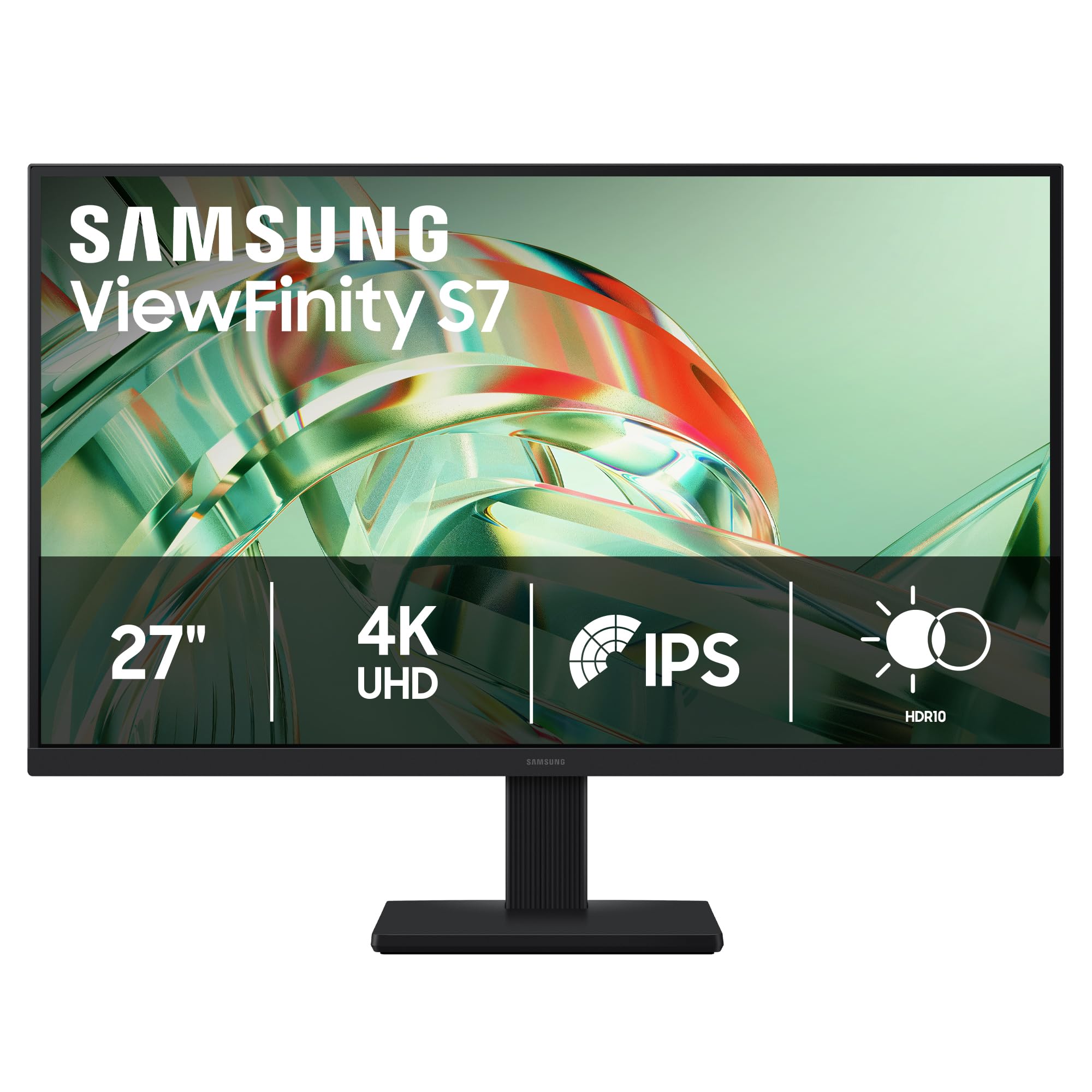
The S71H is the least expensive way here to put a name-brand 4K IPS panel on a desk, and the picture doesn't read as a compromise: 3,840 x 2,160 across 27 inches, a matte anti-glare coat that survives a window, and neutral skin tones in portrait files. What the money leaves out is the stand. It doesn't do height, so the screen sits wherever the foot puts it, and a riser quietly becomes part of the setup.

Ports are the other squeeze: one HDMI and one DisplayPort, so a second computer means moving cables. Brightness is listed at 300 nits, and in a room with blinds we never found ourselves wanting more, with the anti-glare doing most of the heavy lifting in daylight. HDR10 and the billion-color claim are there for checking video clips rather than for grading stills, and the 1,000:1 contrast is ordinary for an IPS panel.

No calibration report comes in the box, just the two cables and the power cord. If color has to line up with a lab's output or with a second screen on the same desk, plan on profiling it yourself or borrowing a calibrator for an evening. That's the trade for the price, and for a hobbyist or a second editing station it's a reasonable one.

Pros

  • 4K IPS sharpness at a budget price
  • Anti-glare matte finish handles daylight
  • Light and quick to set up

Cons

  • Stand does not adjust for height
  • Only one HDMI and one DisplayPort
Our verdict

Our budget choice when the desk already sits at the right height: a name-brand 4K IPS panel with anti-glare that holds up to daylight.

Check Latest Price
4

Second Editing Station

CUNPU 27-Inch 4K

80 /100
LBD Score Excellent

Key details

Panel
IPS
Resolution
3840 x 2160
Color Accuracy
Delta E < 2
Color Coverage
100% DCI-P3
View on Amazon

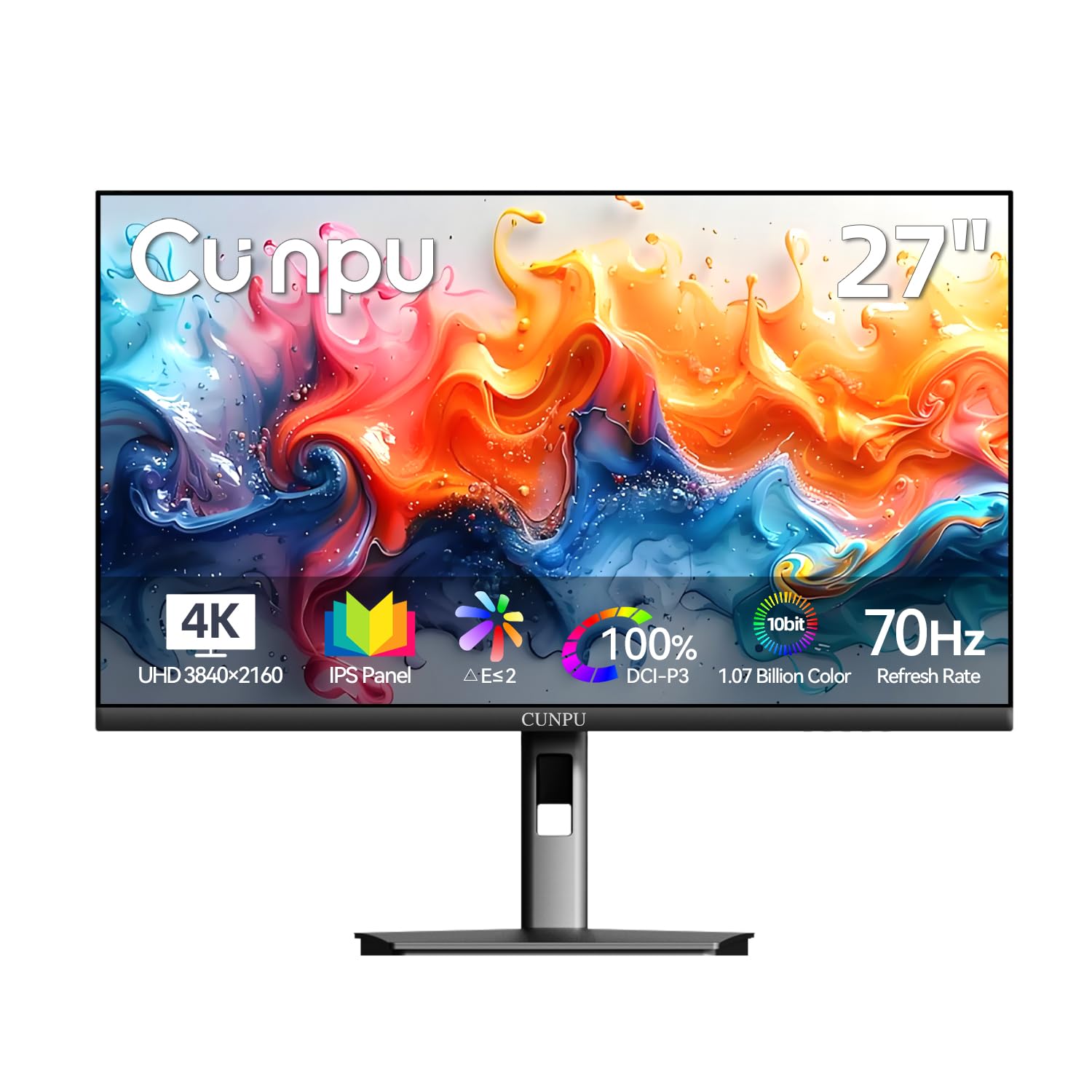
On paper the CUNPU reads like a bargain: 27 inches of 4K IPS, a Delta E under 2 claim, 100% DCI-P3 coverage, and 1.07 billion colors for the least money in this guide. The paperwork is where it thins out. There's a one-year warranty, a stand that only tilts, and a brand with a short track record here. We think it earns a place for one specific buyer rather than as anybody's default.

The money went into the parts that count toward an image. Two DisplayPort 1.4 inputs plus HDMI 2.0 support picture-in-picture and picture-by-picture, so a laptop and a console can share the panel without a switcher, and the 70Hz refresh takes some of the stutter out of scrolling a large catalog. Pixel density matches every other 27-inch 4K screen here, so fine detail behaves the way you'd expect from the resolution.

Test gradients in your first week. The billion-color specification is the part that matters for skies, studio backdrops, and any smooth transition, where lesser panels band in visible steps. Run a full-screen gradient and look for stripes before the return window closes. What it doesn't offer is anything like the ProArt's calibrated presets, so the profile comes from your own calibrator or not at all.

Pros

  • 4K IPS with a 100% DCI-P3 claim
  • Two DisplayPort inputs plus picture-in-picture
  • Delta E under 2 factory calibration claim

Cons

  • Tilt-only stand, no height adjustment
  • One-year manufacturer warranty
Our verdict

We recommend it as a second station or a budget proofing screen, as long as a one-year warranty and a tilt-only stand are acceptable.

Check Latest Price

How We Tested Photo-Editing Monitors

I started with a shortlist of 27-inch 4K IPS monitors, since that combination is the practical baseline for photo editing: enough resolution to judge detail, a panel that holds color across viewing angles, and a footprint that fits a normal desk. I filtered by price, port selection, and whether the stand offered height and tilt adjustment, then brought in eight monitors and used them for seven months.

Each monitor spent about three weeks as my main display, and I edited the same RAW files on all of them: portraits with mixed skin tones, a landscape with saturated greens, and a night shot with deep shadows. I clipped a colorimeter to each screen and recorded how far the measured colors drifted from the reference, then checked the same files by eye against a print. I also stared at a plain white screen for uniformity, leaned side to side to see whether colors shifted off-axis, and switched on each HDR mode in a dark room to see whether highlights gained detail or just looked brighter.

I worked beside a west-facing window in the afternoon and in a dim room after dark, noting whether brightness had to max out or could stay comfortable. I connected each monitor to a laptop and a desktop through HDMI and DisplayPort and checked whether the ports were easy to reach behind the screen. I raised, tilted, and pivoted each stand, then typed and nudged the desk to check for wobble.

I timed input and picture-mode switching, noted whether the menu made sense without the manual, and kept track of what came in the box—cables, stand, USB hub—so a lower price didn't hide extra costs. Over seven months, I watched for flicker at low brightness and loose ports.

How to Choose a Monitor for Photo Editing

Match the color space to what you deliver

Three spaces matter. sRGB covers the web and most client proofs, and a panel that hits close to 100% of it accurately is the floor, not a bonus. Adobe RGB reaches the saturated greens and cyans a press lays down, which is why the ProArt's 99% coverage is worth paying for when files end at a lab. DCI-P3 sits between and suits video and hybrid work.

The trap is a wide-gamut panel running in the wrong mode: an untagged sRGB file on a full Adobe RGB display looks lurid rather than accurate. Know which space you finish in, then either switch the monitor's preset to match or keep everything in color-managed software.

Resolution, and the cable that has to feed it

At 27 inches, 4K puts roughly 163 pixels per inch on the glass against about 109 for 1440p, and that gap is the difference between spotting a dust speck and hunting for it. We think it's worth the premium if retouching is the job, and it does mean scaling your interface up so menus stay readable.

The trap sits upstream of the panel: a 4K screen fed over an older HDMI 1.4 port can land at 30Hz, which makes the cursor smear and dragging feel broken. Use DisplayPort, USB-C, or an HDMI 2.0 port, and check the laptop's spec before blaming the monitor.

Calibration and the panel you actually receive

A Delta E under 2 report in the box means the panel left the factory close to reference. It doesn't stay there, and it says nothing about even color from corner to corner, which matters most on a white studio backdrop. Only the ProArt here ships with a report, so budget for a calibrator or borrow one, and profile at the brightness you actually work at.

If prints are the output, set the screen to match the light you judge proofs under rather than leaving it at full blast. A panel you've profiled at a sensible level beats a brighter one you haven't touched.

The stand, the ports, and the desk you actually have

Height adjustment isn't a luxury. The top of the panel should sit near eye level, and a fixed stand can leave you looking down at the wrong angle for six hours. Pivot matters if you shoot verticals: the LG rotates, the Samsung doesn't, and the difference shows up on every portrait batch.

Then count what you plug in. A USB-C connection with 96W of power delivery, like the ProArt's, replaces a laptop charger and a display dongle with one cable, and daisy chaining hangs a second screen off the same run. Desktops rarely care; laptops almost always do.

Frequently Asked Questions

Final Verdict

The LG 27UP650K-W is the monitor we put in front of most photo editors. Four thousand pixels of horizontal resolution shows retouching honestly, 95% DCI-P3 covers everything headed to a screen, 400 nits behind matte glass survives a bright room, and the stand pivots to portrait for vertical frames, all at a midrange price that leaves room in the budget for a calibrator.

Choose the ASUS ProArt PA279CRV instead if your files go to a printer: 99% Adobe RGB coverage and a Delta E under 2 report are the difference between guessing at a proof and trusting it, and its 96W USB-C means one cable for a laptop. If the desk height is already sorted and the budget is tight, the Samsung S71H gets you a name-brand 4K IPS panel for less.