Best Monitors for Home Office Work of 2026

My home office got real the day a monitor arrived and the laptop finally stayed shut. Until then I was squinting at a tilted 13-inch screen, and the change did more for my posture than any standing desk ever did. A monitor is the thing you look at for six hours straight, so the differences that matter are the ones the spec sheet buries: whether the stand actually brings the screen to eye level, whether the built-in speakers can carry a call, and how it looks sitting on your desk.

My team and I have spent the past six months with 12 monitors, moving each one onto the same desk and through the same workweek. A few looked sharp in photos and went muddy by Thursday; two never left.

Worth knowing before you shop: refresh rate is printed on every box, but past 75Hz you will not see it in email. What you will notice is a panel that flickers when you dim it at 9 p.m., or a stand that will not rise an inch. Everything below was judged for the eight-hour day, not the demo loop.

1

Best Overall

Dell 27 Plus QHD Monitor

89 /100
LBD Score Excellent

Key details

Stand
Height, tilt, swivel, pivot
Resolution
2560 x 1440
Screen Size
27 inches
Refresh Rate
144 Hz
View on Amazon

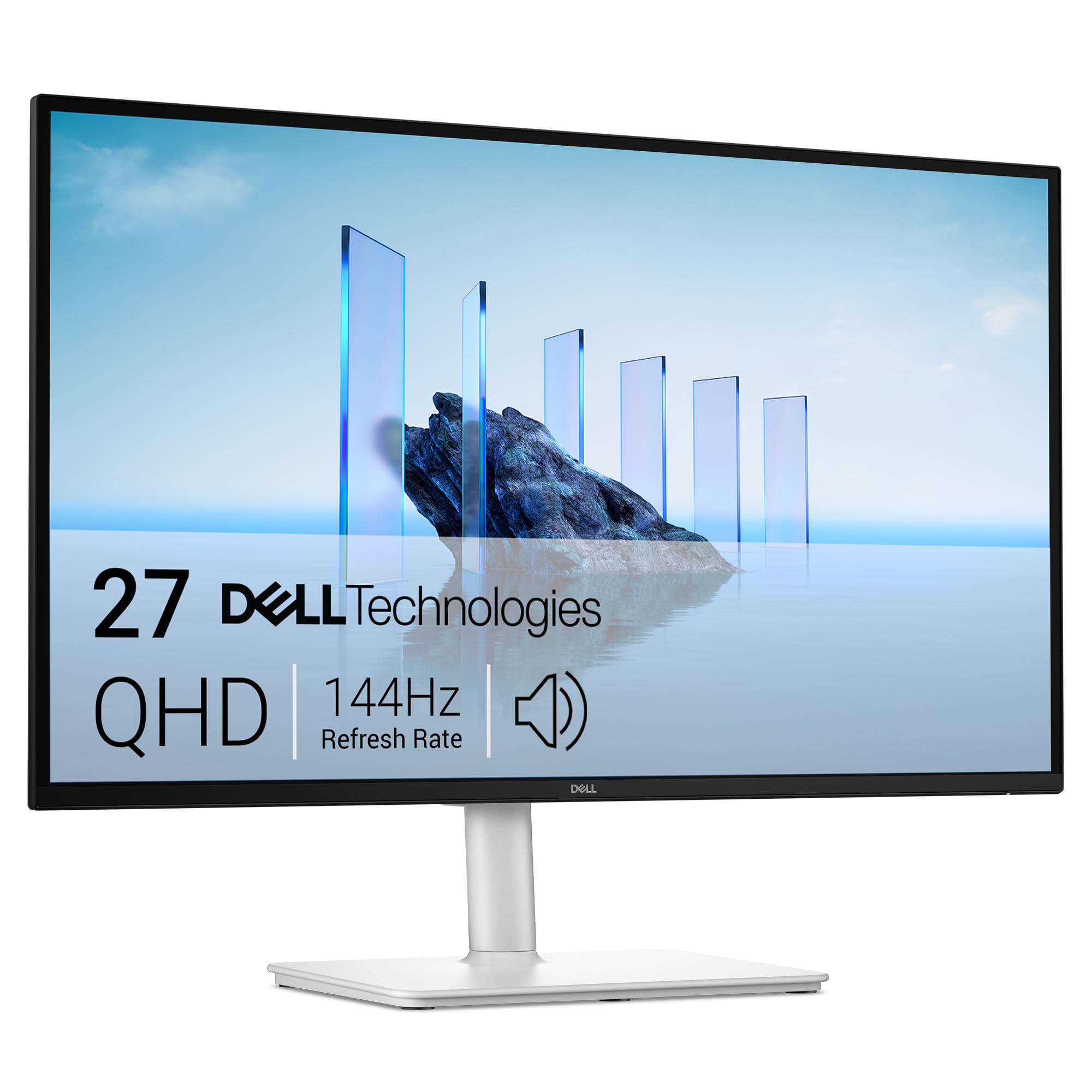
Twenty-seven inches at 2560 by 1440 is the combination that decides this one for us. That panel carries close to twice the pixels of a 1080p screen the same size, which is the difference between ten-point spreadsheet text that stays crisp and text that frays at the edges by mid-afternoon. The matte coating keeps a window behind you from washing the screen out, the 350-nit backlight holds up in a bright room, and the 144Hz refresh makes scrolling a long document feel smooth instead of smeary.

What we appreciate most is the stand. Height, tilt, swivel, and pivot all adjust, so the screen comes up to eye level instead of you sinking toward it, and it turns to portrait when you are reading a long PDF or checking page layouts. The pair of 3W speakers is a real convenience on a work desk — clear enough for calls and video without separate speakers claiming desk space — and the ash-white cabinet looks less like data-center hardware than most of this group.

Two things to know before ordering. It is the most expensive monitor in this guide, and the inputs are one HDMI plus one DisplayPort, so a laptop and a desktop can share it but two HDMI-only sources cannot without a switch. Coverage runs a year with advance exchange and premium panel replacement, which matters more than it sounds: a unit that arrives not powering on gets swapped rather than argued about.

Pros

  • QHD text stays sharp across 27 inches
  • Full height, tilt, swivel, and pivot adjustment
  • Speakers clear enough for meetings
  • 144Hz keeps scrolling smooth

Cons

  • Most expensive monitor in this guide
  • Only one HDMI input, plus DisplayPort
Our verdict

This is the one we tell home-office buyers to start with: 1440p keeps text crisp at 27 inches, and the stand adjusts enough to fix your posture.
Check Latest Price
2

Best for Small Desks

Dell 24 Plus Monitor

89 /100
LBD Score Excellent

Key details

Stand
Height, tilt, swivel, pivot
Resolution
1920 x 1080
Screen Size
23.8 inches
Refresh Rate
144 Hz
View on Amazon

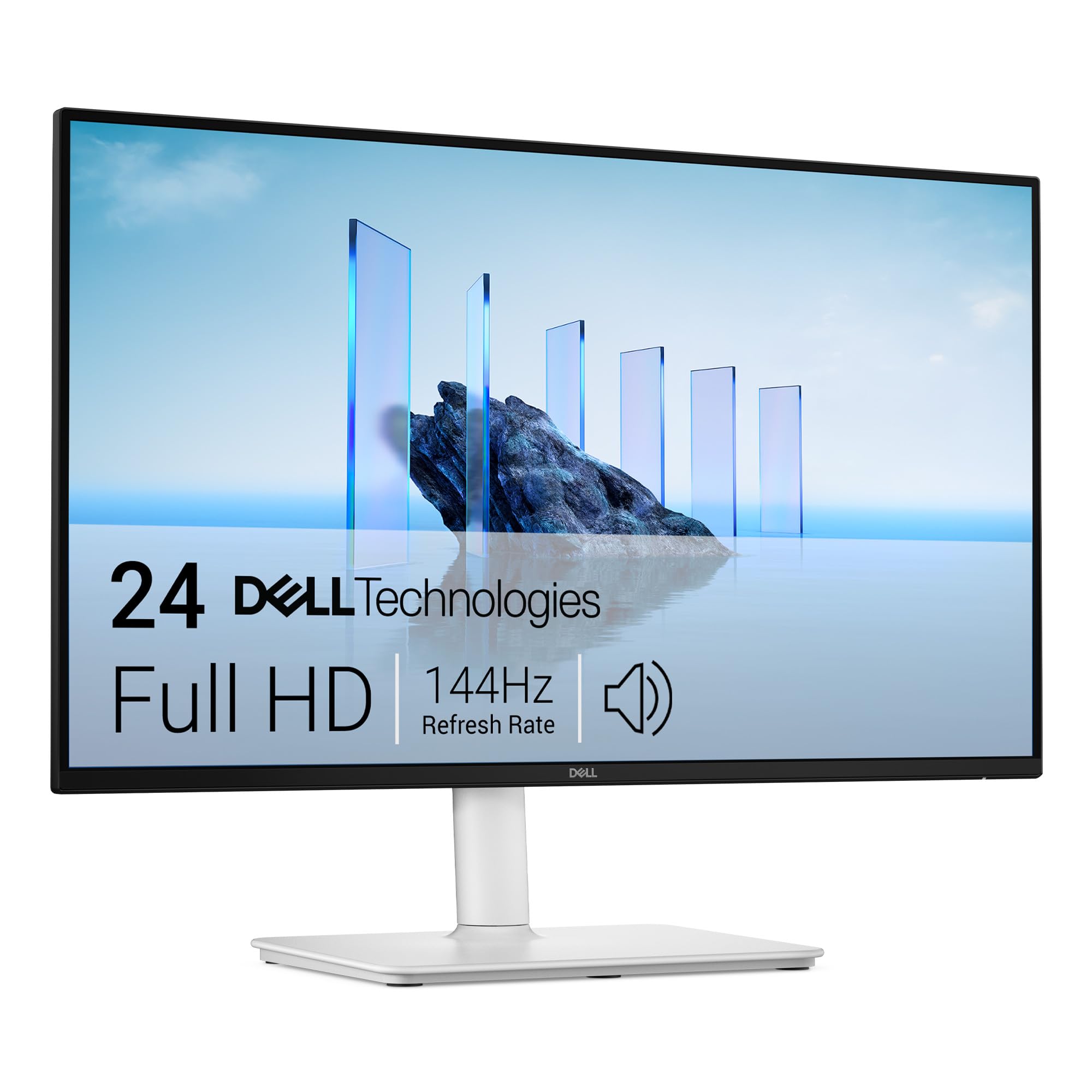
If the desk is the corner of a bedroom or a table that gets cleared for dinner, this is the monitor we point to first. At 23.8 inches it fits a shallow surface without crowding a laptop, and it adjusts in every direction a small workspace actually needs: up and down, tilt, swivel, and a full pivot to portrait. That combination is rare at this size and this money, and it is the reason this Dell earns a place over the cheaper 24-inch screens in the guide.

The panel is a 1080p LCD with a 1500:1 contrast ratio, a 300-nit backlight, and a 144Hz refresh rate, which is more than a room with a window needs. Text is sharp at the distance you actually sit from a 24-inch screen, the matte finish shrugs off an overhead light, and the anti-glare coating does the quiet work of keeping a bright wall from turning into a reflection. We also like the dual 3W speakers: not hi-fi, but good enough that a video call does not require anything else on the desk, and the white cabinet disappears against a light wall.

The trade-offs are size and inputs. Two documents side by side on 24 inches means accepting narrower windows, and 1080p is the ceiling — if wide windows are the whole point of your setup, the 27-inch QHD Dell above is the better buy. Both video inputs are HDMI, so a DisplayPort-only dock needs an adapter.

Pros

  • Height, tilt, swivel, and pivot on a small screen
  • Built-in speakers handle calls without extras
  • Matte, bright panel suits a windowed room

Cons

  • 1080p only, with no sharper option
  • Cramped for two wide windows
Our verdict

We point small-desk buyers here: it adjusts in every direction, sounds fine on calls, and does not crowd a laptop.

Check Latest Price
3

Best Budget

Philips 241V8LB

92 /100
LBD Score Outstanding

Key details

Stand
Tilt only
Warranty
4 years
Resolution
1920 x 1080
Screen Size
23.8 inches
View on Amazon

This is the least expensive monitor we recommend, and the spec sheet reads like it: a 23.8-inch VA panel at 1080p, 100Hz, 250 nits, and a stand that tilts but does not rise. What it also carries is the longest warranty in this guide — four years of advance replacement, against the single year most of the others offer.

That warranty is the reason it is here. The real risk with a cheap monitor is not the picture on day one; it is the panel that quits in month fourteen. Four years of advance replacement turns a budget screen into a low-stakes one, and the 3,000:1 contrast ratio of the VA panel gives documents a deeper, more paper-like look than the lower-contrast panels in this group. EasyRead mode, which softens the image toward paper, is a genuinely useful touch for anyone who reads contracts or long drafts on screen.

Two practical notes from living with it. The stand is tilt-only and the height is fixed, so a riser or an arm is what gets the screen to eye level. The coating is glossy, and a window behind your chair will show up in dark scenes. Color is the setting worth revisiting: the panel can look washed out at its defaults, and there is enough adjustment in the menu to pull it back.

Pros

  • Four-year advance-replacement warranty
  • Deep 3,000:1 contrast for documents
  • EasyRead mode for long text

Cons

  • Tilt-only stand with fixed height
  • Glossy screen shows window glare
Our verdict

We keep this one on the budget shortlist because four years of advance replacement makes a cheap screen a low-risk one.

Check Latest Price
4

Best Big Screen

Samsung 32-Inch FHD Monitor

89 /100
LBD Score Excellent

Key details

Ports
HDMI, DisplayPort
Resolution
1920 x 1080
Screen Size
32 inches
Refresh Rate
75 Hz
View on Amazon

Thirty-two inches at 1080p is a trade, and it is worth being honest about it: the pixels are large enough to see, and small text looks softer here than on any 24-inch screen in this guide. But that is the point of it. If the reason you are shopping is that everything on your current monitor is too small, this is the one that makes it bigger — menu bars, email, and video calls all scale up without you leaning in. We would not buy it for dense spreadsheets; we do recommend it for the person squinting at a 24-inch screen all day.

Around that panel, Samsung fits a 4,000:1 contrast ratio, a 75Hz refresh rate, HDMI and DisplayPort inputs, and a three-year manufacturer warranty that is second only to the Philips in this group. The three-sided borderless bezel means two of them line up with almost no seam between them. There are no built-in speakers, so plan on a pair or a headset.

The stand is the compromise: it does not adjust for height, so a riser or a wall mount earns its place if you need the screen higher than the base allows. Color is the other thing to check — it can look off out of the box, and the picture modes are worth cycling through on day one rather than accepting whatever the panel shipped with.

Pros

  • Largest screen in this guide
  • Strong 4,000:1 contrast
  • Three-year manufacturer warranty

Cons

  • 1080p looks coarse at this size
  • No built-in speakers
Our verdict

We recommend it for the size, not the sharpness — it is the screen for someone who wants everything on the desk to read bigger.

Check Latest Price
5

Curved Screens

Samsung Essential S3 Curved

90 /100
LBD Score Outstanding

Key details

Curvature
1800R
Resolution
1920 x 1080
Screen Size
27 inches
Refresh Rate
100 Hz
View on Amazon

The 1800R curve is the whole personality of this monitor, and at 27 inches it is gentler than the number suggests. The panel bends just enough that the far corners of a maximized window sit a little closer to your eyes than they would on a flat screen. It will not make you more productive. It does make a wide spreadsheet feel less like you are reading it from the next desk over, and the curve is the thing buyers of this model keep coming back to.

The rest is solid for the money: 1080p at 100Hz, a 3,000:1 contrast ratio, TÜV-certified eye comfort with a blue light filter, and both HDMI and D-sub inputs so an older desktop can plug straight in. Text is the weak spot — 1080p across 27 inches is coarser than the QHD Dell, and small type shows it.

What holds it back is the stand. It does not rise, and the panel tips forward rather than back, which is the opposite of what a tall desk or a low chair needs. If the monitor is going on a riser, or you already sit low, the panel underneath is good value and the curve is genuinely pleasant. If you share the desk with someone of a different height, skip it.

Pros

  • Gentle curve that is easy to live with
  • Strong contrast for the price
  • HDMI and D-sub for older desktops

Cons

  • Stand will not raise the screen
  • 1080p is coarse at 27 inches
Our verdict

We like the curve and the panel; we cannot ignore a stand that will not come up to eye level.

Check Latest Price
6

Multi-Monitor Rows

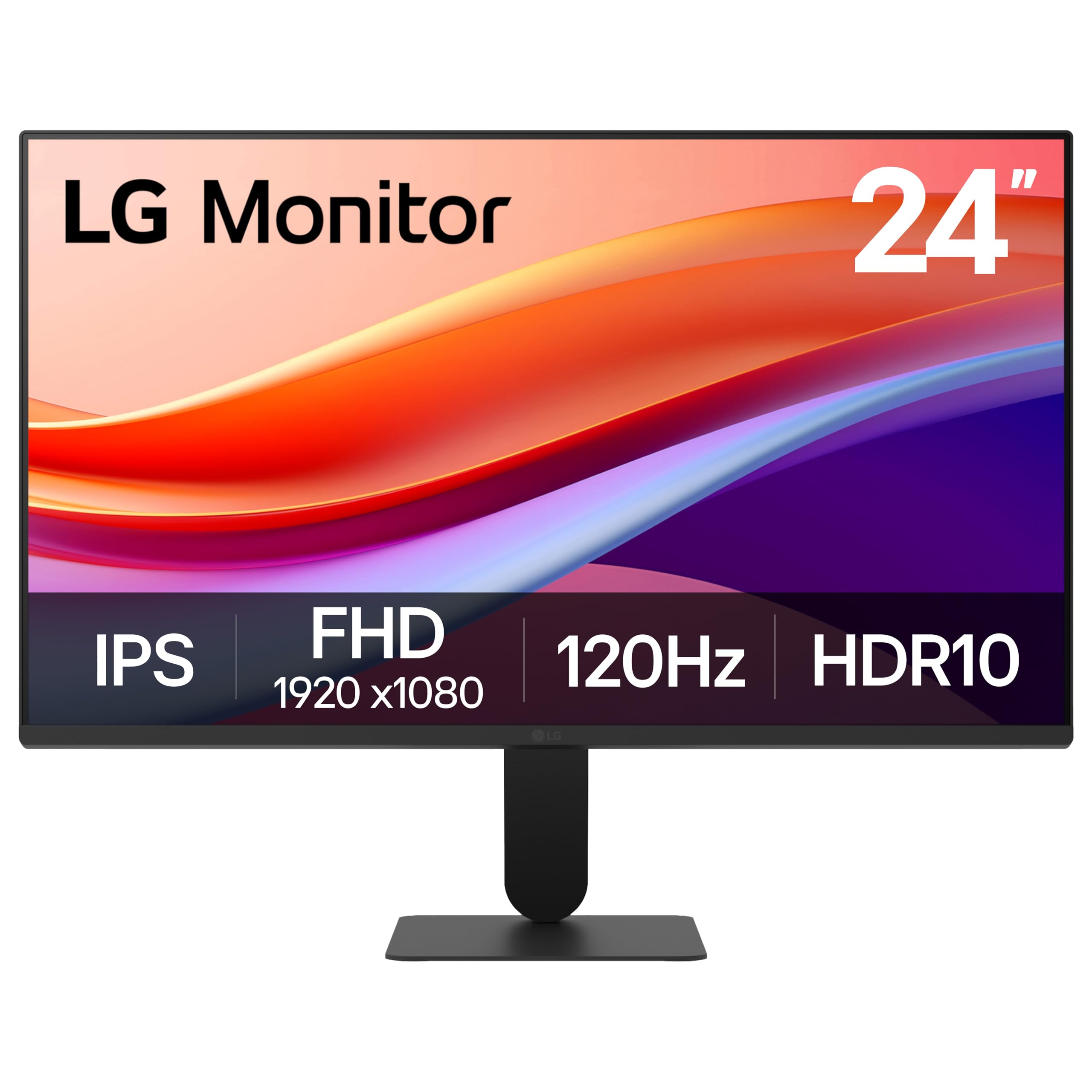
LG 24U411A-B

89 /100
LBD Score Excellent

Key details

Panel
IPS
Resolution
1920 x 1080
Screen Size
23.8 inches
Refresh Rate
120 Hz
View on Amazon

Set beside the Philips at the same size, this LG is the better picture and the weaker package. The IPS panel holds color across a wide angle, so two people can read the same spreadsheet without one of them seeing it shift, and the 120Hz refresh with HDR10 support makes video and fast scrolling look a step smoother than the 100Hz budget panels. HDR10 at 250 nits is a modest version of the format, but the color handling underneath it is the reason to pick this one.

The bezels are the other argument. Three sides are virtually borderless, so a pair of these side by side reads as one wide surface with a thin seam, which is exactly what a two-window workflow wants. At 23.8 inches on a shallow desk, 1080p is sharp enough that you will not see the pixel grid, and the matte coating keeps a lamp from becoming part of the picture.

Where it loses points with us is the stand. The tilt will not bring the screen fully upright, so getting it vertical takes some fiddling with the base. There are no built-in speakers either, which means a speaker bar or a headset on a desk that was meant to stay clear. One HDMI port is the final limit: a second source means swapping cables, which is the exact hassle the thin bezels are supposed to spare you.

Pros

  • IPS color holds from wide angles
  • Nearly borderless for paired setups
  • 120Hz with HDR10 support

Cons

  • No built-in speakers
  • Tilt will not bring the screen upright
Our verdict

We rate it for a two-screen row and for its wide viewing angles, as long as you own speakers and do not need much tilt.

Check Latest Price
7

Low-Cost 27-Inch

Sceptre E275W-FW100T

90 /100
LBD Score Outstanding

Key details

Ports
2 HDMI, DisplayPort
Resolution
1920 x 1080
Screen Size
27 inches
Refresh Rate
100 Hz
View on Amazon

The least expensive 27-inch screen in this guide is also one of the better-connected ones: 1080p at 100Hz, a claimed 100% sRGB color gamut, one DisplayPort and two HDMI inputs, and built-in speakers. For a desk that needs a lot of glass and nothing fancy, that is a serious amount of screen for the money.

The panel does what the numbers suggest. Contrast is rated at 2,000:1, the matte finish keeps reflections down, and 100Hz is smooth enough for everyday scrolling and video. Text is soft next to the QHD Dell — 1080p across 27 inches always is — but for email, documents, and a call window it holds up at normal desk distance, and the thin bezel keeps a pair of them looking tidy.

Two things to plan around. The speakers are the weakest part of the package, thin and quiet enough that a headset or a pair of desk speakers is the real answer. And the stand gives you no height adjustment, so a riser is the difference between a comfortable screen and a stiff neck by Thursday.

Where that leaves us: this is the monitor for a fixed budget and a big-screen priority, and the one-year warranty is the honest trade you make. On a desk you sit at all day, the Dell 24 Plus buys you posture and a sharper picture; on a second workstation or a screen for occasional use, the Sceptre buys you inches. That is the whole calculation.

Pros

  • Three video inputs at this price
  • 100Hz on a 27-inch panel
  • Matte finish with 2,000:1 contrast

Cons

  • Weak built-in speakers
  • One-year warranty coverage
Our verdict

Our take: buy it when 27 inches matters more than speakers, stand adjustment, or warranty length — the price is the whole argument.

Check Latest Price

How We Picked and Tested Home Office Monitors

We started by pulling every monitor a home office could plausibly use at a sensible price, then narrowed by panel type, resolution, and ports until we had a shortlist worth living with. Twelve made it onto the desk, and each stayed for at least two weeks over six months in a real office — a window on one side, a desk lamp on the other, no lab bench.

Picture and screen quality got judged the boring way: spreadsheets at 9 a.m., a photo gallery at noon, a video call in the afternoon, a movie after dinner. I looked at each panel head-on, then from the angle you actually sit at when you lean back, noting where color drifted or text went soft. Performance meant keeping a dozen browser tabs and a call running at once to see if anything stuttered. Appearance was a desk question, not a spec — whether the bezel disappeared against a pale wall, whether a curved panel felt immersive or made straight lines look bowed.

Adjustability was tested with my hands and a tape measure: I raised, tilted, and pivoted every stand, tried to do it one-handed, and measured the footprint left behind. For speaker quality I played the same call recording and the same song at half volume and at full, listening for tin and rattle. Reliability meant leaving each monitor on through full workdays, waking it from sleep dozens of times, and watching for flicker when the brightness came down. Value came down to one question after two weeks: did I want to unplug it?

How to Choose a Home Office Monitor

Match Resolution to Screen Size, Not to the Spec Sheet

The 1080p panel that looks crisp at 24 inches looks coarse at 32, because the same pixels spread across a larger surface. At an arm's length from a 24-inch screen, 1080p is sharp enough for eight hours of documents. At 27 inches it is acceptable but softer, and at 32 inches you can see the structure of small letters. That is why we make the 27-inch QHD Dell our top pick: 2560 by 1440 keeps text tight at a size that fills your field of view.

Buy the biggest screen that keeps text sharp at your sitting distance, not the biggest screen your budget reaches. If you work in two wide windows at once, resolution earns its money faster than diagonal inches do.

Budget for the Stand, One Way or Another

A monitor's stand is the first thing a manufacturer cuts to hit a price, and it is the part your neck pays for. Tilt is nearly universal; height adjustment is not, and a screen that sits below eye level has you dropping your chin all day. Several of the cheaper picks here are tilt-only, which is workable if you add a riser or hang the panel on an arm — just count the cost and the desk space before you order.

Our rule is simple: if you will sit at that desk for six hours, pay for the height adjustment or the arm. It is the least expensive ergonomic upgrade in a home office, and it is the difference between the Dell 24 Plus and the budget screens beside it.

Read the Finish and the Eye-Comfort Specs

Flicker-free backlights and low blue light modes are close to standard now, and both are worth having if your screen time runs past sunset. The coating gets less attention and matters just as much: a matte panel absorbs room light, while a glossy one turns a window or a desk lamp into a bright rectangle behind your document. If your desk faces a window or sits under an overhead fixture, matte is the safer call.

Brightness completes the picture. Around 250 nits is fine in a dim spare room, but a sunlit office benefits from 300 or more, which is one reason the Dell 27 Plus holds up in a bright room and the budget panels struggle.

Count the Ports and Decide About Speakers

One HDMI is enough only if one computer is all you will ever connect. If a work laptop and a personal desktop share the screen, two inputs matter, and one HDMI plus one DisplayPort is more flexible than two of the same. Check the box contents as well — most of these ship with an HDMI cable, so you are not automatically buying one.

None of these monitors connects over USB-C, so a USB-C-only laptop needs an adapter or a dock before any of them will light up. Built-in speakers are a desk-clearing convenience rather than a substitute for real speakers, and on the cheapest panels here they are barely usable.

Frequently Asked Questions

Final Verdict

Start with the Dell 27 Plus QHD. It solves the most home office problems at once: sharp text at a size most desks can take, a stand that puts the screen where your neck wants it, and speakers good enough to keep a call from needing extra hardware. If your desk is shallow or shared, the Dell 24 Plus does the same job in a smaller footprint.

If the budget is the constraint, the Philips is the one we point to for a screen bought this month without gambling on it, and the Samsung 32-inch is the answer when the problem is not sharpness but size.