Best Budget Laptops of 2026

Budget laptops have a reputation problem, and for years they earned it — the flexing keyboard deck, the battery that quit before lunch, the fan that spun up the second you opened a second tab. That floor has risen a lot. Solid-state storage, Wi-Fi 6, and a full HD screen now show up in machines that cost less than a phone, and those three things were most of what made cheap laptops feel cheap. What a good one buys you is simple: a computer that handles email, schoolwork, video calls, and a dozen open tabs without making you sit and wait.

I once bought a bargain laptop in a panic the week before a deadline and regretted it by spring, so I came into this skeptical. We've spent the past six months living with 12 budget laptops — kitchen tables, coffee shops, a few backpacks, one long airport layover — and the spread between the best and the worst is wider than the prices suggest. Two things matter more than the spec sheet: whether the memory is soldered down (most of these are, so buy the 8GB now rather than planning to add it later) and whether the storage is a real SSD or the slow eMMC stuff. On a Chromebook, eMMC is fine. On a Windows machine, it is not.

1

Best Overall

Acer Aspire 3

86 /100
LBD Score Excellent

Key details

Memory
8 GB LPDDR5
Weight
3.9 lb
Display
15.6 in, 1920 x 1080 IPS
Storage
128 GB NVMe SSD
View on Amazon

Two of the machines in this roundup pair 8 GB of memory with a 1080p screen, and the Aspire 3 is the cheaper of them. That combination is the whole reason it tops the list. At 15.6 inches, 1920 x 1080 is the difference between text you can read for a two-hour session and text you squint at, and 8 GB is the difference between a browser that keeps up and one that stalls the moment a second window opens.

We also like how much laptop sits around those two numbers. The Ryzen 3 7320U is a modern quad-core, the 128 GB drive is a real NVMe SSD rather than the slow eMMC that shows up at this end of the market, and the silver chassis feels more substantial than the money suggests. One setup note: it arrives in Windows 11 S mode, which blocks anything outside the Microsoft Store. Turn that off in Settings before you install Chrome or Zoom, because it is a one-way switch.

The speakers are the weakest part of the package — thin and tinny, fine for a lecture, disappointing for a film. The keyboard is comfortable for long typing but is not backlit, whatever the spec panel claims; we checked. At 3.9 pounds it lives happily on a desk and makes itself known in a backpack. Battery is the honest caveat: the 48 Wh cell covers a morning of classes and generally wants a top-up by mid-afternoon.

Buy the memory you want now, because the 8 GB is soldered with no slot to add more. Storage is the other fixed point — 128 GB fills faster than you expect — though an external drive or a flash drive covers the overflow, and the matte finish keeps a bright window from turning the panel into a mirror.

Pros

  • 8 GB of memory and a 1080p screen
  • NVMe SSD rather than slow eMMC
  • Runs full Windows applications
  • Matte panel resists glare

Cons

  • Speakers sound thin and tinny
  • Keyboard is not backlit despite the claim
Our verdict

We recommend the Aspire 3 to anyone who needs one laptop to do everything: 8 GB of memory and a 1080p screen make it the least compromised budget pick here.
Check Latest Price
2

Best for Everyday Carrying

HP Everyday Laptop

89 /100
LBD Score Excellent

Key details

Memory
4 GB LPDDR5
Weight
3.24 lb
Display
14 in, 1366 x 768 IPS
Storage
128 GB UFS
View on Amazon

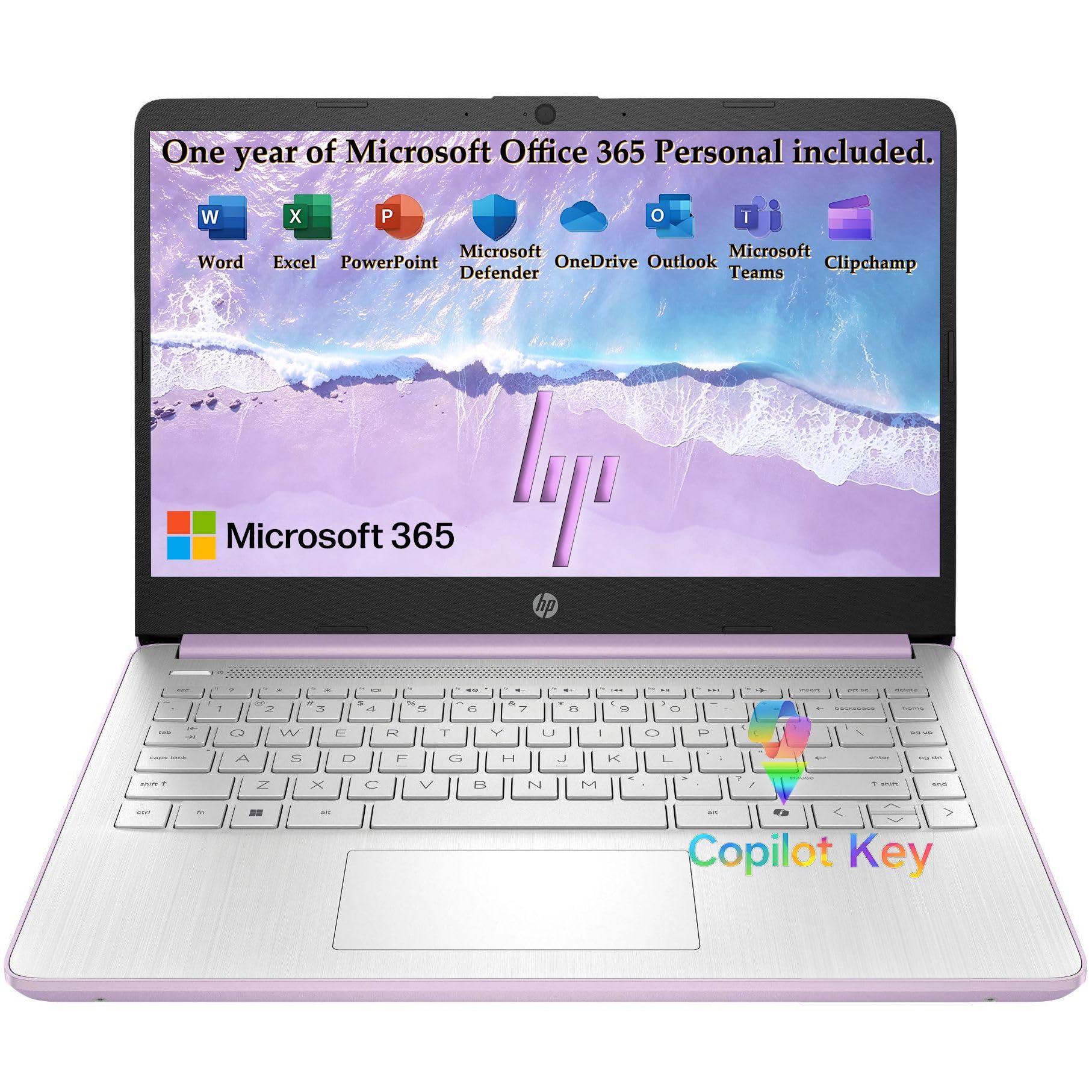
Honey Lavender is an unusual color for a work laptop, and the matte lid over a silver keyboard deck is the first thing we noticed. Then we picked it up. At 3.24 pounds and 0.71 inches thick it is the lightest Windows machine here, and it is the one we kept reaching for when the writing had to happen somewhere other than a desk.

There is more here than the money implies. The Intel N150 and 4 GB of LPDDR5 wake quickly and handle the work most people actually do — email, a spreadsheet, a video call, a dozen tabs. It ships in normal Windows 11 Home, so nothing stops you installing what you like, and the USB-C port carries video to an external monitor alongside Wi-Fi 6 and Bluetooth 5.4.

The 4 GB is soldered and it is the ceiling on everything: push past a dozen tabs and window switching loses its snap. Storage is 128 GB of UFS, quick to boot but not in the same class as the SSD in the Acer. The 14-inch anti-glare panel is bright enough indoors, but 1366 x 768 spread across 14 inches looks soft beside a 1080p screen.

The part we did not expect at this size is the software: Microsoft 365 with a terabyte of cloud storage is included, which covers the document work a student would otherwise buy separately, and the 720p webcam with noise reduction holds up in a dim room better than most cameras at this end of the market.

Pros

  • Lightest Windows laptop here at 3.24 pounds
  • Ships in Windows 11 Home, not S mode
  • USB-C with display output and Wi-Fi 6
  • Microsoft 365 and 1 TB cloud storage included

Cons

  • 4 GB of soldered, non-upgradeable memory
  • 1366 x 768 screen looks soft at 14 inches
Our verdict

For light everyday work we keep reaching for this one: it is the lightest Windows laptop here and quick at the basics, as long as 4 GB of memory is enough.

Check Latest Price
3

Best Chromebook

HP Chromebook 14

87 /100
LBD Score Excellent

Key details

Memory
4 GB DDR4
Battery
Up to 14 hours
Display
14 in, 1366 x 768
Storage
64 GB eMMC
View on Amazon

If your day is a browser and nothing else — email, a class portal, Google Docs, a video call — a Chromebook does the job of a Windows laptop for a lot less, and this 14-inch HP is the one we point at most often. A 14-inch anti-glare screen, a full-size keyboard, and a body that weighs 3.2 pounds and closes to 0.7 inches.

Chrome OS is why the specifications look modest and do not feel it. The Celeron N4120 and 4 GB of memory would be grim on Windows; here the machine starts in seconds and keeps a browser full of tabs moving, because the operating system is not carrying a desktop's worth of background software. Setup is a Google account and a few clicks.

Where the savings show is the screen, and it is the thing we minded. 1366 x 768 across 14 inches looks soft, and white documents pick up a washed-out cast that we noticed well before the end of a working session. There is no backlit keyboard and no touchscreen on this model, both of which are easy to assume from the photographs. If most of what you do is read and type, that is the compromise you are accepting.

Everything else is quietly better than the money suggests. The micro-edge bezel makes the thing look more expensive than it is, the anti-glare finish means you can work beside a window, and 64 GB goes much further on Chrome OS than it would on Windows, because your files live in the cloud by default.

Pros

  • Rated for 14 hours of battery
  • Slim bezels and a 3.2-pound body
  • Chrome OS stays quick on modest parts

Cons

  • Soft, washed-out 1366 x 768 display
  • No backlit keyboard or touchscreen
Our verdict

If everything you do happens in a browser, we think this is the budget laptop to buy: 14 inches, 64 GB of storage, and a 14-hour battery rating.

Check Latest Price
4

Most Storage

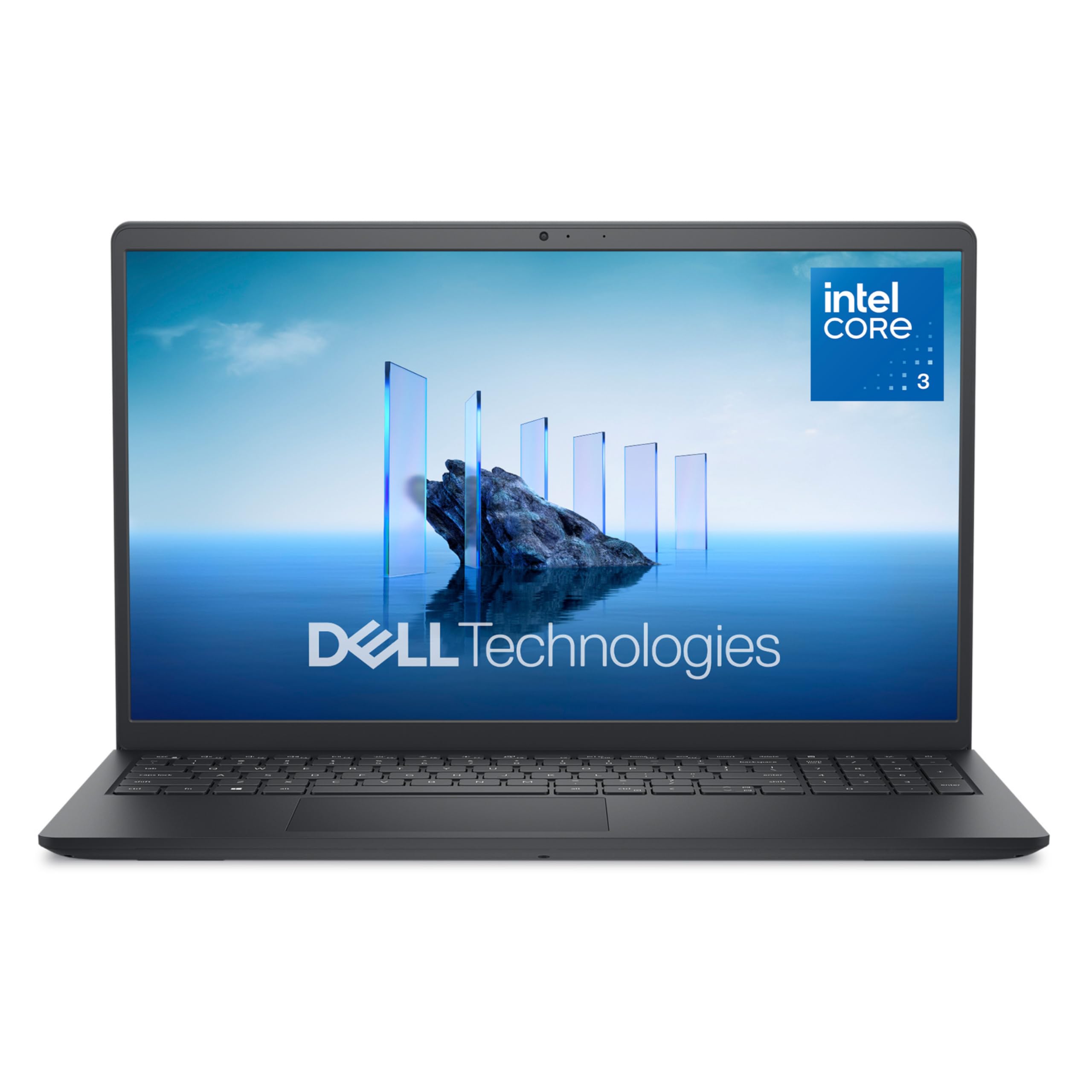
Dell 15 Laptop

83 /100
LBD Score Excellent

Key details

Memory
8 GB DDR4
Weight
4.2 lb
Display
15.6 in, 1920 x 1080, 120 Hz
Storage
512 GB SSD
View on Amazon

Half a terabyte is the number that sets the Dell 15 apart. Every other Windows machine here asks you to manage 128 GB; this one holds a semester of video projects, a photo library, and a game or two without an external drive. Around that drive sits a six-core Intel Core 3 100U, 8 GB of DDR4, and a 15.6-inch 1920 x 1080 panel refreshing at 120 Hz — the smoothest screen in this group by a wide margin.

We did not expect upgradeable memory at this price, and there it is: one slot, 8 GB installed, a 16 GB ceiling, which is the change that will keep this machine useful longest. The keyboard has a separate number pad, and the lifted hinges tilt the deck to a better typing angle than the flat slabs most budget laptops offer. The matte finish shrugs off fingerprints.

Two practical notes. Express Charge support means a short top-up buys usable hours, and the compact 65 W adapter is small enough to live in a bag. The one-year onsite service is worth registering the day it arrives, because onsite beats shipping a box, and cheap laptops do fail.

Pros

  • 512 GB SSD, the most storage here
  • 120 Hz 1080p screen scrolls smoothly
  • Memory upgradeable to 16 GB

Cons

  • Battery will not last a full working day
  • Heaviest laptop here at 4.2 pounds
Our verdict

We recommend the Dell 15 when storage and screen size matter most: 512 GB and a 120 Hz 1080p panel are unmatched here, though the battery will not last a day.

Check Latest Price
5

Portable Schoolwork

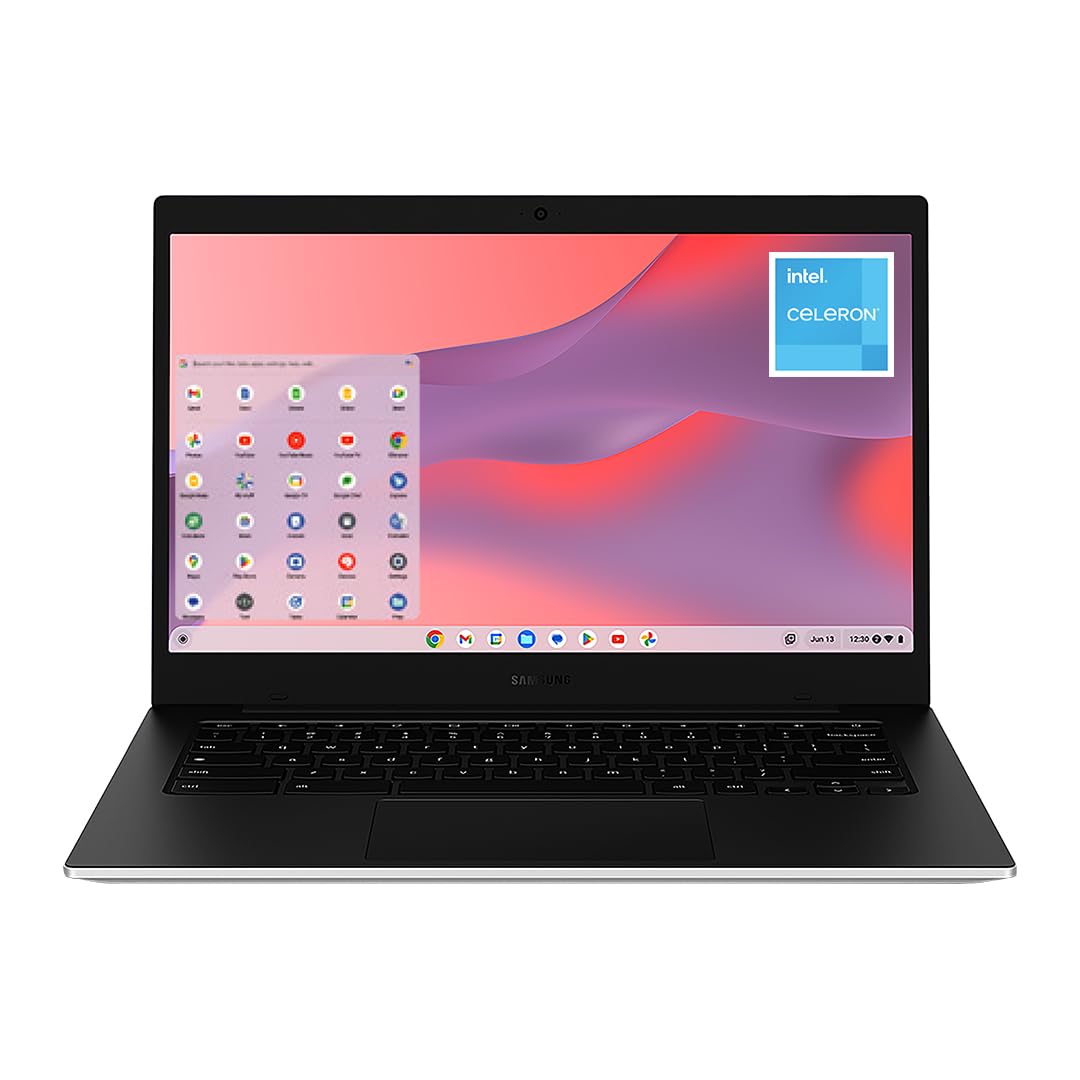
Galaxy Chromebook Go

85 /100
LBD Score Excellent

Key details

Memory
4 GB LPDDR4X
Battery
Up to 12 hours
Display
14 in, 1366 x 768
Storage
64 GB
View on Amazon

The Galaxy Chromebook Go and the HP Chromebook 14 are the same idea in two bodies: a 14-inch screen, 4 GB of memory, 64 GB of storage, Chrome OS. The Samsung is the thinner of the two at 0.63 inches, and the one that looks less like something issued by a school.

Its panel is rated at 450 nits, the brightest claim in this group, and it shows near a window. Off-axis is the catch: colors go cloudy as you move to the side, which matters if two people are watching. The microSD slot is the other thing the HP does not have, and it is the easy answer to 64 GB of local storage.

We think the extra money buys a nicer object rather than more capability. Same memory, same storage, same Chrome OS — you are paying for the thin chassis, the brighter screen, and Wi-Fi 6. Battery is rated at 12 hours and behaves like a rating: a light day of writing comes close, a day of video calls does not. And 4 GB is the same ceiling it is everywhere, comfortable at ten tabs and thinking hard at twenty.

Samsung rates this chassis against the occasional drop, which counts for something on a laptop that spends its life in a backpack.

Pros

  • Thinnest pick here at 0.63 inches
  • microSD slot for extra storage
  • Brightness rated at 450 nits

Cons

  • Costs more than the HP for equal memory
  • Battery falls short of the 12-hour claim
Our verdict

We like this one for students who want the thinnest Chromebook here and do not mind paying more than the HP for the same memory and storage.

Check Latest Price
6

Tight Budgets

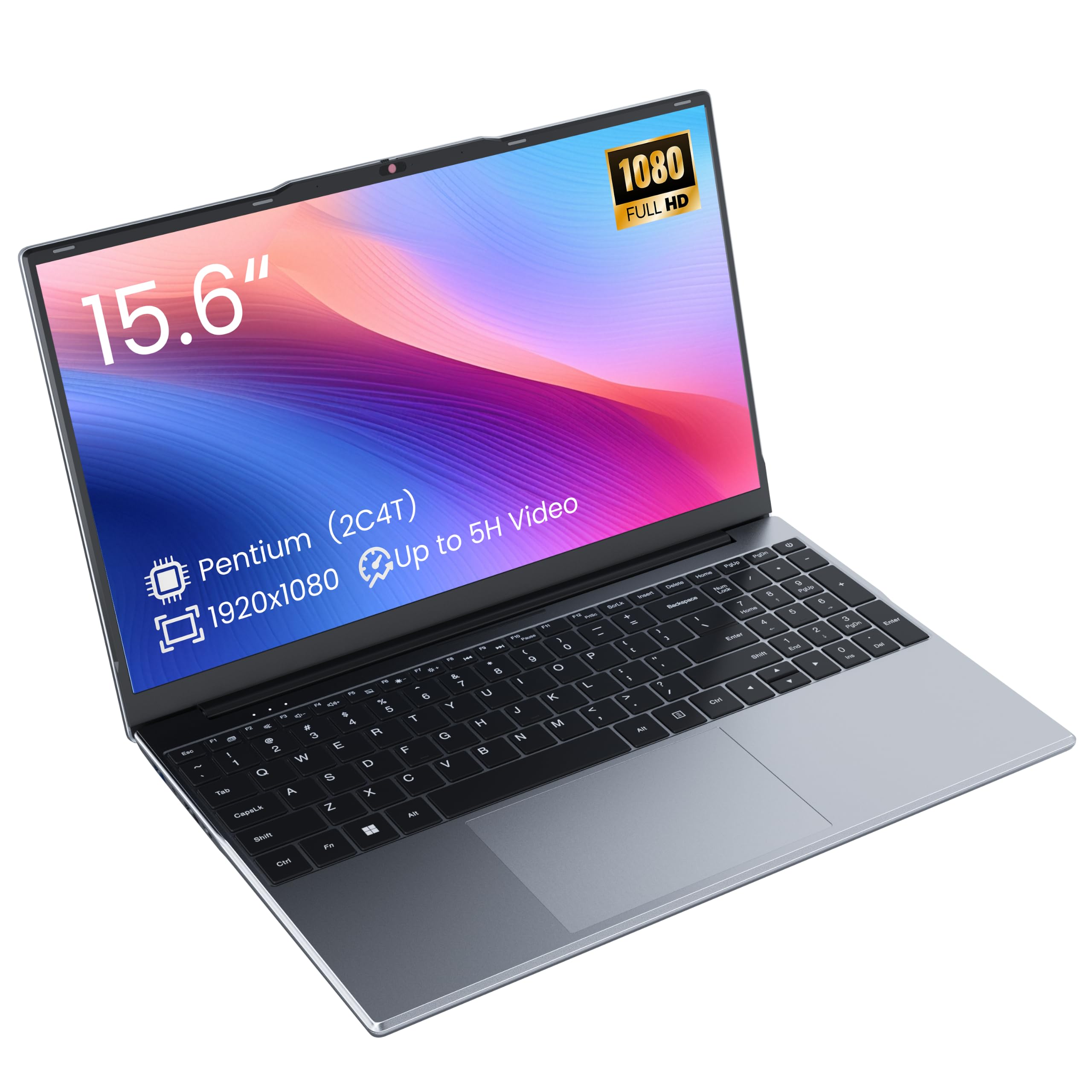
Phatom 15.6 Laptop

81 /100
LBD Score Excellent

Key details

Memory
4 GB DDR3L
Battery
Up to 4 hours
Display
15.6 in, 1920 x 1080 IPS
Storage
128 GB M.2 SSD
View on Amazon

The Phatom is the least expensive Windows laptop here, and what the money buys is a 15.6-inch 1920 x 1080 IPS panel and a chassis you can open up. What it does not buy is speed: the Pentium 4405Y is a two-core chip from an older generation with no turbo boost, and 4 GB of DDR3L at 1333 MHz is the slowest memory in the group. For a household that needs one big screen for homework and email, we think that is a fair trade.

It is fine at one thing at a time, and that is the honest way to buy it. A document, a browser, a lecture in another window — the Phatom keeps up until you ask it to hold all three at once. The 128 GB M.2 SATA SSD is why it boots at a reasonable pace; a spinning drive would have sunk it.

The upgrade path is the argument for the machine. There are two memory slots and a standard M.2 bay, so adding memory and swapping the drive is a screwdriver job, and a laptop that can grow has a longer life than its processor suggests. Against that: the battery is rated for four hours of video, the shortest claim here, and the USB-C port runs at USB 2.0 speeds, so a dock is not in the cards. HDMI is the way to an external monitor.

Pros

  • 1080p 15.6-inch screen for the least money
  • Memory and drive can be upgraded
  • Anti-glare IPS panel

Cons

  • Rated for only four hours of video
  • Two-core chip and older DDR3L memory
Our verdict

We recommend the Phatom for tight budgets and one-task-at-a-time work: a 1080p 15.6-inch screen for the least money here, with a slow chip and a four-hour rating.

Check Latest Price

How We Tested Budget Laptops

We started with roughly 40 machines in the budget bracket, then cut anything that shipped with a low-resolution panel, a spinning hard drive, or 4GB of memory running Windows — three shortcuts that guarantee a laptop feels old before its first birthday. That left 12, which we bought at retail like anyone else and used for six months.

Each laptop got the same rotation: a full week as my daily driver, a Saturday of back-to-back video calls, a commute in a backpack, and one cross-country flight. Setup was timed with a stopwatch from the moment we opened the box, and we kept count of how many accounts got pushed at us and how much trial software had to be uninstalled before the machine was usable. In the browser, we loaded 15 tabs alongside a spreadsheet and a live call, then watched for the stall — the frozen cursor, the spinning wheel, the fan that gives the whole thing away. Battery got the stopwatch treatment twice: brightness at 50 percent with a looping video until the machine shut itself off, and then the more honest version, a workday of tabs and email with no charger within reach.

Keyboards and screens we judged only after a week of real typing, and we held every display up to a window to see how badly it washed out in daylight. Sound we pushed to full volume on a video call to hear whether voices stayed clear or turned tinny. At the end we took off the bottom panels where we could, because a couple of these let you swap the memory or storage yourself, and that changes how many years you get out of them. The ones that held up share the same traits: they woke up fast, they stayed quiet under load, and none of them made us think about the hardware while we were working.

How to Choose a Budget Laptop

Memory first, storage second

Nothing on a cheap laptop ages faster than too little memory. Windows 11 and a browser with a dozen tabs will eat most of 4 GB before you open a document, which is why the machines here with 8 GB feel a class above the ones with 4 GB even when the processors are similar. If you can only move one number, move the memory.

Storage is the second decision. 64 GB is workable on a Chromebook, where files live in the cloud by default, and tight on Windows; 128 GB is the sensible floor, and half a terabyte buys you the freedom to stop managing it. Check whether the memory is soldered before you buy, because on most budget machines it is.

Chrome OS or Windows

Chrome OS runs on less hardware, so a Celeron and 4 GB feel smooth there in a way they never do on Windows. If your work is a browser, a class portal, and a document, that is a real saving. Windows earns its extra weight when you need a desktop app: the full Office suite, a statistics package, a specific piece of school software.

One trap worth knowing before you order: some budget Windows laptops ship in S mode, which only installs apps from the Microsoft Store. Switching it off is free and one-way, so do it in Settings before you try to install anything.

The screen number that matters

At 15.6 inches, 1366 x 768 looks soft — letters have visible edges and spreadsheets feel cramped. Look for 1920 x 1080 on anything 14 inches or larger, and treat the lower resolution as forgivable only on 11- and 12-inch machines where the pixels are packed tighter.

A matte, anti-glare finish is worth more than a glossy one on a cheap panel, because it hides the reflections a low-brightness screen cannot fight. Brightness figures help too: 250 nits is fine indoors, and 300 and up gives you more room to work near a window.

Battery claims versus battery size

Advertised hours come from a scripted video loop at low brightness, so treat the number as a ceiling rather than a promise. Watt-hours are the honest comparison between machines. The 38.5 Wh battery in the Phatom is rated for four hours, the 42.3 Wh in the Samsung for twelve, and what each machine is doing explains most of that gap.

As a rule, below 40 Wh you should plan on carrying the charger, and above 45 Wh a working day becomes realistic. A bigger battery usually means a heavier laptop, so decide which of the two you will actually notice.

What gets cut, and how to spot it

Every dollar saved comes out of something. Keyboards lose their backlighting, and product pages are not dependable about it — one laptop here is advertised with a backlit keyboard that is not backlit — so check the photographs and the exact model rather than the headline spec list. Speakers get thin, which only matters if you watch without headphones.

Ports get older as well: a USB-C port that only runs at USB 2.0 speeds will not drive a dock, and an HDMI output may top out at a modest resolution. None of that is a reason to walk away from a budget machine. It is a reason to check the one model you are buying against the one thing you need it to do.

Frequently Asked Questions

Final Verdict

We recommend the Acer Aspire 3 to most people shopping this list. Eight gigabytes of memory, a 1080p matte screen, and an NVMe drive are the three things that separate a budget laptop you tolerate from one you like, and it is the least expensive pick here that has all three.

If you want Windows in something you can carry all day and 4 GB covers what you do, the HP Everyday Laptop is the lighter, quicker-feeling alternative. If you never leave the browser, the HP Chromebook 14 saves you the most money without feeling like a punishment.